
Plan a feature in Task Planner
Task Planner (packages/task-planner) turns a template form or a written description into an epic with child tasks, lets you edit them, and creates the issues on your task server. Use it when you want a feature split into issues before an agent picks them up.
On this page
Prerequisites
- A task server. Open the Task Servers app and add GitHub Issues or Jira. Task Planner reads the active server from
task_serversandactive_task_serverin~/.config/robos/settings.json, and falls back to the first server in the list. - For GitHub, the
ghCLI signed in. Task Planner creates issues withgh issue create. - For Jira, a base URL, a user name and an API token stored in
pass. The Task Servers form saves thepasspath. - For AI generation only, the GitHub Copilot CLI (
gh copilot). Templates do not call a model.
For a GitHub server, Task Planner builds the repository name from gh_org and gh_repo on the server entry. The Task Servers form stores repositories as a repos list and does not write those two keys. If your entry has only repos, add gh_org and gh_repo with the same owner and repository name.
Plan from a template
Templates are forms. They produce a plan without calling a model.
- Open Task Planner. The window is titled Task Explorer. If it shows “No task server configured.”, click Open Task Servers first.
- Under Task Templates, click a template, or click Browse All Templates. The library has a search box and category tabs such as Services & APIs, Front-End Applications, Game Development, Mobile Applications and Knowledge Graph & Schemas.
- Fill in the form and click Generate Task Plan.
- The tasks appear under Project Tasks & Epics.
For example, Plan to Create a Back-End Web Service with its default answers produces one epic and five stories:
Epic: catalog-service Back-End Service Implementation
catalog-service: OpenAPI 3.1 Contract & API Models
catalog-service: Data Access Layer & Schema Migrations
catalog-service: Core Controller Endpoints & Business Logic
catalog-service: JWT Security Filter & RBAC Middleware
catalog-service: Observability & Health Probes
Each task is assigned a persona by keyword rules (see Choose and customize agent personas).
To make your own template, click Create Custom Template. It is saved as JSON in ~/.config/robos/task-planner/custom-templates/. A custom template without its own task list produces an epic plus three stories: architecture and specifications, core implementation, and testing.
Plan from a description
- Type what you want in the box titled “Describe the tasks and architecture you want to plan”.
- Click Generate with AI.
Task Planner runs gh copilot -- -p <prompt> --allow-all-tools --silent and gives it three minutes. It expects back a JSON array of tasks with a title, body, labels, a persona and optional dependsOn indices. If the agent fails or the reply is not valid JSON, the status line under the button shows the error.
If your description contains “ask me question” or “clarif” (as in “ask me questions”, or “clarify”), Task Planner shows a two-question multiple-choice form before generating. The questions are fixed sets built into the app: one for game ideas, one for Kafka or Spring services, and a default set about a pet-adoption site. They are chosen by keywords in your text and are not generated from your idea. Your selections are appended to the prompt as JSON. The default set rarely fits, so skip the form unless your description matches a game or a Kafka service.
Edit the plan and create the issues
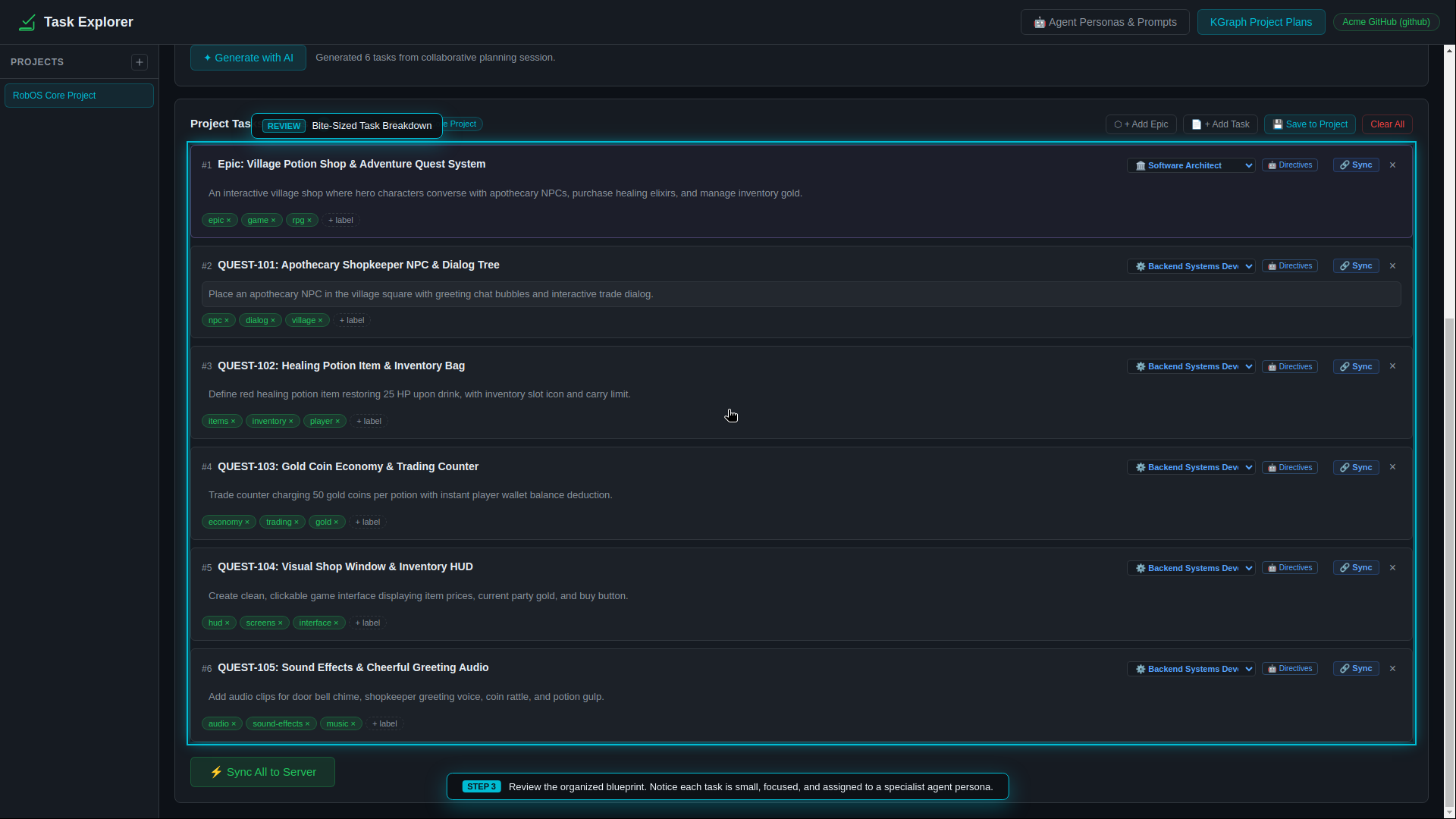
Look at the row of controls on the right of each card and the Sync All to Server button at the bottom. This capture is from a demo recording with sample tasks.
Each card has a title field, a body you click to edit, removable labels with + label, a persona dropdown, a Directives button and its own Sync button. Above the list are + Add Epic, + Add Task, Save to Project and Clear All.
- Save to Project writes the tasks to
~/.config/robos/task-planner/projects/<id>.json. If~/.robos/knowledge-graph.jsonldexists, it also adds or updates arobos:Projectnode there. Create a project first with the + button in the Projects sidebar, which asks for a name. With no project selected, the plan is saved under the built-in name “Acme Petshop Platform”. - Sync All to Server creates the epics first, then the other tasks. On GitHub each task becomes an issue with
gh issue create, and missing labels are created withgh label create --force. A card that was already synced is updated withgh issue edit(title and body only). The results list shows each issue URL. Plan More Tasks clears the view.
Limits
| Behavior | GitHub | Jira |
|---|---|---|
| Sent to the server | Title, body, labels | Title, body, issue type |
| Epic to child link | None. The epic is an issue labeled epic. | Child issues are created under the epic. |
dependsOn (“Depends on” badges on cards) | Not written anywhere | Created as “Blocks” issue links after the sync |
| Persona and Directives | Kept in the saved project only | Kept in the saved project only |
- Gitea servers are listed in Task Servers, but the sync code for them returns placeholder keys and URLs and creates nothing. Do not use Gitea as a target.
- To make Task Implementer use a particular persona for a GitHub issue, add a
role:<slug>label to the issue yourself, for examplerole:game-dev. - The KGraph Project Plans button is a separate workflow for linking existing issues to a plan in the knowledge graph. It is described in
packages/task-planner/PROJECT-PLANS.md.