
Company setup
How to set up RobOS for a team that already has GitHub repositories, a task tracker and developers with their own machines: what each developer does once, what you define once per team, and what the Group Manager “Sync Directory” button really does.
On this page
RobOS has no shared company service and does not read your identity provider. Setup is stored as files on each developer’s machine under ~/.config/robos/ and in a .robos/ folder inside your repositories. The Sync Directory button in Group Manager writes sample data, not your directory (see the last section).
What is stored where
| Data | File | Written by | Read by |
|---|---|---|---|
| Groups (repos, software, onboarding steps, secrets, CI notes, members) | ~/.config/robos/groups/<id>.json | Group Manager | Group Manager, Git Projects |
| People | ~/.config/robos/people/<uid>.json | People Directory | Group Manager (Members tab) |
| Task server connections | task_servers in ~/.config/robos/settings.json | Task Servers | Dev Central, Issue Manager, Task Board, Task Planner, Task Implementer, CI Monitor, Deploy Tracker, Git Projects |
| Repository list | ~/.config/robos/git-projects.json | Git Projects | Git Projects |
| Team roster | .robos/teams.yaml in a project | You | The app wizard’s team list, robos-lib GitOps validation |
| Setup progress | ~/.config/robos/onboarding-completed.json | RobOS Setup Wizard | Git Login Manager, Desktop Manager |
Groups and people are plain JSON files. The apps do not sync them between machines. To give a colleague a group, copy its file into their ~/.config/robos/groups/ folder.
Step 1: Set up each developer’s machine
Install RobOS first (see Get started). Then each developer launches RobOS Setup Wizard from the app launcher. It has 11 steps:
| Step | Label in the wizard | What it does |
|---|---|---|
| 1 | GPG Master Key | Generates a 4096-bit RSA key with gpg --batch --generate-key. A blank passphrase creates a key without passphrase protection. |
| 2 | Password Store (pass) | Runs pass init with that key. Needs pass and gpg installed. |
| 3 | GUI Pinentry | Configures gpg-agent to show a desktop passphrase dialog. |
| 4 | Git User Profile | Sets the global user.name and user.email. |
| 5 | SSH Keypair Setup | Runs ssh-keygen -t ed25519. |
| 6 | Google Chrome Browser | Installs Chrome and can set it as the default browser. |
| 7 | GitHub Auth (Optional) | Starts gh auth login --web or logs in with a token. |
| 8 | AI Agents | Embeds the Agents Manager to configure agent CLIs and providers. Any API keys entered here are saved in pass and used only by the optional API mode (AI agents and API mode). |
| 9 | Git Projects (Optional) | Embeds Git Projects to clone repositories. |
| 10 | Dev Apps (Optional) | Embeds Software Center to install tools and IDEs. |
| 11 | Complete & Provision | Writes ~/.config/robos/onboarding-completed.json. |
The wizard targets a Linux desktop with GNOME. It calls gsettings and x-terminal-emulator, and tells you to run sudo apt-get install pass gpg if those tools are missing. The separate Security Setup app covers the pinentry, GPG key, password store and SSH key steps on their own.
In Security Setup, Reset deletes the GPG key your password store uses and removes ~/.password-store. It asks for one confirmation first. Do not use it on a machine with secrets you have not backed up.
Keep git credentials healthy
Git Login Manager checks four things: gh is logged in, an SSH key exists in ~/.ssh (id_ed25519, id_ecdsa or id_rsa), ssh -T git@github.com succeeds, and the global git identity is set. Each failing check has a button next to it. The background check runs every five minutes, and Check now runs it at once. The window text says 60 seconds, but that countdown is only cosmetic.
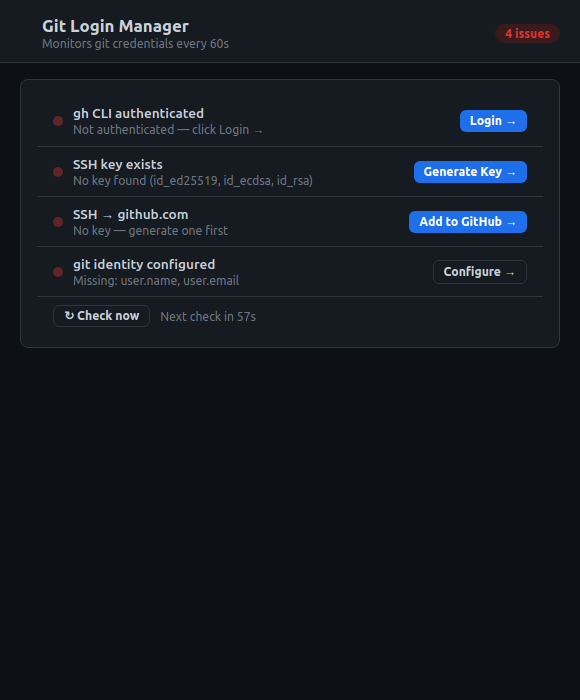
Look at the four checks and the button on each row.
It only handles GitHub. It also changes your global git config: if the identity is empty it fills it from your GitHub profile, and it always sets url."git@github.com:".insteadOf https://github.com/, so HTTPS clone URLs for github.com use SSH.
Step 2: Define teams as groups
Open RobOS Group Manager. Click the plus button above the group list, enter a Group ID, Name and Description, and save. You can also use Create with AI to describe a group in a sentence; that needs an agent CLI set as active in RobOS Agents (AI agents and API mode).
Each group has seven sections:
| Section | What you record |
|---|---|
| Git Projects | Repository URL, description, default branch, notes |
| Software Installations | Tool, version, install command, verify command |
| Onboarding Steps | Ordered steps with an owner |
| Secret Management | Secret name and the pass store path where it lives |
| CI Environments | Name, CI URL, whether a VPN is needed, steps to connect |
| Members | People picked from the People Directory |
| Workspaces | Local folders that contain a .vscode or .idea directory |
Only the Git Projects section drives other behavior: Git Projects can import a group’s repositories. The software, onboarding, secret and CI sections are documentation. Nothing runs an install command or reads a secret from them. Secret Management stores the pass path, never the value.
Step 3: Bring in repositories
In RobOS Git Projects, two buttons add repositories in bulk.
- Add Dev Group Repos opens the group picker. Choose a group and the app adds every repository URL from its Git Projects section. A checkbox, “Clone all repos now”, clones them into the default local paths.
- Add GitHub Org adds the repositories of a GitHub organization, using the
ghCLI that Step 1 logged in.
Project entries are saved in ~/.config/robos/git-projects.json.
Describe the repositories in the knowledge graph
If you want RobOS to know how your services relate, import them into a knowledge graph workspace. The importer reads local Git checkouts you list; it does not fetch from GitHub, S3 or a service catalog. Create sources.json and local.json:
{ "namespace": "acme", "title": "Acme system", "sources": [ { "id": "orders-api" }, { "id": "web" } ] }
{ "orders-api": "/work/checkouts/orders-api", "web": "/work/checkouts/web" }
Run these from a RobOS checkout. The first command writes proposal.json for you to review, and the second applies it:
node plugins/robos/skills/import-company-kgraph/scripts/import-company-kgraph.js \
  --manifest sources.json --paths local.json \
  --graph-root /work/graph --output proposal.json

node packages/robos-graph/bin/kgraph-cli.js apply --graph-root /work/graph --file proposal.json
node packages/robos-graph/bin/kgraph-cli.js inspect --graph-root /work/graph --require-evidence
Add --dry-run to the first command to print coverage and validation without writing a proposal. The importer extracts what it can from tracked files, such as package.json, and reports the rest as unsupported. See the knowledge graph guide and the skill’s SKILL.md for refinement and the full option list.
Step 4: Connect your task tracker
Open RobOS Task Servers, click the plus button and pick a type: Gitea, Jira / Atlassian, GitHub Issues, GitLab Issues, Linear or Azure DevOps.
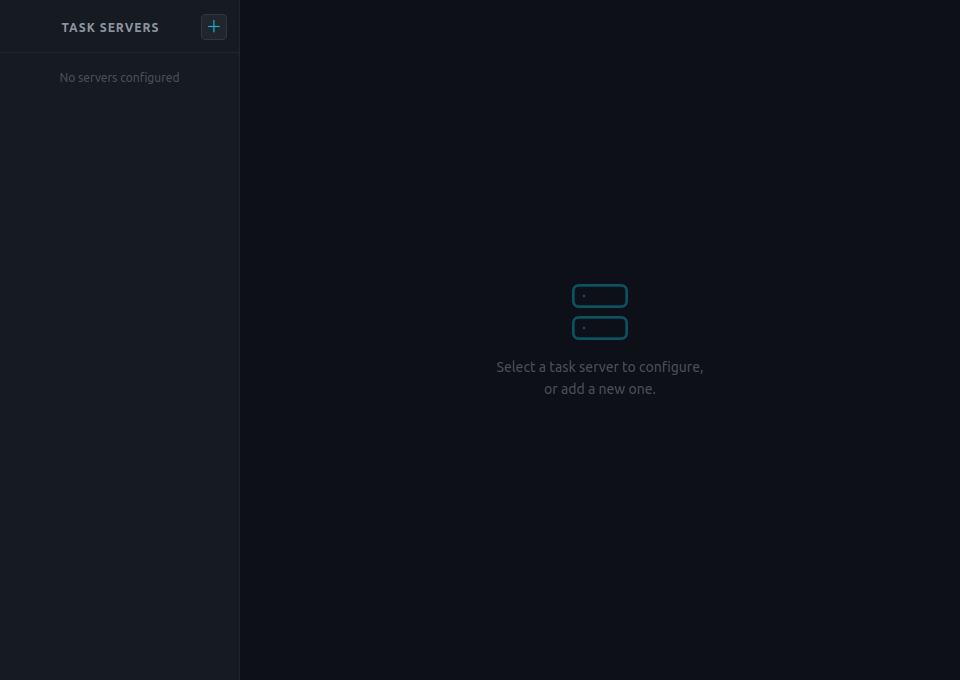
Look at the plus button at the top of the list, which opens the type menu.
Jira and GitHub have their own forms:
- Jira: Jira Base URL, Username / Email, API Token and Project Keys. Click Test Connection. RobOS tries a Bearer token first (Jira Server) and then basic auth (Atlassian Cloud) against
/rest/api/2/myself. - GitHub Issues: GitHub API URL (blank for github.com, or your Enterprise URL), a Use Git client account option that uses the
ghlogin from Step 1, or a Personal Access Token, plus the repositories to track. - The other types use a generic form with API / Instance URL, Username / Email, API Token, Project Keys and Notes. There is no connection test for them.
The API token field takes a path in the pass store, which you pick with Select…. The token itself is not saved in settings.json. That is why Step 1 initializes pass first.
Step 5: Record teams and people
Commit a roster to .robos/teams.yaml in the repository you work in. This is the format that robos-lib validates (teams.schema.json):
version: "1.0"
kind: TeamRoster
teams:
  - id: core-platform
    name: Core Platform
    topology: platform
    members:
      - id: sconnor
        name: Sarah Connor
        type: human
        role: Approver
The schema allows the topologies stream-aligned, platform, enabling and complicated-subsystem, and the member types human and agent. Agent members can also carry model and skills. The GitOps parser in robos-lib checks that the root has version, kind and teams, and that each team has id, name, topology and members. It does not check the allowed values.
The app wizard reads this file from the nearest .robos folder above where it runs and offers those teams when you create a project. Its reader is line-based, so it also lists each member id as an extra team. Without the file it offers three built-in sample teams.
To keep a directory of people on each machine, use RobOS People Directory. It keeps one JSON file per person, can import LDIF, and marks which person is you. It is a local address book. It has a setting for LDAP, but the app contains no LDAP client yet.
What the Sync Directory button does
Group Manager has two buttons under the identity badge: Sync Directory and Bootstrap. Sync Directory opens a form with a name, email, GitHub username, organization, a provider drop-down (Okta, Microsoft Entra, LDAP / Active Directory, GitHub Enterprise Teams) and a team.
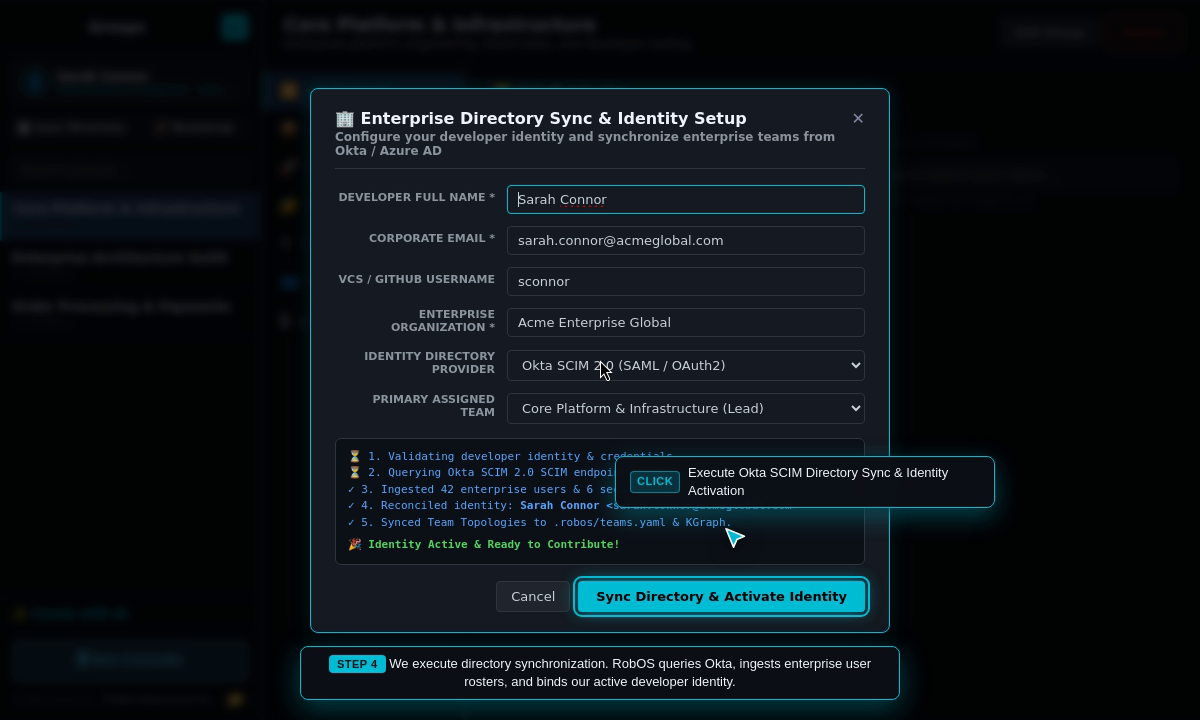
Look at the status lines under the form. The app prints them itself; no directory was queried.
The provider choice is only recorded. The app makes no network request to Okta, Entra, LDAP or GitHub. The status lines (“Querying Okta SCIM endpoint”, “Ingested 42 enterprise users”) are fixed text in the window. Clicking the button writes:
~/.config/robos/identity.jsonwith the name and email you typed, plus a fixed role (Lead Architect & Approver) and department (Platform Engineering);- three sample colleagues and three sample groups (Core Platform, Order Processing, Enterprise Architecture Guild) into
~/.config/robos/people/and~/.config/robos/groups/; - a
.robos/teams.yamland person and team nodes inknowledge-graph.jsonld, written both under~/.robos/and under the folder described below; - your global
git config user.nameanduser.email.
That .robos/ folder is two levels above the app folder: the root of the RobOS checkout in a development setup, or /usr/local/share/.robos/ for an installed copy. In a RobOS checkout, teams.yaml and knowledge-graph.jsonld there are tracked by git, so the button overwrites them. The team file is written last, so if that folder is not writable the button reports an error after the other files exist. Do not use this button to set up a real organization. Use Steps 1 to 5 instead.
Related
- New company for a team that is starting from nothing.
- Personas lists which apps suit which jobs.
- Apps has a page for each app named here.