
New company
How a new team with no repositories or task tracker yet gets RobOS working, and what the Group Manager “Bootstrap” button does and does not create.
RobOS does not create your accounts. You create the GitHub organization, repositories and branch rules yourself, and RobOS then works with them. There is no code in RobOS that creates a GitHub organization, sets branch protection, or deploys a Gitea server.
Before you start
- RobOS installed on each developer’s machine. See Get started.
gpgandpassinstalled, because the setup wizard uses them to store tokens.- A GitHub account and organization, or another forge, created outside RobOS.
- At least one agent CLI you can sign in to: Claude Code, GitHub Copilot CLI or Codex.
Steps
- Set up every machine. Each developer runs RobOS Setup Wizard. It creates the GPG key, initializes
pass, sets the git identity, creates an SSH key and offers a GitHub login. The steps are listed in Company setup. - Create the repositories on GitHub. Add the SSH key from step 1 to your GitHub account (Git Login Manager has an Add to GitHub button), then create the organization and its repositories on github.com.
- Create the first project. Open RobOS Create Project & App Wizard and follow New app wizard to scaffold code from an archetype, or the import mode for a folder that already has code.
- Record your teams. Create
.robos/teams.yamlin the repository, using the format in Company setup. Then create one group per team in RobOS Group Manager and list the repository URLs in each group’s Git Projects section. - Add the repositories to Git Projects. In RobOS Git Projects, click Add Dev Group Repos and choose the group, or Add GitHub Org.
- Choose the agent. Open RobOS Agents, select Claude Code, GitHub Copilot, Codex or Antigravity / Gemini CLI, sign in, and click Set as Active. The choice is saved in
~/.config/robos/ai-provider.json. The shared AI library behind buttons such as Group Manager’s Create with AI reads that file and uses GitHub Copilot when nothing is set. See AI agents and API mode. - Connect the tracker. Add a Jira, GitHub Issues or other server in RobOS Task Servers. See Company setup.
API keys are optional. RobOS Preferences has an “AI Agents & API Mode” section where you can turn on direct model APIs (Anthropic, OpenAI, Gemini or local Ollama) for quick requests. Keys entered there are saved in pass. Leave it off to use only the agent CLI from step 6; see AI agents and API mode. The “Agent Tiers & Prompt Optimization” section is still not read by any app; see Agent tiers.
What the Bootstrap button does
Group Manager shows Sync Directory and Bootstrap under the identity badge. Bootstrap opens a form titled “New Company Setup & Greenfield Bootstrap” with these fields: Company / Legal Entity Name, Domain Name / Tenant Slug, Root Administrator Full Name, Root Administrator Corporate Email and Root Admin Role. The button is Bootstrap Organization & Activate Admin.
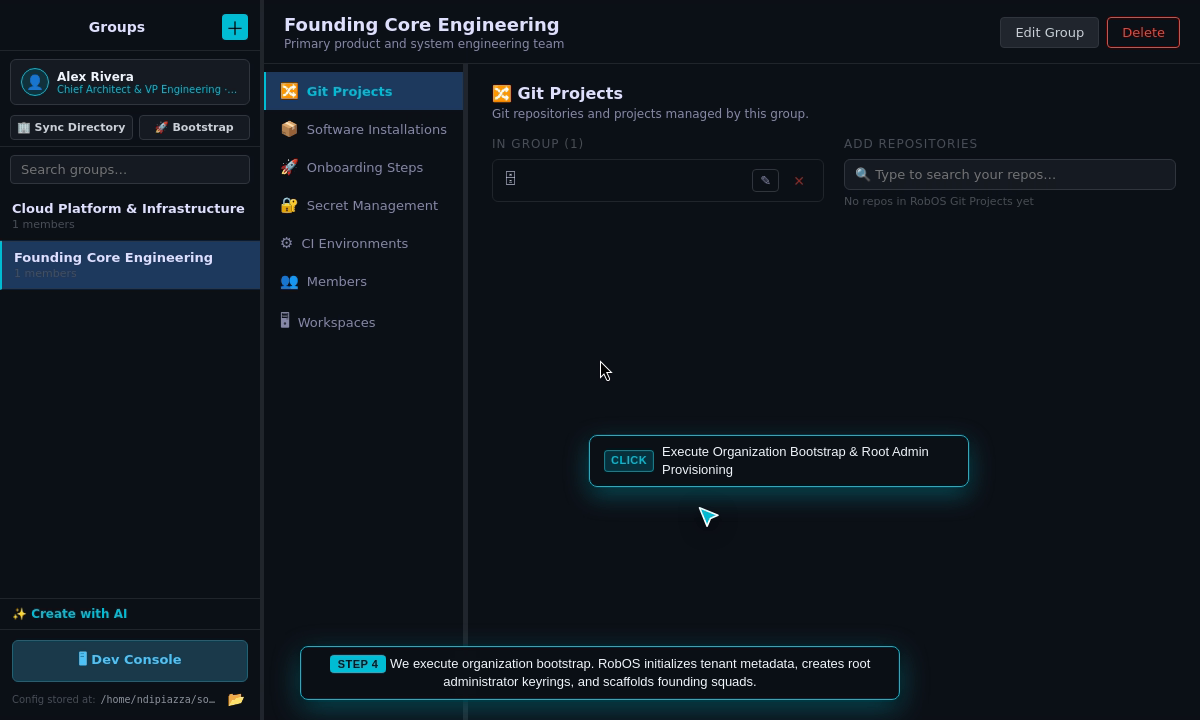
Look at the two groups in the sidebar and the section list inside Founding Core Engineering. The caption inside the screenshot overstates what the button does.
It writes local files and nothing else:
| Written | Content |
|---|---|
~/.config/robos/company.json | Company name, domain, a slug made from the name, the year 2026 as founded, and a timestamp |
~/.config/robos/identity.json and people/admin.json | The administrator you typed, with uid admin and isRootAdmin: true |
| Global git config | user.name and user.email set to the administrator |
Two groups in ~/.config/robos/groups/ | Founding Core Engineering (founding-core) and Cloud Platform & Infrastructure (cloud-platform), each with the administrator as the only member |
.robos/teams.yaml and knowledge-graph.jsonld | The same two teams and the person, written to the .robos/ folder two levels above the app folder |
The groups come with sample content: repository entries such as github.com/<slug>/core-app and github.com/<slug>/infra, which do not exist unless you create them, and software lists such as node-20, docker, kubectl, helm and terraform. Edit or delete them.
Nothing reads isRootAdmin, so the “root administrator” has no extra permissions. The window’s status lines say that it “Generated GPG & SSH keyring” and “Provisioned company tenant”. It does neither: no key is created, and there is no tenant beyond the files above. The .robos/ location is the checkout root in a development setup and /usr/local/share/.robos/ for an installed copy, so in a RobOS checkout this overwrites tracked files. If you want these teams, write the files yourself as in step 4 instead.
Related
- Company setup covers the same tools for a team with existing repositories.
- Personas lists which apps suit which jobs.