
Skills Manager Desktop App
The Skills Manager (packages/skills-manager) is an Electron app that lists shell commands for common workstation tasks, lets you add your own, and imports prompt packs from GitHub. Read this page if you want to find or save a command, or to see how other RobOS apps use the same list.
On this page
What it does and does not do
The app shows a grid of cards. Each card has a name, a description, a shell command and tags. The Copy button puts the command on your clipboard, and you paste it into a terminal. The app does not run the command itself, and it does not fill in placeholders such as $PORT. Replace them yourself after copying.
These are not the agent skills in plugins/robos/skills/. Those are described in Skills and the Skills catalog.
Start it
From a checkout of the repository:
cd packages/skills-manager
npm install
npm start
npm start runs electron .. On the RobOS VM the app is installed at /usr/local/share/robos/skills-manager, with a desktop entry named RobOS Skills Manager in the AI category. Only one instance runs at a time. A second launch focuses the open window.
The package is also listed on its app page.
Find a command
The My Skills tab lists built-in and custom skills together. Type in the search box to match a skill’s name, description, tags or category. Click a category tab to narrow the grid. The counter at the top right shows shown / total while a filter is active.
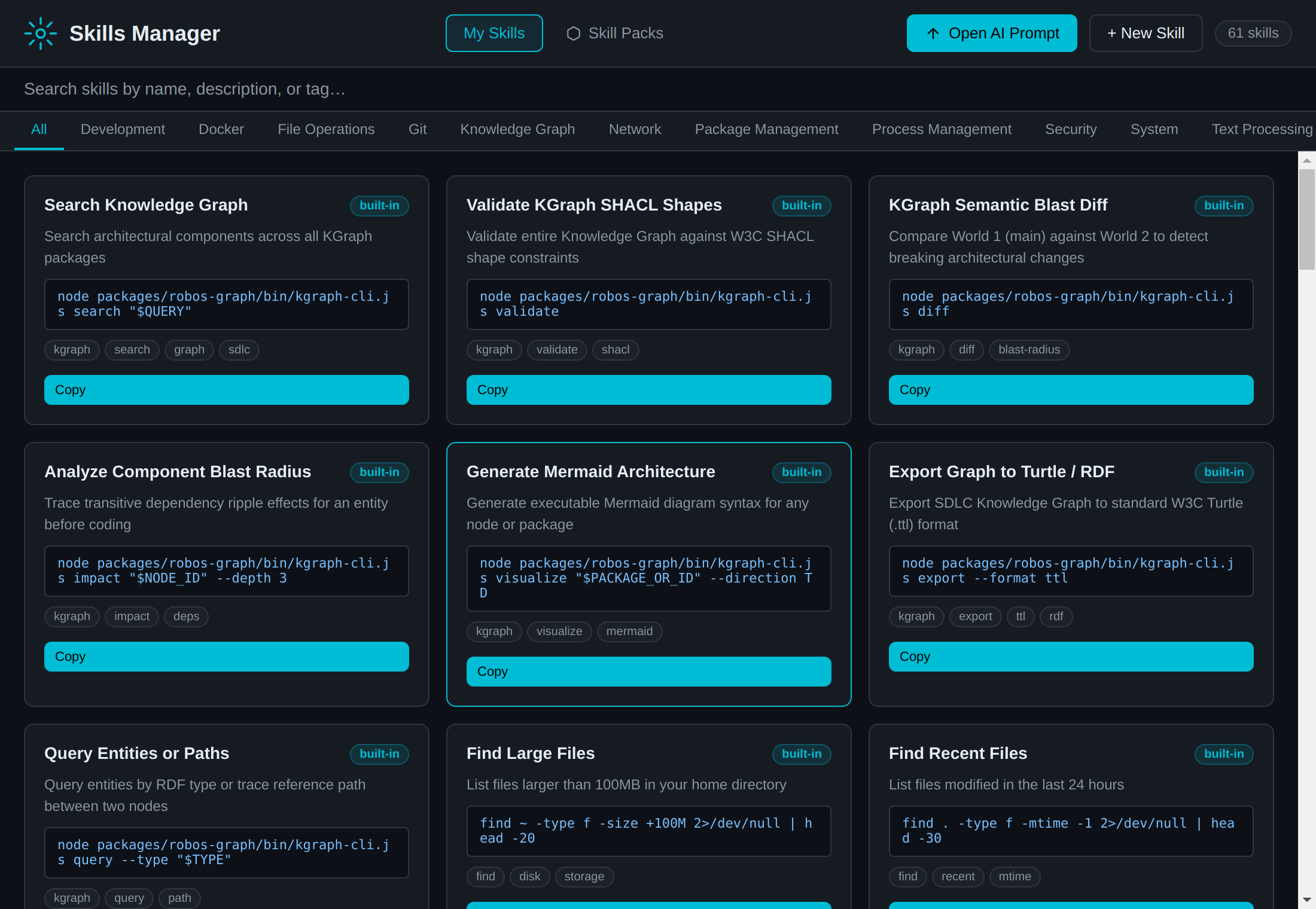
Look at the category tabs under the search box and the Copy button at the bottom of each card.
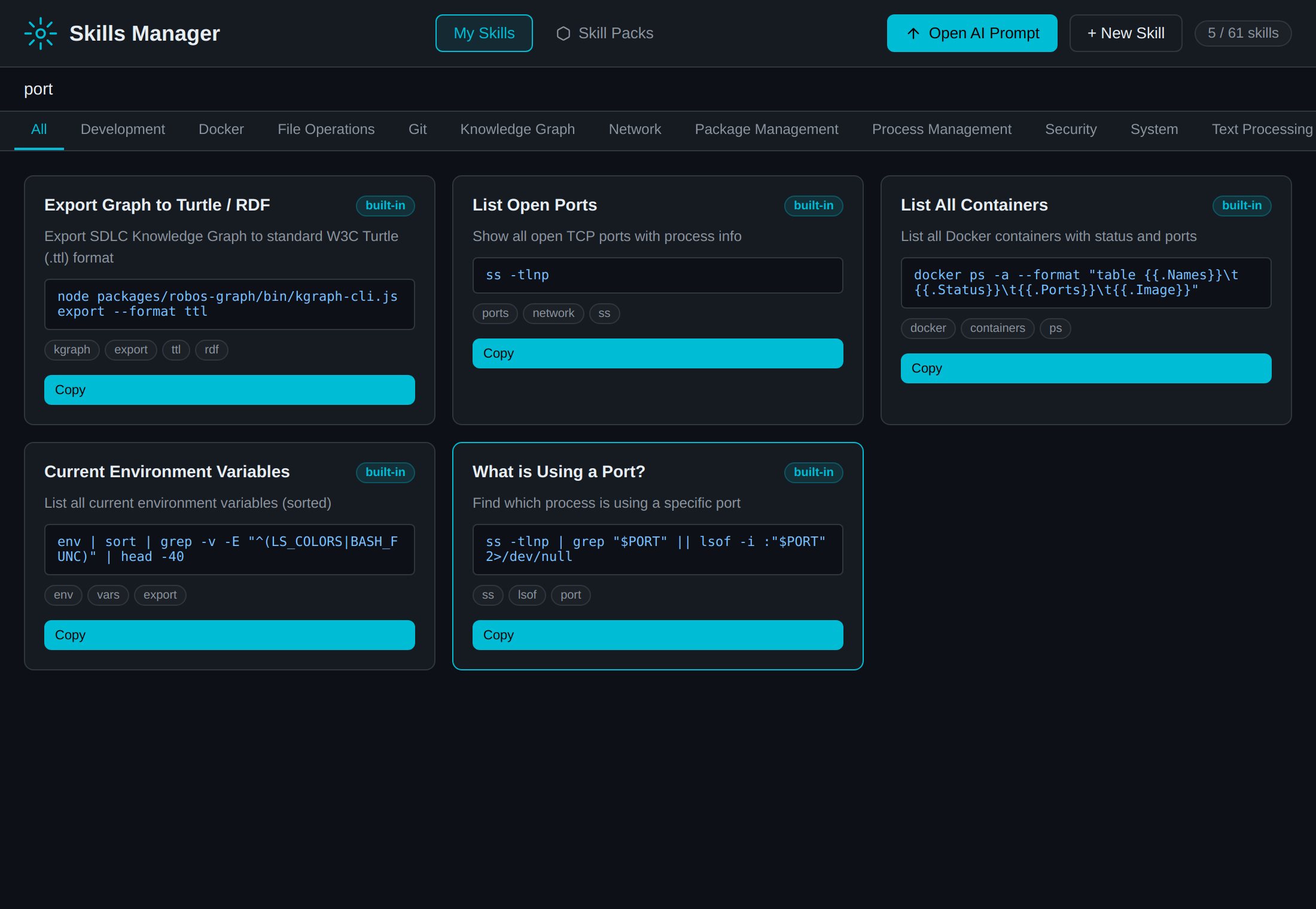
Look at the $PORT placeholder in the last card’s command. Copy puts it on the clipboard unchanged.
Built-in skills
The built-in list is the BUILTIN_SKILLS array in packages/skills-manager/skills-data.js. Edit that file to add or remove built-ins. The categories, with examples:
| Category | Example commands |
|---|---|
| Knowledge Graph | kgraph-cli.js search "$QUERY", validate, diff, impact "$NODE_ID" --depth 3, export --format ttl |
| File Operations | find ~ -type f -size +100M, du -sh */, df -h, files by extension, duplicate files by checksum |
| Process Management | ps aux --sort=-%mem, ss -tlnp, pstree -p, zombie processes, restart the RobOS taskbar |
| Git | git log --oneline --graph --decorate -20, git status --short, git branch -vv, branches merged into main |
| Network | connectivity check with curl, ip addr show, ss -tp, dig |
| Docker | docker ps -a, docker stats --no-stream, docker images, docker system prune -f --volumes |
| System | uname, lscpu, systemctl --failed, journalctl -p err |
| Package Management | npm list -g, npm outdated -g, pip list, recent apt installs |
| Text Processing | jq, sort \| uniq -c, CSV preview, recursive grep |
| Security | SSH key fingerprints, gpg --list-keys, last, recent sudo use, open file descriptors |
| Development | Node and Python versions, environment variables, what is using a port |
The commands assume a Linux host with the usual tools (ss, systemctl, journalctl, lsof and dig, plus docker for the Docker commands). The Knowledge Graph commands use paths relative to the repository root, so run them from there. Placeholders in the built-ins are $QUERY, $NODE_ID, $PACKAGE_OR_ID, $TYPE, $FILE, $PATTERN and $PORT.
Add your own skill
- Click + New Skill.
- Fill in Name and Category. Both are required. Optionally add a description, the command or script, and comma-separated tags.
- Click Save Skill. Cancel closes the dialog without saving.
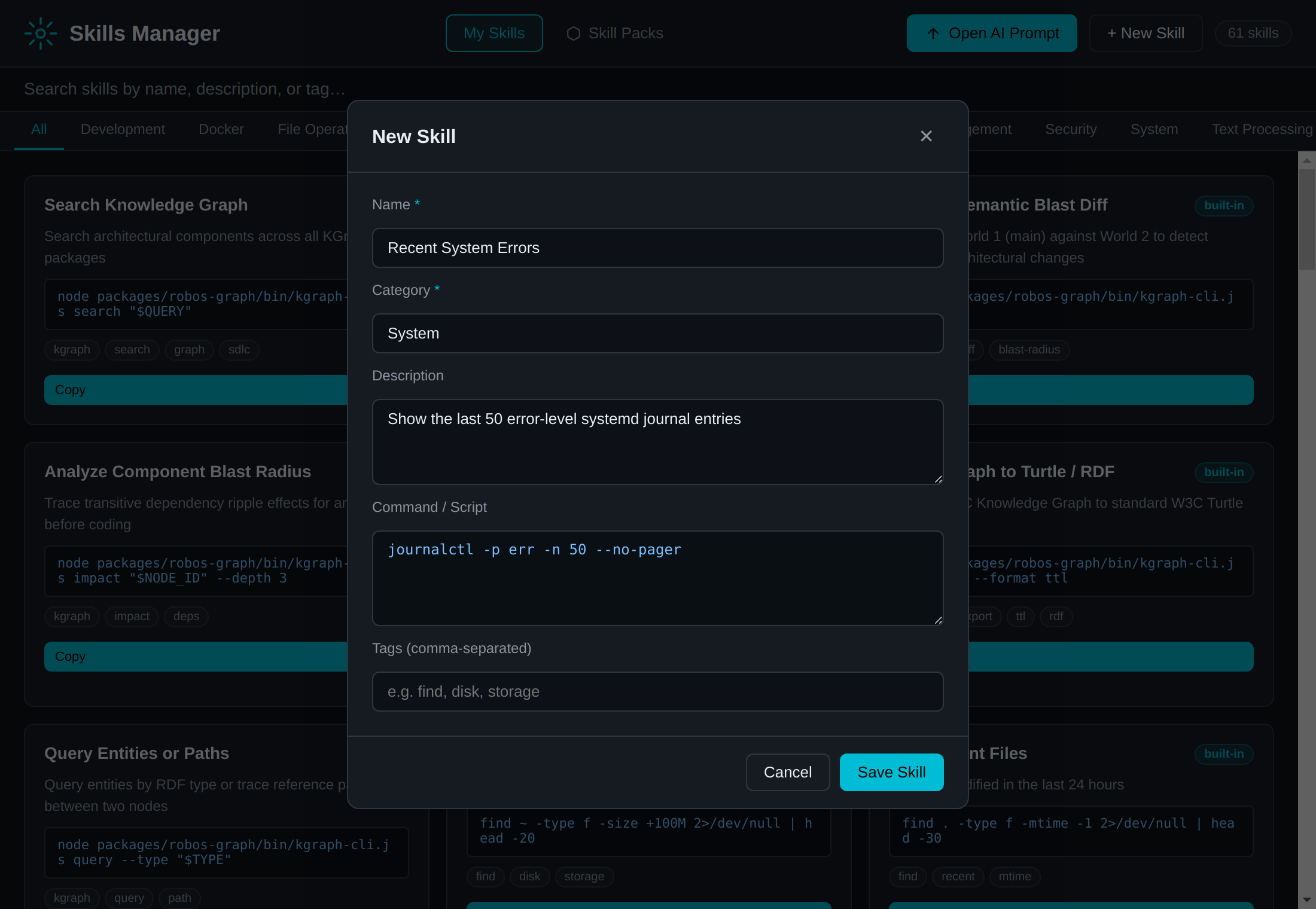
Look at the five fields and the Save Skill button.
Custom skills appear in the same grid with Edit and Delete buttons. Built-in skills have neither. Delete asks for confirmation.
The app stores custom skills in ~/.config/robos/skills.json:
{
  "custom": [
    {
      "id": "custom-1760000000000",
      "name": "Recent System Errors",
      "category": "System",
      "description": "Show the last 50 error-level systemd journal entries",
      "command": "journalctl -p err -n 50 --no-pager",
      "tags": ["journalctl", "errors"],
      "source": "custom"
    }
  ]
}
The id is custom- followed by a timestamp. You can edit the file directly; the app reads it each time it starts.
Skill packs
The Skill Packs tab (the page is headed Skill Pack Marketplace) offers three prompt collections. They are text prompts for an AI model, not shell commands.
| Pack | Source | Notes |
|---|---|---|
| Fabric Patterns | GitHub danielmiessler/fabric | Each pattern is a system.md file |
| Awesome Cursor Rules | GitHub PatrickJS/awesome-cursorrules | Each rule is a .cursorrules file |
| SDLC Essentials | Built into the app | Prompts for code review, PR writing, testing, documentation and similar tasks |
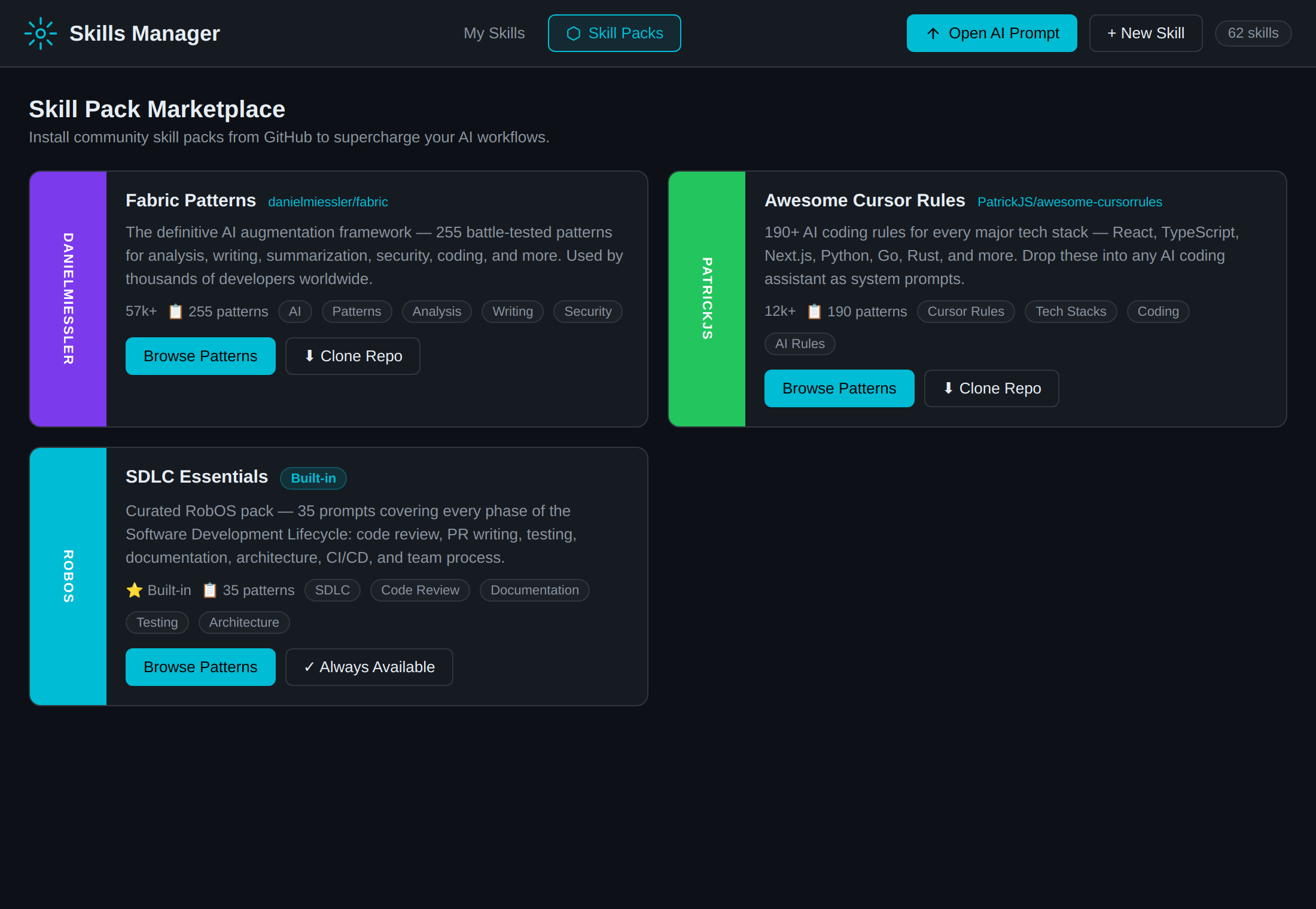
Look at the Clone Repo button on the two GitHub packs. SDLC Essentials shows Always Available instead.
To use a pack:
- Click Browse Patterns on a pack. For the two GitHub packs, the list comes from a local clone if you have one and from the GitHub API otherwise, so browsing them without a clone needs network access.
- Optionally click Clone Repo (the button reads Update once cloned). The app runs
git clone --depth=1into~/.config/robos/skill-packs/, andgit pull --ff-onlyto update. This needsgiton the host. - Filter by text or category, then click Preview to read a pattern’s prompt, or Install to keep it. Install Selected installs the checked rows. Install All asks for confirmation first.
- Back to Packs returns to the pack list.
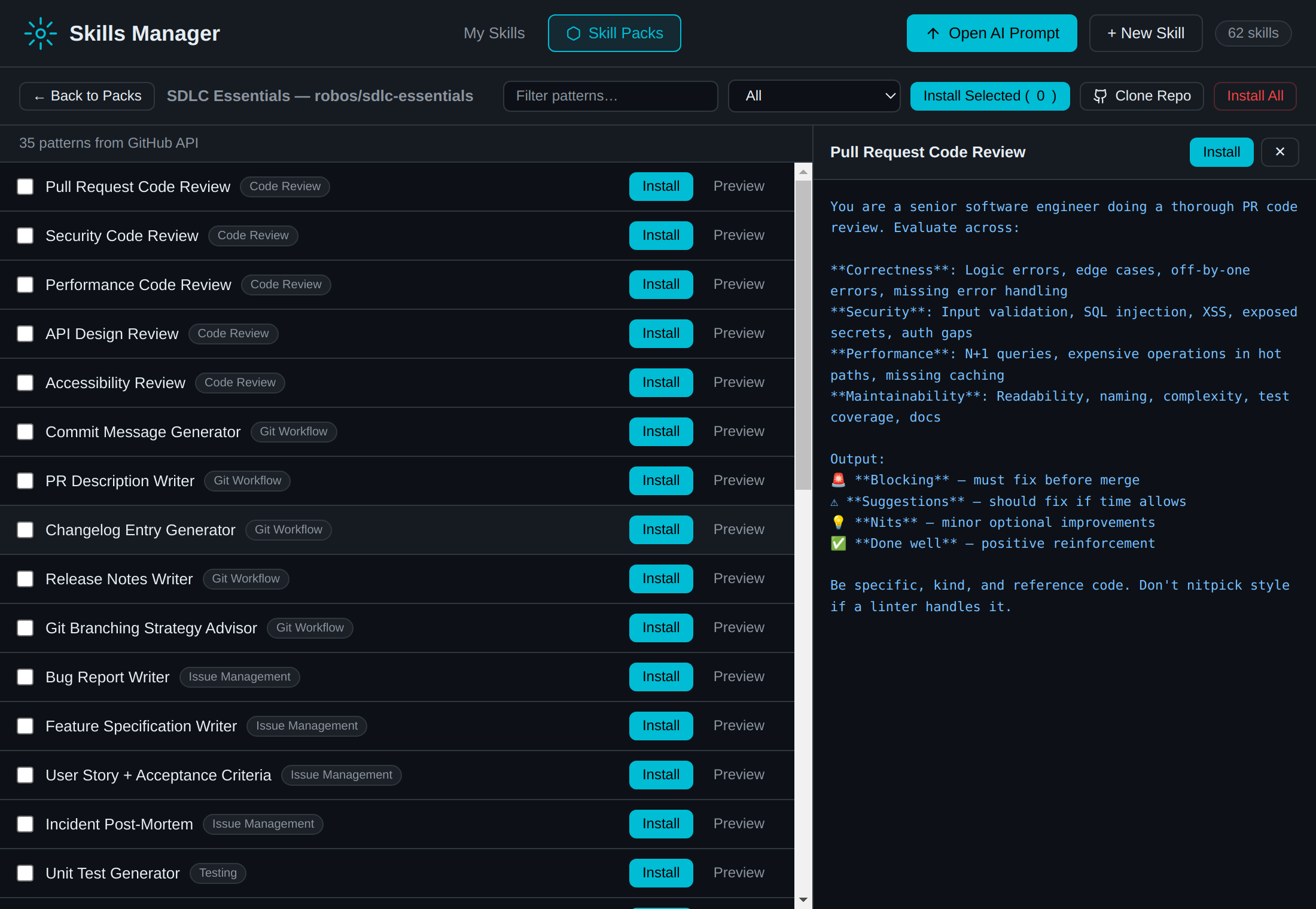
Look at the Install and Preview buttons on each row and the prompt text in the right pane.
Installing a pattern adds an entry to the custom array in skills.json. Its category is prefixed Fabric: , CursorRules: or SDLC: , its source is pack, its command is empty and the prompt text is stored in a systemPrompt field. The card in the grid shows the name and description and has no Copy button. Nothing else in the repository reads systemPrompt today, so to read an installed prompt, preview it in the pack browser or open skills.json.
Where else the list is used
| App or library | How it uses the skills |
|---|---|
| AI Prompt | Loads the built-in list from skills-data.js and the custom list from skills.json. You select skills in its sidebar and it shows an input for each $NAME placeholder. It sends the skill names and filled-in commands to the agent as hints. See the AI Prompt app page. The Open AI Prompt button here launches it from /usr/local/share/robos/ai-prompt, so the button works only on an installed RobOS VM. |
<robos-ai-textarea> | Typing /skills opens a Choose a skill dialog, if the host app provides a skills list. Use skill inserts @skill(<id>) into the message. |
packages/robos-lib/skill-catalog.js | Merges the built-in skills, your custom skills and the SKILL.md files in .agents/skills/ into one list. PR Review serves this list to its prompt box and expands @skill(<id>) references when it builds the agent prompt. |
The /skills dialog shows a skill’s instructions from its prompt, content or command field. Skills installed from a pack store their text in systemPrompt, so they appear in the dialog without usable instructions.
Reference
| Item | Value |
|---|---|
| Package | packages/skills-manager |
| Window title | RobOS Skills Manager |
| Custom skills file | ~/.config/robos/skills.json |
| Cloned packs | ~/.config/robos/skill-packs/ |
| App data | ~/.config/robos/electron/skills-manager |
| DOM snapshot port | 19139 (node packages/robos-lib/snapshot-cli.js skills-manager) |
Tests
The tests launch the app, so run them where Electron can open a window, or use the test-container skill.
node --test packages/robos-test/tests/skills-manager/smoke.test.js
node --test packages/robos-test/tests/skills-manager/e2e.test.js
node packages/robos-test/demos/skills-manager-demo.js