

RobOS eLearning Hub
Course player for the courses stored in the knowledge graph: modules, lab checklists, quizzes and a completion certificate.
The eLearning Hub plays courses defined as robos:ELearning nodes in the knowledge graph, read from .robos/kgraphs/learning/package.jsonld. It uses the graph store from Knowledge Graph Explorer, so it needs that package next to it. The PR Review Theater uses the same courses for its knowledge-check stage.
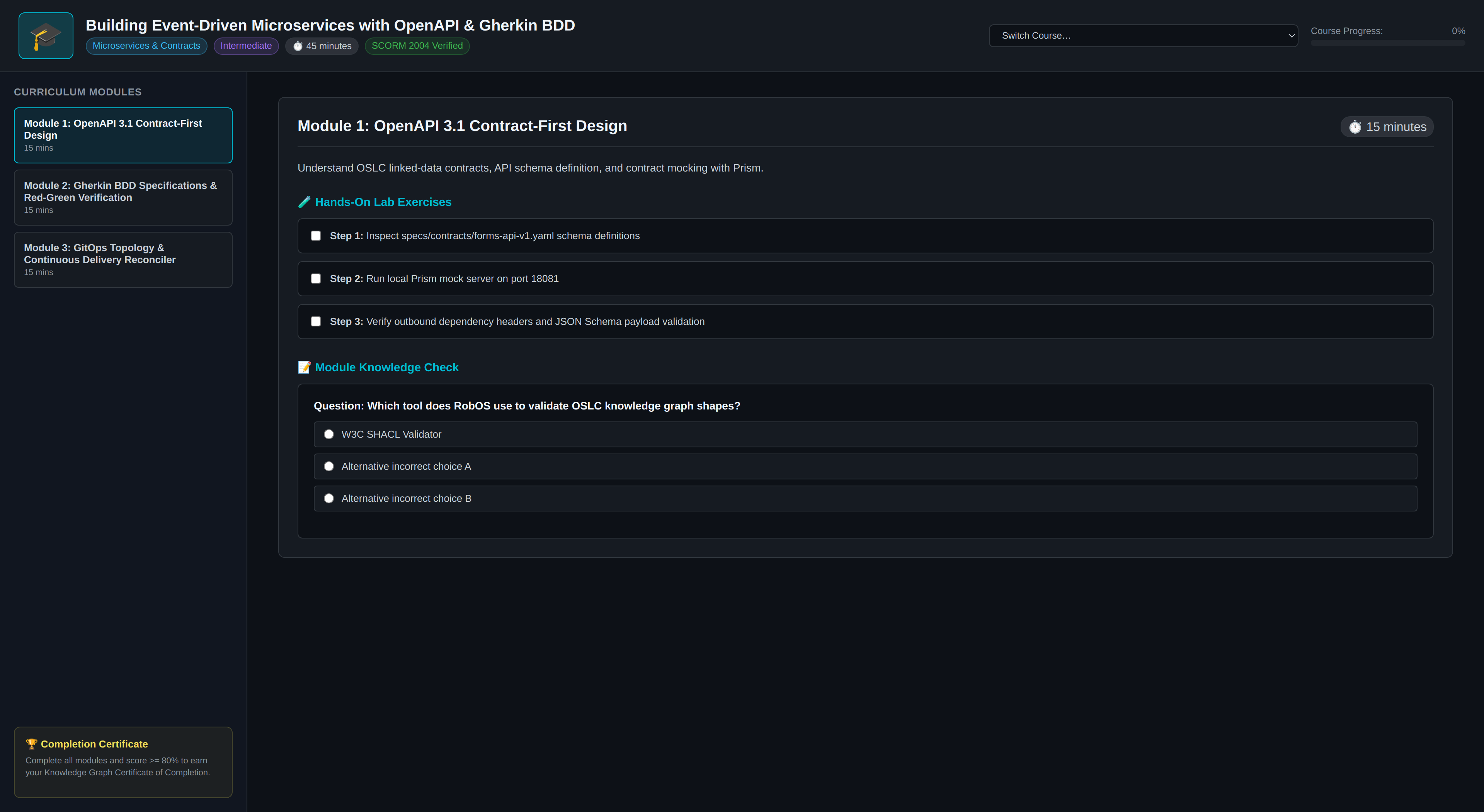
The player: curriculum modules on the left, the selected module with its lab steps and quizzes on the right.
Take a course
- Open RobOS eLearning from the app launcher. It loads the course named by the
--course=<id>launch argument, or the course for an application given with--app=<id>. With neither, it loads the first course in the graph. Switch Course… lists the others. - Work through the module list. Each module has an overview, optional lab steps and optional quiz questions. Lab steps are checkboxes you tick yourself; the app does not run them.
- The progress bar counts ticked lab steps and passed quizzes. At 100% the View Verified Certificate button appears and the app asks the graph store to record a certificate (
issueCertificate, userrobos, score 100).
Progress is held in the open window and is not saved between sessions. A course whose description says it issues no completion credential shows a message instead of the certificate button.
Edit and export
- Editor Mode lets you add and edit slides (title, id, duration, overview in Markdown, lab steps, quiz questions). Save Course writes the course back to the graph and syncs
.robos/elearning.yaml. - Copy Course Path copies a reference to the course. Each slide has a menu with copy-path, copy-Git-URL and export-as-HTML-zip actions.
- Export Website generates a static HTML page for the course. The same generator runs from the command line:
node packages/robos-elearning/cli-export-web.js --course=robos-crpg --output=docs/elearning/robos-crpg.html
Options are --course, --app, --output and --permalink.
Ctrl with +, - or 0 zooms the window in, out and back to 100%.
For a course with its own launcher see cRPG Masterclass.