

Agents Manager
Browse and continue sessions of Claude Code, GitHub Copilot and Codex, and configure each provider's login, models and MCP servers.
Agents Manager is a window onto the coding-agent CLIs you already use. It does not run its own model. It detects which CLIs are installed and signed in, lists their past sessions, and opens a provider’s settings.
Layout
The window has three panes: the AI Providers list, the sessions of the selected provider, and the conversation of the selected session.
| Provider | How it is detected | Where sessions come from |
|---|---|---|
| Claude Code | claude --version and claude auth status | ~/.claude/sessions and ~/.claude/history.jsonl |
| GitHub Copilot | copilot-auth.js in the package | ~/.copilot/session-state |
| Codex | codex --version and codex login status | state_*.sqlite under $CODEX_HOME or ~/.codex, read with python3 |
| Antigravity / Gemini CLI | always shown as installed and signed in | no session list; opens its settings page directly |
Provider settings are the only view for Antigravity / Gemini CLI, so the points below about sessions apply to Claude Code, GitHub Copilot and Codex.
What you do in it
- Select a session to read its conversation; the refresh button reloads it. + New opens a blank Copilot chat in the window, or starts Codex in a terminal. It has no action for Claude Code.
- Type a follow-up and press Send (or
Ctrl+Enter). In-app sending works for Claude Code (claude --resume <id> -p ... --output-format stream-json) and GitHub Copilot (copilot --resume <id>). Other providers show “does not support in-app chat”. Stop ends the running process. - Terminal opens the session in a terminal window.
- The gear button opens the provider’s settings: status, install, login and logout, model list, launch options (for example
--model,--effort,--add-dir), and Set as Active. The active provider is saved in~/.config/robos/ai-provider.json; one-shot AI requests in other apps use it unless the optional API mode is on (see AI agents and API mode). - Under Configured MCP Servers, + Add MCP Server opens the Configure MCP Server form (server id, display name, transport, command or URL, arguments, environment variables, authentication type). Authenticate & Verify marks a server authenticated and saves the token you enter. The lists are kept per provider in
~/.config/robos/agent-mcp-servers.json, and the token is written there as plain JSON.
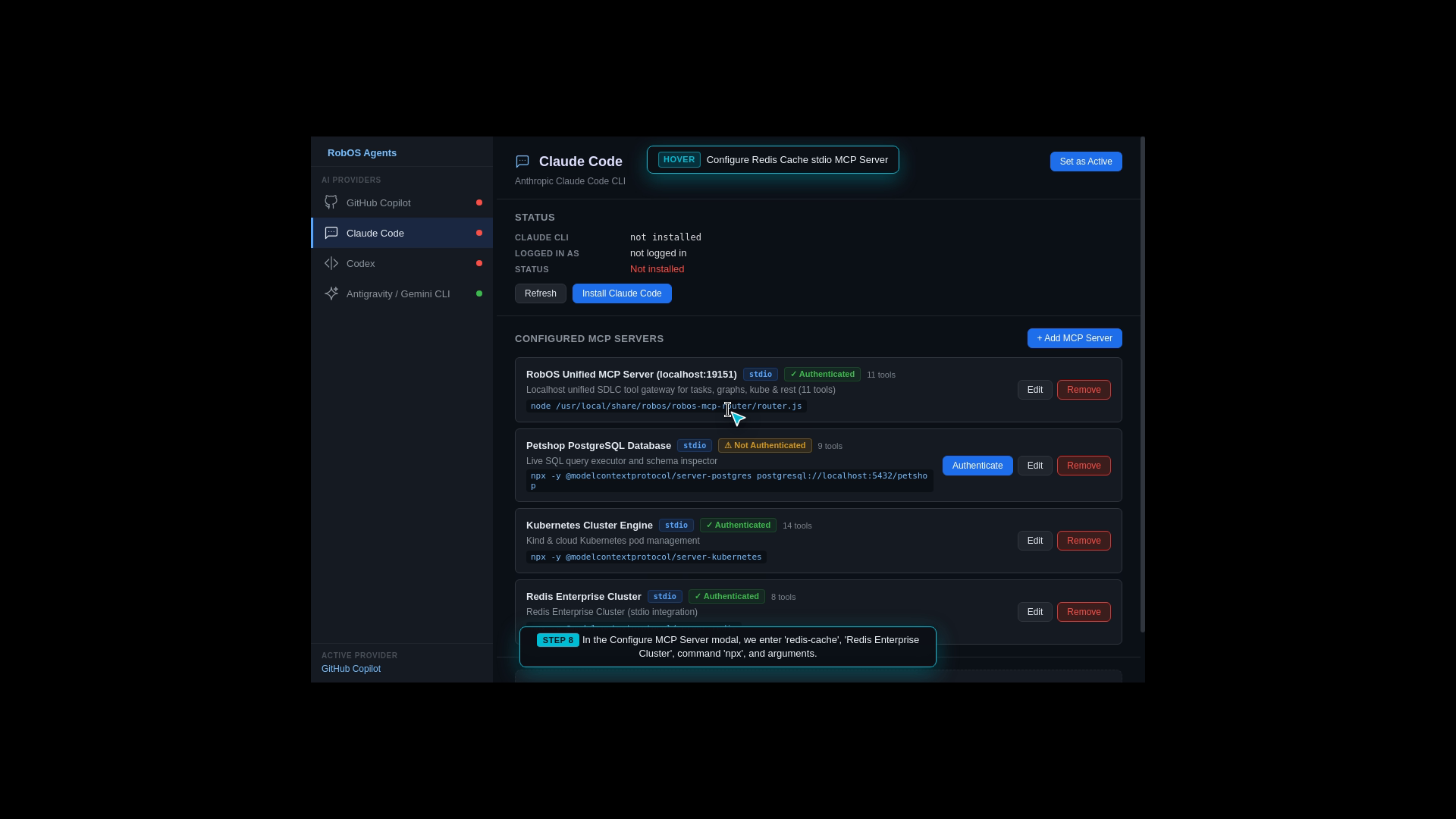
An older capture of a provider page: CLI status at the top, then each MCP server with its Edit, Remove and Authenticate buttons. The current app opens this view from the gear button.
The default MCP server lists (a RobOS router entry, a PostgreSQL “petshop” server, Kubernetes and others) are sample entries defined in main.js. Review them before relying on them.
Command-line flags
| Flag | Effect |
|---|---|
--check-provider | Opens with GitHub Copilot selected. |
--agent-session=<uuid> | Opens the Codex session with that id. Only Codex ids are accepted. |
Requirements
At least one agent CLI on your PATH. The window runs as a single instance. Source: packages/agents-manager.