
RobOS Mobile · Early prototypes
RobOS on any phone,
right now as prototypes.
RobOS Mobile brings RobOS to phones in three ways, all available today as working prototypes. Any phone—iPhone or Android—can join RobOS apps in its browser over home Wi-Fi. Any Android 11+ phone can install the native RobOS mobile apps alongside its existing apps, without wiping the device or unlocking a bootloader. And for a dedicated test phone with an unlockable bootloader, a prototype LineageOS 24 (Android 17) OS image runs RobOS from startup animation to home screen.
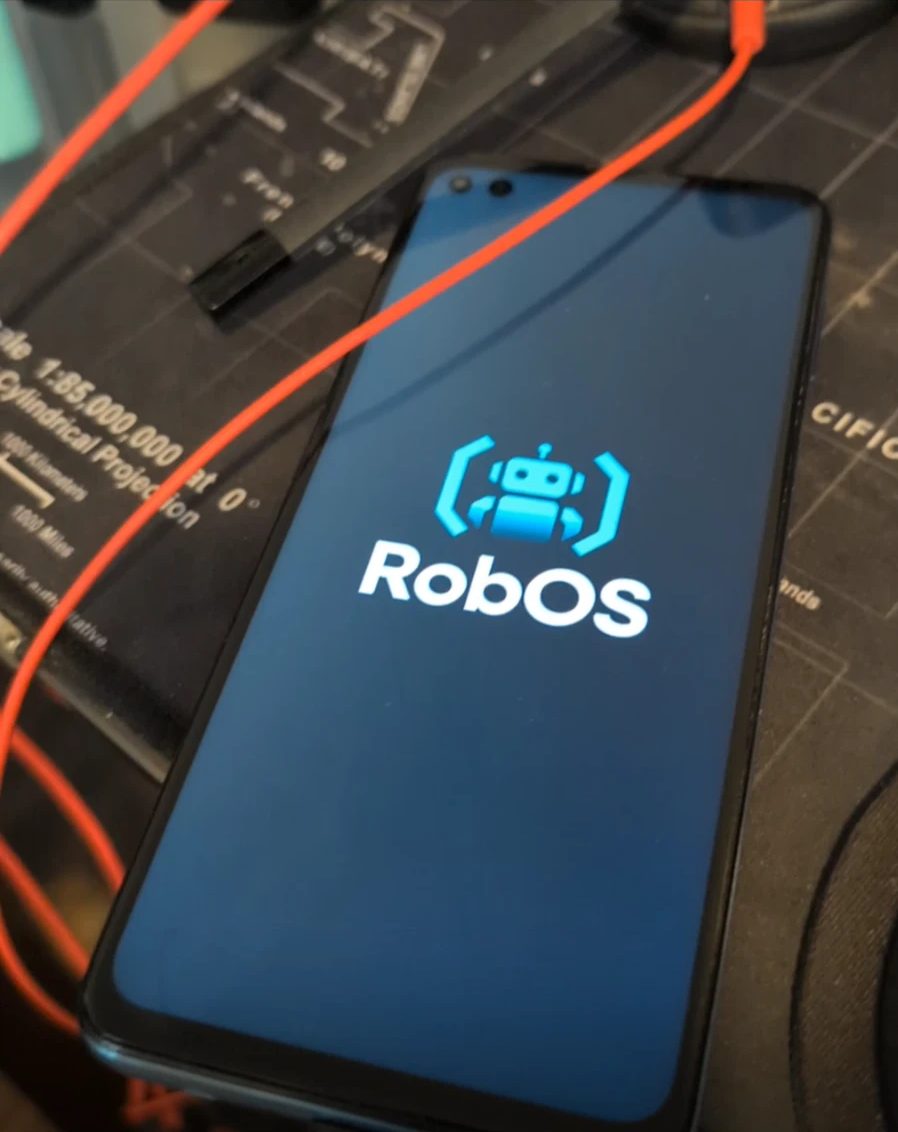
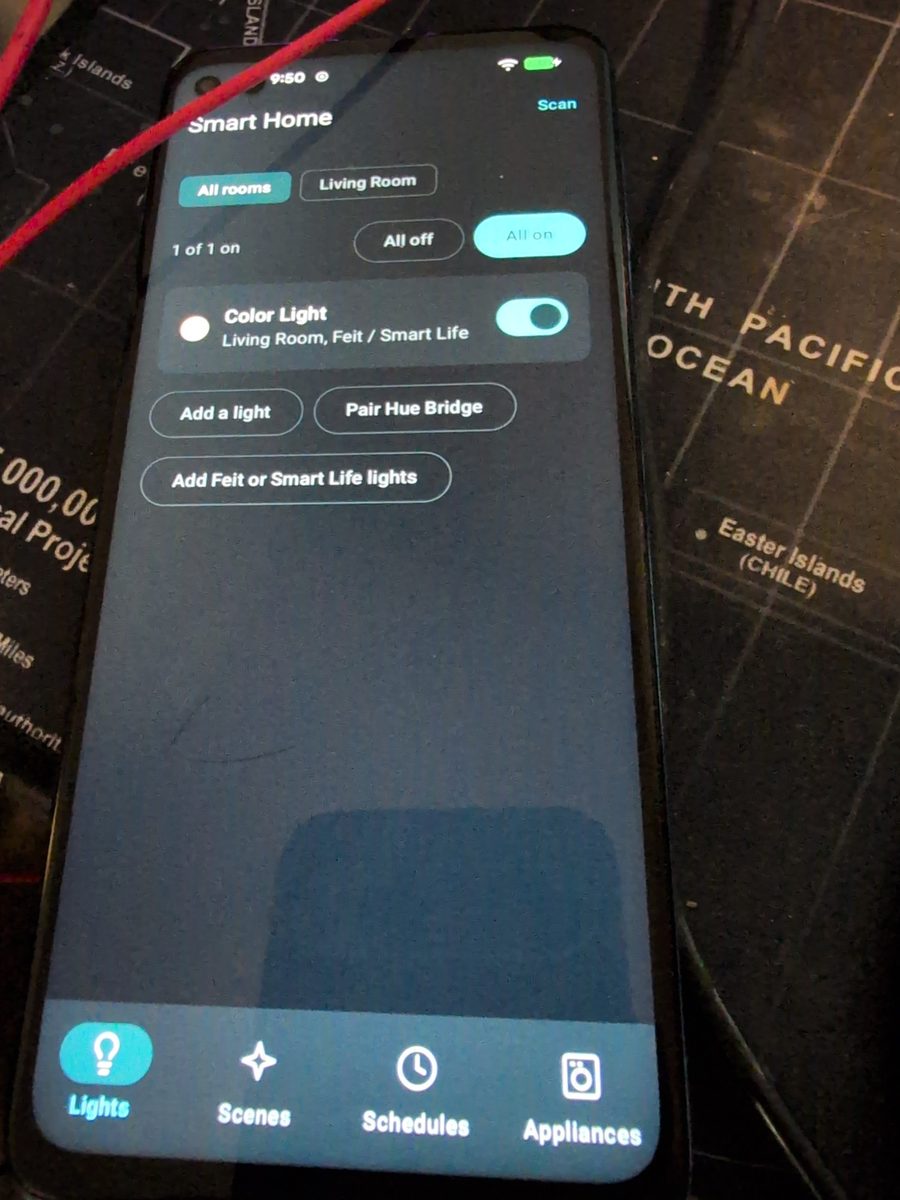
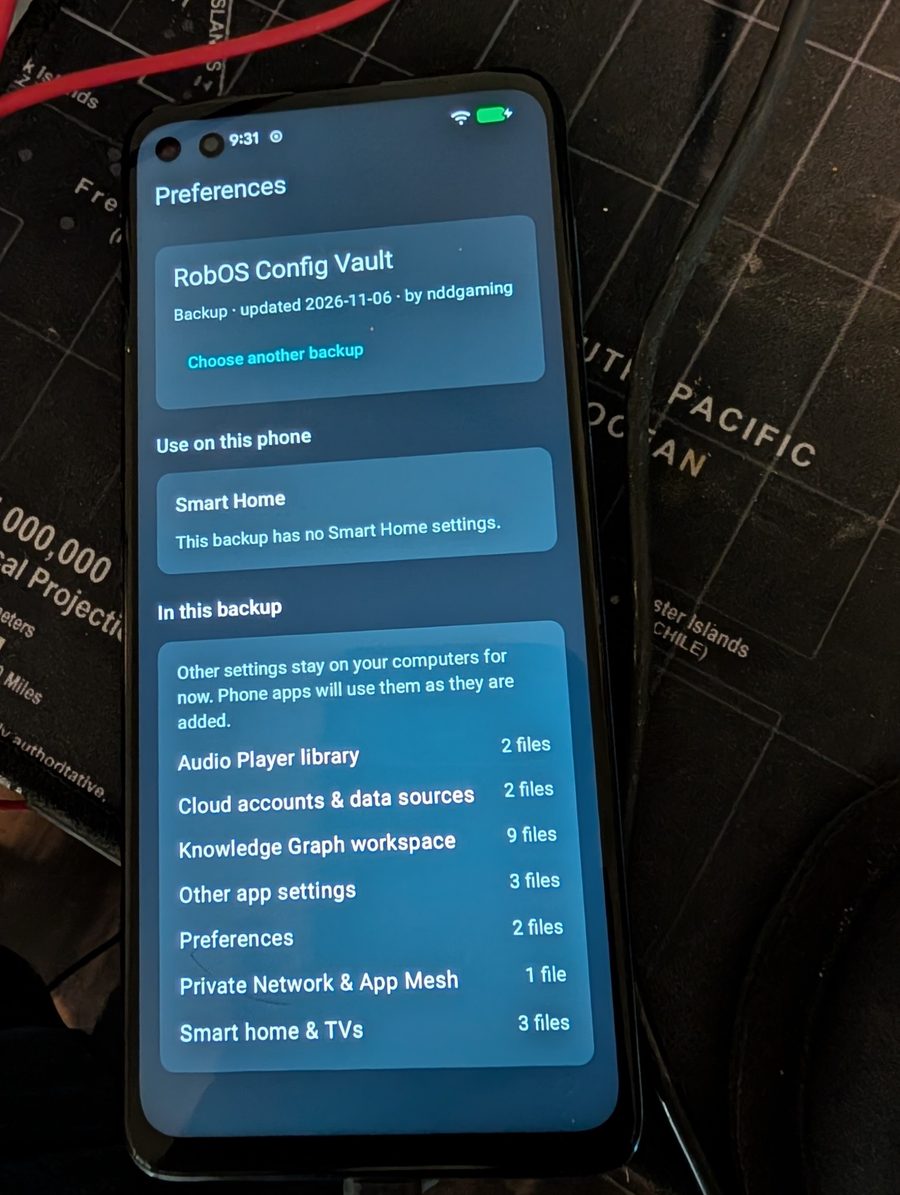
Photographs of the RobOS Mobile prototypes running on real hardware (taken November 6, 2026).
- Three ways to run itAny phone, Android 11+, or full OS
- Mobile prototypesSmart Home, Preferences and Home
- Run on any Android phoneBuild & sideload APKs without wiping
- Full OS prototypeLineageOS 24 build & flash guide
- Prototype status & limitsWhat works now and what doesn't yet
1. Three ways RobOS runs on a phone right now
Phones cannot run the desktop Electron suite directly, so RobOS Mobile meets phones where they are: mobile browser views for every phone, native Kotlin and Jetpack Compose apps for Android, and an optional open-source Android OS build. All three are active prototypes you can run from source today.
Browser companions & mobile web
No app install needed. Scan a QR code on your Wi-Fi to use phones as controllers in Party Game, drive TVs with the Smart TV Studio virtual remote, open touchscreen or QR checkout in Point of Sale, or scaffold mobile web apps in App Wizard.
Standalone Android apps
Build the native Kotlin apps (Smart Home, Preferences and RobOS Home) and install them over USB with adb install. They run alongside your normal apps, need no unlocked bootloader, and leave your data untouched.
Full RobOS Mobile OS image
For a dedicated test or spare phone, infra/android/ builds LineageOS 24 (Android 17) with the RobOS startup animation, RobOS Home replacing the stock launcher, and the RobOS apps built in. Verified on a Motorola Moto G100 (nio).
Here is how the desktop and mobile prototypes fit together in one example. You add a Feit Electric bulb in Smart Home on your RobOS computer. Config Sync backs up your settings to your Google Drive. On your phone, you sign in once in RobOS Preferences and tap restore. Smart Home on your phone now shows that bulb in the same room and switches it on and off over Wi-Fi—even when your computer is turned off.
2. The native mobile prototypes
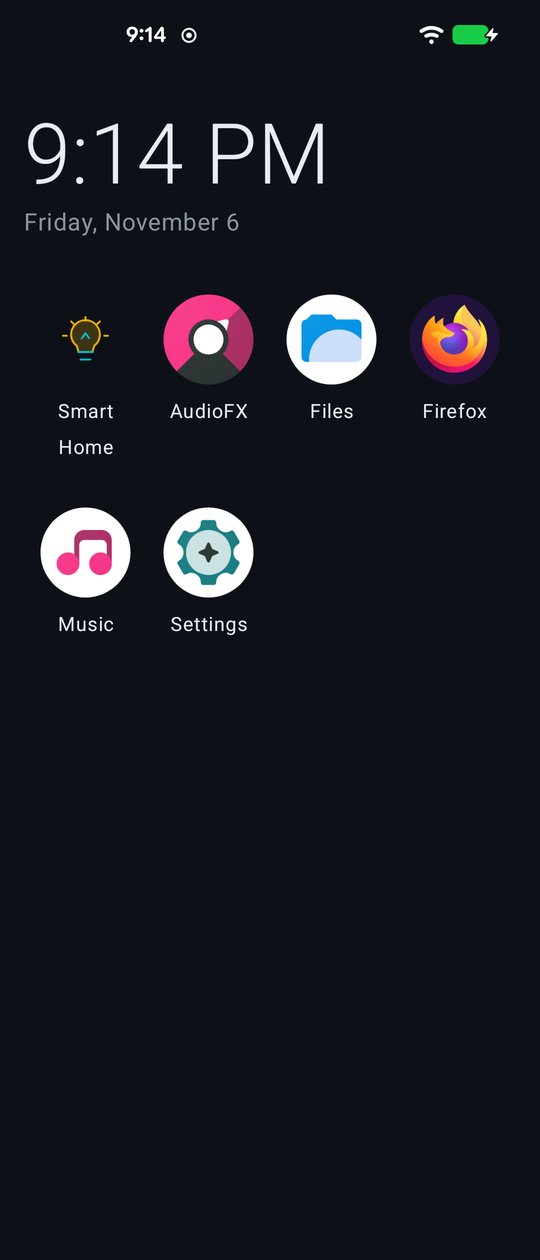
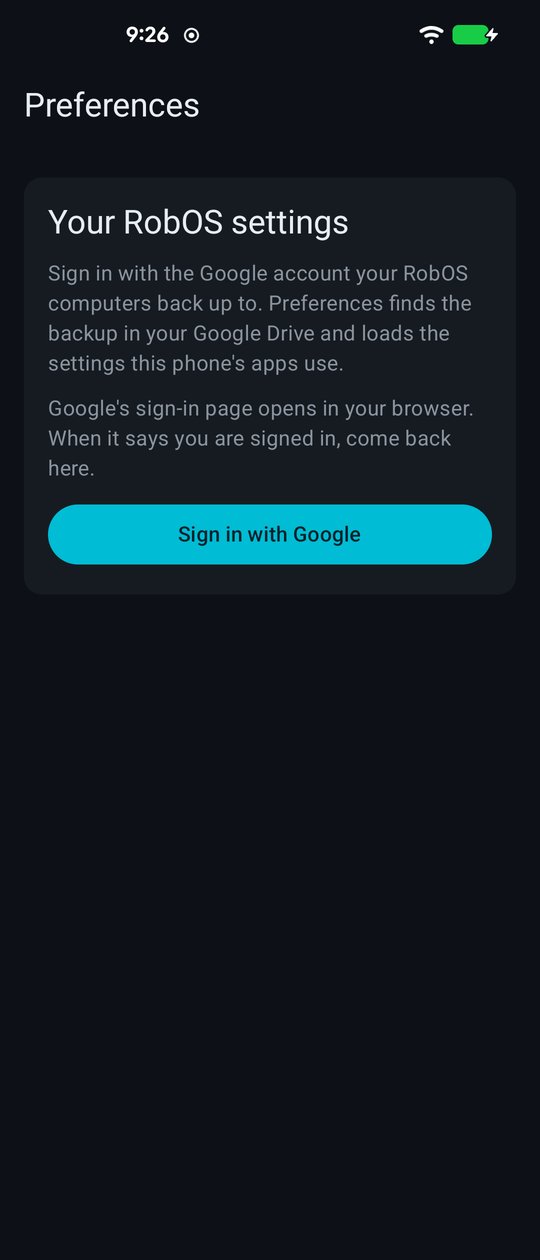
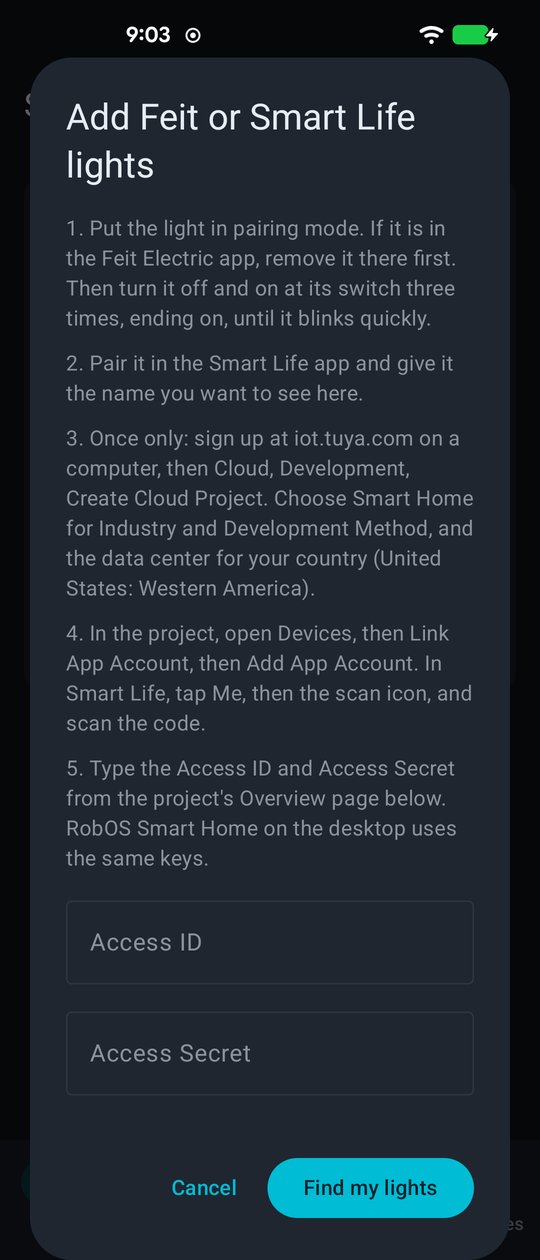
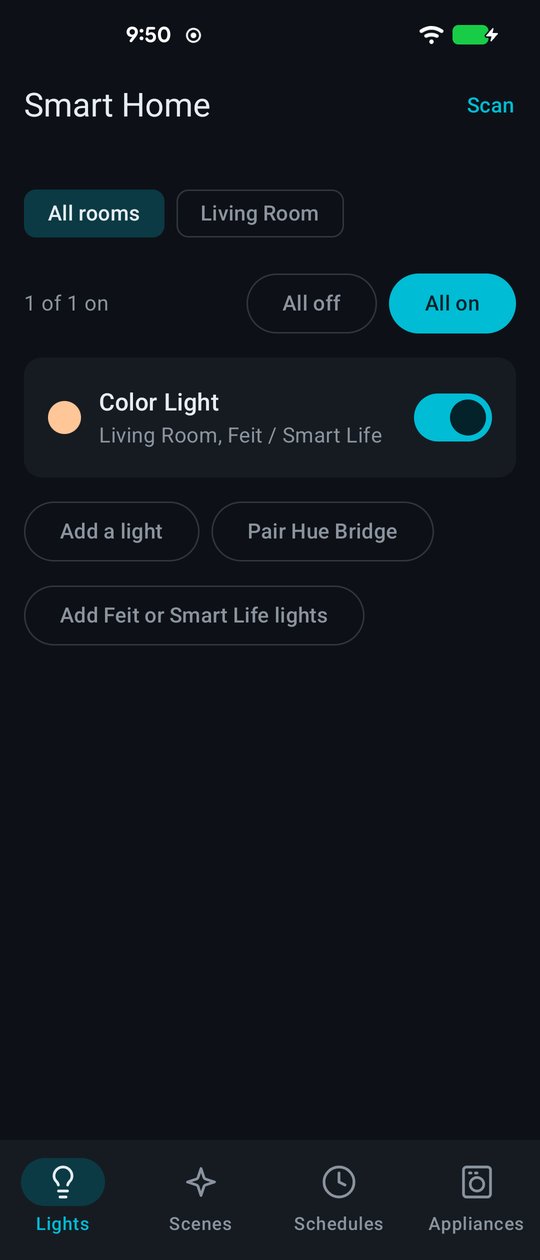
RobOS Smart Home (packages/smart-home-android)
Controls lights straight over your home Wi-Fi from any Android 11+ phone. It needs no RobOS computer switched on and sends lighting commands locally on your network rather than through a cloud relay. Supported brands:
| Brand | How it connects |
|---|---|
| Feit Electric, Smart Life and other Tuya lights | A one-time setup fetches each light's key from a free Tuya developer account. After that, the phone talks to the light directly on your network. |
| Philips Hue | Press the button on the Hue Bridge to pair. |
| WiZ, WLED, TP-Link Kasa, LIFX, Govee, Elgato, Yeelight, Shelly | Found on your Wi-Fi with Scan. |
| Home Assistant | Uses your Home Assistant server's address and a long-lived access token. |
Lights can be grouped into rooms and saved as scenes. Schedules can fade lights up or down at set times and run even when the app is closed. The Appliances tab shows read-only status for LG ThinQ washers, dryers and refrigerators.
RobOS Preferences (packages/robos-preferences-android)
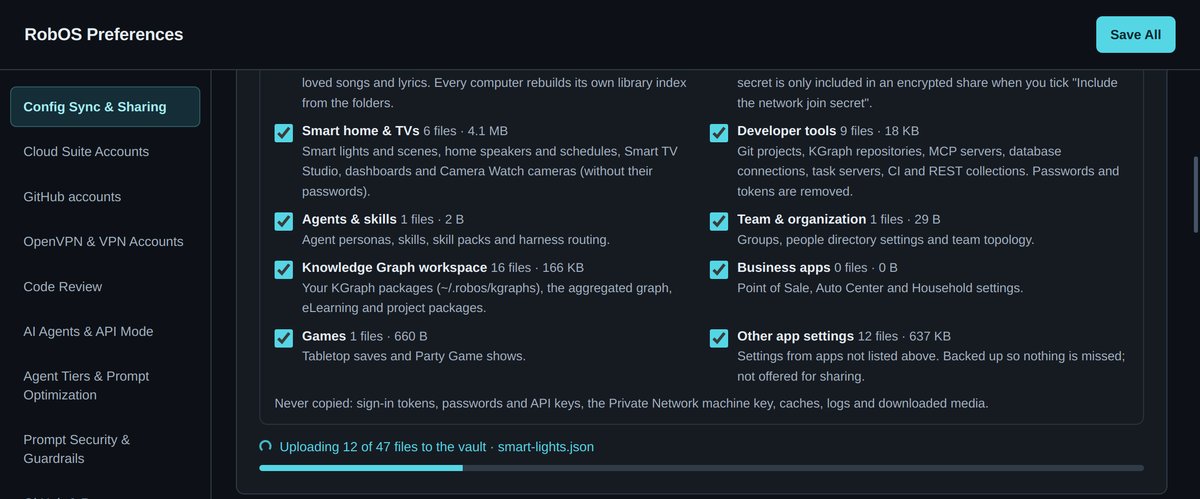
Brings your RobOS computer settings to your phone. Tap Sign in with Google and the phone's browser opens Google's sign-in page using the same loopback PKCE flow as the desktop. Preferences finds your Config Sync backups in Google Drive, opens them (including passphrase-protected scrypt + AES-256-GCM vaults), and lists what each category holds. Today it restores what mobile apps already use: Smart Home's lights, rooms, scenes and schedules. Other categories remain untouched in your backup until mobile prototypes support them.
RobOS Home (packages/robos-launcher-android)
A clean prototype home screen showing the time, the date and every launchable app on the phone, with RobOS apps listed first. You can install it as an optional launcher on any Android 11+ phone (choose it as your default home app in Android Settings whenever you want, and switch back anytime), or run it built into the prototype OS image alongside Files, Music, Settings, AudioFX and any APKs you add with adb install.
3. Run the prototypes on any Android phone (no wipe)
You do not need a specific phone model, an unlocked bootloader or a custom ROM to try the native Android prototypes. Any phone on Android 11 (API 30) or newer works:
- Turn on Developer options and USB debugging on your Android phone, then connect it to your computer over USB.
- Make sure JDK 17 and the Android SDK (
ANDROID_HOMEorlocal.properties) are installed on your computer. - Build and install the prototypes from your RobOS checkout:
# Smart Home + Preferences (both signed with your local debug key so settings handoff works)
(cd packages/smart-home-android && ./gradlew assembleDebug && adb install -r app/build/outputs/apk/debug/app-debug.apk)
(cd packages/robos-preferences-android && ./gradlew assembleDebug && adb install -r app/build/outputs/apk/debug/app-debug.apk)

# Optional: the RobOS Home launcher
(cd packages/robos-launcher-android && ./gradlew assembleDebug && adb install -r app/build/outputs/apk/debug/app-debug.apk)
Preferences hands restored settings to Smart Home through an Android content provider guarded by the signature permission com.robos.permission.MANAGE_SETTINGS. Building both debug APKs on the same computer signs them with the same local debug keystore, so the permission check succeeds automatically.
Bring over your settings from a RobOS computer
- On your RobOS computer, open Preferences → Config Sync & Sharing and apply the sync to your Google Drive. A progress bar shows each file as it uploads.
- On your phone, open RobOS Preferences, tap Sign in with Google, sign in in the browser, and return to Preferences when Google confirms you are signed in.
- Choose your backup, and enter its passphrase if you set one.
- Under Use on this phone, tap Restore to this phone on the Smart Home card.
- Open RobOS Smart Home. If you have Feit or Smart Life lights, tap Add Feit or Smart Life lights once and enter your Tuya Access ID and Access Secret.
4. Prototype: Build & flash the full RobOS OS image
If you want a dedicated phone that boots straight into RobOS instead of running manufacturer Android, infra/android/ builds an open-source LineageOS 24 (Android 17) image with a RobOS vendor layer: the RobOS startup animation, RobOS Home in place of the stock launcher, and Smart Home and Preferences pre-installed.
What you need for the full OS image
- A LineageOS-supported phone with an unlockable bootloader. Our verified hardware prototype is the Motorola Moto G100 (codename
nio, model XT2125-4, on Motorola's Android 12 firmware such as S1RTS32.41-20-16-1-9). A Moto G10 (capri) target is also included behindROBOS_DEVICE=capri(untested on hardware), and other LineageOS 24 devices can be added viainfra/android/local_manifests/. - A USB-C cable plugged straight into your computer—not through a USB hub or dock.
- A Linux build machine with plenty of RAM and disk. There is no prebuilt ROM download yet. Android 17's build analysis is memory-hungry: plan for about 60 GB of RAM (plus compressed swap), 300–400 GB of free disk, over 100 GB of source downloads, and roughly a day for the first build.
- Backups of everything on that phone. Unlocking and flashing erases the phone completely.
Always verify the phone's exact codename over ADB before flashing anything:
adb shell getprop ro.product.deviceFor the default Moto G100 build, this must print nio. Flashing an image built for another device codename can leave a phone unable to boot.
Build the image
On a Linux machine with 64 GB of RAM or less, enable compressed swap in memory first (active until the next reboot):
sudo modprobe zram && sudo zramctl --size 48G --algorithm lz4 /dev/zram0 && sudo mkswap /dev/zram0 && sudo swapon --priority 100 /dev/zram0Then check prerequisites and run the build:
infra/android/robos-image.sh check
infra/android/robos-image.sh all
On later runs, infra/android/robos-image.sh start runs the build inside a memory-capped systemd user service so it cannot starve your desktop session, and infra/android/tools/progress.sh displays build progress. For nio, the output zip is written to ~/android/robos/out/target/product/nio/lineage-24.0-…-UNOFFICIAL-nio.zip (~1 GB).
Flash the Moto G100 (nio) prototype
This erases the target phone. Read the LineageOS install guide for the Moto G100 first for full safety details. In summary:
- Unlock the bootloader using Motorola's official unlock-code portal (availability depends on carrier and device).
- Boot into bootloader mode (hold Volume Down while powering on) and flash the partition and recovery images from the build output folder:
fastboot flash dtbo dtbo.img fastboot flash vendor_boot vendor_boot.img fastboot reboot bootloader fastboot flash boot boot.img - Enter Recovery mode from the bootloader menu.
- Copy partitions to the inactive slot: choose Apply update → Apply from ADB and sideload LineageOS's
copy-partitionszip:adb -d sideload copy-partitions-20261011-signed.zip. - Wipe data: choose Factory reset → Format data.
- Sideload RobOS: choose Apply from ADB again and run
adb -d sideload lineage-24.0-…-UNOFFICIAL-nio.zip. - Reboot. After Motorola's bootloader screen, the pulsing RobOS logo appears and boots into RobOS Home.
Protocol error. Our first flash failed with reap_urb errors because the phone was connected through a USB dock. Plugging the USB-C cable directly into the laptop port fixed it immediately. To return a Moto G100 to factory stock software later, use Motorola's Rescue and Smart Assistant.5. Prototype status and honest limits
RobOS Mobile is an early prototype effort. What to expect right now:
- Prototypes built from source, not store releases. There are no Apple App Store, Google Play Store or F-Droid listings yet, and no prebuilt APK or ROM downloads. You build and install the Android apps with Gradle and
adb. - iPhone support is browser-based today. iPhones work right now with RobOS's local Wi-Fi web interfaces (Party Game controllers, Smart TV remote, Point of Sale web views and KGraph web apps), while native mobile apps are currently Android-only (Android 11+).
- Only Smart Home settings restore on mobile so far. RobOS Preferences opens and inspects your entire Config Sync vault, while additional mobile apps that consume other backup categories are still to come.
- Feit and Smart Life bulbs need a one-time free Tuya cloud project (~20 minutes once) so each device can fetch local LAN keys without syncing secrets through the cloud.
- RobOS Home has no Recents app switcher on the custom OS image, because Android's recent-apps overview lives inside the stock launcher that the OS image replaces. Three-button navigation is used instead.
- Full OS image caveats: Flashing wipes the phone and requires an unlockable bootloader; the image is a
userdebugtest-key build with no Google Play services; unlocked bootloaders show a manufacturer warning at boot; building Android 17 takes ~60 GB RAM (with zram), 300+ GB disk and about a day; and the full OS build has only been flashed and verified on the Moto G100 (nio) so far.
For the engineering story behind compiling Android 17 on a laptop and verifying the hardware prototype, read how we built the LineageOS 24 prototype. See also Smart Home, Config Sync and RobOS on your TV.