
Why Sideload via TV Developer Mode Instead of the App Store?
Smart TVs run locked-down ARM operating systems (LG webOS, Samsung Tizen, Android TV, Roku OS), whereas RobOS runs full desktop Electron applications, Godot 4 games, local AI models, and Linux kernel services. Instead of stripping RobOS down to fit a commercial TV store's restrictions, every major Smart TV ships with a built-in Developer Mode that lets you install your own home-screen launcher app pointing directly to your RobOS host over LAN.
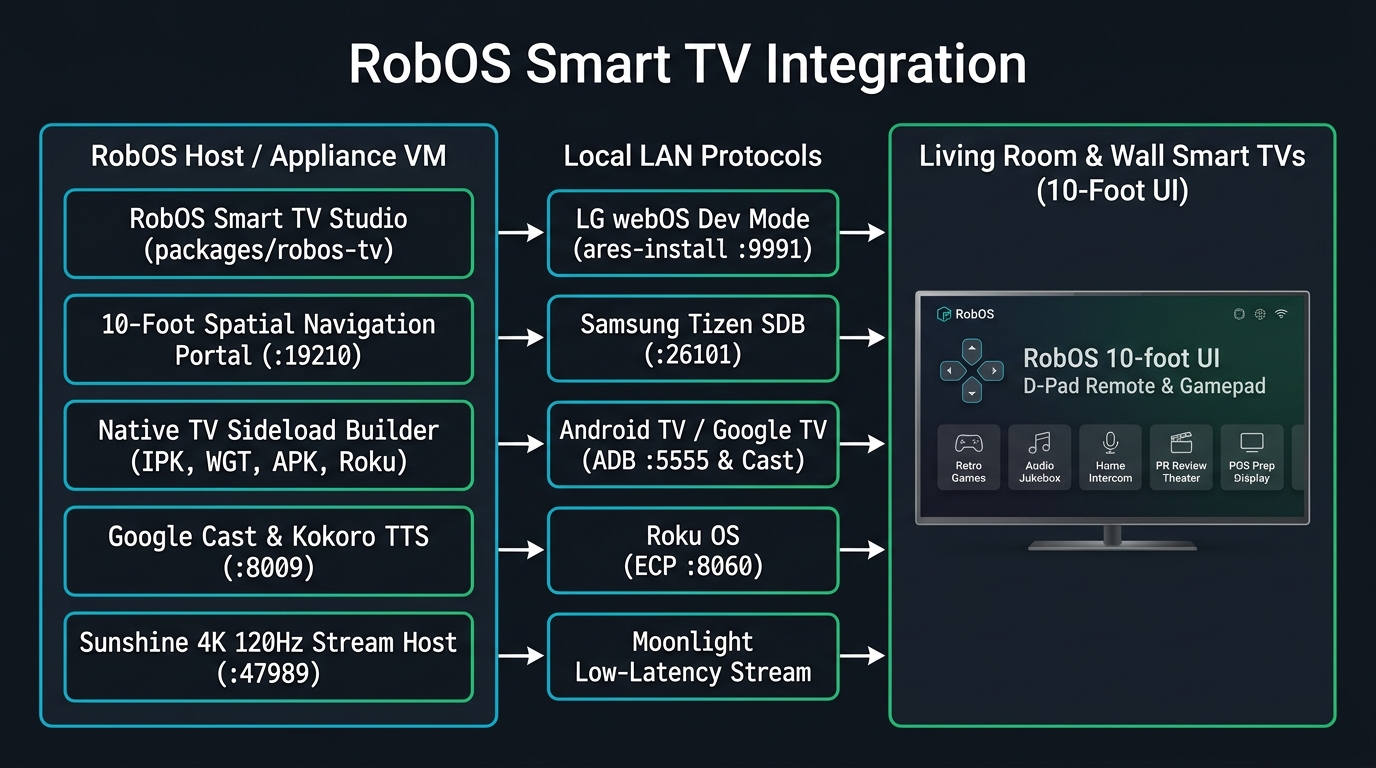
packages/robos-tv) and the shared robos-lib/tv-engine.js service: one click generates native Developer Mode packages that add a RobOS TV icon to your TV's native app bar.
flowchart LR
  subgraph HOST["RobOS Host / Appliance VM (LAN IP e.g. 192.168.1.100)"]
    STUDIO["RobOS Smart TV Studio
packages/robos-tv (:19206)"]
    PORTAL["10-Foot Spatial Nav Portal
http://192.168.1.100:19210"]
    BUILDER["Native Sideload Builder
robos-lib/tv-engine.js"]
    CAST["Google Cast & Kokoro TTS
packages/home-speaker & audio-player"]
    SUN["Sunshine 4K 120Hz Host
H.265 / AV1 + Gamepad"]

    STUDIO --> PORTAL
    STUDIO --> BUILDER
    STUDIO --> CAST
    STUDIO --> SUN
  end

  subgraph LAN["Local Network Protocols (Zero Cloud)"]
    WEBOS["LG webOS Dev Mode
ares-install (:9991) + ares-extend-dev (1000h)"]
    TIZEN["Samsung Tizen SDB
tizen install RobOSTV.wgt (:26101)"]
    ADB["Google TV / Android TV / Fire TV
ADB Leanback (:5555) + Cast (:8009)"]
    ROKU["Roku OS
ECP (:8060) + SceneGraph ZIP"]
    MOON["Moonlight Stream
4K 60/120fps Low-Latency"]

    BUILDER --> WEBOS
    BUILDER --> TIZEN
    BUILDER --> ADB
    BUILDER --> ROKU
    SUN --> MOON
  end

  subgraph TV["Living Room & Office Wall Smart TVs"]
    LAUNCHER["Native 'RobOS TV' Home Row Icon
Opens http://192.168.1.100:19210"]
    DPAD["TV Remote D-Pad + Bluetooth Gamepad
Arrow Keys / OK / Back / Play-Pause"]
    APPS["8 Big-Screen Experiences
Godot 4 Games · Virtual DJ Jukebox · Intercom · PR Theater · POS Board"]

    WEBOS --> LAUNCHER
    TIZEN --> LAUNCHER
    ADB --> LAUNCHER
    ROKU --> LAUNCHER
    MOON --> APPS
    LAUNCHER --> DPAD
    DPAD --> APPS
  end
Step-by-Step: Enable Developer Mode & Add RobOS to Your TV
Open RobOS Smart TV Studio from the RobOS App Launcher (or click 📺 Smart TV Studio inside RobOS Home Speaker), switch to the Developer Mode Sideloader tab, and select your TV brand:
-
Google TV / Android TV / Amazon Fire TV (Sony, TCL, Hisense, NVIDIA Shield, Chromecast with Google TV):
- On your TV, go to Settings → System → About and press OK/Select on Android TV OS Build 7 times until "You are now a developer!" appears.
- Go to Settings → System → Developer Options and enable Network Debugging (or Wireless ADB on port
5555). - In RobOS Smart TV Studio, select Google TV / Android TV, enter your TV IP, and click Generate TV Sideload Package. RobOS writes
AndroidManifest.xml(withandroid.intent.category.LEANBACK_LAUNCHER),assets/index.html, andsideload-android-tv.sh, which connects viaadb connect <TV-IP>:5555, installs the Leanback launcher, and opens the 10-Foot Portal on screen.
-
LG webOS Smart TVs (LG OLED C/G/B Series, QNED, UHD):
- Open the LG Content Store on your TV, search for Developer Mode, and install the official LG Developer Mode app.
- Log in with a free LG Developer account, turn Dev Mode Status to ON (your TV will reboot), then open the app again and turn on Key Server.
- In RobOS Smart TV Studio, enter your TV's IP address and the 6-character Passphrase shown on the TV screen, then click Generate TV Sideload Package.
- RobOS generates
appinfo.json(com.robos.tv),index.html, andsideload-webos.sh(ares-package+ares-novacom --getkey+ares-install+ares-launch). - Automatic 1,000-Hour Timer Renewal: LG resets Developer Mode if it isn't renewed before the 1,000-hour countdown expires. RobOS Smart TV Studio includes a one-click Renew LG webOS 1,000h Timer button (and background renewal via
ares-extend-dev) so your sideloaded RobOS app stays installed permanently.
-
Samsung Tizen Smart TVs (Neo QLED, Samsung OLED, The Frame, Crystal UHD):
- Open the Apps panel on your Samsung TV, press
1-2-3-4-5on your remote, toggle Developer Mode to ON, and type your RobOS Host LAN IP address. - Hold the TV power button for 5 seconds until the TV reboots.
- In RobOS Smart TV Studio, select Samsung Tizen Smart TV and click Generate TV Sideload Package. RobOS outputs
config.xml(includinghttp://tizen.org/privilege/tv.inputdevicefor remote D-Pad keys),index.html, andsideload-tizen.sh(sdb connect <TV-IP>:26101+tizen package -t wgt+tizen install -n RobOSTV.wgt).
- Open the Apps panel on your Samsung TV, press
-
Roku OS TVs & Streaming Players:
- On your Roku remote, press
Home (3x), Up (2x), Right, Left, Right, Left, Rightto enable the Developer Application Installer. - RobOS generates a complete Roku SceneGraph channel bundle (
manifest,source/Main.brs,components/MainScene.xml, andsideload-roku.sh) and also controls any Roku on your LAN with zero configuration via the Roku External Control Protocol (http://<TV-IP>:8060/keypress/*).
- On your Roku remote, press
-
Moonlight + Sunshine (4K 120Hz Full Desktop & Godot 4 Game Streaming):
- For heavy 3D/2D gaming with a controller on the couch, install Moonlight on your TV (available natively on Google TV, Fire TV, Apple TV, and via LG webOS Dev Mode / Homebrew) and pair it with the Sunshine host in RobOS.
The 10-Foot Big-Screen Portal (:19210)
Desktop UIs with small 13px fonts and mouse menus are unreadable from a couch 10 feet away. When your TV opens the sideloaded RobOS TV app, it connects to the built-in RobOS 10-Foot Portal on port 19210:
- TV Remote D-Pad Spatial Navigation: Every tile responds to
ArrowUp,ArrowDown,ArrowLeft,ArrowRight,Enter/OK, andBack/Returnwith high-contrast cyan focus rings and 28px+ typography. - HTML5 Gamepad API Integration: Plug in or pair an Xbox, DualSense, or 8BitDo controller—the portal automatically detects the controller and lets you launch directly into Godot 4 games.
- Two-Way Virtual Remote: From your workstation or phone, use the TV D-Pad Remote & Instant App Launch panel inside RobOS Smart TV Studio to switch what is playing on any TV in the house.
First-Class TV Apps Across the RobOS Ecosystem
Adding RobOS Smart TV Studio ties together six existing RobOS suites on the big screen:
- Godot 4 Living-Room Games (
/games/): Play Realm of Heroes cRPG, Quest: Warrior Dragon (2D JRPG playable with just a TV remote D-Pad!), Tabletop RPG for board-game nights, and Starfall Command RTS. - RobOS Audio Player & Virtual DJ (
packages/audio-player): Turn your TV into a 100,000-song living-room jukebox with full-screen synchronized lyrics, AI Playlists, and Kokoro TTS Virtual DJ intros streamed over Google Cast. - RobOS Home Speaker (
packages/home-speaker): Includes a dedicated 📺 Smart TV Studio button in the header and streams neural TTS announcements, walkie-talkie voice notes, and ambient rain/focus soundscapes to any Cast-enabled TV (such asBasement TV). - PR Review Theater (
packages/pr-review): Watch autonomous 1080p narrated agent proof-of-work walkthrough videos and semantic KGraph blast-radius diffs from the couch or in a team conference room. - Point of Sale Digital Menu & Order Prep Board (
packages/point-of-sale): Mount any affordable Smart TV on a café, bar, or retail wall and sideload RobOS TV to display live barista/kitchen prep queues and digital menu boards.