

Guide · RobOS Preferences › Config Sync & Sharing
Config management
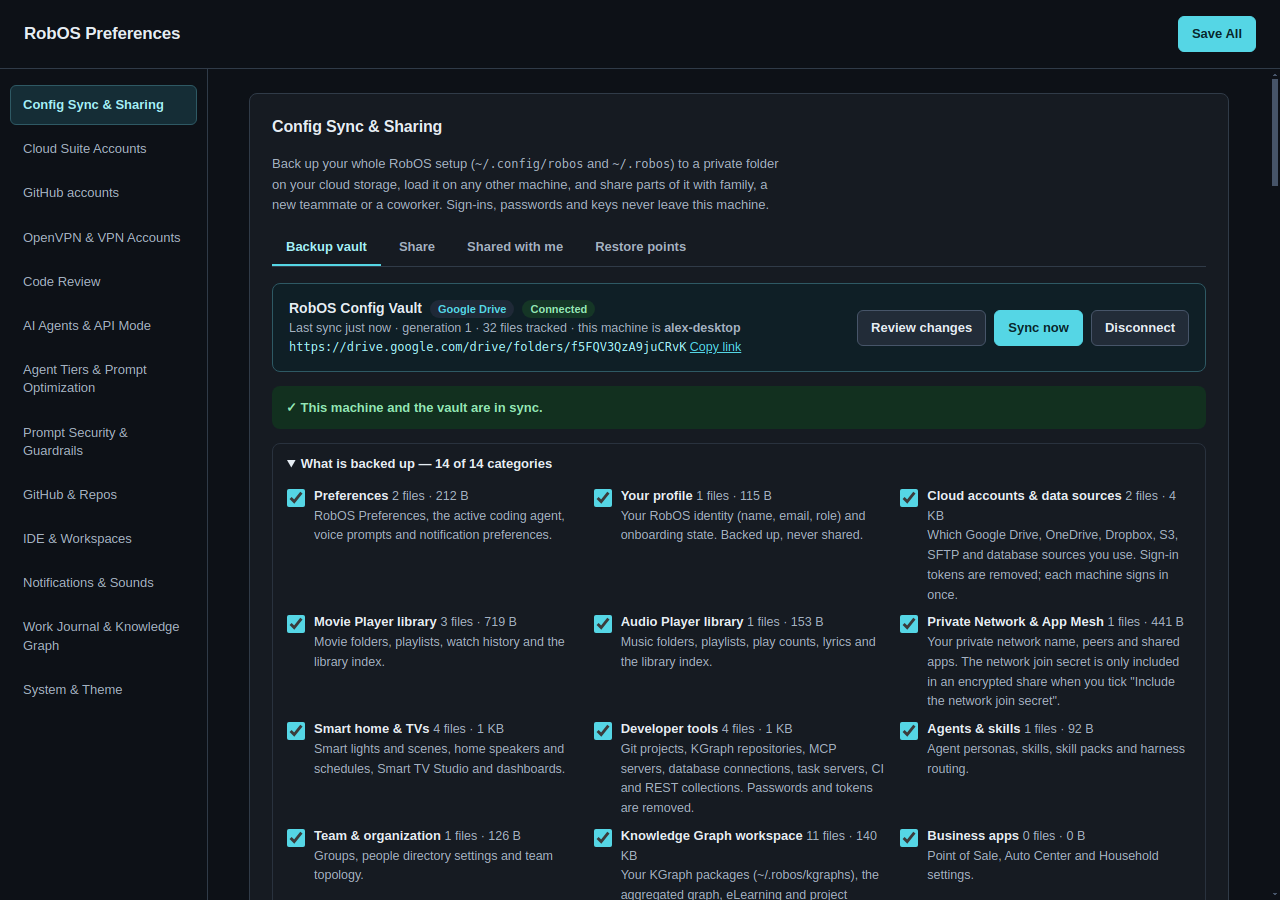
Your RobOS setup lives in two folders: ~/.config/robos and ~/.robos. Config Sync keeps a backup of them in a private folder on your cloud storage, loads that backup onto any other machine you set up, and lets you hand parts of it to other people: your family, a new teammate, a coworker. Sign-ins, passwords and keys stay on each machine.
- How it worksA vault, shares, and what moves
- Back up this machineCreate a vault on Google Drive
- Set up another machinePaste the link, load everything
- Sync and conflictsDay to day, in the background
- Restore pointsUndo any change Config Sync made
- Share with someoneTemplates, people, passphrase
- Family & friendsNetwork, movies, lights, TV
- Onboard a teammateDay-one setup, then updates
- Coworker handoffTake it, then give it back
- Shared with meJoin, update, leave
- What is copiedCategories, exclusions, local keys
- SecuritySecrets, encryption, access
- Command lineHeadless machines and scripts
- ReferenceFolder format, files, tests
About the screenshots. They come from the end-to-end test
packages/robos-test/tests/robos-preferences/config-sync-e2e.test.js. Each person and machine in it (Alex's desktop and laptop, Sam, Jordan, Priya, Eve) is a separate home directory with its own Google sign-in, talking to an in-memory Google Drive that enforces sharing the way Drive does. The people and data are sample data; the app, the engine and every file they write are real.
How it works
Config Sync uses two kinds of cloud folder. Both look the same inside: a robos-config.json manifest and a blobs/ folder of file bodies.
| Backup vault | Share | |
|---|---|---|
| What it is | Your full RobOS setup, for your own machines | Chosen parts of it, for someone else |
| How many | One per person | As many as you like |
| Who can open it | Only you (it is a private folder in your Drive) | You, plus the people you add |
| Direction | Both ways: every machine reads and writes it | One way: you publish, they apply |
| When files differ | A per-file comparison with the last sync; changes on both sides are conflicts you resolve | Lists merge by id; their own items stay |
| Where you manage it | Backup vault tab | Share tab (yours) and Shared with me tab (theirs) |
flowchart LR
  subgraph Desk["Alex · desktop"]
    D1["~/.config/robos
~/.robos"]
  end
  subgraph Lap["Alex · laptop"]
    L1["~/.config/robos
~/.robos"]
  end
  subgraph Drive["Alex's Google Drive"]
    V["RobOS Config Vault
private · two-way"]
    S1["RobOS Share — Rivera family home
encrypted · Sam can read"]
    S2["RobOS Share — Acme Platform onboarding
Jordan can read"]
  end
  Sam["Sam's machine"]
  Jor["Jordan's new laptop"]
  D1 <-->|sync| V
  L1 <-->|sync| V
  D1 -->|publish| S1
  D1 -->|publish| S2
  S1 -->|join · merge by id| Sam
  S2 -->|join · updates| Jor
Before anything leaves a machine, three things happen to every file:
- Credentials are removed. Any JSON key that holds a token, password, secret or key is dropped. When the file comes back, this machine's own values are put back in. Each machine signs in once; nothing it signed in with is ever uploaded.
- Your home directory becomes
${HOME}./home/alex/source/platform-apiis stored as${HOME}/source/platform-apiand becomes/home/alexr/source/platform-apion a machine whose home is/home/alexr. - Machine-local state is left out. Login status, last-checked times, live TV casts and tunnels describe this machine right now, not your configuration. They are never synced, so two machines do not conflict because one of them refreshed a token.
Caches, logs, sockets, downloaded media and the Private Network machine key are never copied at all. See What is copied.
Back up this machine
You need a Google account signed in under Preferences › Cloud Suite Accounts. (Or use a folder on this computer instead; see Storage options.) Open RobOS Preferences; Config Sync & Sharing is the first section.
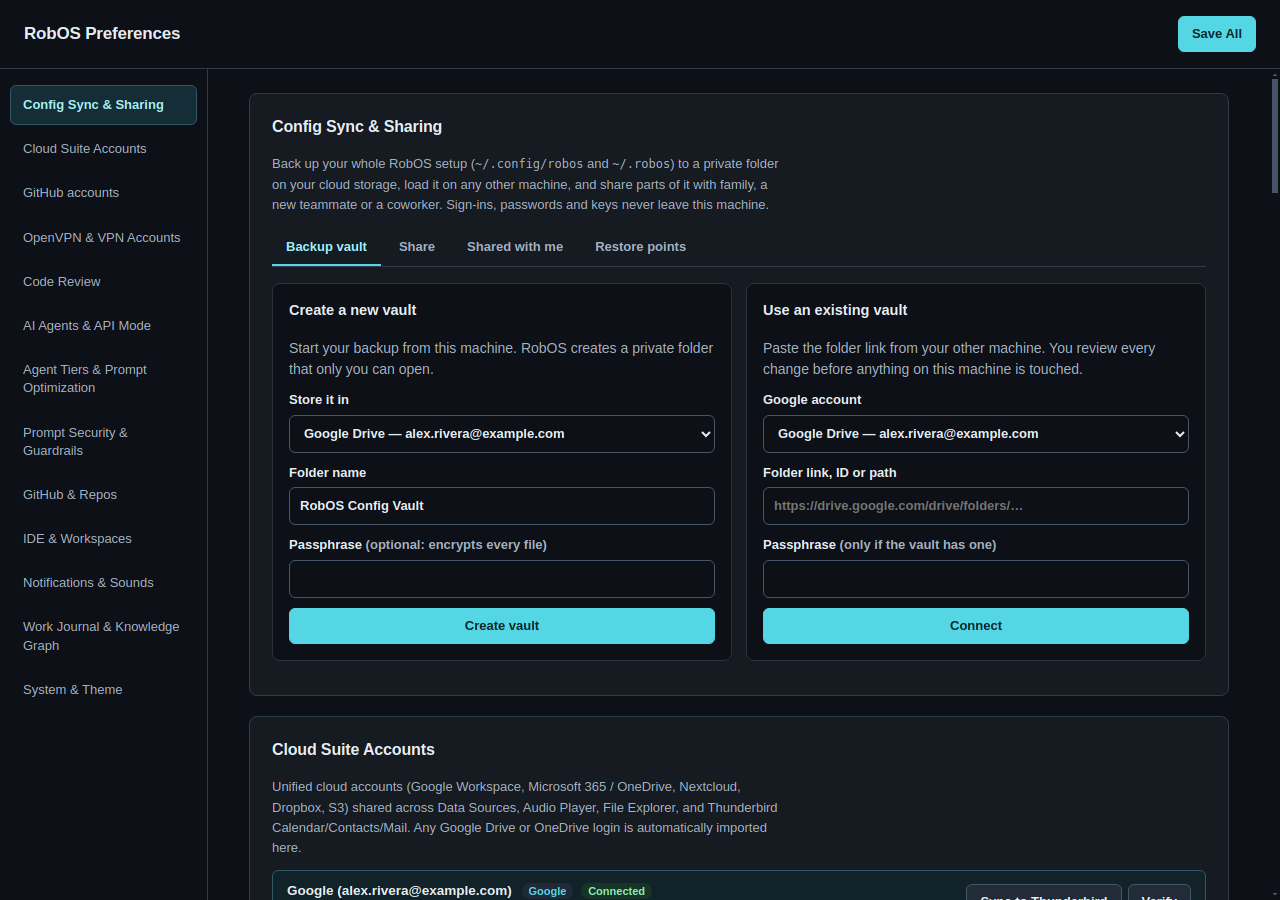
- Under Create a new vault, choose Store it in › Google Drive — your account.
- Keep the folder name RobOS Config Vault or change it.
- Optionally set a passphrase. With one, every file and the list of file names are encrypted before upload, so even someone with access to your Drive sees only noise. You will need it on every machine; it cannot be recovered.
- Click Create vault. RobOS creates the folder in your Drive and shows the first sync.
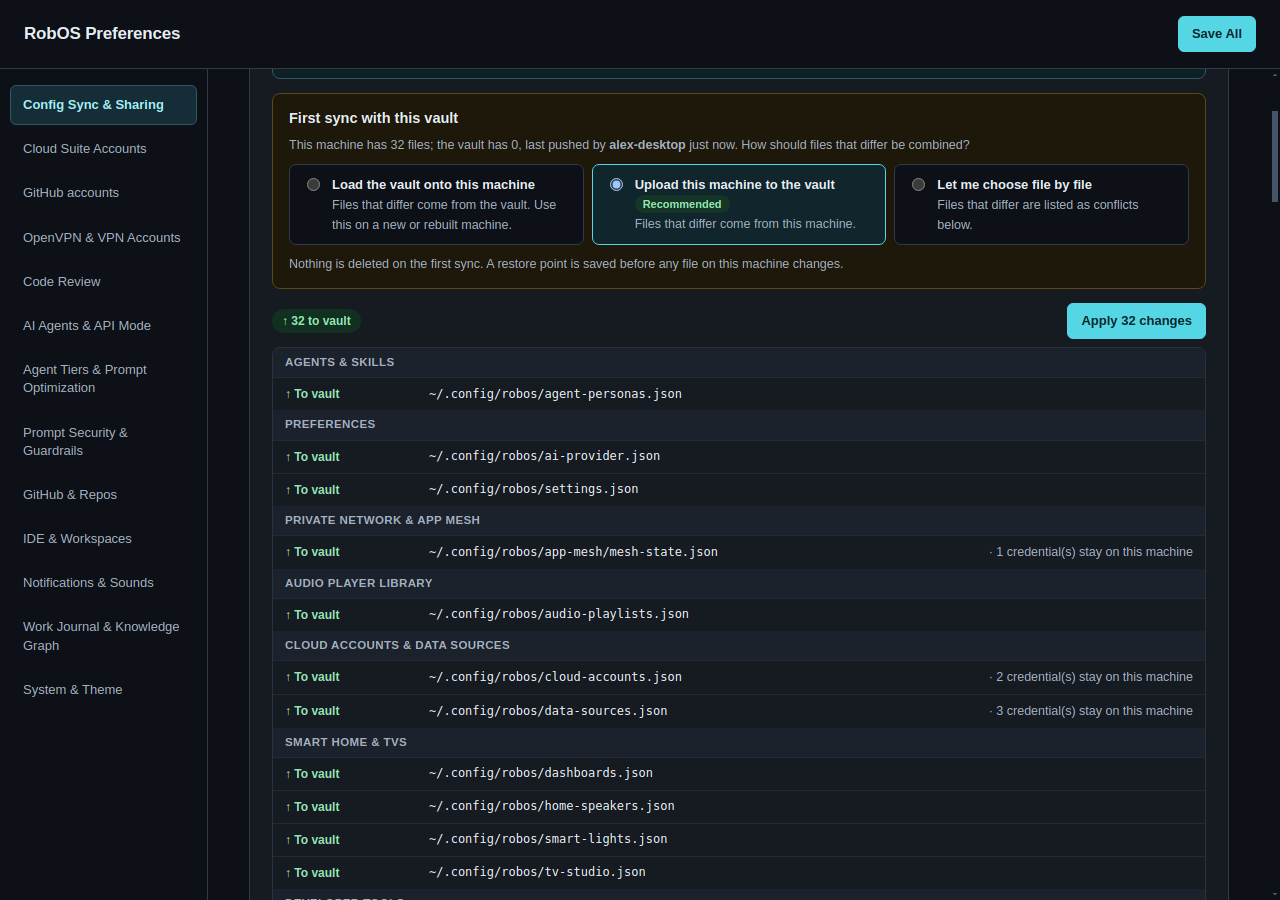
Click Apply. The vault now holds your setup, and the section shows its link, the last sync time and which categories are backed up. Untick a category under What is backed up to leave it out of the vault on this machine.
Set up another machine
On the new machine, install RobOS and sign in to the same Google account in Cloud Suite Accounts. Then:
- Copy the vault link from the first machine (Copy link next to the vault name), or open the folder in Google Drive and copy the address bar.
- On the new machine, paste it under Use an existing vault › Folder link, ID or path, add the passphrase if the vault has one, and click Connect.
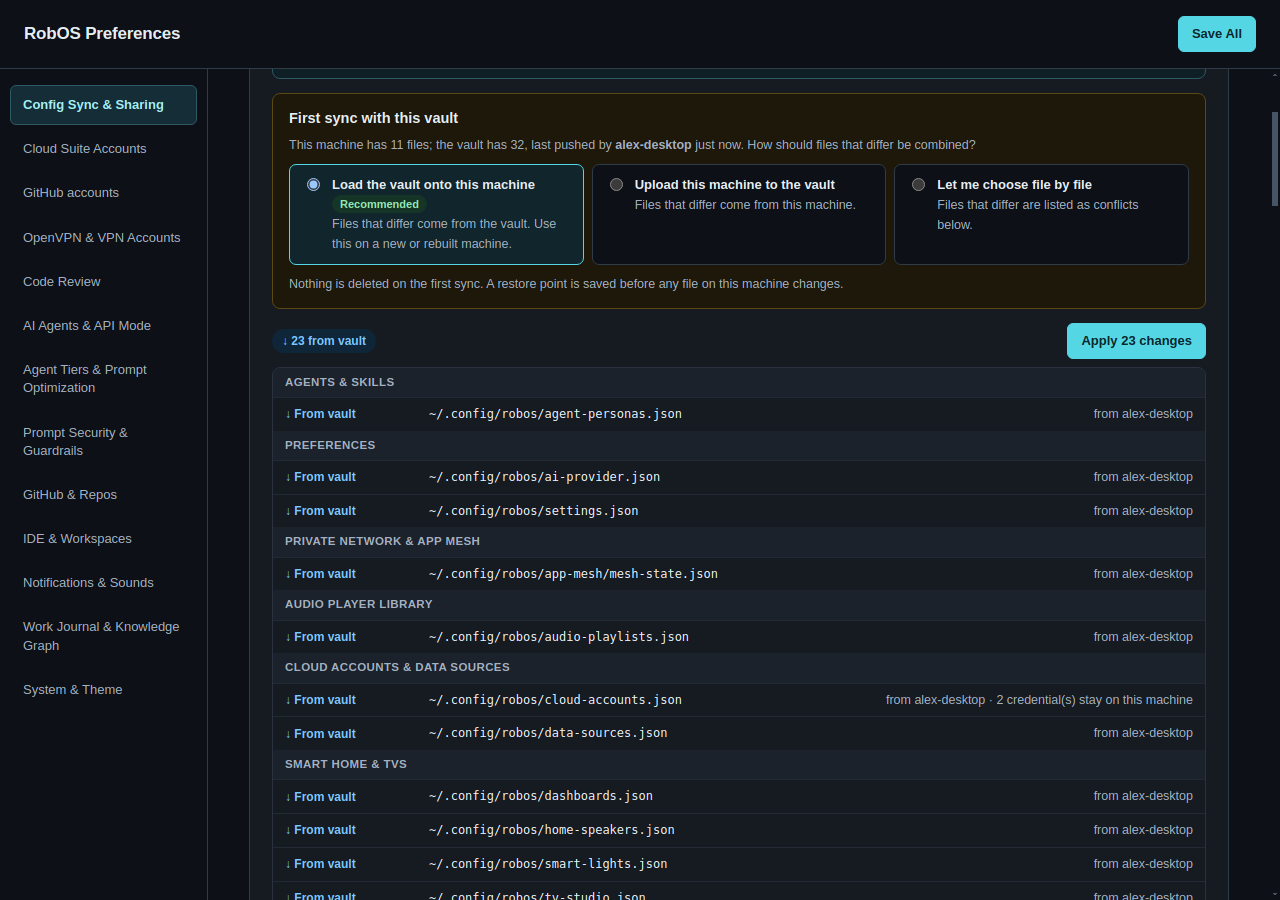
cloud-accounts.json notes that this machine's own sign-in stays.The first sync between a machine and a vault has no shared history, so it asks how files that exist on both sides but differ should be combined:
| Choice | Files that differ | Use it when |
|---|---|---|
| Load the vault onto this machine | Come from the vault | A new, reinstalled or rebuilt machine |
| Upload this machine to the vault | Come from this machine | This machine is the one you trust |
| Let me choose file by file | Are listed as conflicts | Both machines have real, different setups |
In every case, files that exist on only one side are copied to the other, and nothing is deleted. A restore point is saved before any file on this machine changes.
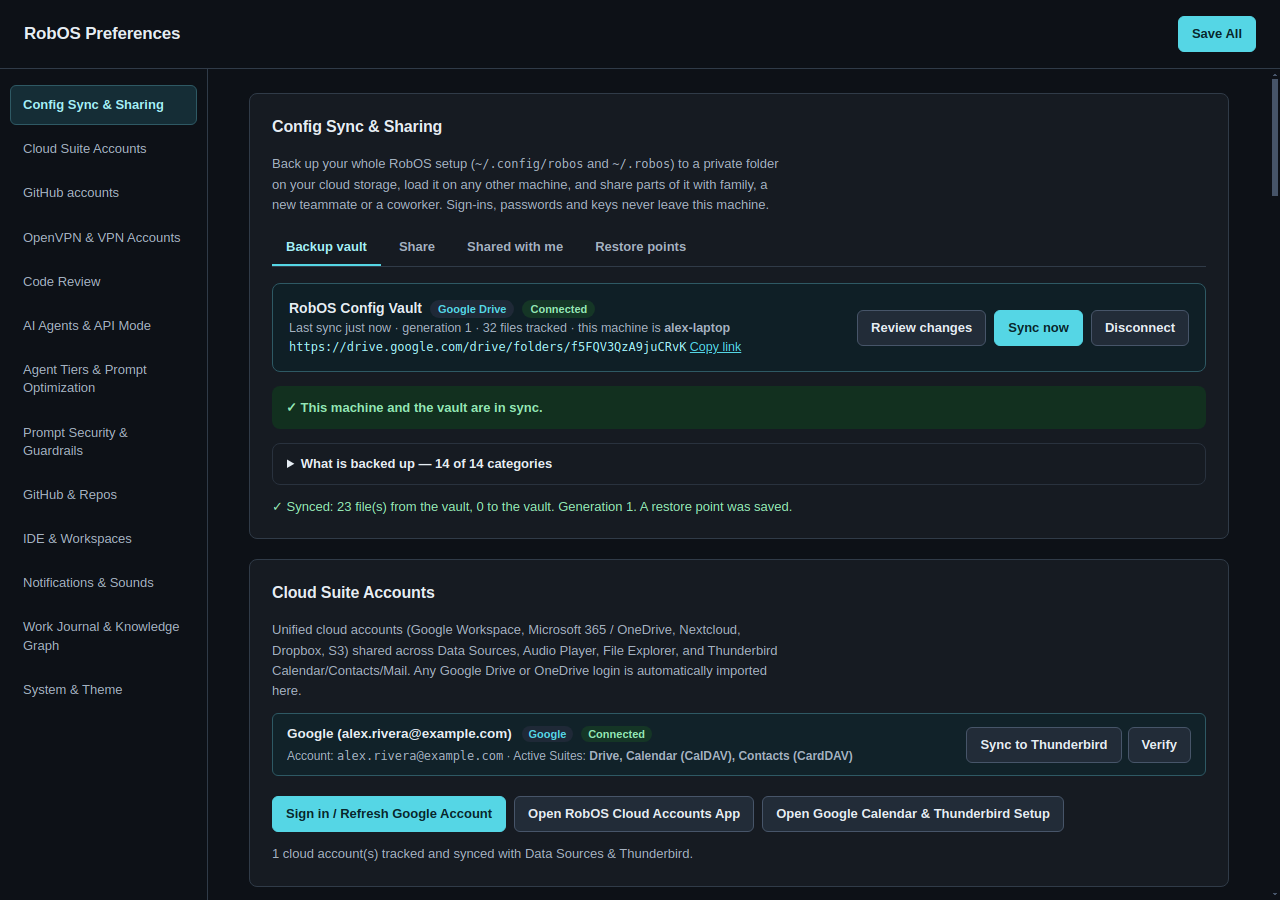
What the new machine does not get: sign-ins (sign in once per machine, in each app that asks), and the Private Network machine key. Each machine has its own identity on your private network; add the new one as a peer from Private Networks.
Sync and conflicts
After the first sync, Review changes compares three versions of every file: this machine, the vault, and the two as they were at the last sync. That tells RobOS which side changed:
| This machine | The vault | Result |
|---|---|---|
| Changed | Unchanged | ↑ To vault |
| Unchanged | Changed | ↓ From vault |
| Deleted | Unchanged | ✕ Delete in vault |
| Unchanged | Deleted | ✕ Delete here |
| Changed | Changed (differently) | ⚠ Changed on both: you choose |
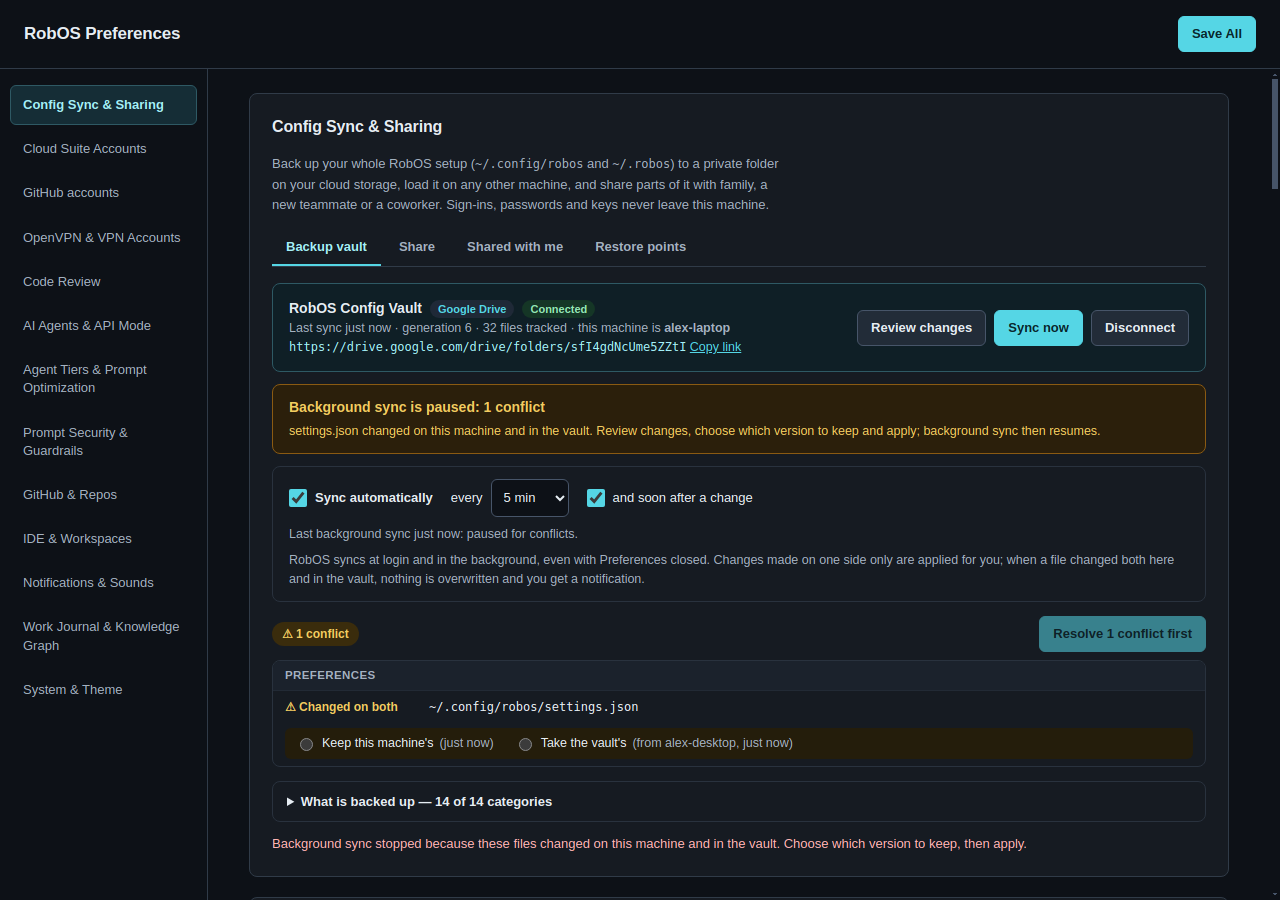
Sync now applies the list straight away when there are no conflicts. When a file changed on both sides, Apply stays disabled until you pick a version:
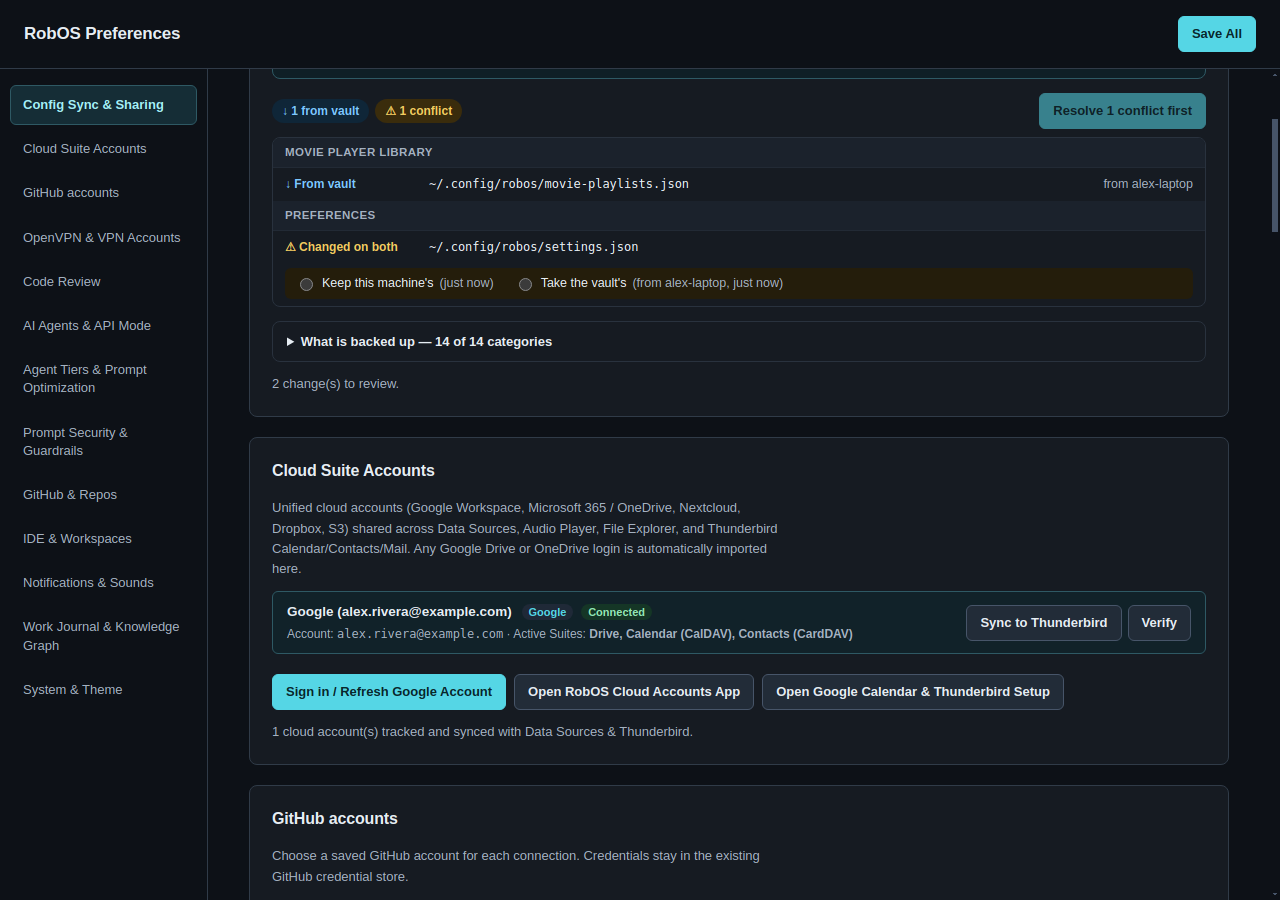
settings.json waits for a decision, and says which machine wrote the vault's version.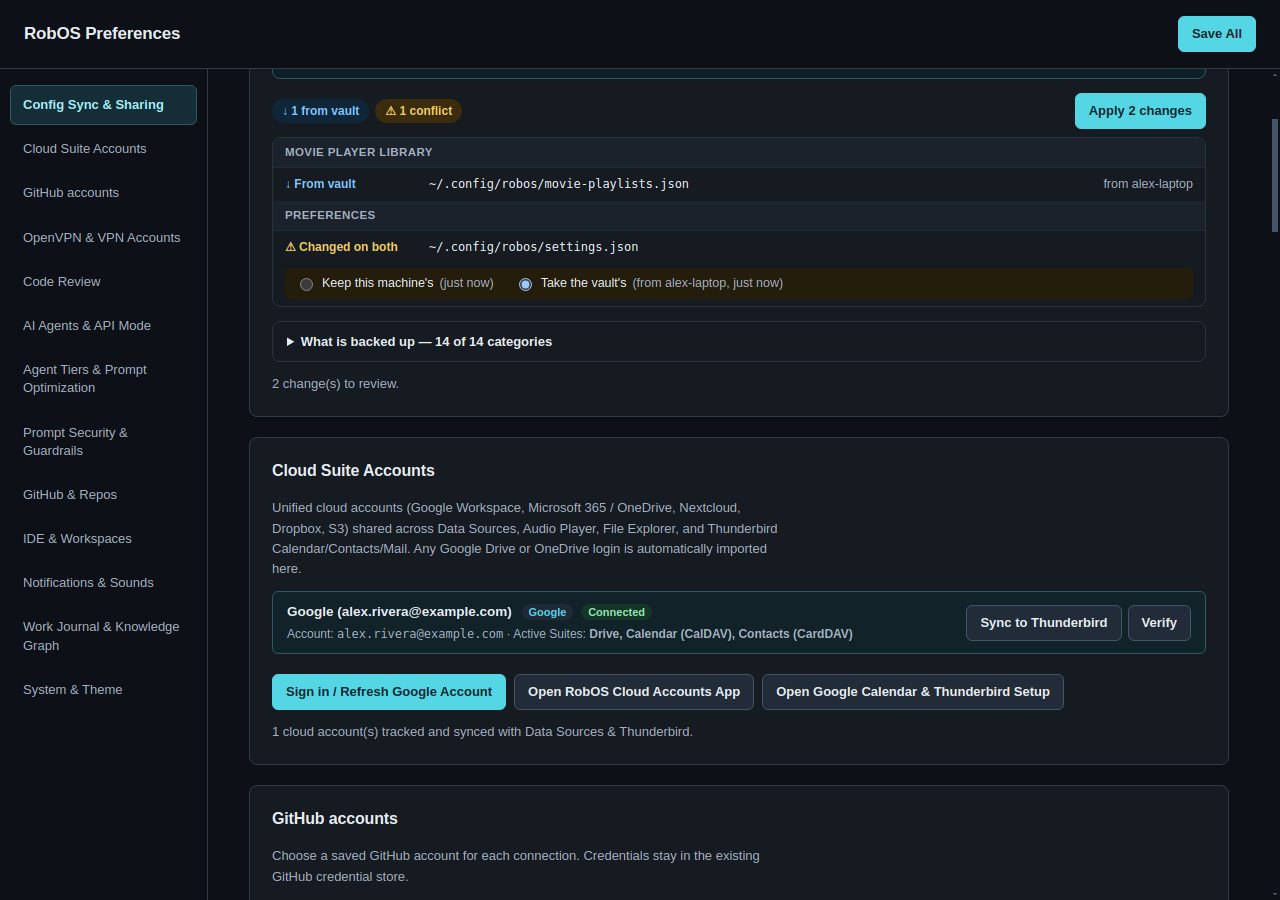
If another machine syncs while you are reviewing, Apply refuses with Another machine synced while you were reviewing and shows the new list. Nothing is half-written.
Sync automatically
You do not have to open Preferences to keep machines in step. Once the first sync is done, RobOS syncs the vault in the background, with Preferences closed:
- at login, about twenty seconds after the desktop starts;
- every 5 minutes (or 1, 15, 30 or 60);
- soon after a change: about fifteen seconds after you edit a backed-up file under
~/.config/robosor~/.robos, so an edit is usually in the vault before you walk to the other machine.
The settings are on the Backup vault tab, under the vault's name. Sync automatically is on for every vault; untick it and that machine syncs only when you click Sync now. The line under the settings says when the last background sync ran and what it did.
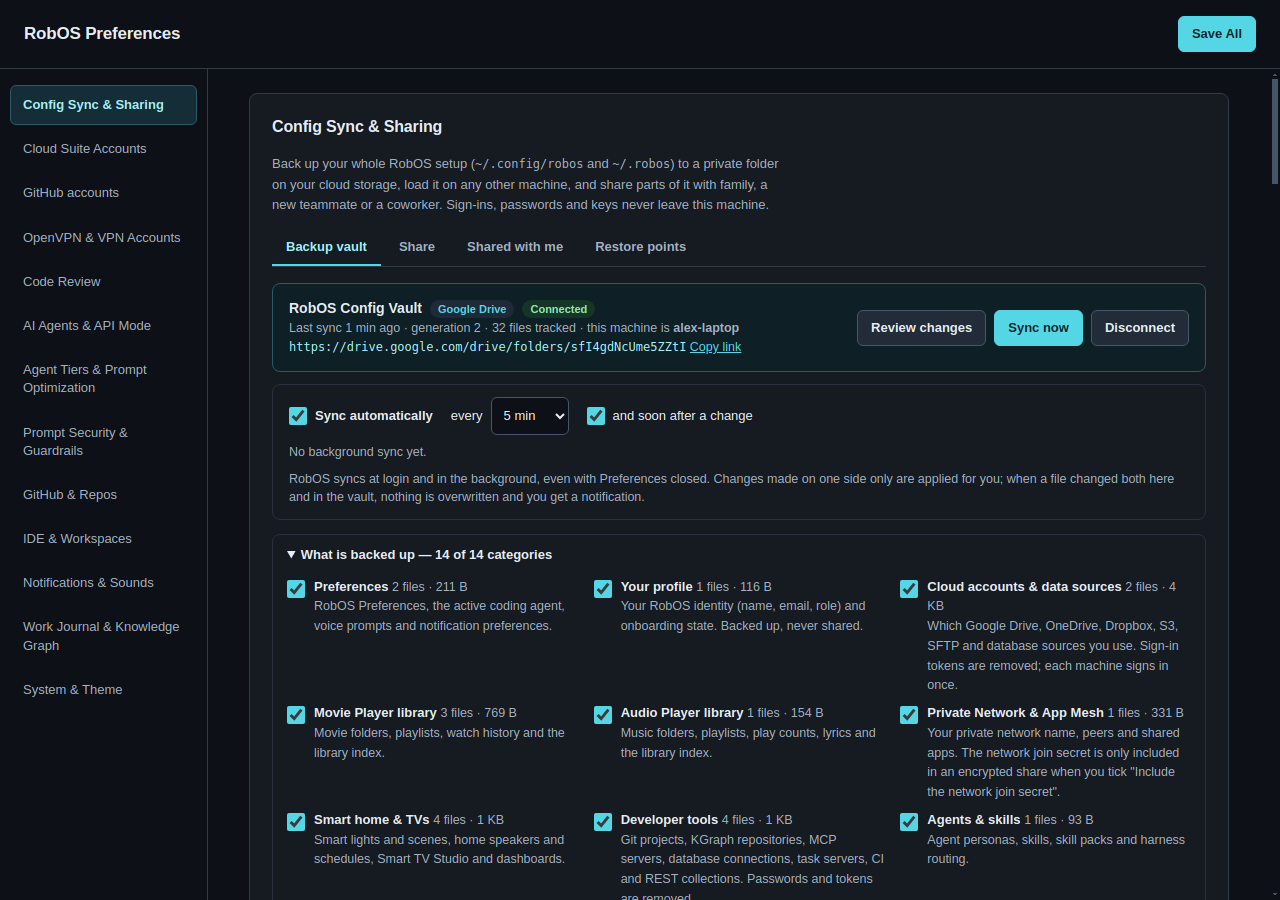
A background sync applies a change on its own only when one side changed: the same ↑, ↓ and ✕ rows as above, with a restore point saved before any local file changes. It never picks a side for you. If any file is ⚠ Changed on both, it writes nothing at all, on this machine or in the vault, and shows a notification:
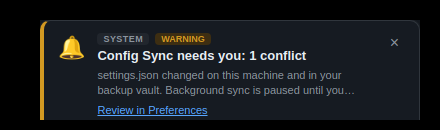
Review in Preferences opens Preferences on the Backup vault tab with the conflicts already listed. Choose a version for each and click Apply; the notification clears and background sync carries on. The same conflict is announced once, not every five minutes.
Two other situations also pause background sync with a Config Sync needs you notification: an encrypted vault whose key is not on this machine (vault passphrase; disconnect and connect again with the passphrase), and a vault the Google account can no longer open (cannot open the vault; sign in again under Cloud Suite Accounts). Being offline is not one of them: the sync is retried on the next interval.
Background sync runs in Desktop Manager, the RobOS service that starts at login, so it needs no extra daemon. Preferences and the background never sync at the same moment: if you click Sync now while a background sync is running, Preferences asks you to try again in a moment. On a machine without the RobOS desktop, run config-sync-cli.js vault auto run from cron or a systemd timer (see Command line).
Restore points
Every action that changes files on this machine (a sync that downloads, joining, updating or leaving a share) first copies the files it is about to change into a restore point. The Restore points tab lists them, newest first.
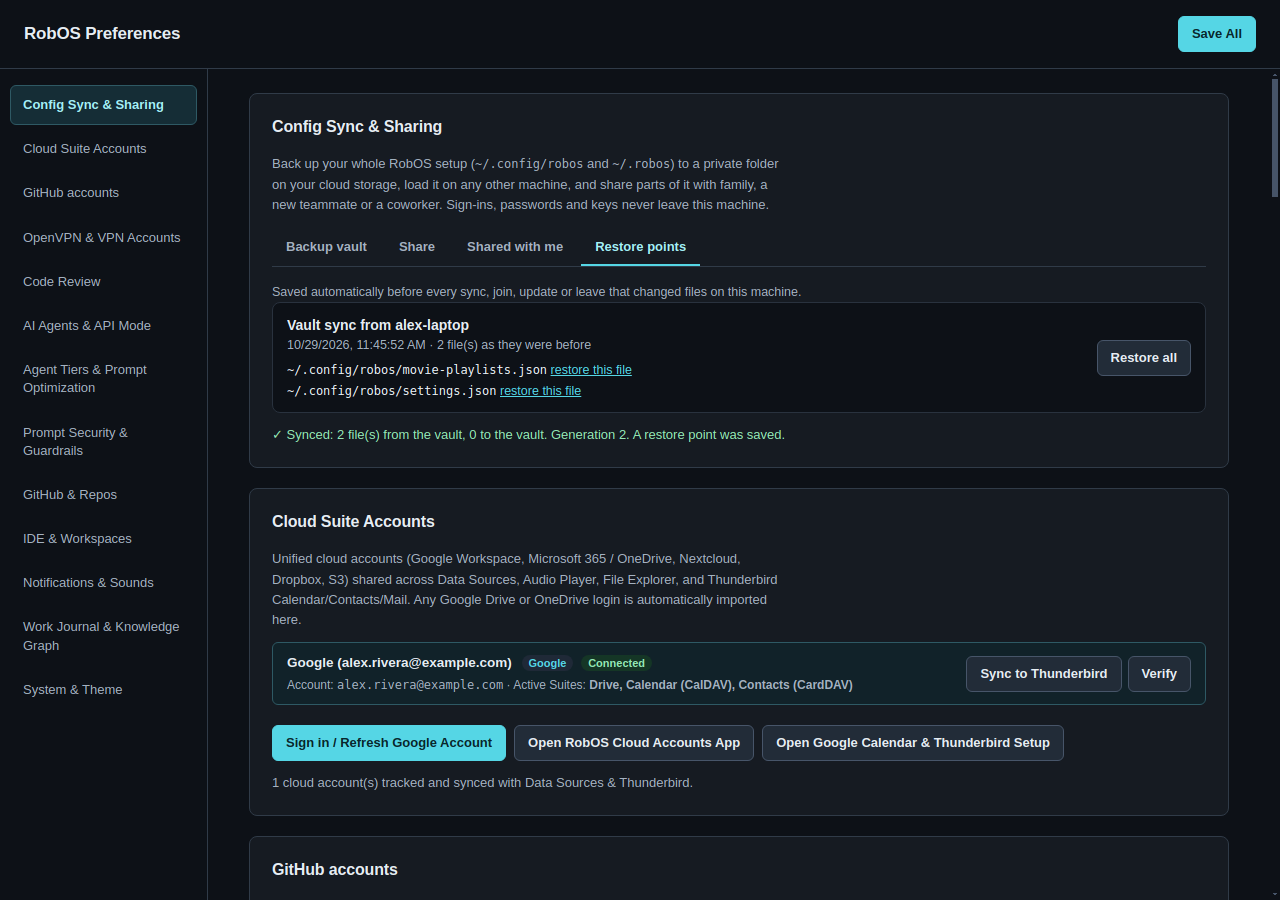
settings.json; the new playlist stays.Restoring is itself undoable: the current state is saved as a new restore point first. Restored files count as local edits, so the next sync sends them to the vault. The last fifteen restore points are kept, in ~/.config/robos/config-sync/restore-points/.
Share with someone
Open the Share tab. Start from a template; each one ticks the categories that usually make sense for that kind of person, and you can change them.
| Template | Ticks | For |
|---|---|---|
| Family & friends | Private Network, Movie Player library, Audio Player library, Smart home & TVs | People in your home who should join your network and see the same movies, playlists, lights, speakers and TV setup |
| New teammate onboarding | Developer tools, Knowledge Graph workspace, Agents & skills, Team & organization, Preferences | A new hire's day one |
| Coworker handoff | Developer tools, Knowledge Graph workspace | Handing a project to someone |
| Custom | Nothing | Anything else |
Then fill in:
- Share name and a note for the people you share with (they see it before they join).
- Share with: their Google account email addresses. Drive emails them that you shared a folder.
- Publish to: the Google account (or local folder) the share folder is created in.
- Passphrase (optional): encrypts the share. Tell it to them in person or by phone, not in the same email.
- Include the Private Network join secret: only possible with a passphrase and the Private Network category. See Family.
Preview shows exactly what goes out, per category, and every credential that was removed so you know what they will have to sign in to. Publish share creates a new folder named RobOS Share — name, uploads, and gives each person read access.
Some categories are never offered for sharing: Your profile (your name and email), Cloud accounts & data sources (other people use their own) and Other app settings. Watch history and play counts are left out of shared libraries.
Your published shares are listed under Shares you publish:
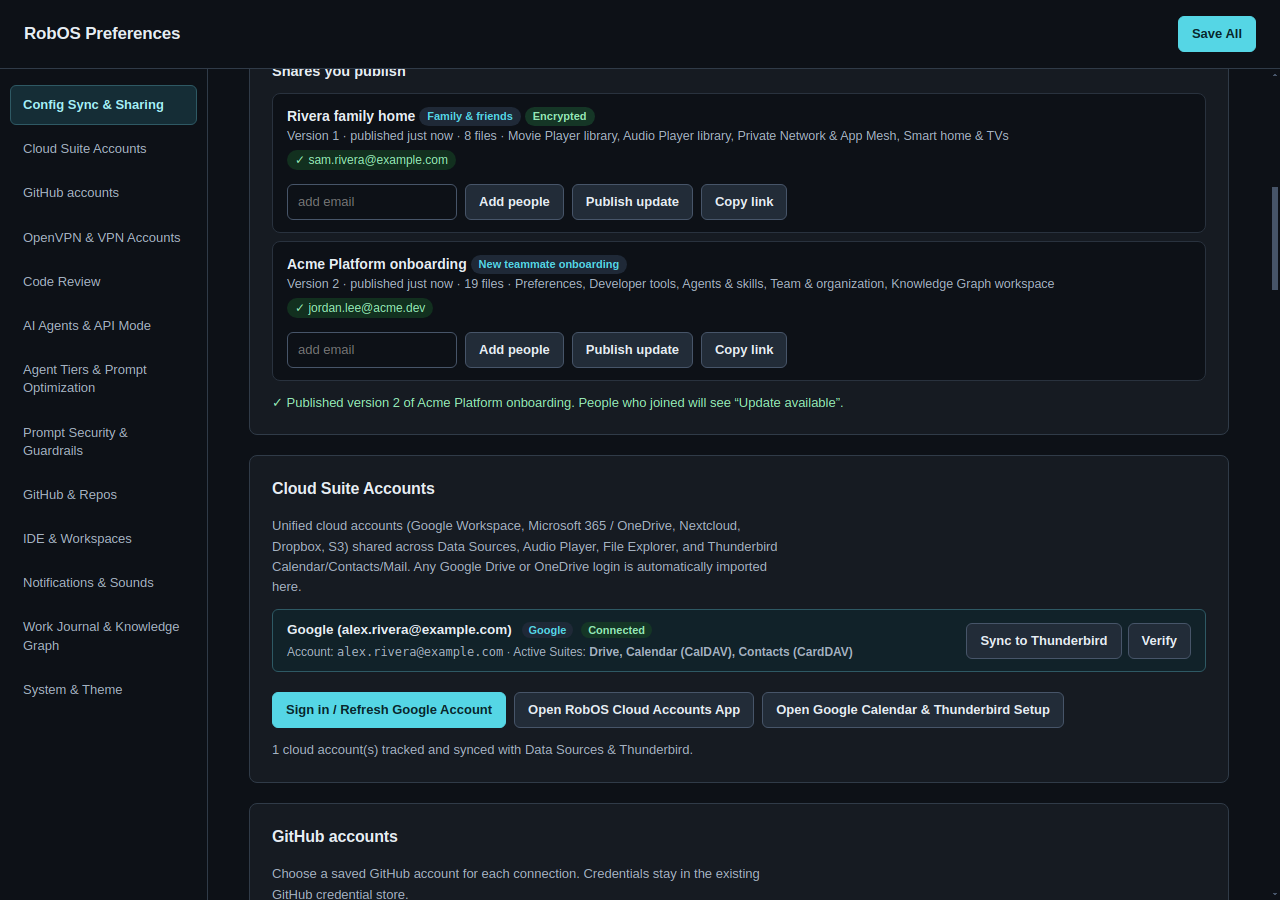
A share is a snapshot. When your setup changes, click Publish update; the people who joined see Update available and apply it when they choose. To stop sharing with someone, remove their access to the folder in Google Drive.
Scenario: family & friends
Alex wants Sam to join the home's private network, watch the family movie library over it, and have the same lights, speakers and living-room TV set up.
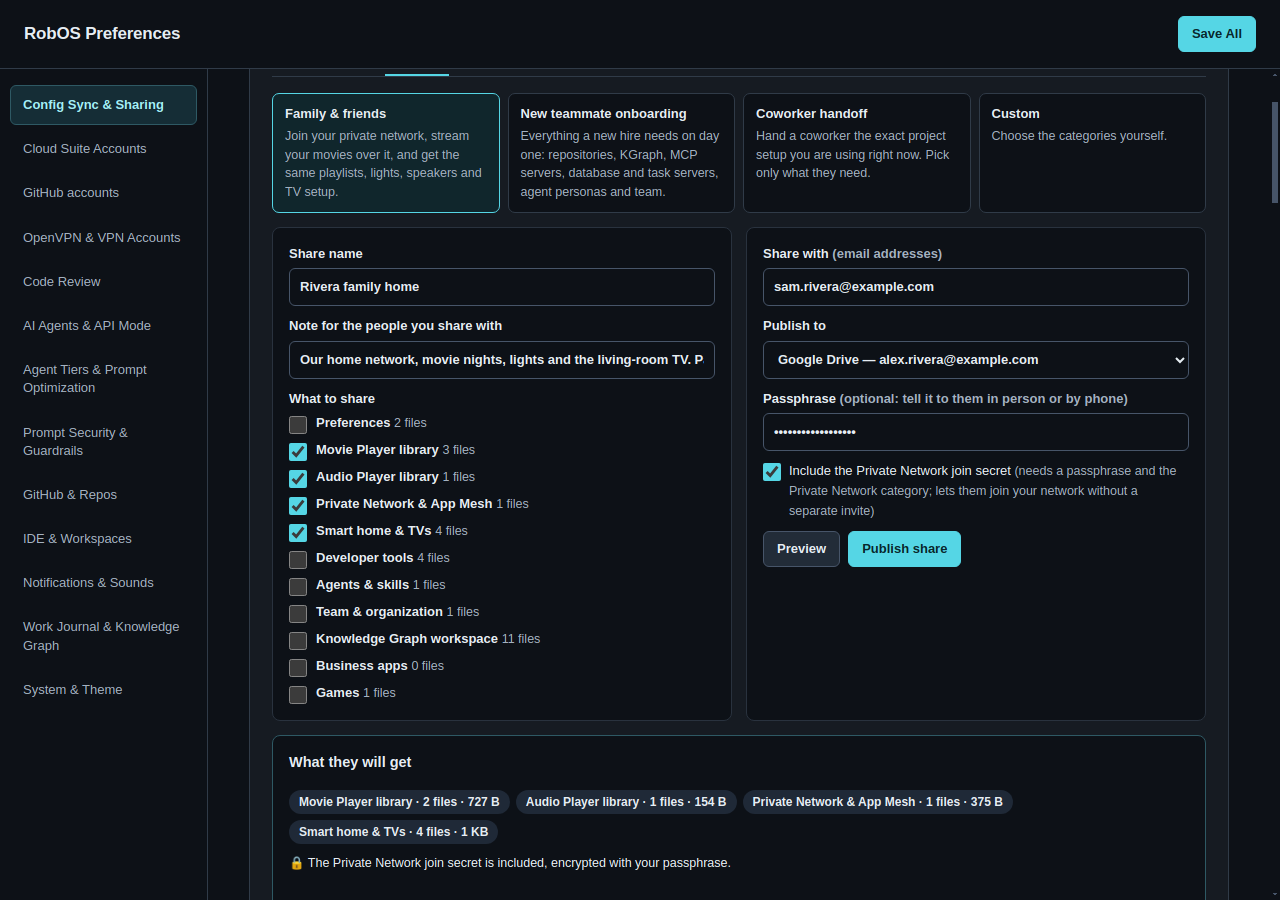
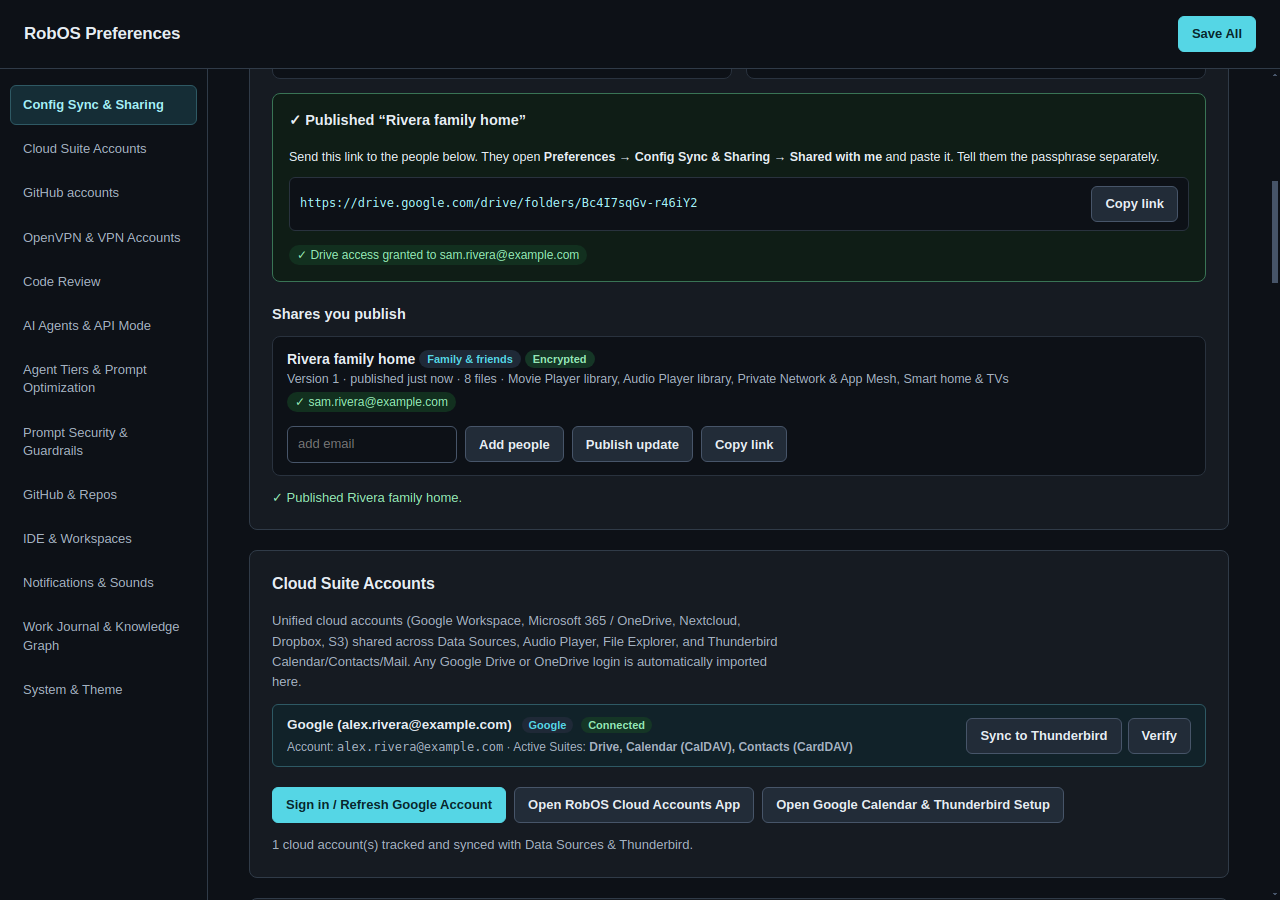
The Private Network join secret is the one credential that can ever be shared, and only like this: inside a share encrypted with a passphrase, when you tick the box. Without it, Sam gets your network's name and peers and still needs an invite from Private Networks. The machine key (app-mesh/identity.json) is never shared; Sam's machine keeps its own.
On Sam's side the movie library lists Alex's folders. The files stay in Alex's storage: Sam watches them over the private network, or Alex shares the Drive folder with Sam. See Shared with me for what Sam sees.
Scenario: onboard a new teammate
Jordan starts on Alex's team on Monday. Alex publishes Acme Platform onboarding with the New teammate onboarding template and adds Jordan's work Google account. Jordan installs RobOS, signs in to Google, and pastes the link under Shared with me.
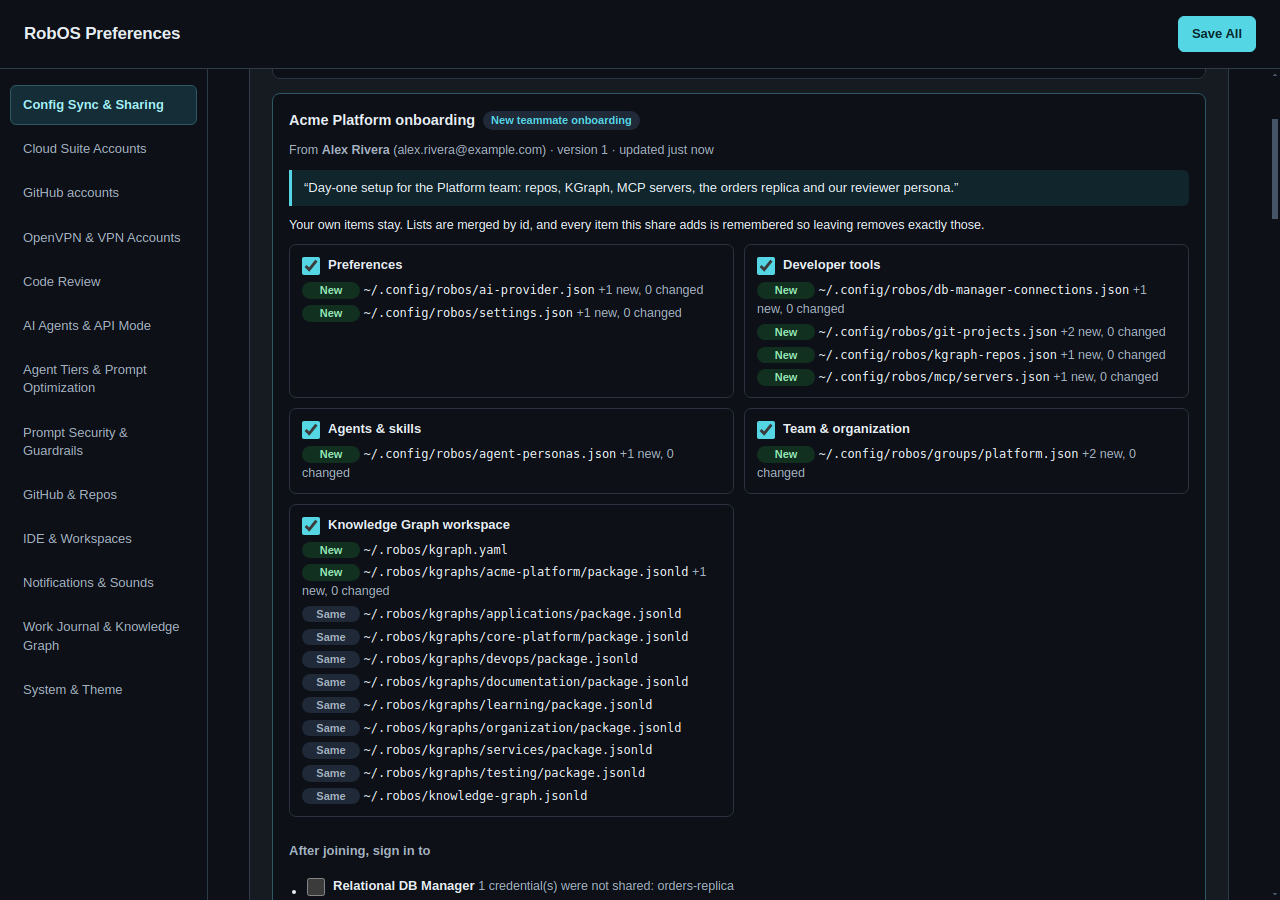
After Join and apply, Jordan has the team's repositories in Git Projects (with paths under Jordan's home), the KGraph packages, the MCP servers without their tokens, the database connection without its password, the team's reviewer persona and the team's default settings. Jordan's own profile is untouched.
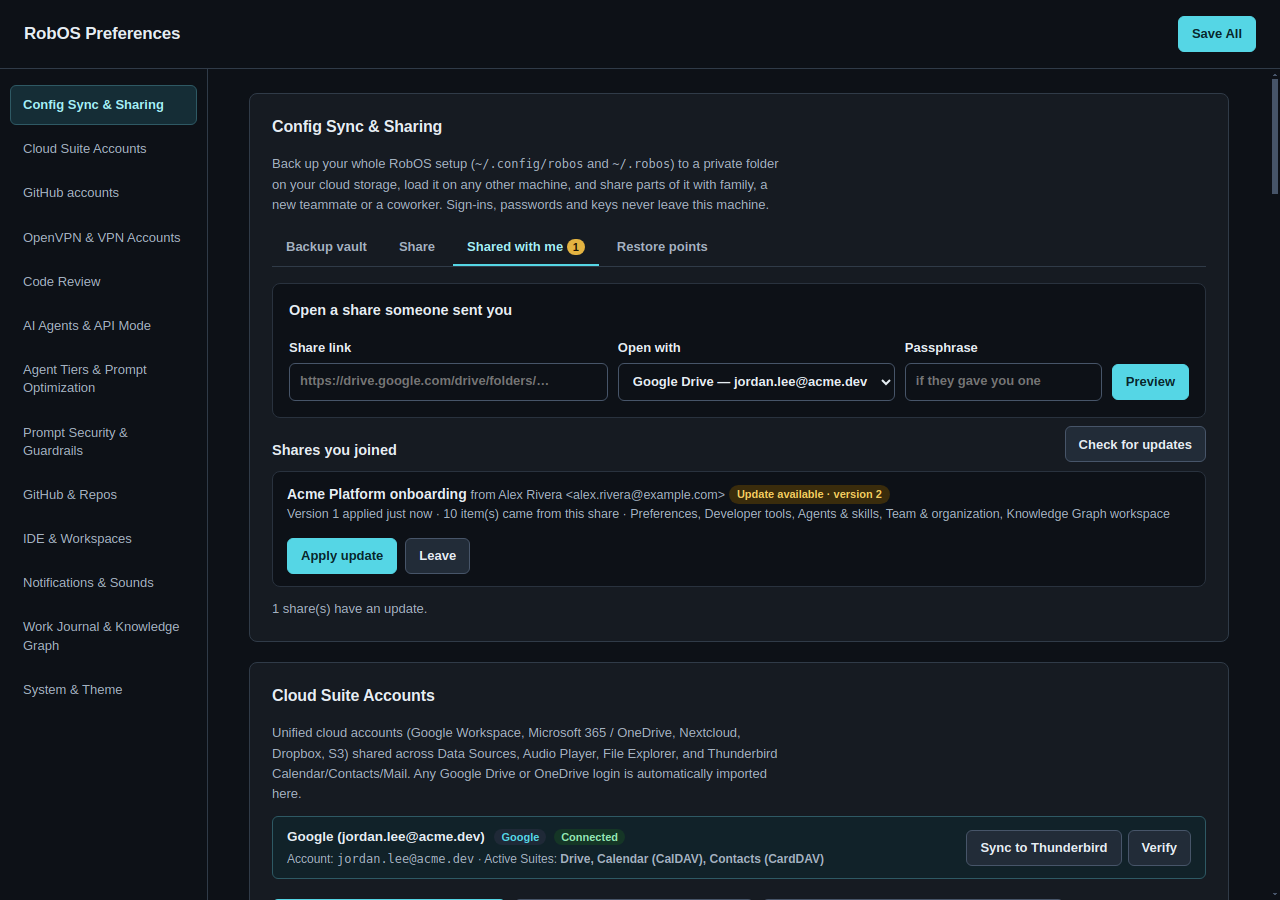
A week later the team adds a service. Alex adds it to Git Projects and clicks Publish update. Jordan clicks Check for updates:
Scenario: coworker handoff
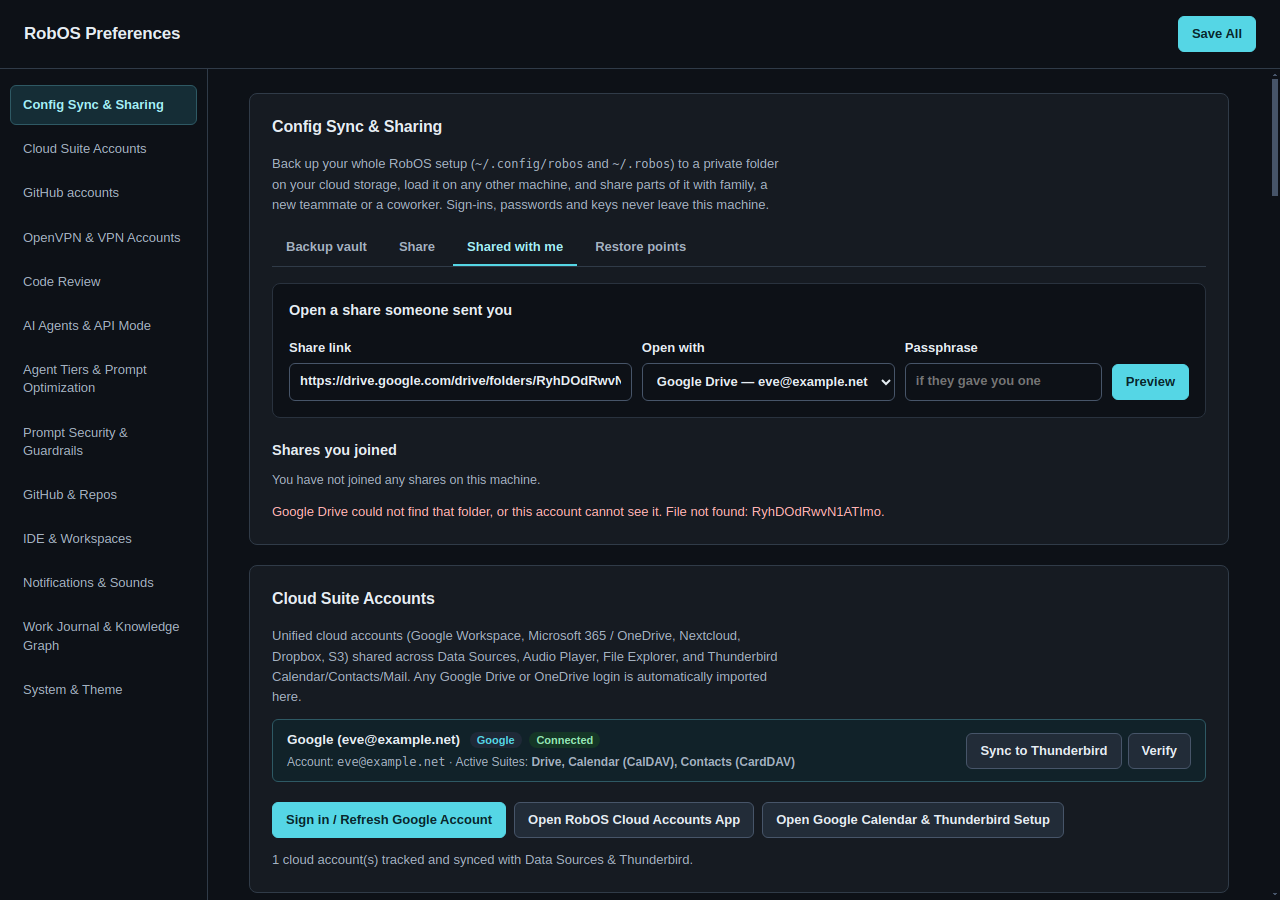
Alex hands billing-svc to Priya with the Coworker handoff template. Only the people Alex added can open the link. Eve, who got the link forwarded but was not added, sees this:
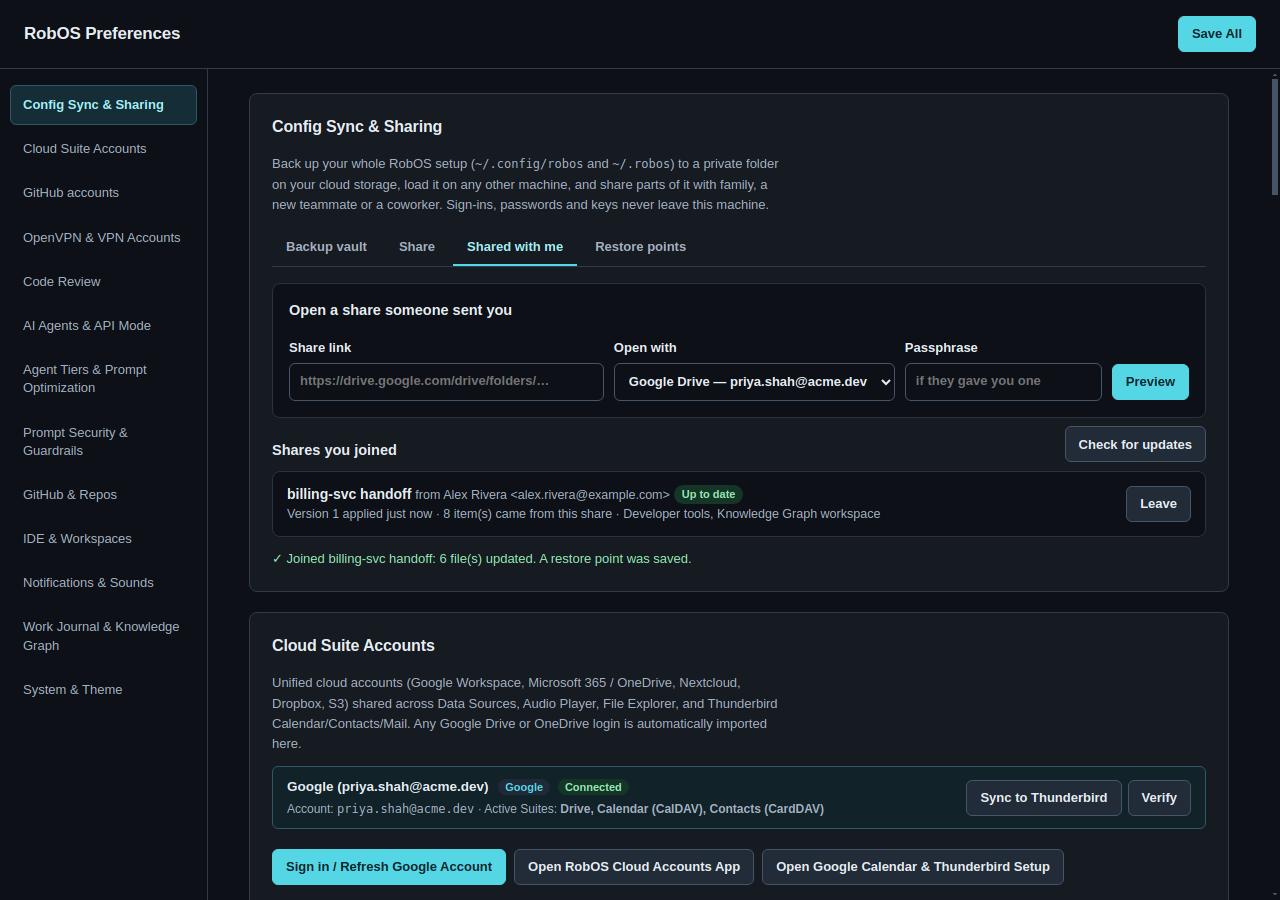
Priya joins. Her own projects stay, and Alex's are added:
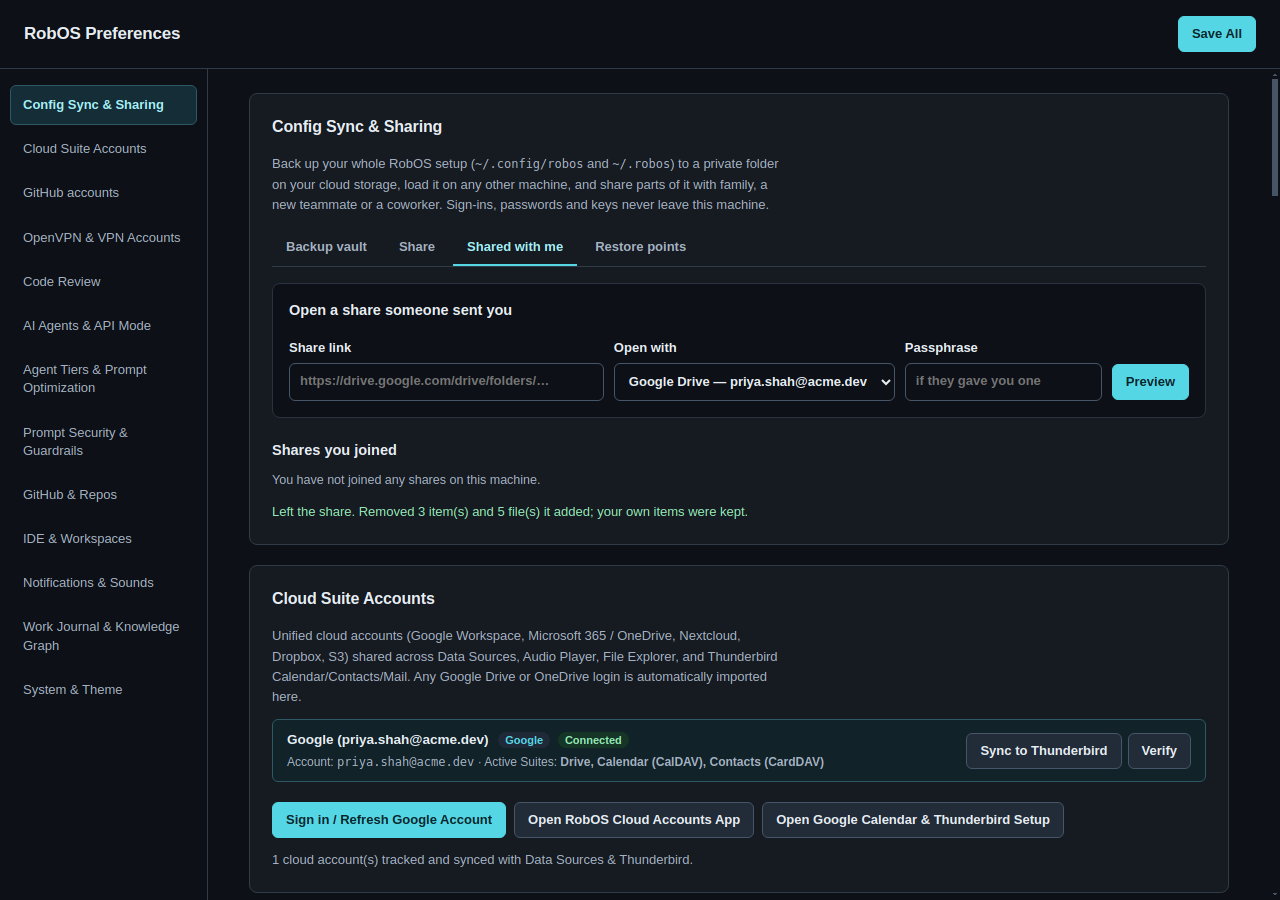
When the handoff is over, Leave (click it twice) removes exactly the items the share added and keeps everything that was Priya's:
notes project is still there; Alex's three are gone.Shared with me: join, update, leave
- Paste the link someone sent you under Open a share someone sent you, choose the Google account they shared it with, enter the passphrase if they gave you one, and click Preview.
- Review the preview. Untick categories you do not want.
- Click Join and apply.
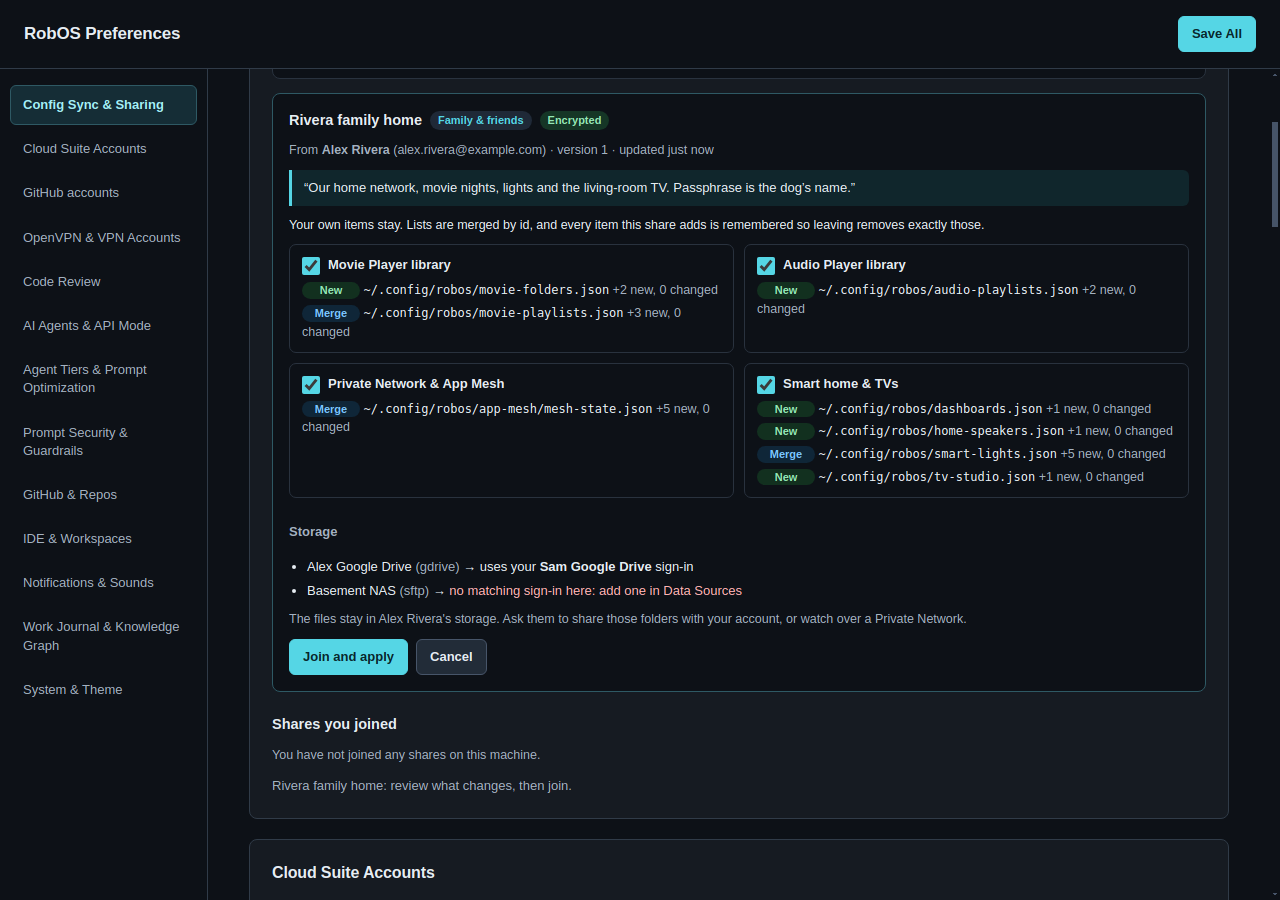
What the effects mean:
| Effect | Meaning |
|---|---|
| New | The file does not exist on your machine; it is created. |
| Merge | The file exists. Items in lists (rooms, lights, playlists, projects, peers) are matched by their id: new ones are added, matching ones get the shared values for the fields the share has, and fields only you have (your credentials, your local state) stay. Plain settings take the shared value. |
| Replace | A file that cannot be merged (YAML, or JSON that does not parse) differs and is replaced. A restore point keeps your version. |
| Same | Nothing changes. |
Storage. When shared files point at the publisher's data sources (a movie folder on their Google Drive, say), RobOS points them at your own sign-in of the same kind if you have one, and tells you when you do not. The files themselves stay in the publisher's storage.
Updates. Check for updates asks each joined share for its version; the tab shows a badge when one is newer. Apply update merges it the same way.
Leaving. Leave removes every list item and every file the share added (a file is only removed if you have not changed it since). Items that you already had before joining are not removed, even if the share updated them.
What is copied
Files are grouped into categories. A file belongs to the first category that matches it; a file that matches none (a new app's settings, say) falls into Other app settings, so it is backed up without anyone remembering to list it.
| Category | Includes | Shareable |
|---|---|---|
| Preferences | settings.json, the active coding agent, voice prompts, notification preferences, desktop pins and widgets | Yes |
| Your profile | identity.json, onboarding state, company | No |
| Cloud accounts & data sources | Which Google Drive, OneDrive, Dropbox, S3, SFTP and database sources you use, without their tokens | No |
| Movie Player library | Movie folders, playlists, watch history (vault only), the library index, subtitles | Yes |
| Audio Player library | Music folders, playlists, play counts (vault only), the library index, lyrics | Yes |
| Private Network & App Mesh | Network name, peers, shared apps (app-mesh/, not the machine key) | Yes |
| Smart home & TVs | Lights, rooms and scenes, home speakers and schedules, Smart TV Studio, dashboards | Yes |
| Developer tools | Git projects, KGraph repositories, MCP servers, database connections, task planner, CI, workspaces | Yes |
| Agents & skills | Agent personas, skills, skill packs, harness routing | Yes |
| Team & organization | Groups and people directory settings | Yes |
| Knowledge Graph workspace | ~/.robos/kgraphs, the aggregated graph, kgraph.yaml, eLearning and project packages | Yes |
| Business apps | Point of Sale, Auto Center, Household | Yes |
| Games | Tabletop saves, Party Game shows | Yes |
| Other app settings | Anything else under the two folders that is not excluded | No |
Never copied: Electron profiles, logs, voice and metadata caches, search indexes, agent sessions, sockets and lock files, VPN profiles, notification history, the Private Network machine key and live invite, downloaded media and cloud mounts (~/.robos/cloud-mounts, videos, development), and Config Sync's own state. Files over 25 MB are skipped and reported.
Never synced, always kept from the local copy (machine-local keys): login status and last-verified times in Cloud Accounts and Data Sources, last-synced times on media folders, the TV Studio's live casts and remote state, the last dashboard cast, and the Private Network listen address, port and live tunnels.
The lists are in packages/robos-lib/config-sync-catalog.js.
Security
- Credentials never leave the machine. JSON keys whose names mean a credential (
accessToken,refreshToken,password,clientSecret,apiKey,privateKey,keyPem,networkSecret,*_TOKENand so on) are removed before upload. References to secrets, like apasspath, are kept. The one exception is the Private Network join secret, which you can opt in to carrying inside an encrypted share. - Pulling never signs you out. When a file comes from the vault, this machine's credentials are put back into it, matching list items by id. A sign-in that exists only on this machine is kept, and uploaded next time without its token.
- Access is the cloud folder's access. A vault is a folder in your Drive that only you can open. A share is readable by the people you add, and Drive enforces it: someone with the link but no access gets could not find that folder, or this account cannot see it. Everyone can only read a share; only you can publish to it.
- Optional encryption. With a passphrase, the manifest (including file names) and every file are encrypted with AES-256-GCM, using a key derived from the passphrase with scrypt. File bodies are named by a keyed hash, so not even equal files can be recognized. The derived key is kept in
~/.config/robos/config-sync/keys.json(mode 600) so you are not asked again on that machine. A wrong passphrase is reported as wrong, not as corrupt data. - Integrity. Every file body is checked against the SHA-256 in the manifest after download.
- Nothing is decided for you. Every change to local files is saved in a restore point first. A background sync applies only changes made on one side; when a file changed on both, it writes nothing and asks you.
Storage options
| Storage | How to choose it | Sharing |
|---|---|---|
| Google Drive | A Google account in Cloud Suite Accounts; paste a Drive folder link or ID | Built in: Share with grants Drive access |
| A folder on this computer | A folder on this computer; paste a path. Use a Dropbox, OneDrive or Nextcloud sync folder, an rclone mount, a NAS share or a USB drive | Share the folder in the app that syncs it |
Command line
The same engine runs from a terminal, for servers, VMs and scripts. Put the passphrase, if any, in ROBOS_CONFIG_PASSPHRASE so it stays out of shell history. Add --json to any command for machine-readable output.
# where the CLI lives
CFG="node /usr/local/share/robos/robos-lib/config-sync-cli.js"   # or packages/robos-lib/ in a checkout

# full load of a new machine from the vault
$CFG vault connect https://drive.google.com/drive/folders/<id> --account google-you-example-com
$CFG vault plan --use-vault
$CFG vault sync --use-vault

# day to day
$CFG status
$CFG vault sync                      # stops and lists conflicts if there are any
$CFG vault sync --keep remote        # resolve every conflict with the vault's version
$CFG vault auto                      # show background sync settings and the last run
$CFG vault auto on --every 15 --watch on
$CFG vault auto off                  # this machine syncs only when asked
$CFG vault auto run                  # one background sync: applies only if nothing conflicts
$CFG vault sync --watch 300          # keep syncing every five minutes in this terminal

# shares
$CFG share publish --name "Acme Platform onboarding" --template onboarding \
     --to jordan.lee@acme.dev --account google-you-example-com
$CFG share update <share-id>
$CFG join https://drive.google.com/drive/folders/<id> --preview
$CFG join https://drive.google.com/drive/folders/<id>
$CFG joined check
$CFG joined leave <share-id> --remove-items

# restore points
$CFG restore list
$CFG restore <restore-point-id>
Reference
What is in the cloud folder
RobOS Config Vault/                 (or "RobOS Share — <name>")
├── robos-config.json               manifest: format, kind (vault|share), id, generation,
│                                   files {path → sha256, blob, size, category, by}, history
└── blobs/
    └── <sha256 or keyed hash>      gzip'd file body (AES-256-GCM encrypted with a passphrase)
Paths in the manifest are relative to two roots: config/… is ~/.config/robos/… and robos/… is ~/.robos/…. Each sync that uploads increases generation by one and adds a line to history (machine, time, files). File bodies are stored once and shared between versions; bodies no longer used are deleted after the manifest is written.
Files on each machine
| Path | Holds |
|---|---|
~/.config/robos/config-sync/state.json | This machine's id, the connected vault and its last-sync base, background sync settings and last run (vault.auto), published shares, joined shares and the items each one added |
~/.config/robos/config-sync/sync.lock | Present while a vault sync is running, so Preferences and the background never sync at once |
~/.config/robos/config-sync/keys.json | Derived encryption keys for encrypted vaults and shares (mode 600) |
~/.config/robos/config-sync/restore-points/ | Restore points |
Source and tests
packages/robos-lib/config-sync.js: the engine (vault, shares, restore points)packages/robos-lib/config-sync-catalog.js: categories, exclusions, machine-local keys, templatespackages/robos-lib/config-sync-backends.js: Google Drive and local folder storagepackages/robos-lib/config-sync-auto.js: background sync (login, interval, file watch, notifications), started by Desktop Managerpackages/robos-lib/config-sync-cli.js: the command linepackages/robos-preferences/renderer/config-sync.js: the Preferences sectionpackages/robos-lib/config-sync.test.cjs: engine testspackages/robos-test/tests/robos-preferences/config-sync-e2e.test.js: the scenarios on this page, through the real apps (Preferences, Desktop Manager and the toast daemon)
cd packages/robos-test
Xvfb :99 &
ROBOS_TEST=1 DISPLAY=:99 npm run test:config-sync
# save the screenshots on this page:
ROBOS_TEST=1 DISPLAY=:99 ROBOS_SHOT_DIR=../../site/assets/config-management \
  node --test tests/robos-preferences/config-sync-e2e.test.js
Troubleshooting
| Message | What to do |
|---|---|
| Google Drive could not find that folder, or this account cannot see it | Pick the Google account the folder was shared with under Open with, or ask the owner to add your email. |
| This folder is encrypted. Enter its passphrase. / Wrong passphrase | Enter the passphrase the owner gave you. There is no recovery: a lost vault passphrase means starting a new vault. |
| … is a shared config, not a backup vault (or the reverse) | You pasted a share link under Backup vault, or a vault link under Shared with me. Use the other tab. |
| Another machine synced while you were reviewing | Review the new list and apply again. |
| N file(s) changed on both this machine and the vault | Choose Keep this machine's or Take the vault's for each, or use --keep on the command line. |
| A movie folder shows no matching sign-in after joining | Add a data source of that kind (for example SFTP) in Data Sources, or watch over the publisher's private network. |
| Config Sync needs you: N conflicts (notification) | Click Review in Preferences, choose a version for each file and apply. Background sync is paused until then. |
| Another sync is running on this machine | A background sync was running when you clicked. Try again in a moment. |
| Something looks wrong after a sync | Restore points › restore the file or the whole point. |
See also: RobOS Preferences · Private Networks & App Mesh · Engineering blog: why Config Sync works this way