

RobOS Camera Watch · Setup & sharing guide
Your cameras.
Your private network.
Turn a desk webcam or a network camera into a live view you can share with another RobOS computer. Choose the cameras, send a private invite, and decide when access ends. The connection is encrypted, and a new camera-only peer gets access to the camera share service.
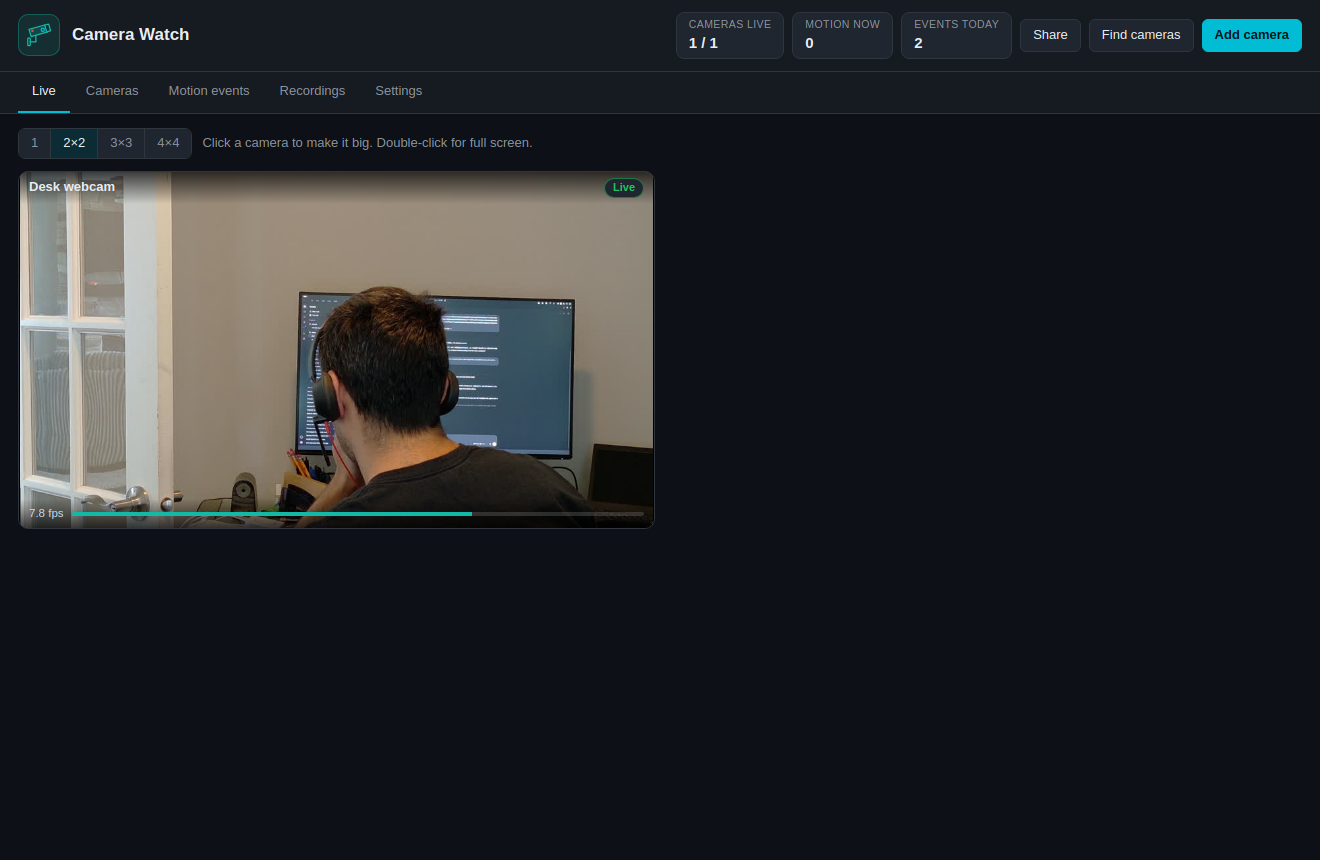
- Connect a cameraWebcams, ONVIF and stream addresses
- Build your camera networkInvite another RobOS computer
- Understand permissionsMachine, service and camera access
- Detect & recordMotion, snapshots and local clips
- Keep it workingConnection checks and limits
1. Get your first camera live
Open Camera Watch in RobOS. Both the camera computer and the viewing computer need ffmpeg; Settings checks for it and accepts a full executable path. On Ubuntu, install it with sudo apt install ffmpeg.
- USB webcam: choose Add camera → Webcam on this computer, select the device and picture size, give it a name, and test the connection. Close video calls or other programs using the device first.
- ONVIF camera: enable ONVIF in the camera's settings, then use Find cameras on its local network. Select the camera, supply its credentials, and choose a stream profile.
- Known stream: choose Add camera → Stream address for an RTSP, RTSPS or MJPEG HTTP address. Use Test connection to see a frame before saving.
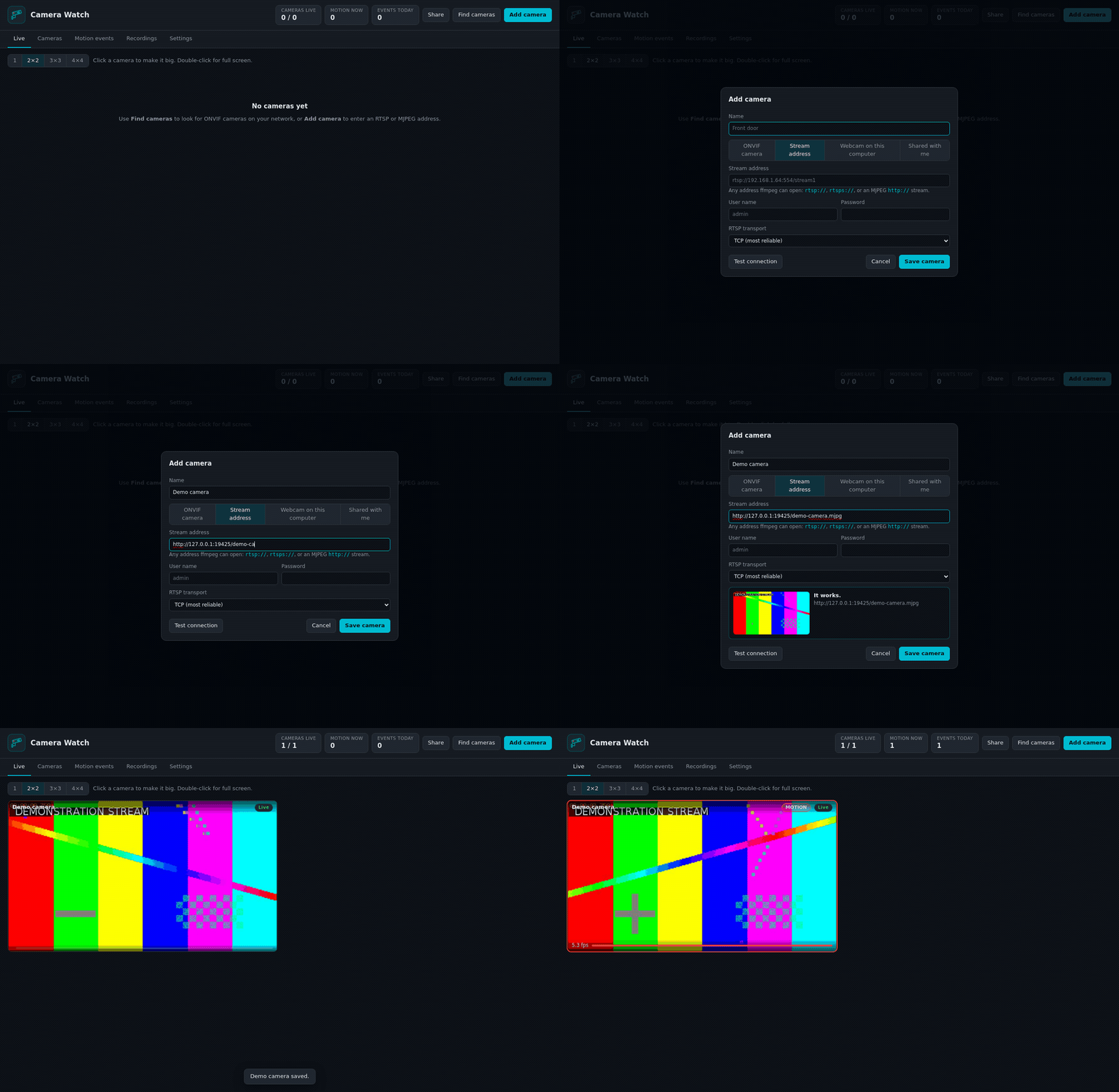
The Live tab shows the cameras in a grid. Click a tile for a larger view and camera controls; double-click for full screen. Start with the camera live on its own computer before sharing it.
2. Invite another RobOS computer
You can build a small camera network around the views you actually need: a front entrance for a neighbour, the workshop for a colleague, or a desk webcam on a second computer. Create separate invites for separate recipients so you can revoke each invite independently.
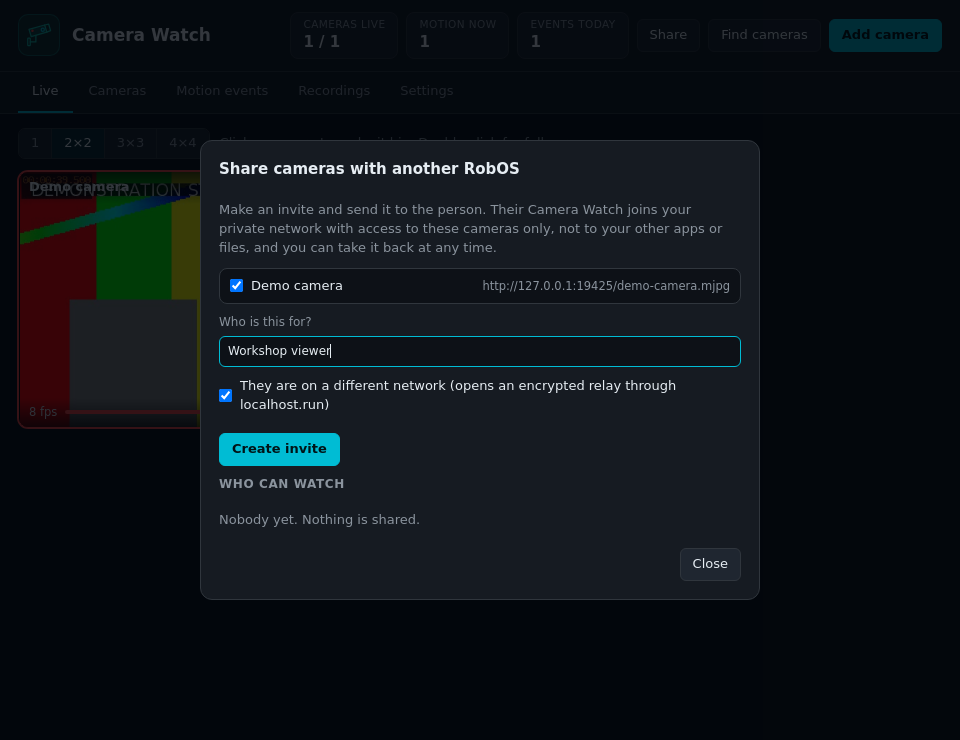
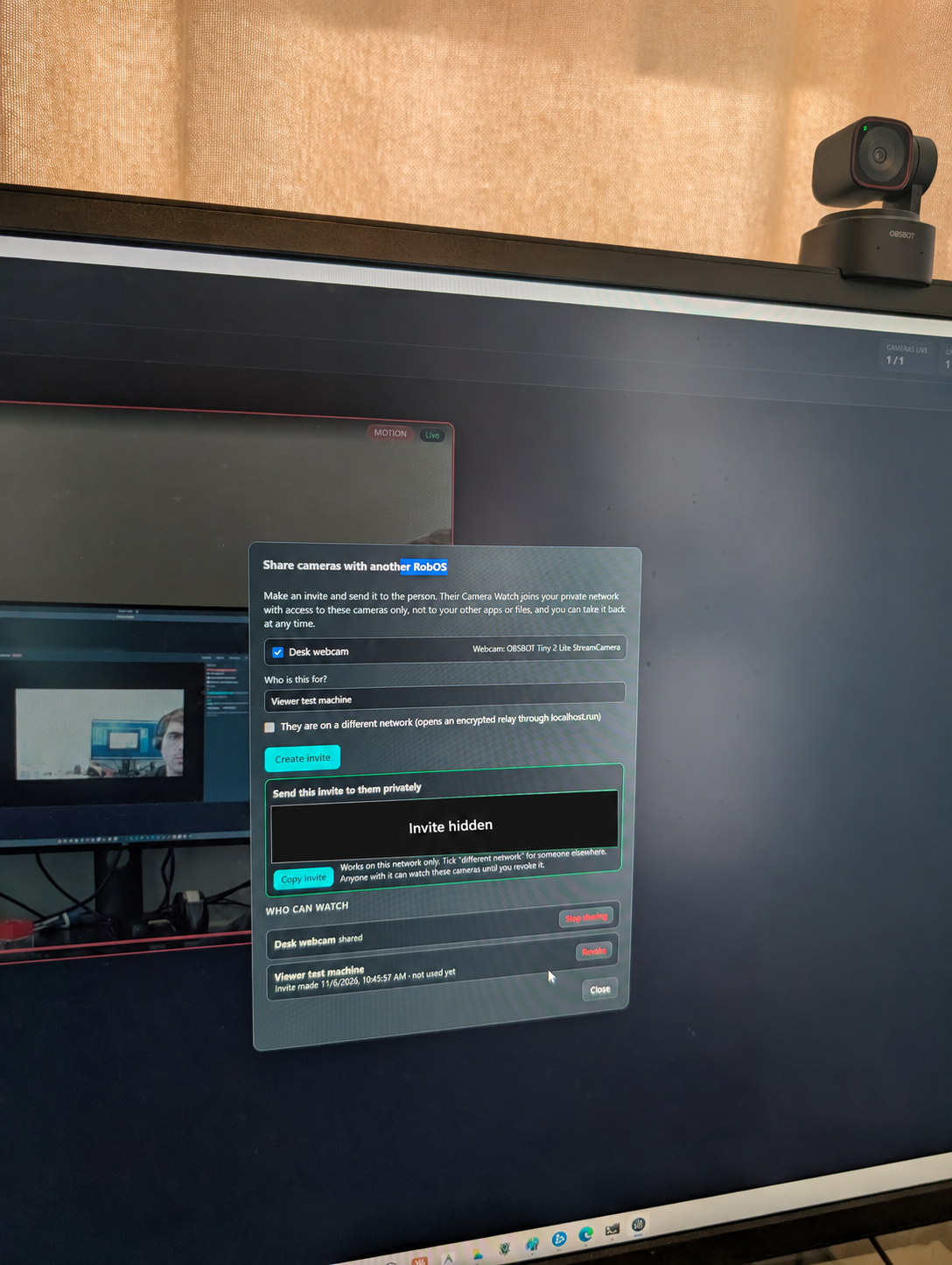
- On the camera computer, click Share and tick only the cameras you want to share.
- Enter a useful label under Who is this for? The label helps you recognise the invite later; it does not verify the recipient's identity.
- For a computer elsewhere, tick They are on a different network. This opens a relay through localhost.run and requires
sshand outbound connectivity. Leave it unticked for the same network. - Click Create invite, then Copy invite. Send the
robos-cam://…link privately. Anyone holding it can enrol and watch those cameras until access is revoked. - On the receiving RobOS computer, choose Add camera → Shared with me. Paste the invite, wait for the camera preview, and save. Camera Watch joins the private network and adds the shared views.
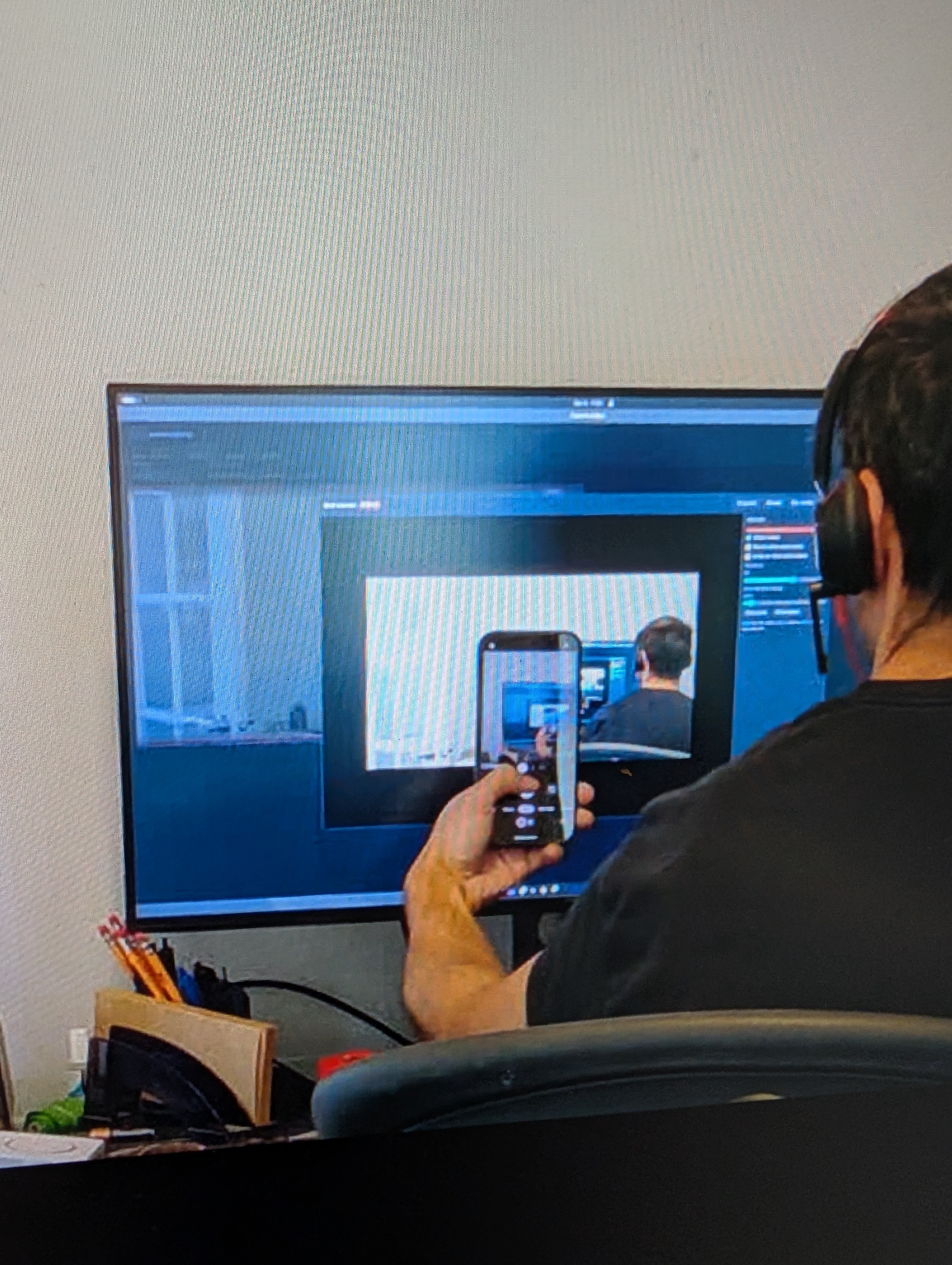
3. Give access to a view, with clear boundaries
A camera invite combines a scoped private-network invitation with secrets for the chosen cameras. The connection authenticates the machines, the mesh checks which service a peer may reach, and the camera share checks which camera it may read.
| Access boundary | What Camera Watch enforces |
|---|---|
| Machine connection | Mutual TLS 1.3 with pinned certificate fingerprints and an enrolment proof made from the invite secret. |
| Allowed service | A newly enrolled camera-only peer is granted camera-watch-share. This invite does not grant access to the other RobOS apps or their debug interfaces. |
| Allowed cameras | Every requested camera needs its own share secret. A secret for the front door does not unlock the garage. The service exposes camera status, the latest frame and live JPEG video. |
| Camera credentials & controls | The viewer receives shared frames, not the camera's login password. This sharing service does not expose remote PTZ, camera configuration or the host's recording archive. |
| Recipient recordings | The recipient can save frames and record on their own computer. Motion recording starts off for newly added shared cameras. Viewing permission is not a promise that video cannot be copied. |
| Existing trust | A machine you already trust with full private-network access keeps that access. Adding a camera invite does not reduce existing permissions. |
Take access back
Share → Who can watch shows the invites, enrolled machines and live viewer counts. Revoke invalidates that invite and removes the scoped peers enrolled through it, closing their mesh connections. Peers with separately established full-network trust remain trusted; manage those in App Mesh. Stop sharing disables the camera's share and rotates its secret, invalidating that camera in existing invites.
Invites remain valid until revoked. They are not single-use links or automatic expiry rules. Revocation controls future access; it cannot delete pictures or recordings already saved by a recipient.
What the relay sees
For different networks, the relay forwards the encrypted mutual-TLS traffic without terminating the inner video connection. It can still observe connection metadata such as timing and traffic volume. On the camera side, the share service listens on loopback and is reached through the mesh gateway. This protects the RobOS-to-RobOS connection; the original camera-to-host stream still depends on the protocol and security settings of your camera.
4. Motion, snapshots and recordings stay on your computers
Camera Watch compares small greyscale frames locally to detect motion. Adjust sensitivity, the area that must change and detection zones for each view. A person entering a doorway and a whole room changing brightness should not be treated the same way; large lighting changes reset the background.
Use Record for a manual clip, Snapshot for a still, or enable Record when motion starts. Clips go to ~/Videos/Camera Watch/ by default. Settings controls the folder, clip timing and retention: 14 days by default, or 0 to keep everything. Each receiving machine controls its own recordings.
Sharing reuses the JPEG frames already produced for the host's live view. It adds network traffic per viewer without a second video encoder on the host. Shared video uses the live view's resolution and frame rate; it does not promise the camera's full native quality or include two-way audio.
5. Check the connection
- No picture locally: check ffmpeg in Settings, test the camera address or device, and close other applications using a USB webcam.
- Shared camera is offline: keep the host on with Camera Watch running and its camera live. A viewer cannot wake a powered-off host.
- Works at home, fails elsewhere: create an invite with the different-network option enabled and check that the relay is running. A same-network invite with only a private LAN address cannot reach that address across the internet.
- Invite rejected: use the complete
robos-cam://…link from Camera Watch. A generalrobos-net://…link is a different kind of invite. Ask for a fresh camera invite if access was revoked or sharing stopped. - Camera drops out: the live view retries automatically. Check the camera's network and power if retries continue.
For the full app reference, see Camera Watch. Read more about Private Networks and the App Mesh, or explore the story behind this camera share.