

Your counter. Your business. Your point of sale.
An open-source register for the way you work: scan a shelf item, build a custom coffee, or keep a tab open for the next round. Take orders, track stock, manage prep and count the drawer on your own computer.
No subscription or cloud account. A touchscreen interface, staff permissions, customer self-checkout and an open checkout API, with your shop data stored locally.
Choose your starting point
One register, three ways to run your counter
Each business has its own sample shop, step-by-step tutorial and short video. Try the sample, then make the menu, team and settings your own.
Main Street General Store
Retail store
Scan stocked goods, choose sizes, apply promotions, and handle returns with manager approval.
- Barcode and camera scanning
- Size variants and stock tracking
- Promotions and manager-approved returns
Bean There Coffee
Coffee shop
Customize drinks, take cash with change due, and move paid orders through the barista queue to collection.
- Required drink choices and priced extras
- Cash tender, change and tips
- Barista prep and customer-ready displays
The Rusty Anchor
Bar
Keep named tabs open, send rounds to prep stations, record an ID check, and close the tab with a tip.
- Named tabs and repeated rounds
- Separate bar and kitchen prep queues
- Recorded ID checks, tips and split payments
Shared setup and reference
RobOS Point of Sale Guide
Install the app, set up your team and payments, then use the reference below for cash, scanning, self-checkout and the checkout API. Sample card payments are demonstrations; configure a real payment workflow before trading.
Step 1
Install it and open your first shop
It is a normal RobOS app. You can also run it on any computer with Node.js, with no account and no internet connection.
- Open it. Launch RobOS Point of Sale from the App Launcher, or run
cd packages/point-of-sale && npm install && npm start. - Pick a starting point. On first launch choose Retail store, Coffee shop or Bar to get a ready-made menu, stock, taxes and team. You can edit everything afterwards, or replace it with another sample from Settings.
- Sign in with a PIN. The samples use owner
1111, manager2222and cashier3333. Add your own team in Team & API and retire the sample PINs before real use. - Open the drawer. Go to Cash, count your starting cash, type it on the number pad and press Open drawer. Card sales do not need the drawer; cash sales do.
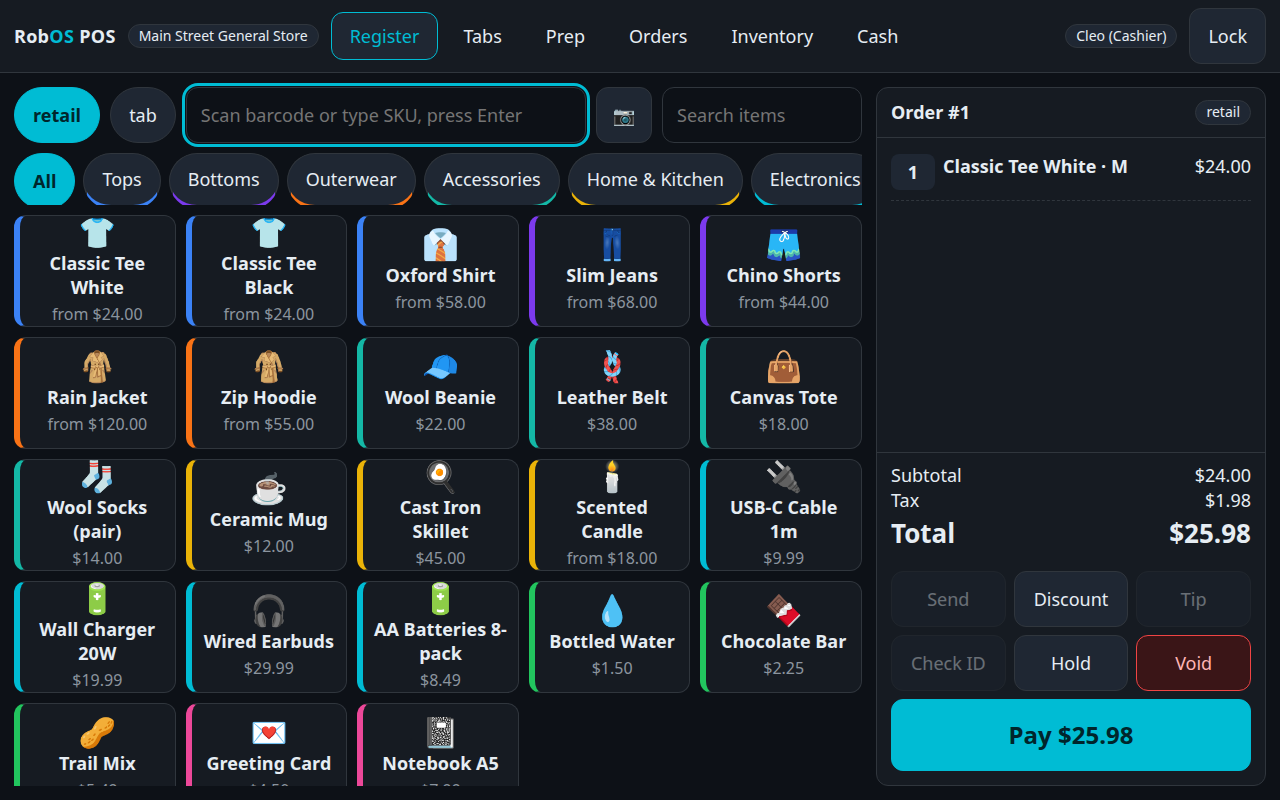
- Ring a sale. On the Register tap items (or scan them with a scanner or the camera), press Pay, choose cash or card. The receipt appears with any change due.
Your data lives in one file, ~/.config/robos/point-of-sale/store.json, readable only by you. Back it up by copying it.
Step 2
Who can do what
Every team member signs in with a 4 to 8 digit PIN. Lower roles can borrow a manager for a single action without switching users.
| Role | Everyday work | Also allowed |
|---|---|---|
| Cashier / server | Sell, hold tabs, take cash and card, discounts up to the limit, prep screen, open and close their own drawer | — |
| Manager | Everything a cashier does | Refunds, comps, voiding sent items, big discounts, paid in / paid out, receiving and counting stock, reports, cash payment settings, closing a drawer that is over or short |
| Admin | Everything a manager does | Menu and catalog, taxes, promo codes, happy-hour rules, team, API keys, settings, loading samples |
When a cashier taps something that needs a manager (a refund, a comp, a 40% discount), a PIN pad appears. The manager types their PIN, the action goes through, and the approval is recorded in the audit log next to the cashier's name. Five wrong PINs in a row lock the sign-in screen for a minute.
Step 3
The screens
Each screen is built for fingers: large buttons, an on-screen number pad for PINs, cash and quantities, and no tiny controls. Text fields such as item names use the device's own on-screen keyboard.
| Screen | What you do there |
|---|---|
| Register | Choose the order type (dine in, take-out, tab, retail), tap items, pick sizes and options, apply promo codes or discounts, add a tip, check ID, send to the kitchen or bar, hold, void or pay. Pay supports exact change, quick-tender buttons, split by 2, 3 or 4, or by item. |
| Tabs | Open tabs and self-checkout orders waiting to be paid. Tap one to carry on. Type an order number to find a customer's order. |
| Prep | One screen per station (kitchen, barista, bar). Start, Ready, Picked up. The customer-facing board at /ready shows numbers that are ready. |
| Orders | Recent orders and receipts. Open one to refund items (a manager approves) and put returned items back in stock. |
| Inventory | Receive a delivery, count the shelf (a reason is required), add stock items, import a CSV, spot low stock. Food and drink recipes use ingredients up automatically. |
| Menu & Catalog | Items with sizes, barcodes and prep stations; option groups such as Size and Milk; categories; taxes; promo codes; happy-hour rules. Hiding an item keeps its history. |
| Cash | Open and close the drawer, paid in and paid out, and the cash payment settings. |
| Reports | Sales by category, tender and item for today or all time, drawer history, CSV export. |
| Team & API | Add or deactivate team members and create checkout API keys. |
| Settings | Business name and type, tax included in prices or added on top, tipping, card provider, self-checkout options, stock rules, and sample businesses. |
Step 4
Setting up cash payments
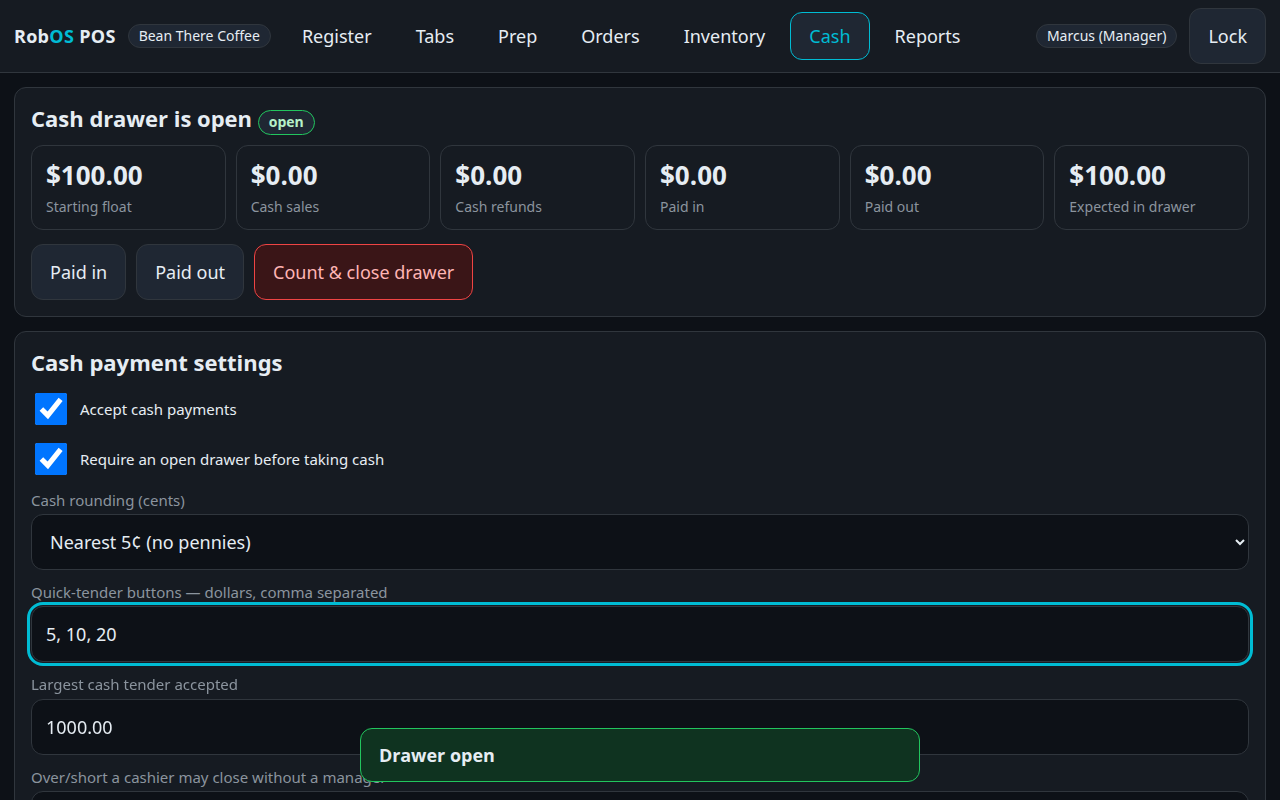
Managers and admins decide how cash behaves. Open Cash and scroll to Cash payment settings.
| Setting | What it does |
|---|---|
| Accept cash payments | Turn off for a card-only shop. The Cash button disappears from the pay sheet and the server refuses cash. |
| Require an open drawer | On by default. Cash sales and cash refunds need a counted drawer so the day always balances. |
| Cash rounding | None, or nearest 5, 10, 25 cents or $1 for places without pennies. The rounding shows as its own line on the receipt and in the Z-report. |
| Quick-tender buttons | Up to six dollar amounts shown on the pay sheet, plus Exact and the next whole dollar. |
| Largest cash tender | Guards against a typo like $5000 instead of $50. |
| Over/short limit | How far off a cashier's count may be before a manager has to approve closing the drawer. |
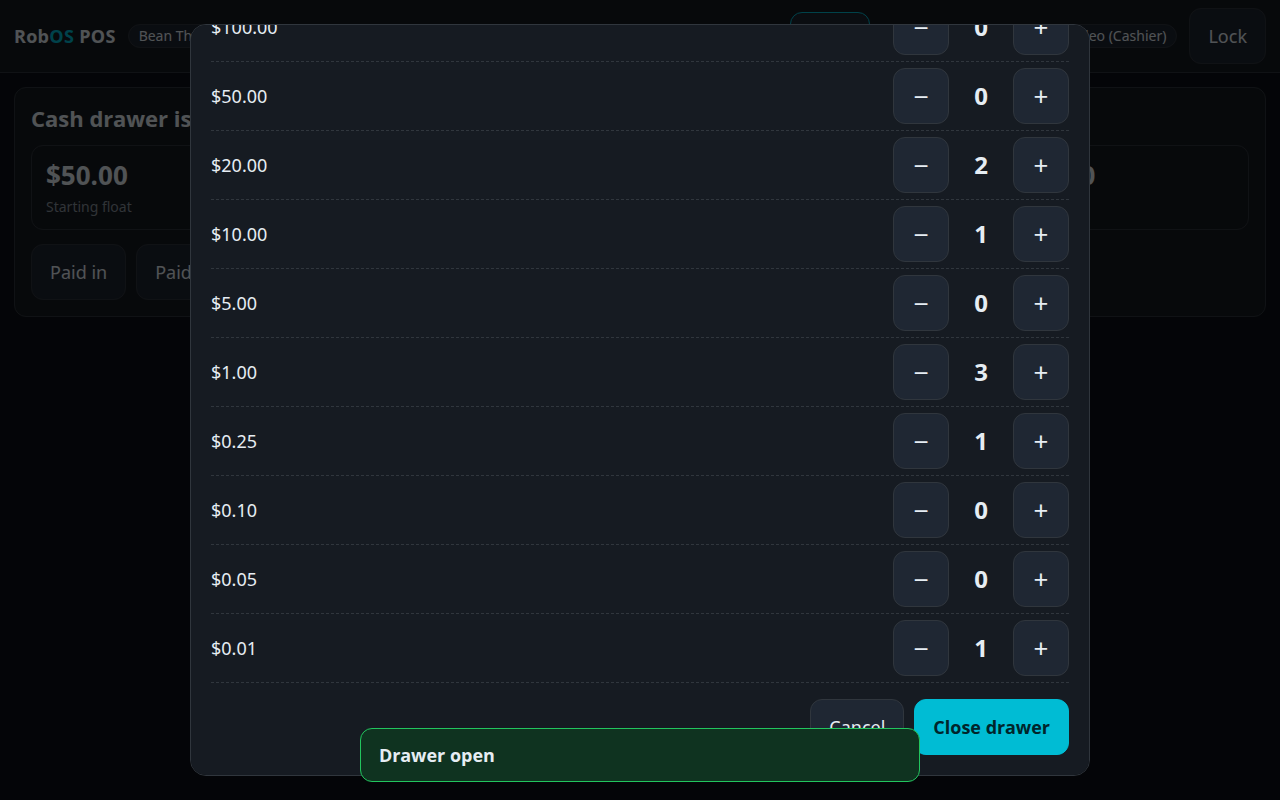
| Bills and coins counted | The denominations shown as tap-to-count buttons when closing. The count is blind: cashiers do not see the expected total until they have counted. |
End of shift: Cash → Count & close drawer, tap the bills and coins, press Close drawer. The Z-report shows expected, counted and over or short, plus the day's sales.
Step 5
Self-checkout and customer displays
Self-checkout is a customer-facing page that only does one thing: build a basket and pay. It cannot see staff data, prices of hidden items, or other customers' orders.
- Open it from RobOS Point of Sale → Open self-checkout window, or browse to
/kiosk. For a dedicated screen, start the app with--kiosk. - A tablet on the shop network. Run
node serve.js --host 0.0.0.0on the till computer and openhttp://<till-ip>:3410/kioskon the tablet. There is no encryption on this connection, so use a network you trust. - Retail: a scan box accepts a barcode scanner that types into a field, and a camera button reads barcodes and QR codes from a webcam. Food: big icon tiles, required choices, tips.
- Paying. Card is shown only when the card provider can run unattended (a gateway, not a standalone terminal where a worker types the approval code). Pay at the counter gives the customer a number; the cashier finds it under Tabs and takes cash.
- Safety. Age-restricted items are never offered, and the server rejects them even if someone calls the API directly. Baskets nobody paid for are cleared after 30 minutes. Switch self-checkout off, or turn off pay-at-the-counter, in Settings.
- Order-ready board. Put
/readyon a second screen; it shows pick-up numbers as the kitchen marks them ready.
Retail and anywhere with a shelf
Barcodes, QR codes and the webcam
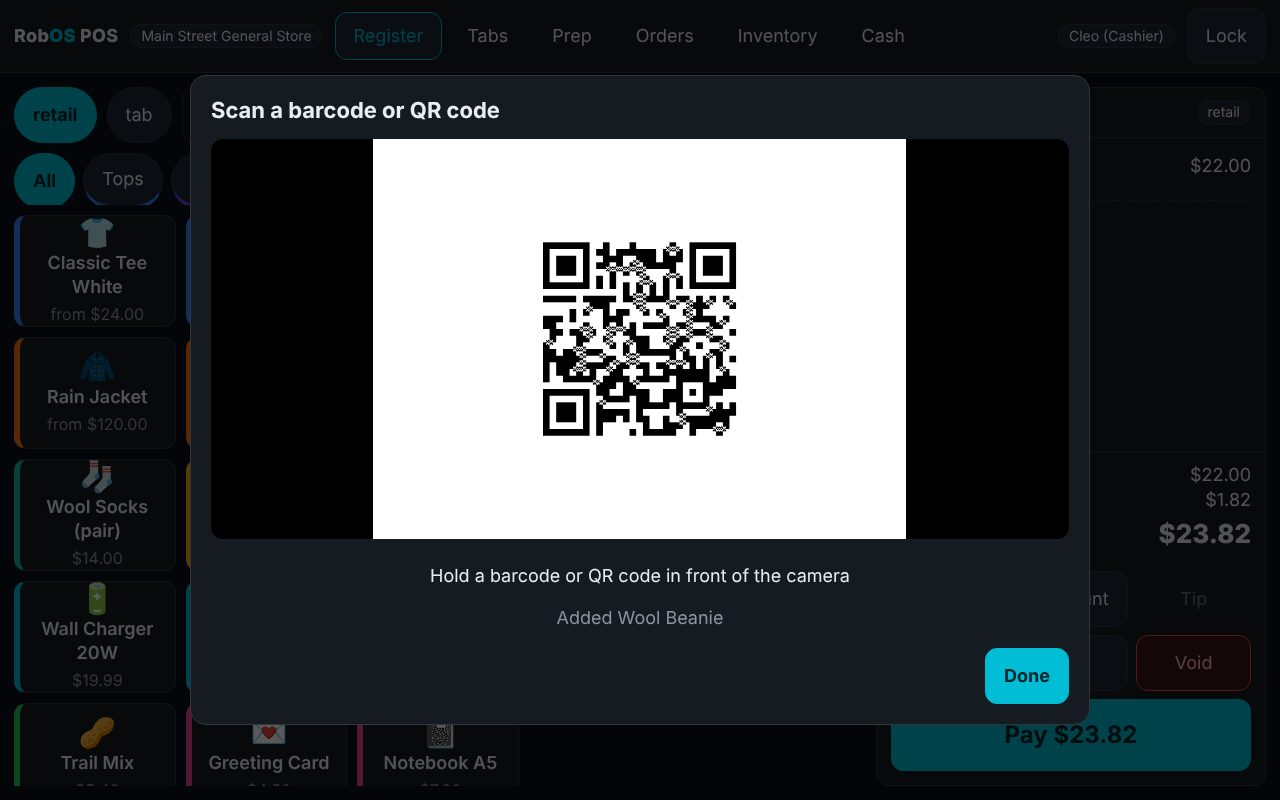
Plug in any barcode gun or use a webcam. The camera reads the classic UPC and EAN barcodes and the newer 2D codes: QR codes (including GS1 Digital Link, which carries a product number as a web address), Data Matrix and Aztec. However a code was printed, the register works out which product it means.
Three ways to scan
- Barcode gun (USB or Bluetooth). Most scanners act like a keyboard: they type the code and press Enter. Click the scan box on the Register (it is focused for you in a retail shop) and scan. No setup.
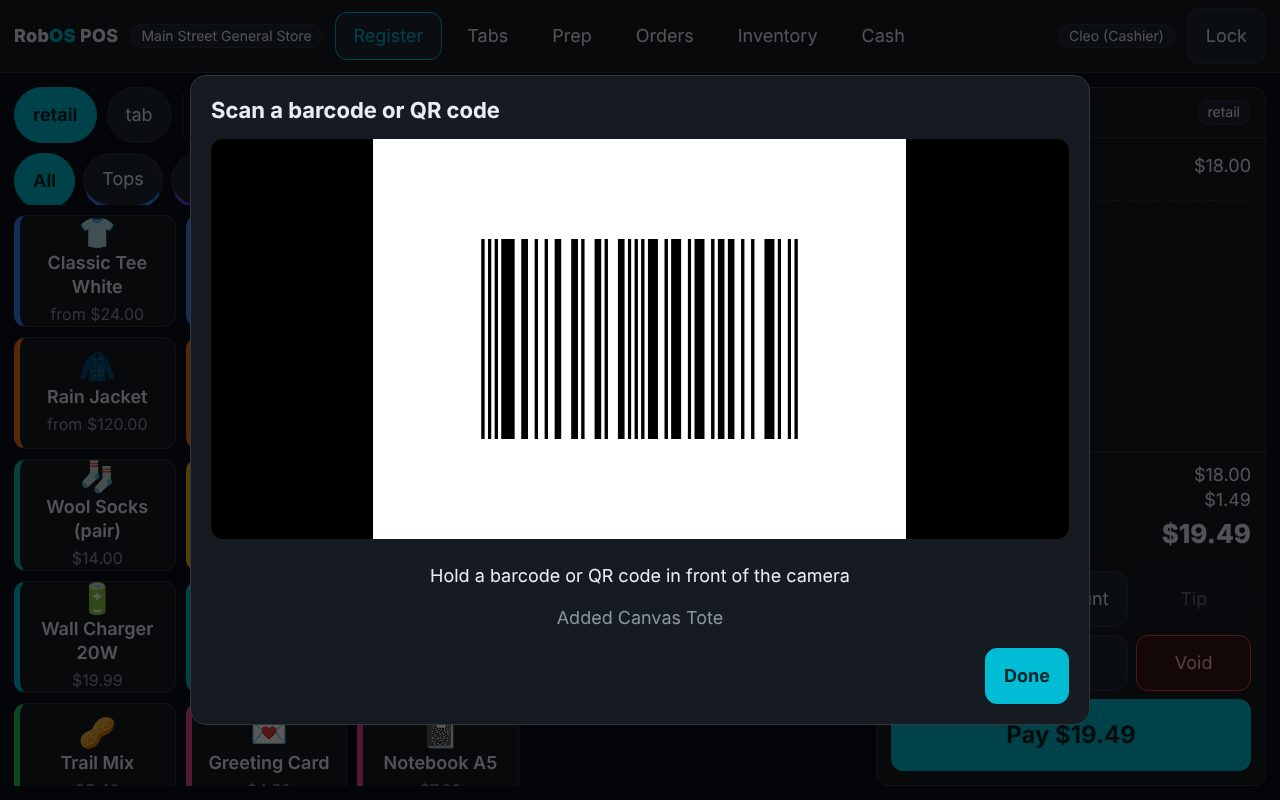
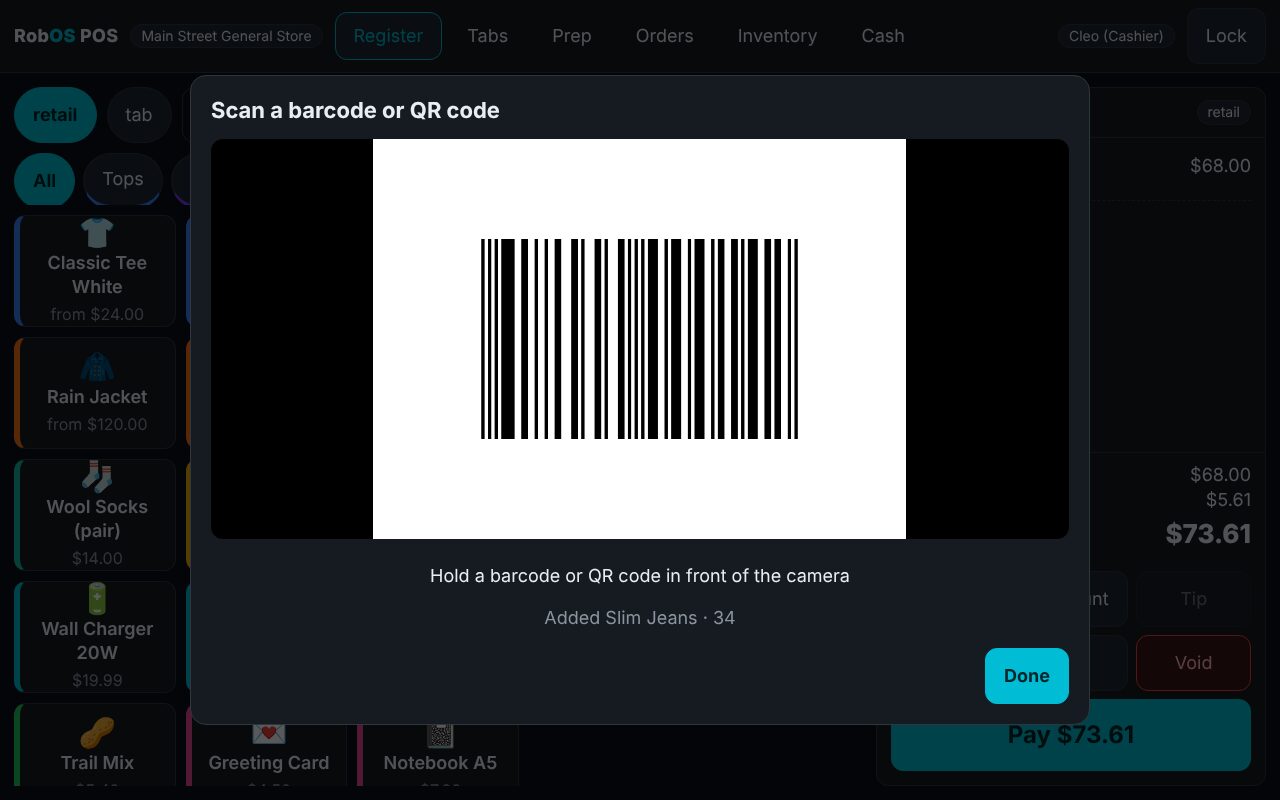
- Webcam. Press the camera button. Choose the camera if you have more than one, hold the barcode or QR code in front of it, and wait for the beep. A code held in view counts once; take it away and show it again to add another.
- Self-checkout. The same two options, for shoppers: the scan box for a gun, or the camera button.
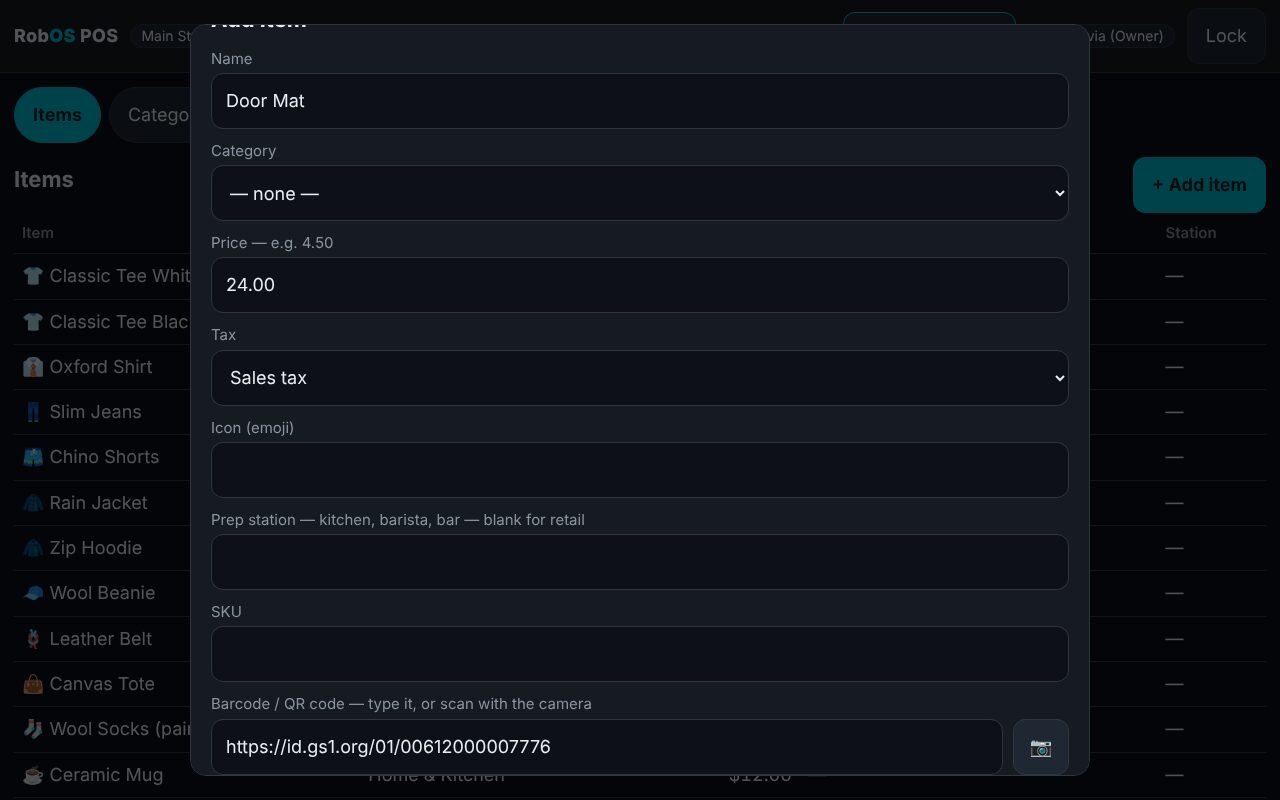
- Adding products. On Menu & Catalog → Add item, press the camera button next to the barcode field and scan the package. A Digital Link QR is saved as the plain product number.
Cameras only work on localhost or an https:// address, and the desktop app asks for video access only. A tablet opening the till over plain http:// on the shop network should use a barcode gun instead.
What you can scan
| What you scan | What it contains | How the register uses it |
|---|---|---|
| UPC-A / EAN-13 / EAN-8 barcode | A product number (GTIN) | Matched however it was printed: a UPC-A, the same number as an EAN-13 with a leading zero, or a 14-digit GTIN are one product. |
| UPC-E small-package barcode | A compressed UPC-A | Expanded to the full UPC-A before matching. |
| QR code with a GS1 Digital Link | A web address such as https://id.gs1.org/01/09506000134352/10/LOT7 | The GTIN in the address is the product. Lot and serial numbers are ignored for pricing. |
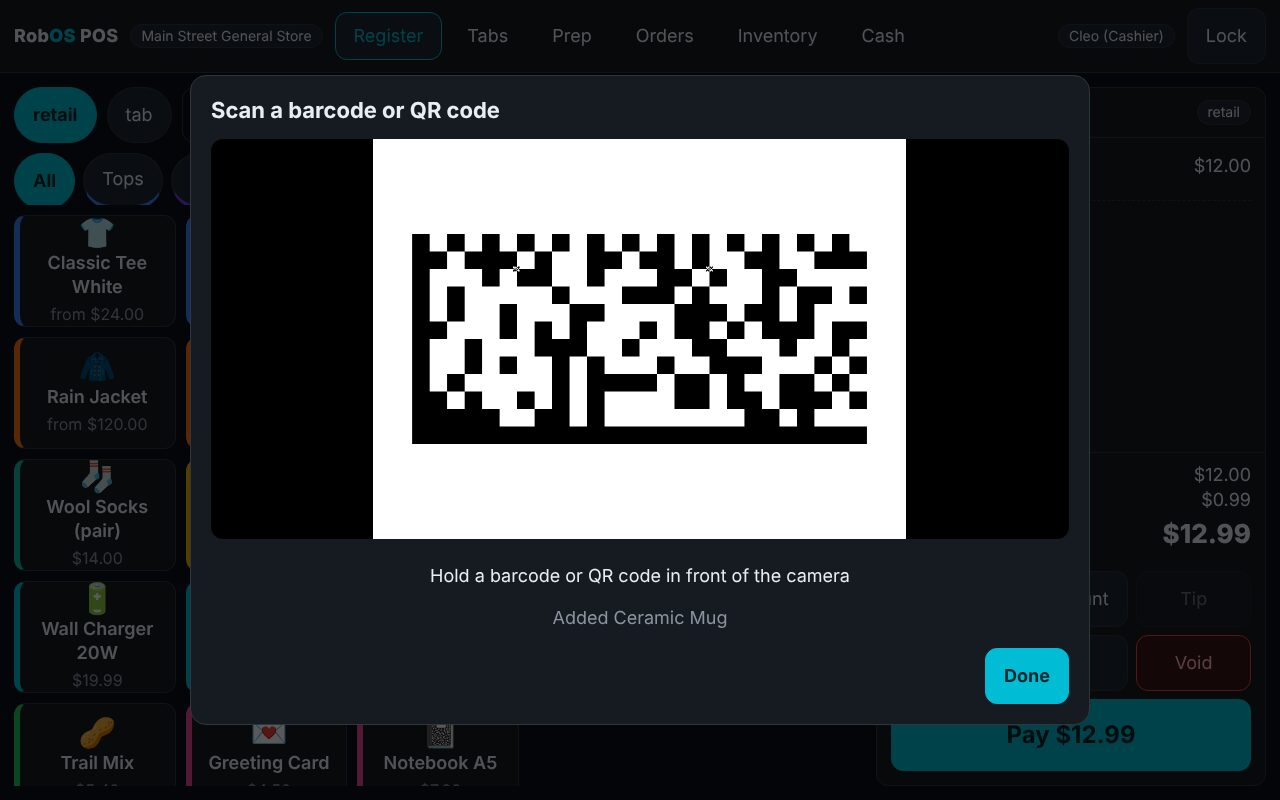
| Data Matrix (GS1) | A GTIN followed by lot or expiry data, e.g. 01…10LOT-7 | The GTIN is the product. |
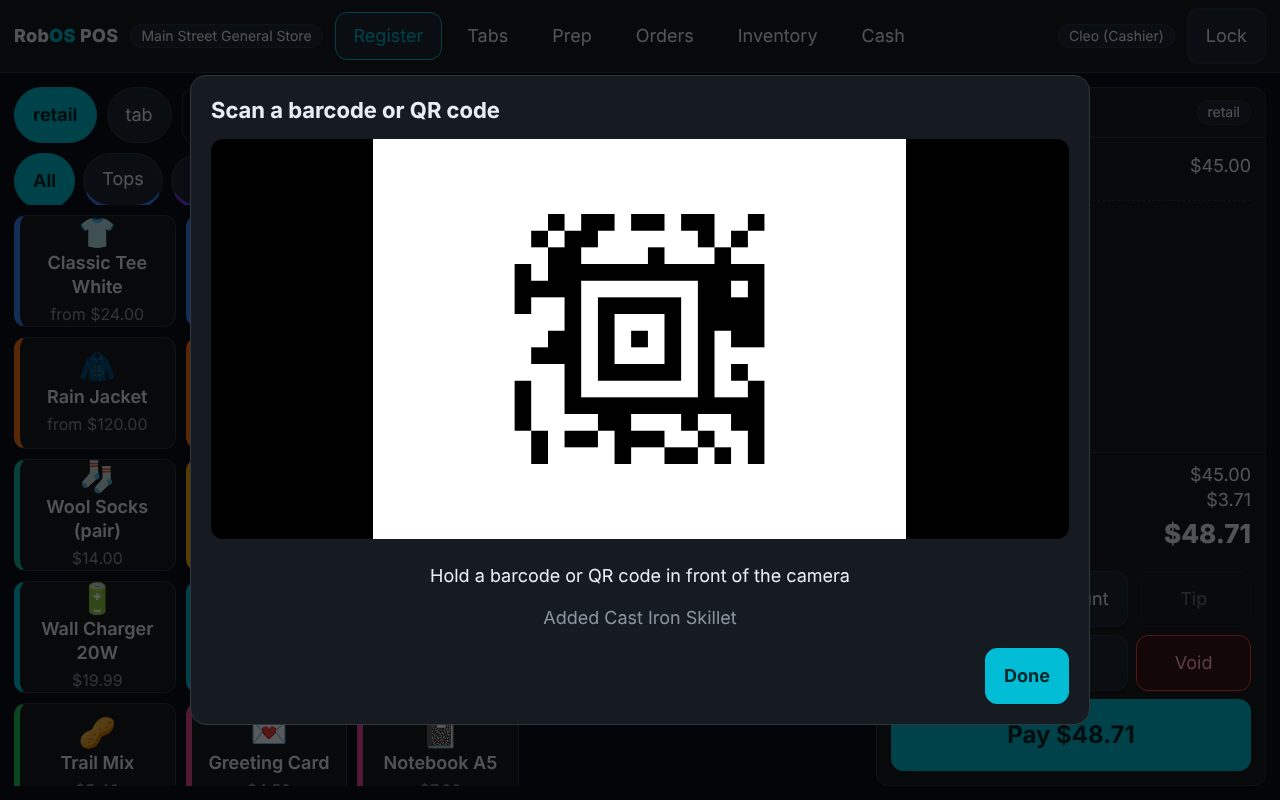
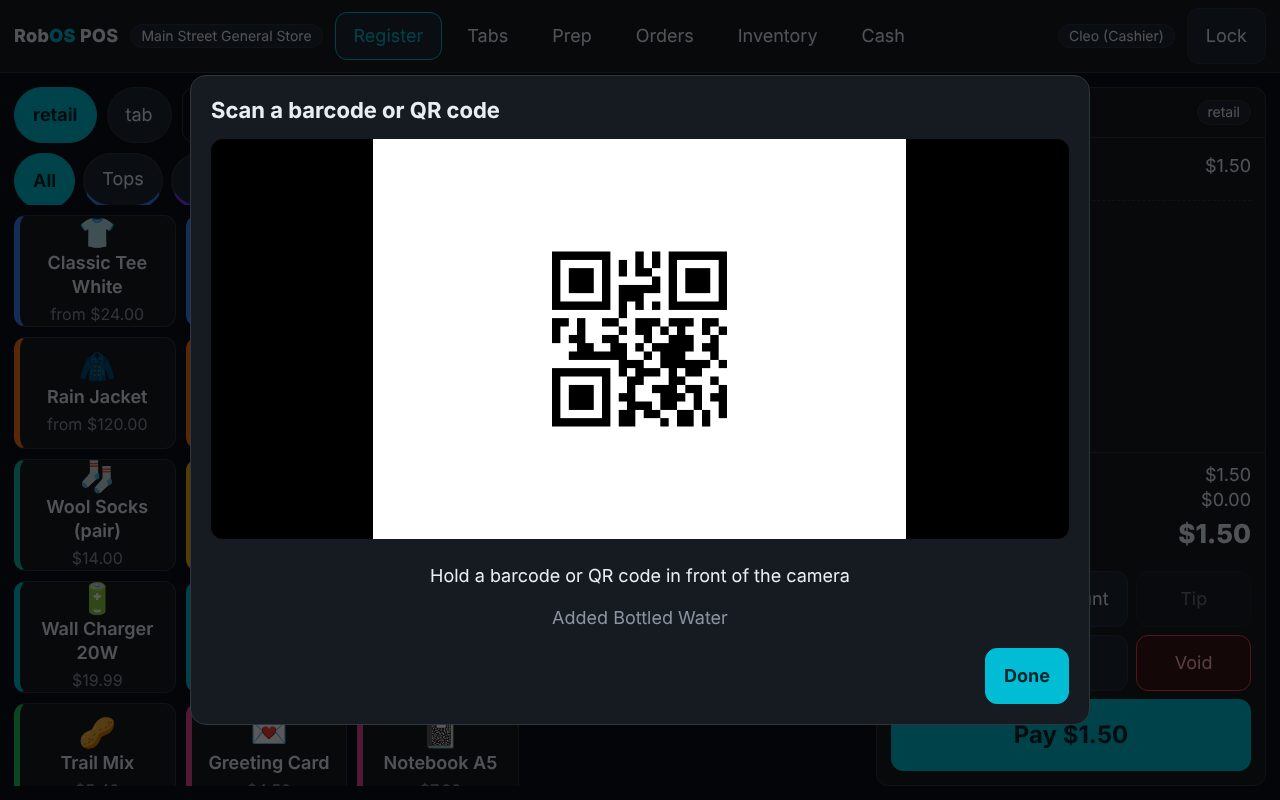
| QR or Aztec code with your own text | A SKU you made up, such as HM-MUG | Matched to the SKU (or barcode field) of an item. |
| Sized goods | A barcode that belongs to one size | Adds that exact size. A code that names only the product asks the shopper or cashier to choose a size. |
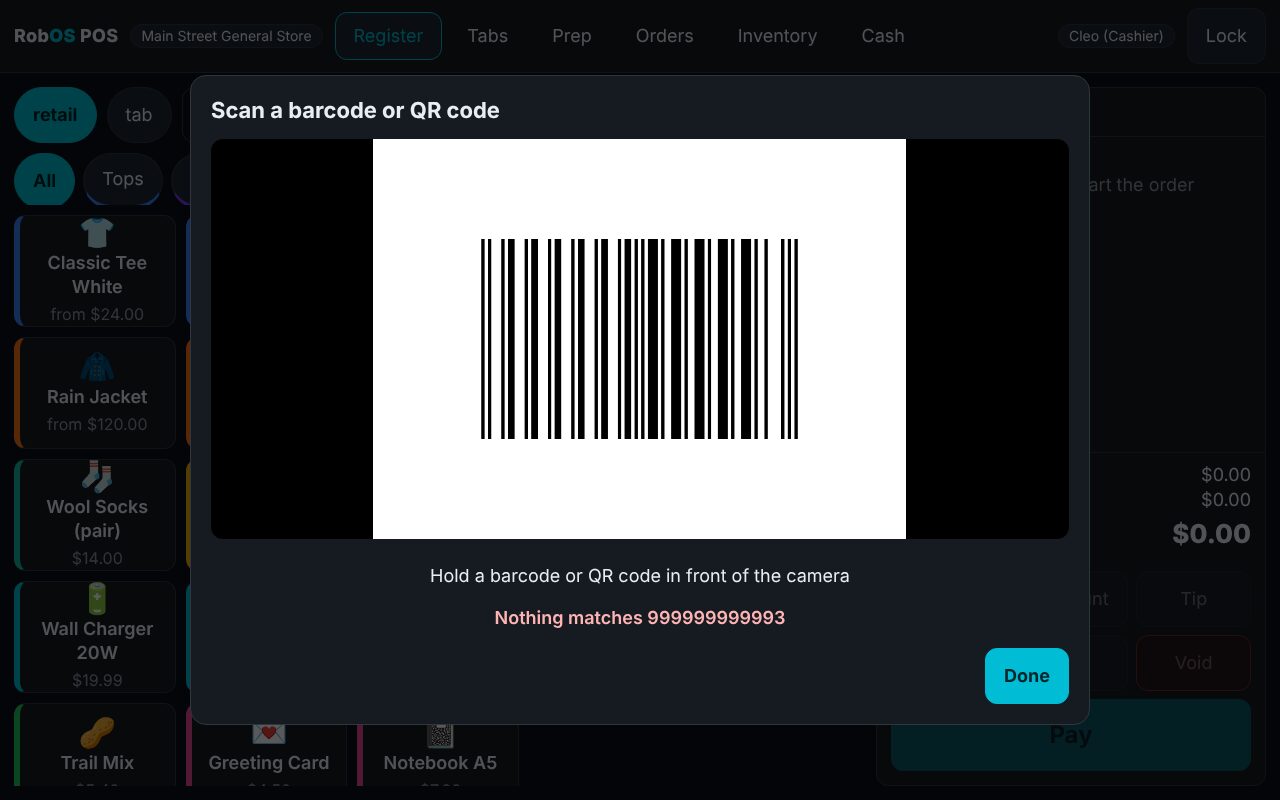
| Anything else (a web address, a code not in the catalog) | — | Nothing is added, and the screen says so. |
Seen in the app
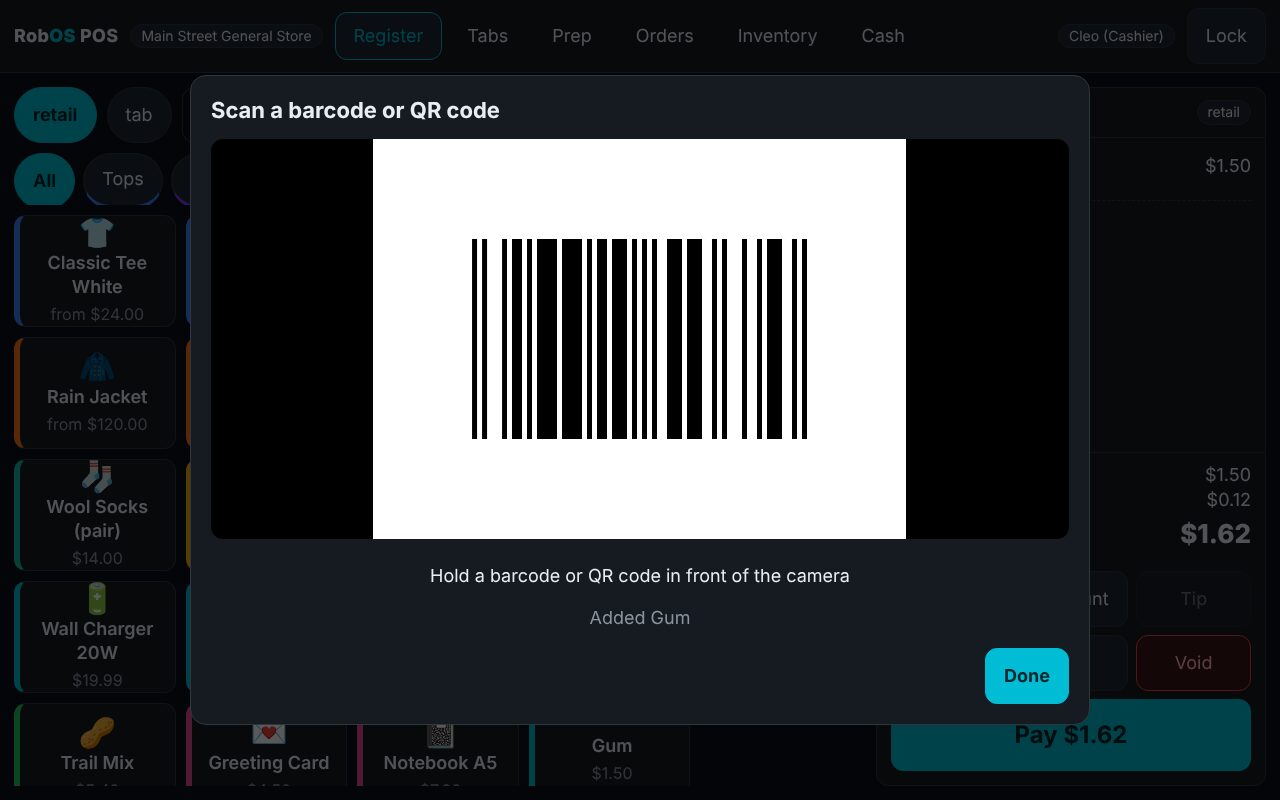
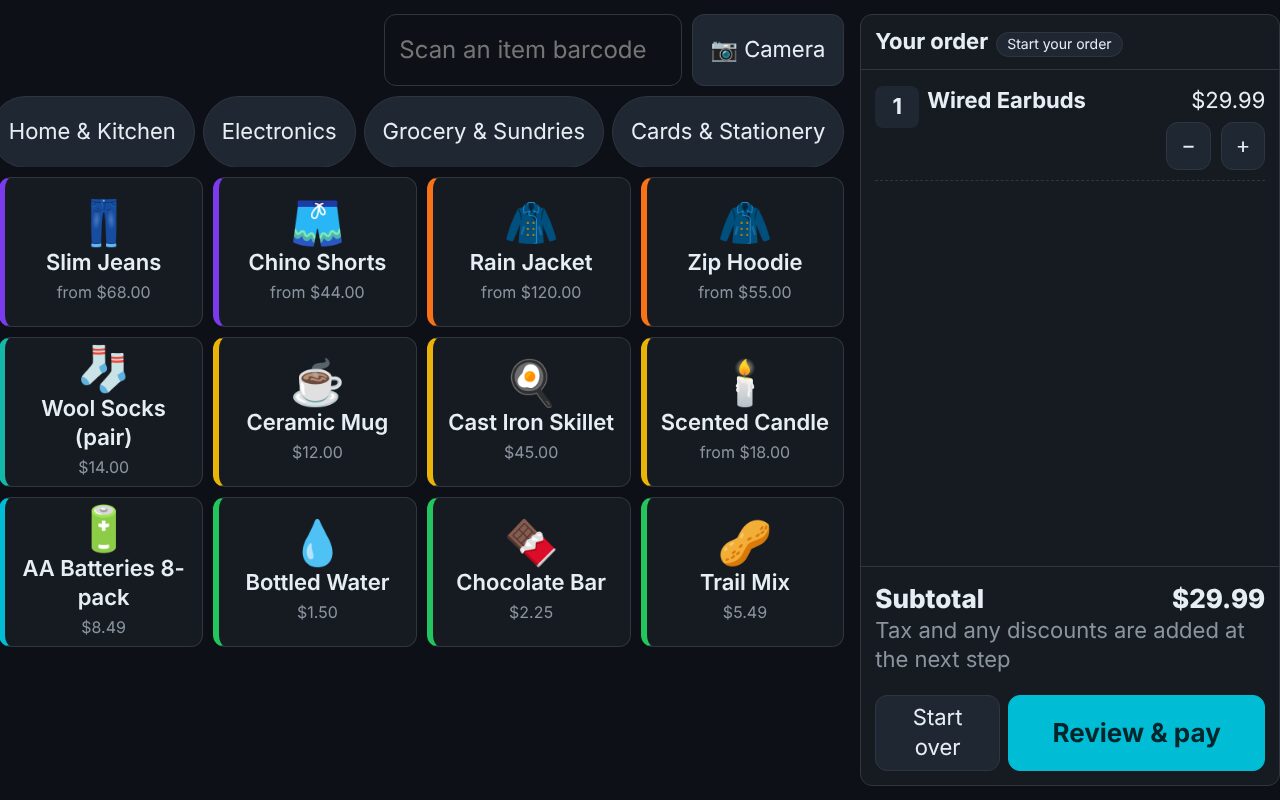
Each picture below is a real screenshot from the automated tests: a generated code is played into a test webcam and the register reads it. (Cameras for the pictures are simulated; the decoding and the register are real.)
Use cases tapped through on a touchscreen browser (13)
- register camera reads a UPC-A barcode and adds the item once, even if it stays in view
- the same product printed as an EAN-13 (UPC-A with a leading zero) is recognised
- a modern QR code carrying a GS1 Digital Link is read and matched by its GTIN
- a GS1 Data Matrix (GTIN plus lot number) is read
- an Aztec code holding a SKU is read
- a QR code holding a plain SKU is read
- a sized product is added with the exact size its barcode names
- an EAN-8 barcode (small packages) works once the shop has an item with that code
- a valid code that is not in the catalog is explained, and nothing is added
- self-checkout: a shopper holds a QR tag to the camera and it lands in the basket
- self-checkout: an unknown or age-restricted code is refused with a friendly message
- item form: scanning a QR with a GS1 Digital Link fills the barcode field, and it is saved as a plain GTIN
- without a camera, or with access blocked, the scanner says what is wrong
Every business
The cash drawer and cash settings
Cash is handled the way a till is: a counted float at the start, paid-in and paid-out entries with a reason, a blind count by bill and coin at the end, and a Z-report that shows over or short. Managers decide whether cash is accepted at all, whether prices round to the nearest 5 cents, what the quick-tender buttons are, and how much over/short a cashier may close without a manager. Use the business tutorials above to try a sample sale, then follow the drawer setup below.
For developers
The open checkout API
Websites, apps and agents can create a checkout session, update it, and complete it with a payment token. The shape follows the open Agentic Commerce Protocol checkout flow; amounts are whole cents and retries are safe with an Idempotency-Key. Card payments go through a plug-in provider, so the register never touches card numbers. The OpenAPI document is served at /api/openapi.json.
Endpoints
| Method and path | Purpose |
|---|---|
POST /api/v1/checkout_sessions | Create a session from items (id, SKU or barcode, quantity, optional variant_id and modifiers), optional buyer and fulfillment_option_id. Returns 201. |
GET /api/v1/checkout_sessions/{id} | Current status, line items and totals. |
POST /api/v1/checkout_sessions/{id} | Change items, buyer, fulfillment option or add a promo code. |
POST /api/v1/checkout_sessions/{id}/complete | Pay with payment_data.token (and provider). A declined card returns 402 and the session stays open. |
POST /api/v1/checkout_sessions/{id}/cancel | Cancel an unpaid session. |
Status moves not_ready_for_payment → ready_for_payment → completed (or canceled). Totals come back as a list of items_base_amount, subtotal, tax and total in cents. Age-restricted items are refused at completion. Send Authorization: Bearer <key>; create keys in Team & API. This follows the shape of the Agentic Commerce Protocol checkout flow but is not a certified implementation, so test an agent against it before relying on it.
curl -X POST http://127.0.0.1:3410/api/v1/checkout_sessions \
  -H "Authorization: Bearer $POS_KEY" -H "Content-Type: application/json" \
  -d '{"items":[{"id":"<item id, SKU or barcode>","quantity":2}],"fulfillment_option_id":"takeout"}'

curl -X POST http://127.0.0.1:3410/api/v1/checkout_sessions/<id>/complete \
  -H "Authorization: Bearer $POS_KEY" -H "Idempotency-Key: order-1001" -H "Content-Type: application/json" \
  -d '{"payment_data":{"token":"tok_visa","provider":"mock"}}'
Good to know
What it does not do yet
Being honest about the edges saves surprises on opening day.
- Card processing. The built-in card options are a standalone terminal (you key in its approval code) and a demo gateway that approves any card, which must never be used for real sales. To take cards online or unattended, add a provider for your processor; the README shows the small interface.
- Tax. A flat rate per item, either added on top or already included in prices. There is no address-based lookup, so confirm your local rules.
- Hardware. Barcode scanners that type into a text box work, and so does a webcam. The browser only allows camera use on
localhostor anhttps://address, so a tablet that opens the till over plainhttp://on the shop network cannot use its camera; give it a hardware scanner or put the till behind HTTPS. Receipts print through the system print dialog and are also available as plain text for ESC/POS printers. There are no direct cash-drawer or printer drivers yet. - Not included yet: gift cards, loyalty, several locations syncing together, staff time clocks.
- Backups. One shop file on one computer. Copy it regularly.