

Your webcam just became a private camera network
A desk webcam, two RobOS computers, and one private invite. Camera Watch shares chosen views over encrypted connections, with permission checks at both the service and camera level—and a way to take access back.
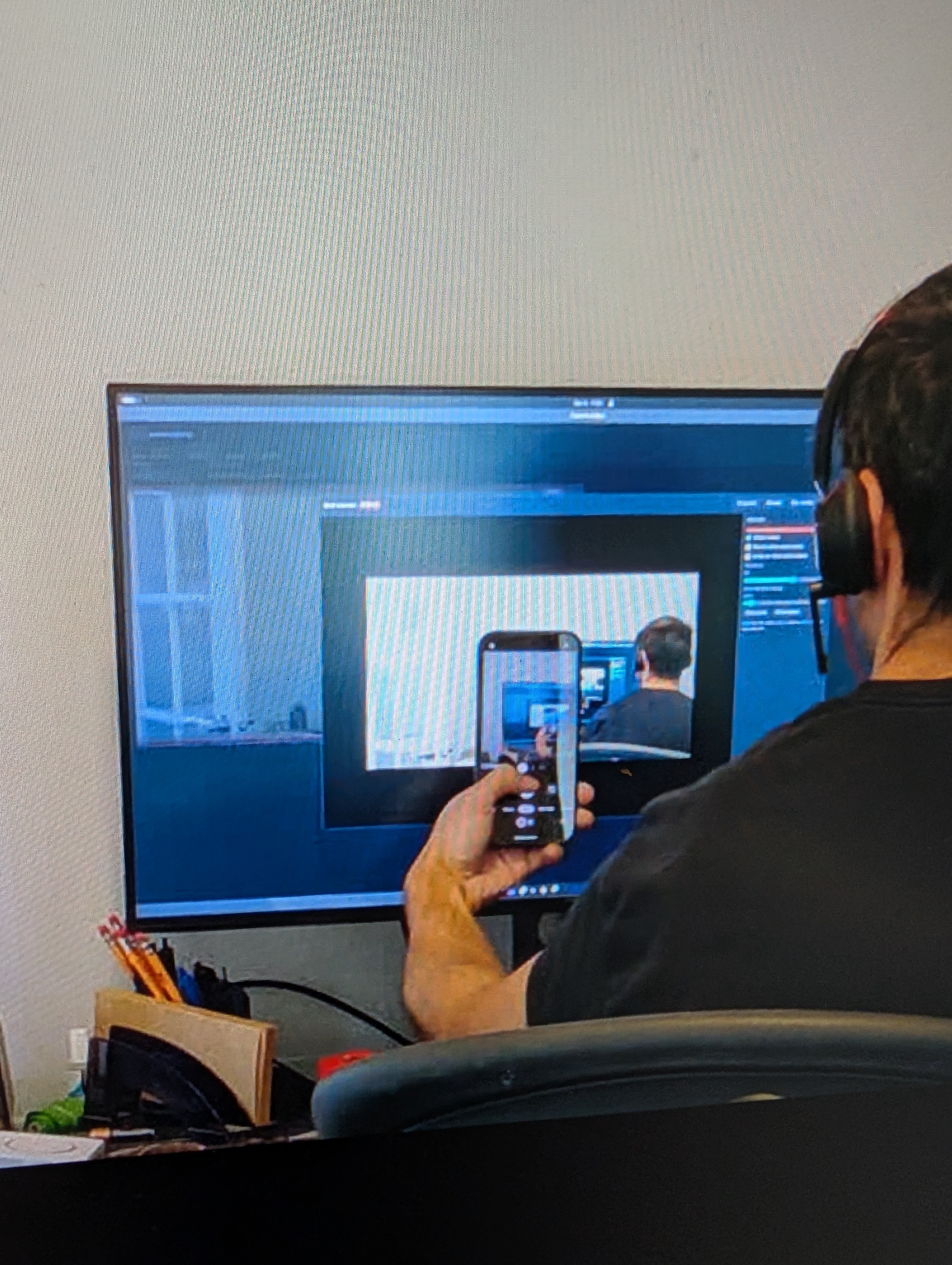
There is a pleasingly ridiculous moment when a webcam points at a monitor showing its own feed. The room folds into the screen, then into the phone held in front of it, then back into the room. In the photos below, that loop is real. So is the more useful thing underneath it: a camera attached to one RobOS computer can show up live on another.
Pick a camera. Make an invite. Paste it on the other computer. Watch. That is the whole user-facing idea behind sharing in RobOS Camera Watch. Underneath those few clicks is a private network with a deliberately narrow grant: access to the camera-sharing service, plus the secrets for the specific views you chose.
A webcam is enough to start
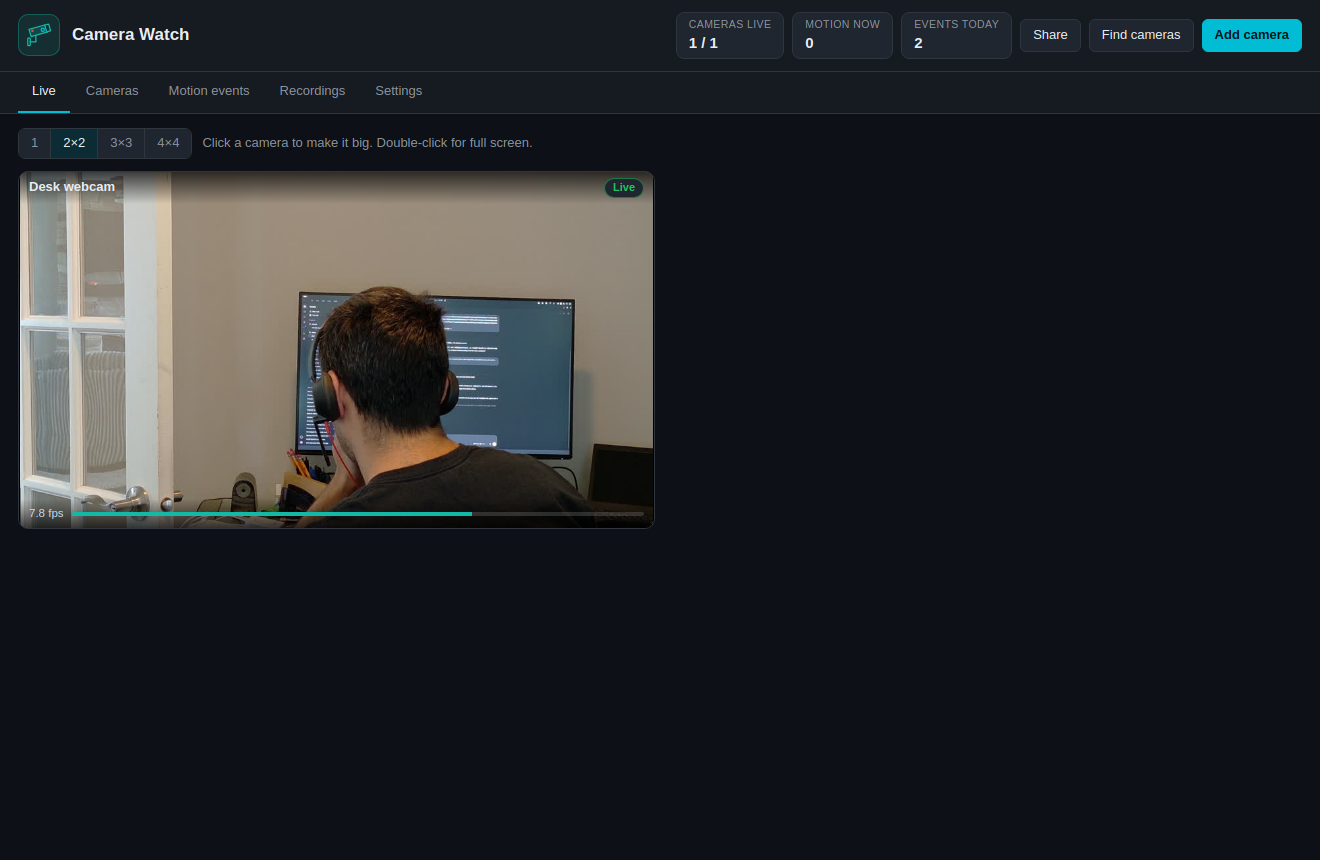
You do not need to begin with a rack of cameras. A USB webcam gives you the first view. ONVIF discovery adds compatible network cameras, and a known RTSP or MJPEG address works too. Camera Watch uses ffmpeg to bring the pictures into a live grid, compares frames locally for motion, and saves snapshots or clips on your computer.
Now imagine the workshop while you are at your desk, a shop entrance shared with the person opening up, or a front-door view for a neighbour while you are away. Those are examples of what you could configure. The run here was simpler and concrete: Desk webcam on the host, Camera Watch on a second computer, one camera invite.
The interesting part is what the invite grants
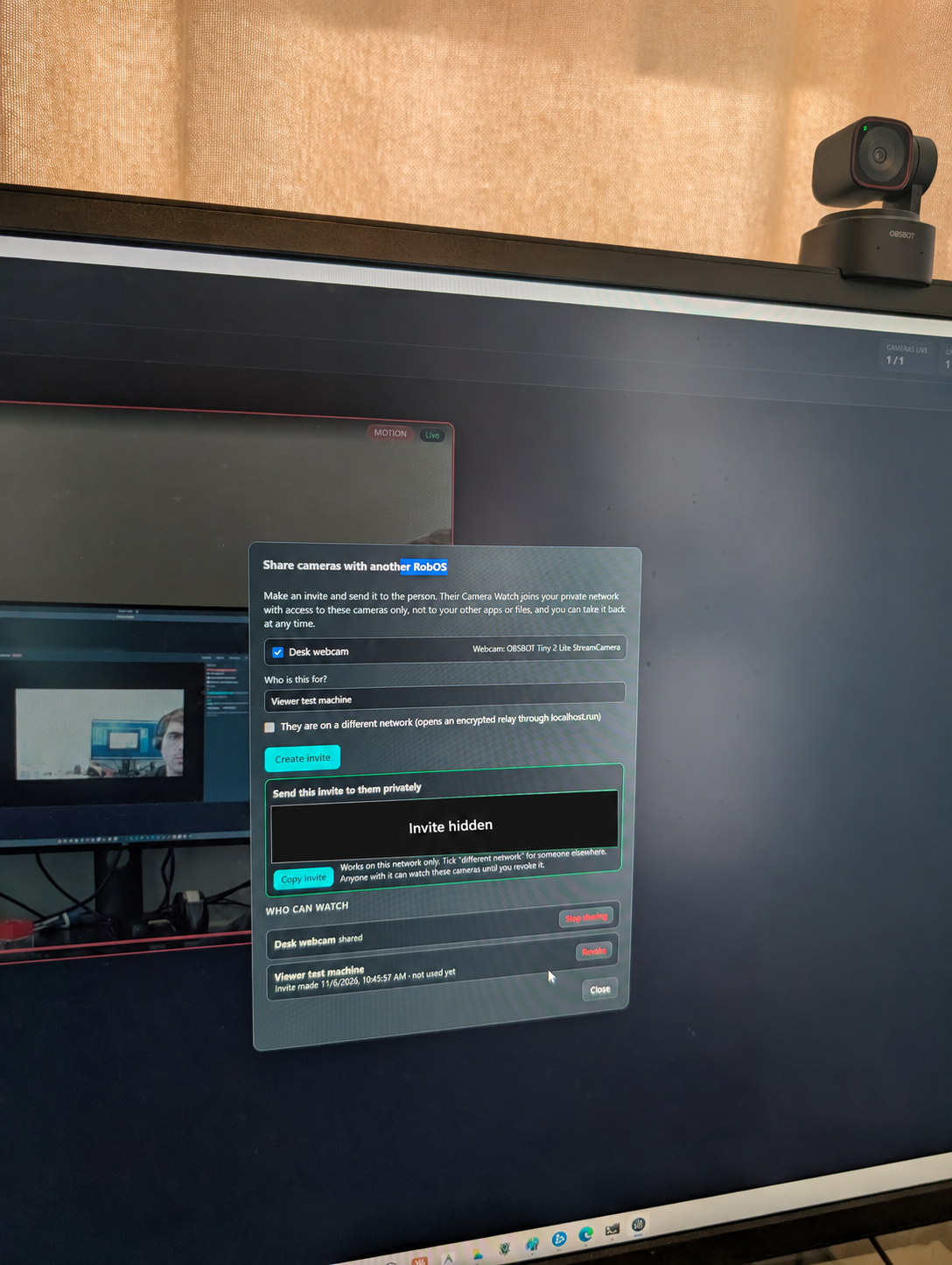
Sharing starts with a checkbox beside each camera. That is a small interface choice with a useful consequence: the thing you hand over describes the views you selected. You can send one person the entrance and another person the workshop, with separate invites you can manage later.
There are two permission checks in the path. First, App Mesh checks the allowed service. A newly enrolled camera-only peer is limited to camera-watch-share; the camera invite does not grant access to the rest of the RobOS apps or their debug ports. The gateway checks the actual destination service and port, so naming an allowed app cannot disguise a request for a different port.
Second, the share service checks the camera secret. Each camera has its own. Holding the front door's secret does not unlock the garage, even through an otherwise valid camera tunnel. Wrong secrets, cameras that are not shared, and nonexistent cameras receive the same refusal. The service provides status, a still frame and live JPEG video; it does not hand over camera passwords, the host's recording archive or remote pan/tilt/zoom controls.
That is the practical meaning of fine-grained permissions here: which machine, which service, which camera. It is not a schedule-based policy editor or a set of job roles. A machine you previously trusted with full network access keeps that trust; a narrower camera invite does not silently rewrite an existing relationship.
Private network, without a camera account
On the receiving computer, Add camera → Shared with me accepts the robos-cam://… invite. Camera Watch uses its scoped network invitation to enrol the peer and pin certificates. RobOS-to-RobOS traffic uses mutual TLS 1.3: both ends authenticate, and the video travels inside that encrypted connection.
For a recipient on another network, the sharer ticks They are on a different network before creating the invite. RobOS opens an outbound relay through localhost.run. The relay forwards the inner encrypted connection without decrypting the video, so this path does not require exposing the camera's RTSP port on a home router. It still depends on the relay and outbound network access; metadata such as connection timing and traffic volume remains observable.
The photos and measured live feed in this post document a same-LAN run. Different-network sharing is a supported relay path in the implementation, not a cellular demonstration performed for this post. And the encrypted mesh covers the hop between RobOS computers—the camera's own connection to its host still depends on the camera protocol you use.
An invitation should come with a way out
The share dialog has a Who can watch section for a reason. It lists the invites, machines enrolled through them and current viewer counts. Revoke invalidates an invite and removes its scoped peers, closing their connections. Separately trusted full-network peers remain trusted. Stop sharing disables sharing for that camera and rotates its secret so existing invites lose access to it.
The label “Viewer test machine” is a reminder for the owner, not identity verification. The invite is a bearer credential: whoever holds it can join until it is revoked. It is not single-use, and there is no automatic expiry. Send it privately, and make a separate invite when you want separate revocation.
There is another boundary worth being direct about: someone who can watch can save what they see. Shared cameras start with motion recording off on the receiving computer, but the viewer can enable recording or save a still. Revocation stops access; it cannot reach backwards and erase copies already made.
Try it with the camera already on your desk
Get a camera live on the first computer. Click Share, select it, label the invite, and send it to your second RobOS computer. Paste it into Shared with me. Then look at the live viewer count and the permissions that made the connection possible. A useful private network can begin with one view and one carefully bounded invitation.
The Camera Watch guide walks through the complete setup, local recording, different-network sharing and troubleshooting. For developers, the existing tests exercise the camera share through real local mesh connections with synthetic camera frames:
Those tests cover selected-camera access and invite revocation without presenting synthetic frames as physical-camera footage. The real camera evidence is the local run and supplied photographs above.