

Step 7 of 9 · about 15 minutes
Protect your data
Back up your shop's records to a private GitHub repository, and move to a new computer if you ever need to.
Your customers, tickets and payments are your business. This page makes sure a broken or stolen computer never costs you any of it.
How your records are stored
Every change you make, such as a new customer, a diagnosis or a payment, is saved on your computer and added to a private history in the same moment. You do not press a save button. The history lives in a folder called shop inside your Auto Center data folder, which by default is ~/.config/robos/auto-center. Only your own user can read it.
That history is a normal Git repository. Git is the same tool programmers use to keep every version of their work. You do not need to learn it. It means your history can be copied to GitHub as a backup.
Set up your backup
- Create a free account at github.com if you do not have one.
- Create a new repository and choose Private. Name it something like
your-shop-records. Never make it public, because it will hold customer names and phone numbers. - Install the GitHub command line tool (
gh) on the shop computer and sign in withgh auth login. Auto Center uses it to check that your repository really is private. - In Auto Center open Admin, then Backup.
- Enter your repository as
your-account/your-shop-recordsand press Connect. - Press Back up now.
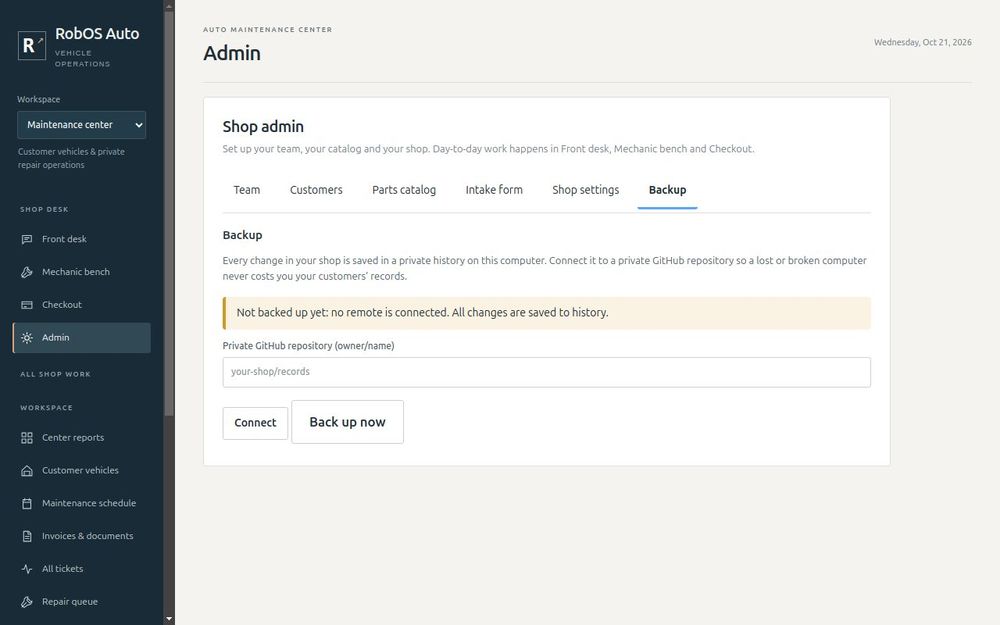
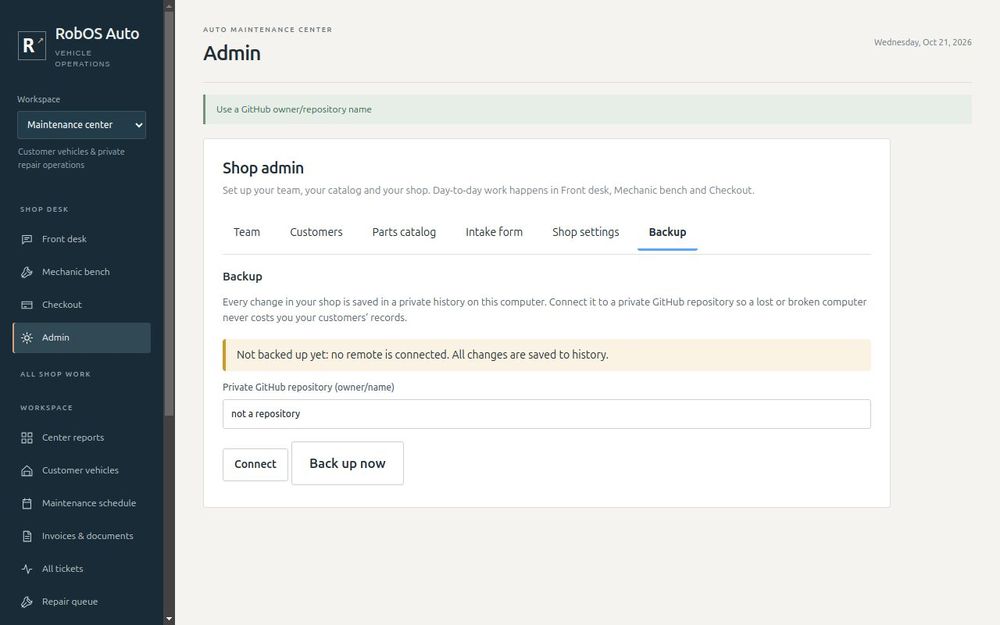
The banner changes from Not backed up yet to Backed up to https://github.com/…. If the repository is not private, or the name is wrong, Auto Center refuses to connect and tells you why.
Make it a habit. Pressing Back up now is manual. Do it at closing time every day. Anything you did since the last backup exists only on the shop computer.
Privacy. A private GitHub repository is still stored on GitHub's servers. Check that keeping customer names, phone numbers and vehicle details there is acceptable under the rules where you operate.
Move to a new computer
If the shop computer dies, you can get everything back from your backup. This was tested with a copy of a real shop.
Install Auto Center on the new computer and open it once, then close it.
In a terminal, copy your backup into the data folder:
mkdir -p ~/.config/robos/auto-center
git clone https://github.com/your-account/your-shop-records.git ~/.config/robos/auto-center/shop
Open Auto Center, set Workspace to Maintenance center, and open Admin, then Customers. Your customers, tickets and team are back.
The new computer is already connected to the same backup, so Back up now works straight away.
You are ready when
- Admin, Backup shows Backed up to your private repository
- You have a reminder to back up at closing time
- You know where the restore steps are
Next: Run the shop day to day.