

Step 4 of 9 · about 20 minutes
Take the customer's call
Use the Front desk to take a call, text, email or walk-in, then prepare the estimate and get approval.
The Front desk menu is where every repair starts. It walks you through five steps, so you never have to remember what to ask. You can use it while the customer is on the phone.
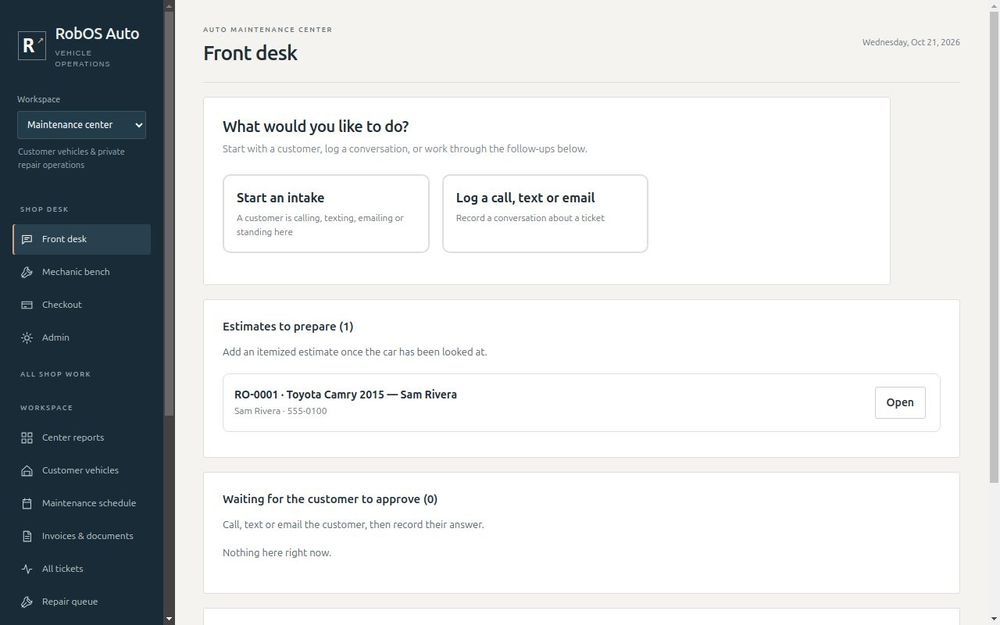
Press Start an intake and follow the steps along the top: Contact, Customer, Vehicle, Issue, Confirm.
Step 1: How did they reach you?
Choose Phone call, Text message, Email, Walk-in, Website or Other. It is saved on the ticket, so anyone can see how the customer got in touch and reply the same way.
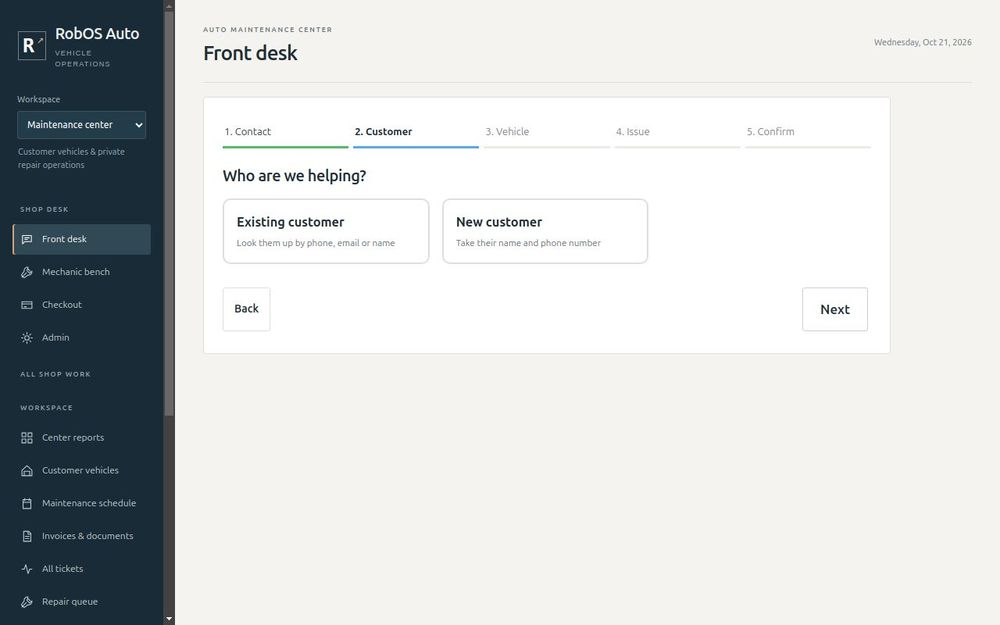
Step 2: Who are they?
Choose Existing customer or New customer.
An existing customer
Type any part of their phone number, email or name. Matches appear after three letters, and you pick one.
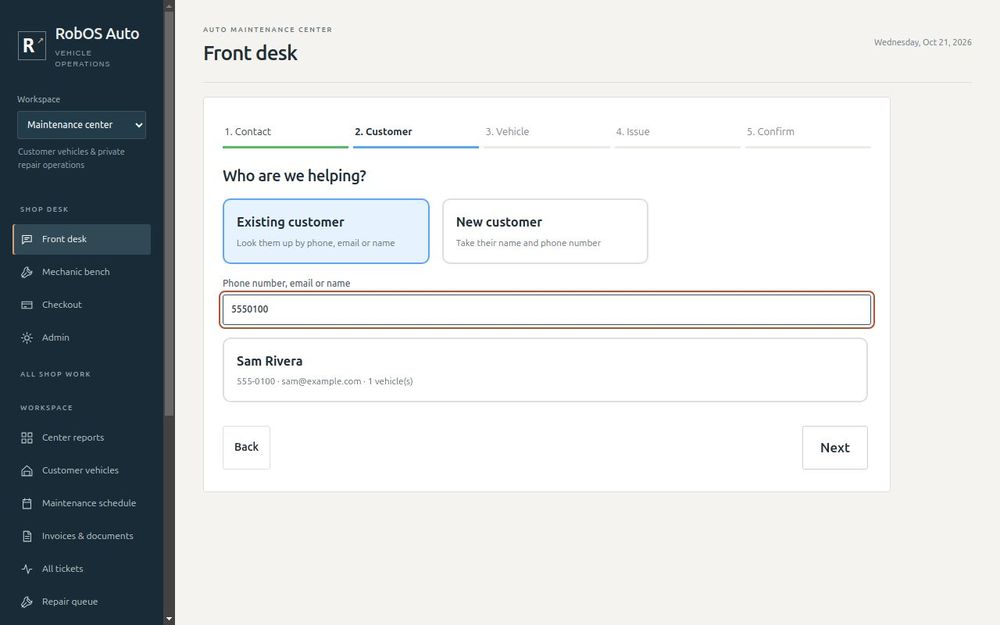
If nobody matches, a yellow note offers Add as a new customer and carries over what you typed.
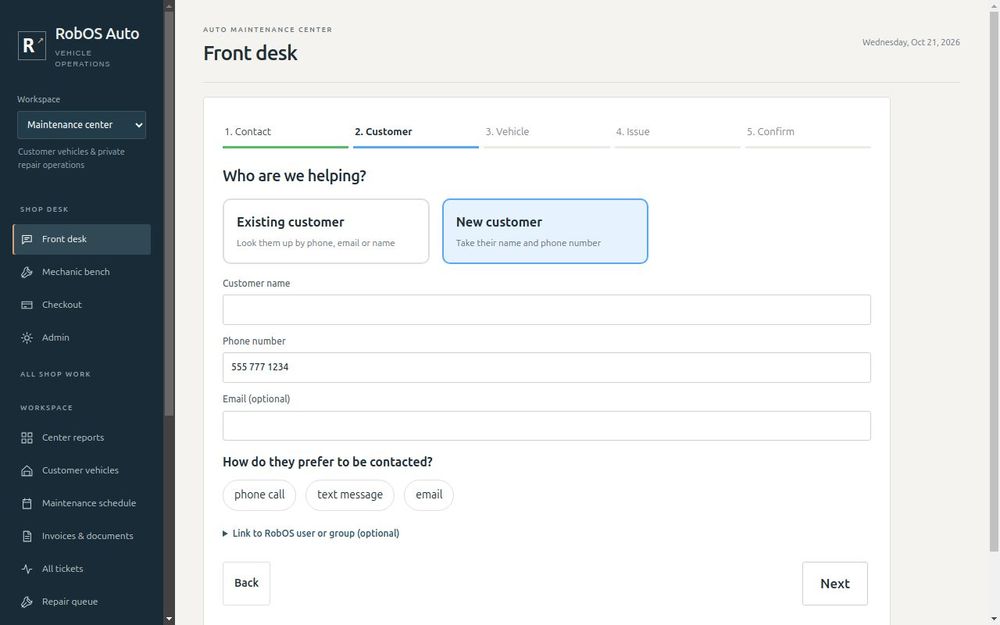
A new customer
Enter their name and a phone number, and an email if you have one. Choose how they like to be contacted, so the next person replies the way the customer wants. If you only have an email, that is enough.
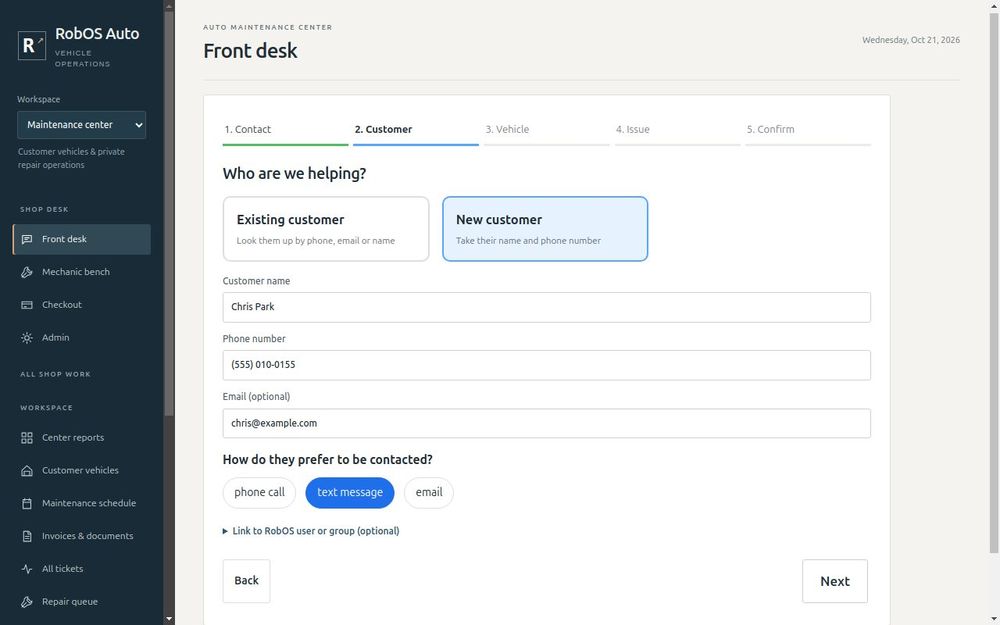
Safety net. A new customer needs a phone number or an email. Without a way to reach them you cannot send the estimate, so the wizard asks for one.
If your customer is also in RobOS People, open Link to RobOS user or group to connect them. This is useful for fleet or business accounts.
Step 3: Which vehicle?
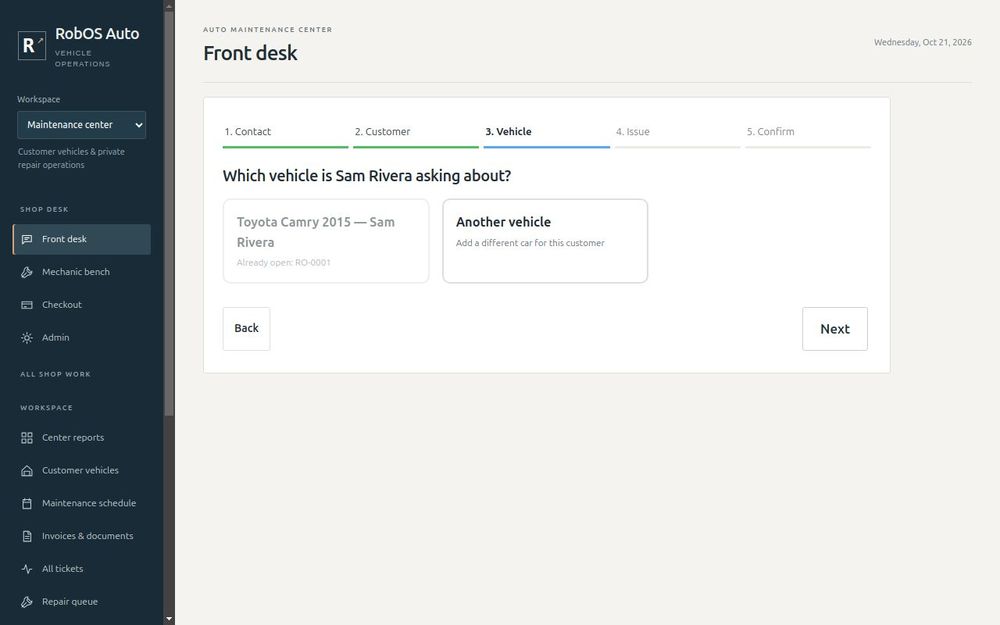
For an existing customer, their saved cars appear as big buttons. Pick the one they are calling about, or press Another vehicle. Cars are shown everywhere as make, model and year followed by the customer, such as Toyota Camry 2015 — Sam Rivera. A nickname is optional and appears in brackets.
For a new car, type year, make and model. As you type, suggestions appear: try typing 2015 honda in Find year, make and model and choose a result.
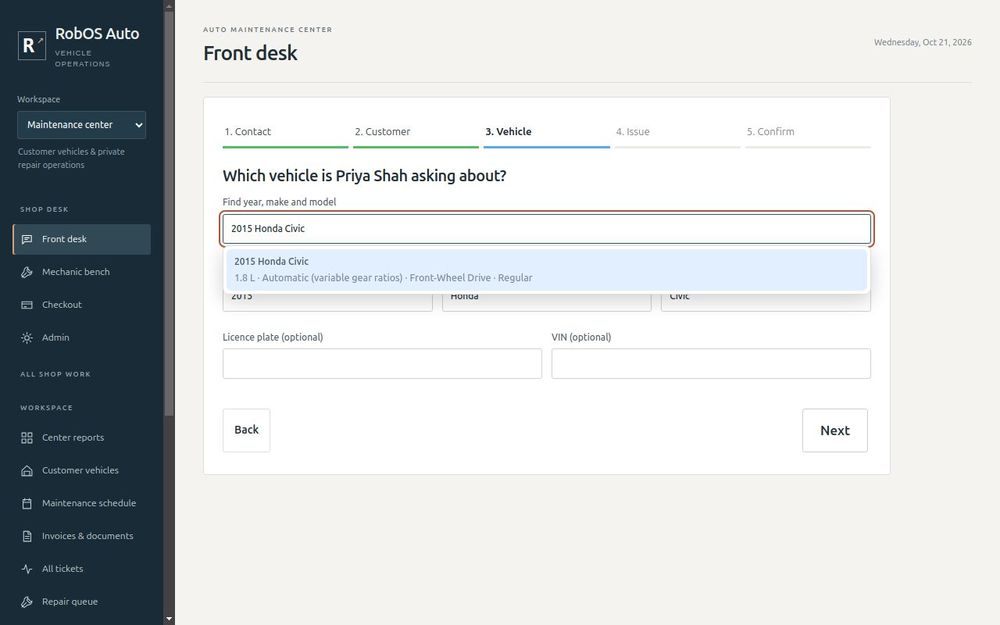
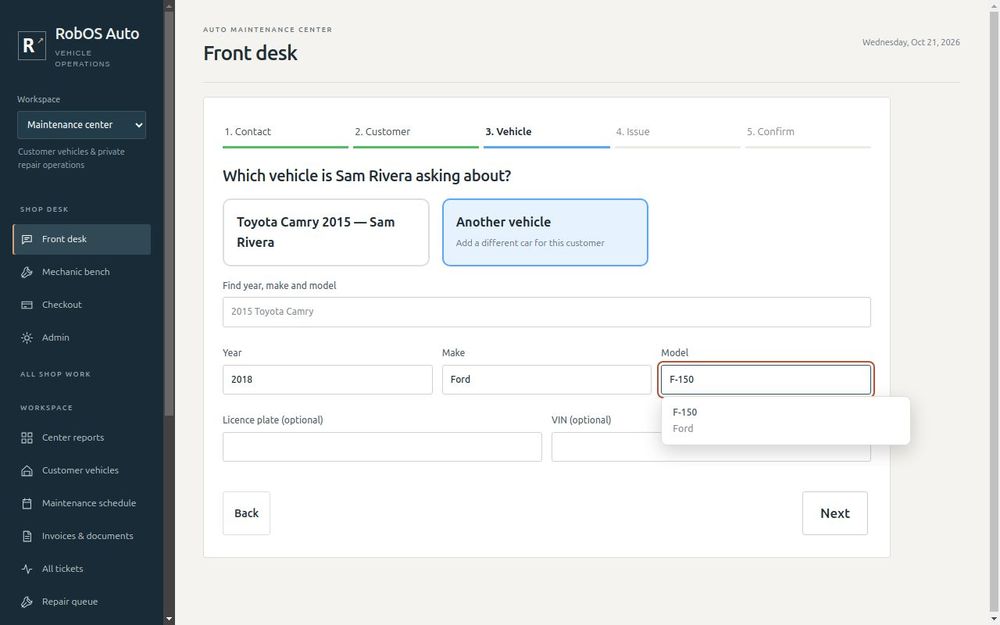
Safety nets. The year, make and model are required, so you always know exactly which car you are looking at. A car that already has an open ticket is greyed out and shows its ticket number, so nothing is opened twice.
Step 4: What is wrong?
Pick the closest kind of problem: brakes, engine, noise, leak, electrical, heating and air conditioning, steering and tires, transmission, routine service or something else. The wizard then asks questions for that kind of problem, such as what does it sound like and when does it happen, followed by a few details it asks every time: warning lights, when it started, whether it is safe to drive, how urgent it is and whether the customer will wait.
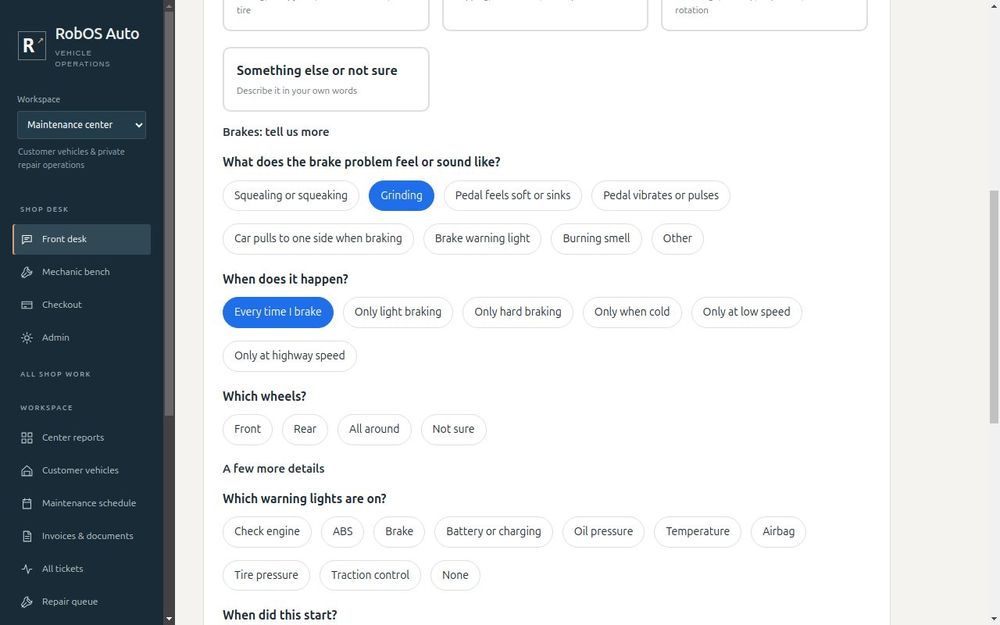
Type the customer's own words in the box at the bottom. Their phrasing often helps the mechanic.
For routine service, choose every service they want, such as an oil change and a tire rotation.
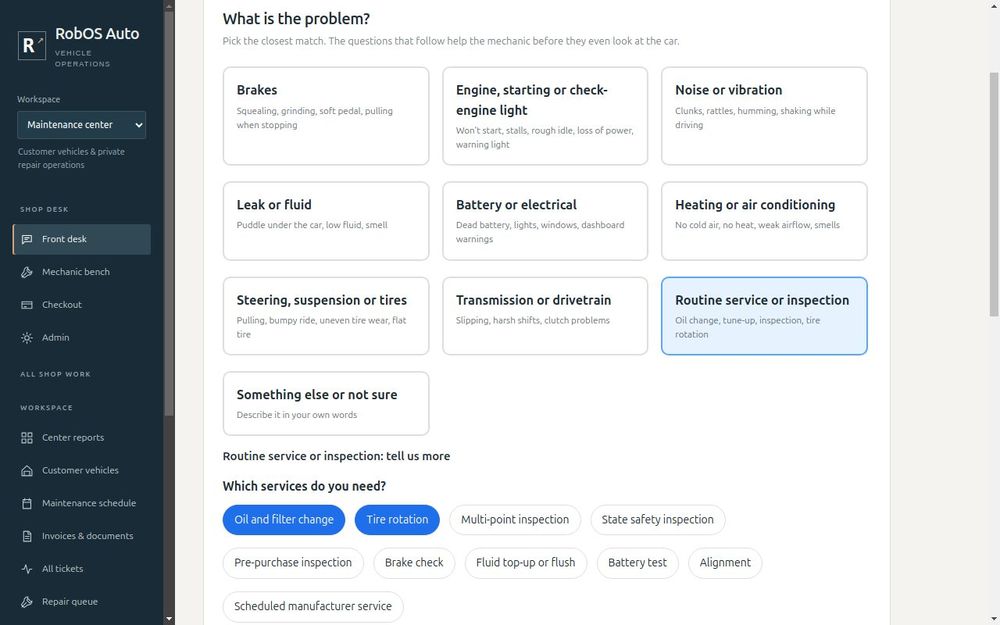
Urgent cars. If the customer says the car is unsafe, or must be towed, the ticket is marked Urgent and appears first for the mechanics.
Step 5: Check and open the ticket
You see a summary of everything you entered. Add the odometer reading and where the car is parked if you know, then press Open ticket.
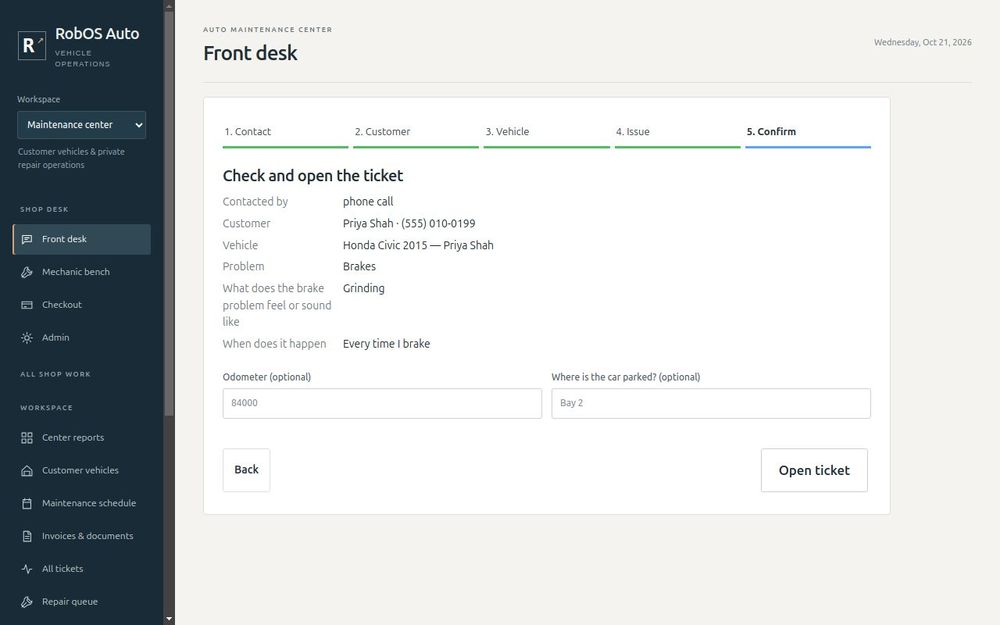
You get a numbered ticket such as RO-0001, and the car is checked in on the shop floor. From the finish screen you can start another intake or go straight to the estimate.
Prepare the estimate
Back on the Front desk home screen, Estimates to prepare lists tickets that need one. Open the ticket, add each part and each labor line with its price, and press Send estimate. As you type, your parts, common parts and standard jobs are suggested, and your labor rate is filled in for you. The total is worked out for you.
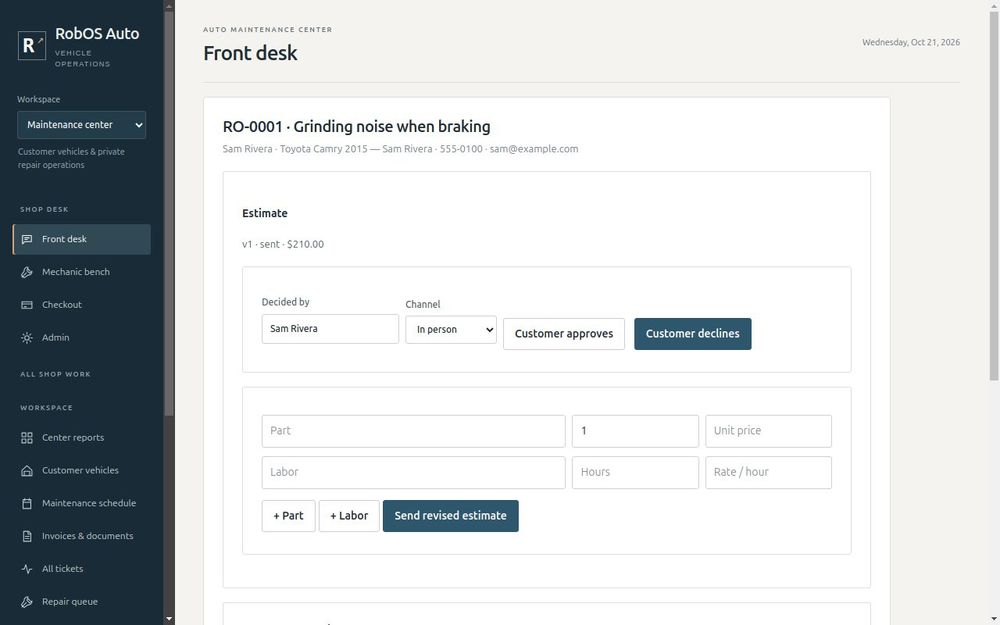
Contact the customer however they prefer, then record their answer on the same screen. Choose how they replied (in person, phone, email or text message) and press Customer approves or Customer declines. A declined estimate goes back to diagnosis, so you can send a revised one. Only the latest estimate can be approved.
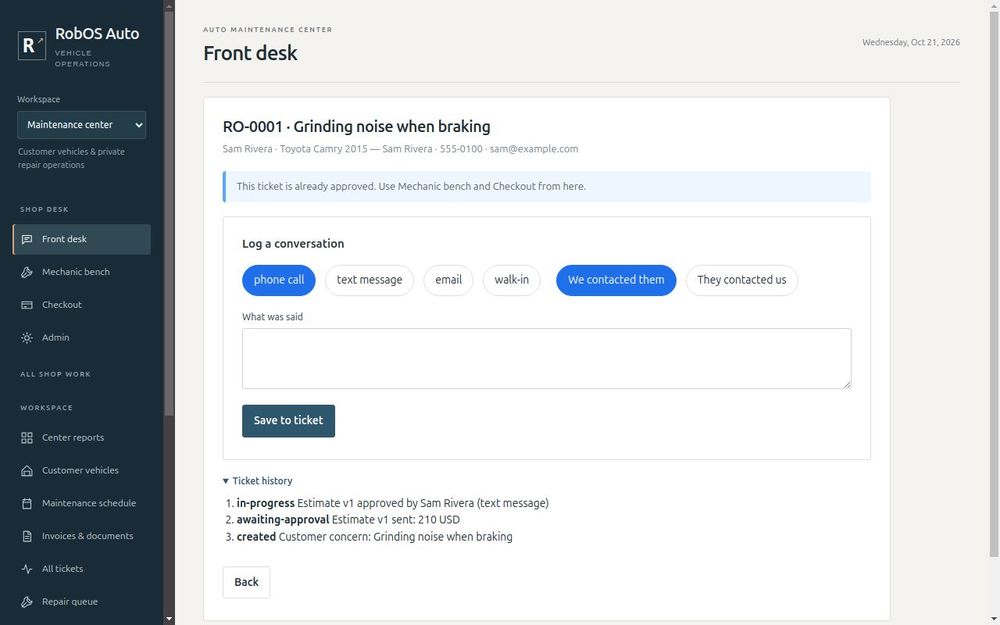
Important. Auto Center records the conversation, but it does not send the text or email itself. Send the estimate your usual way, then record what the customer said.
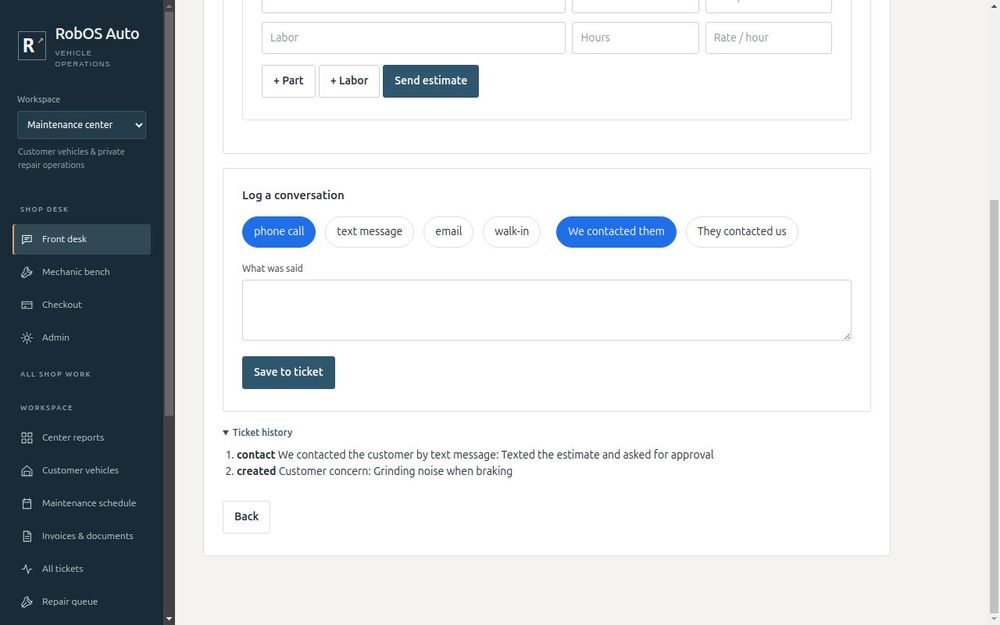
Log every call, text and email
Press Log a call, text or email on the home screen, pick the ticket, choose the channel and who contacted whom, and write what was said. It is saved on the ticket for everyone.
Watch the follow-ups
The home screen also lists Waiting for the customer to approve, so you know who to call back, and Mechanic recommends more work for extra work the mechanic found.
You are ready when
- You have taken one test call all the way to an open ticket
- You have sent an estimate and recorded an approval
- You have logged one conversation on a ticket
Next: The mechanic bench.