

Step 5 of 9 · about 15 minutes
The mechanic bench
How your mechanics pick up a ticket, read the car with an OBD-II adapter, request parts, log hours and finish the job.
The Mechanic bench shows each mechanic what is on their plate. It has big buttons, so it works on a shared shop computer or a tablet.
Pick your name
The first time, each mechanic picks their own name. The app remembers it on that computer. Press Switch to change who is at the bench.
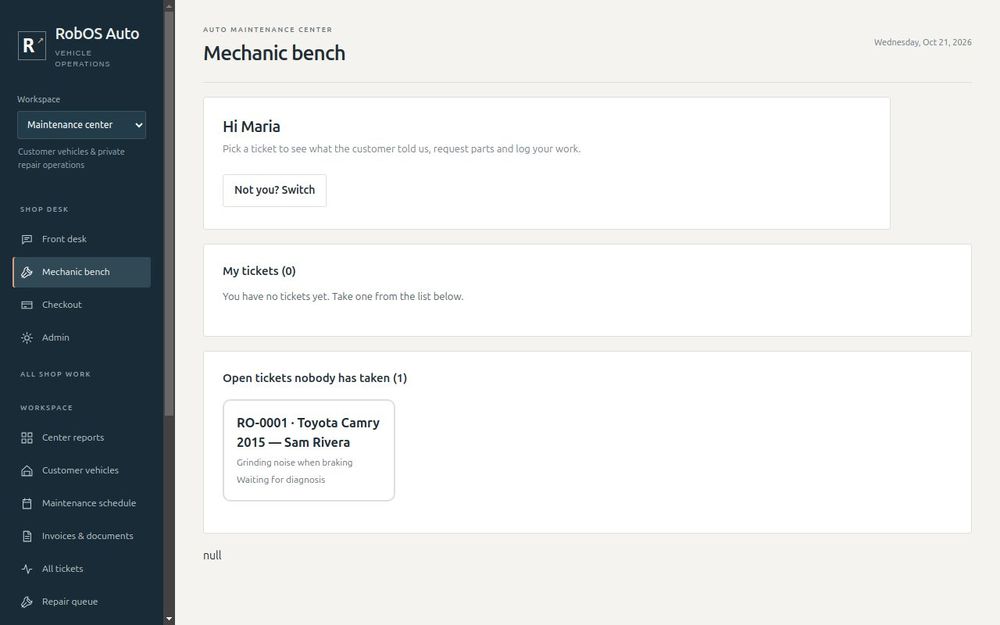
You see My tickets, Open tickets nobody has taken and With other mechanics. Urgent tickets are shown first.
Take a ticket
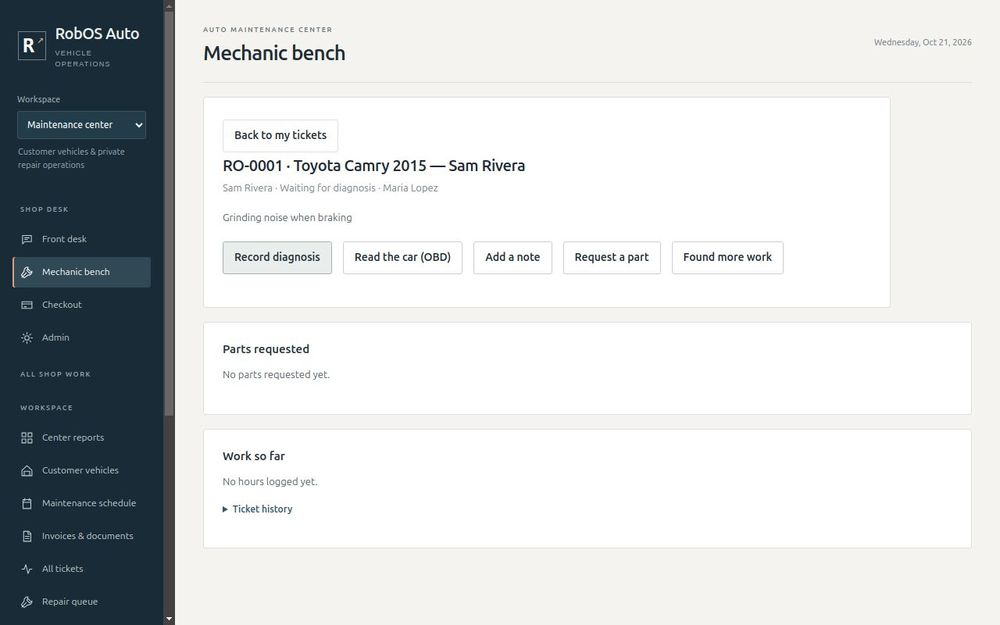
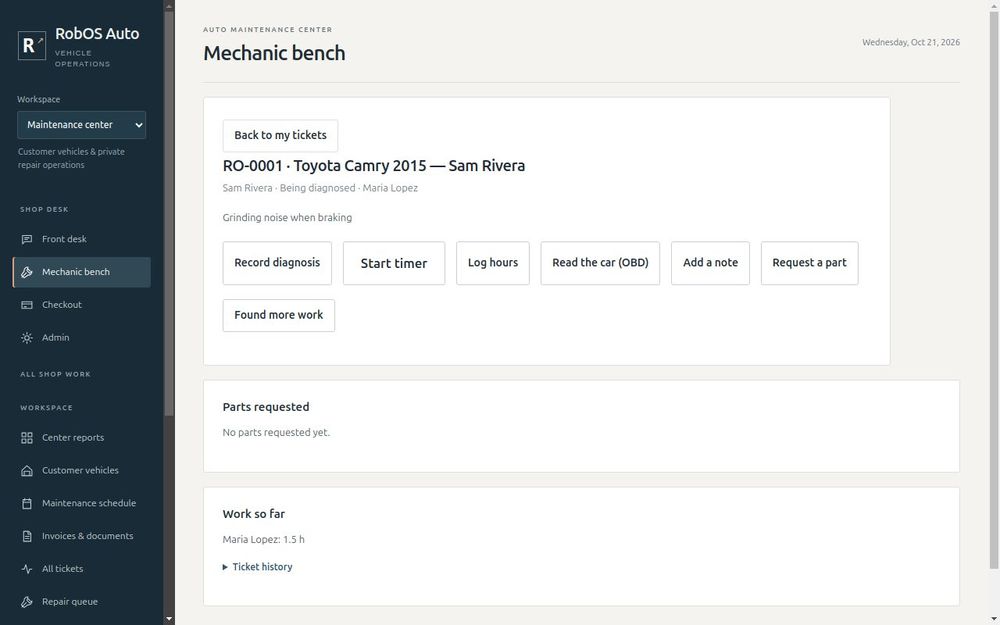
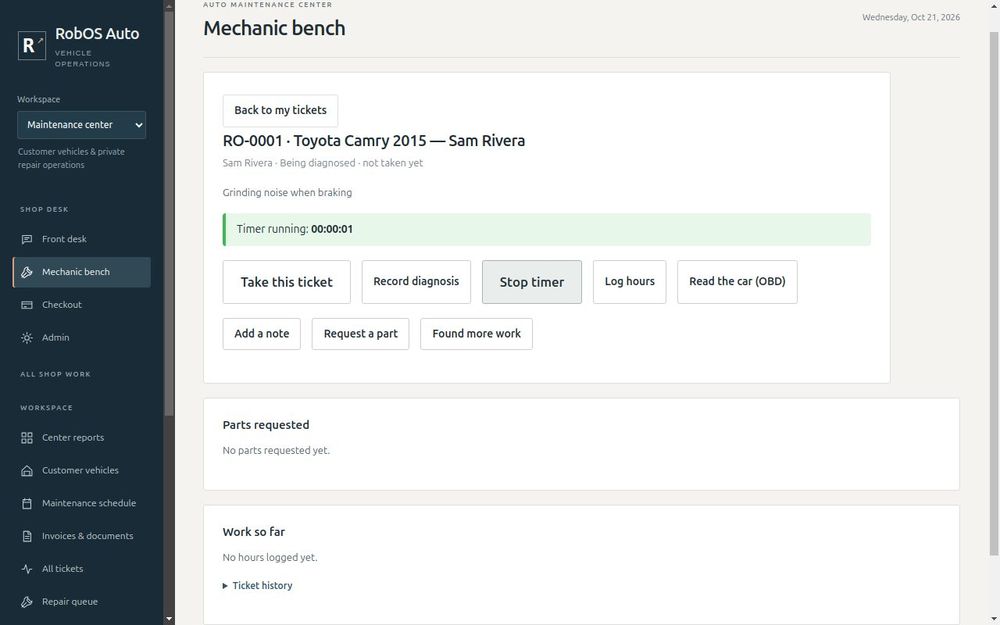
Open a ticket and press Take this ticket. Your name goes on it and it moves to My tickets.
See what the customer said
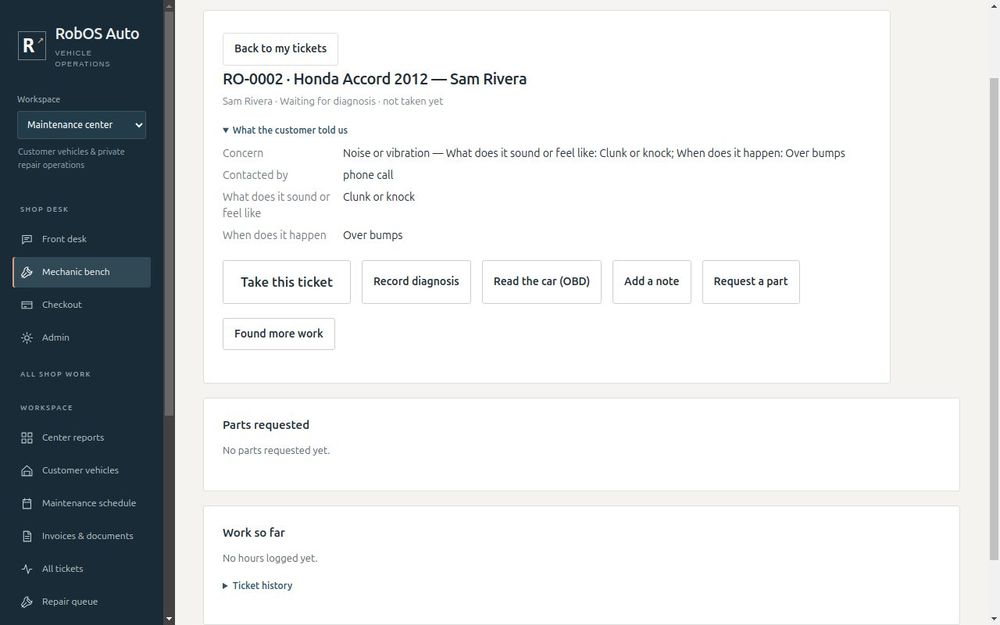
Before touching the car, open What the customer told us. It shows the answers from the front desk: the sounds, when it happens, warning lights, whether the car is safe to drive, plus the customer's own words.
Record what you found
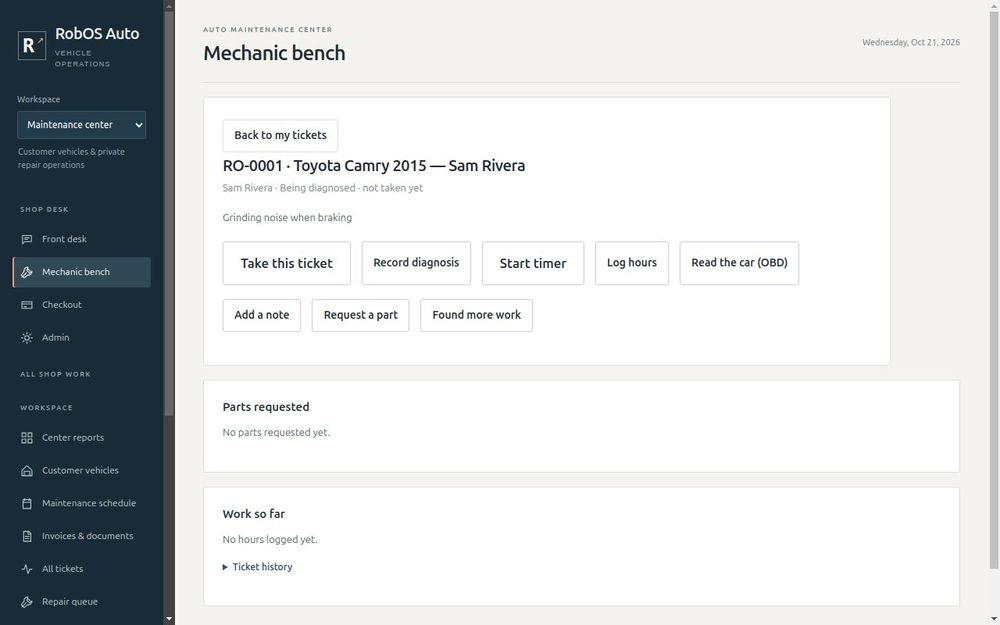
Press Record diagnosis, write what you found and add any trouble codes. Codes are suggested as you type, by code or by description.
Read the car with an OBD-II adapter
A Bluetooth OBD-II adapter reads the car's own report: whether the check-engine light is on, its trouble codes, its VIN and live engine data. Any ELM327-compatible Bluetooth adapter works, such as a vLinker MC+, OBDLink or Veepeak, and you do not need to pair it first. The computer needs Bluetooth and must be within a few metres of the car.
- Plug the adapter into the OBD port under the dashboard, on the driver's side.
- Turn the key to ON or start the engine. The port has power with the key off, but the car's computer only answers when the key is on.
- Close any phone app that uses the adapter. It can only talk to one device at a time.
- On the ticket, press Read the car (OBD), then Find adapters, and pick yours.
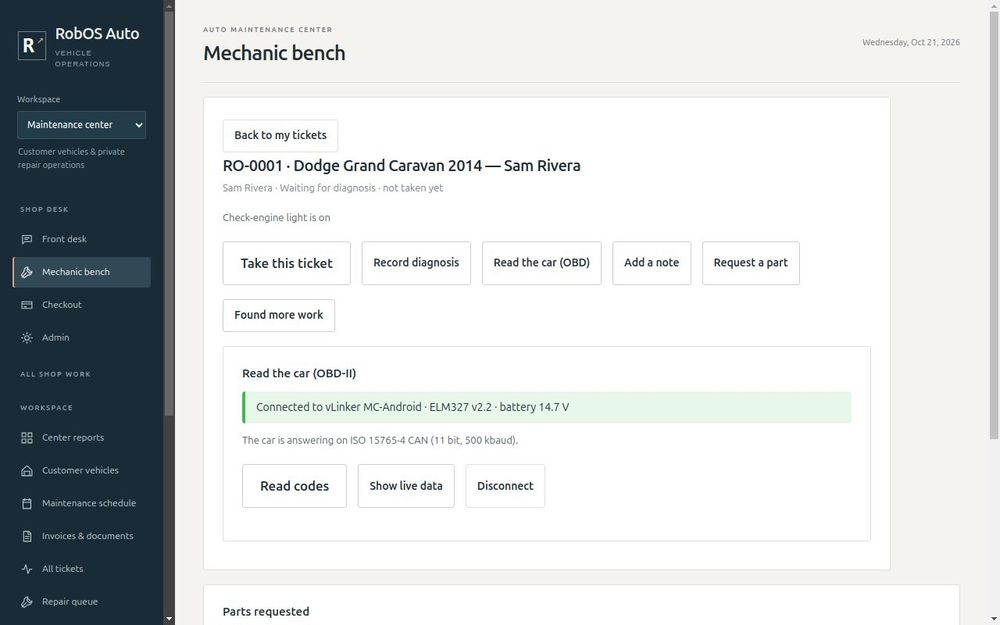
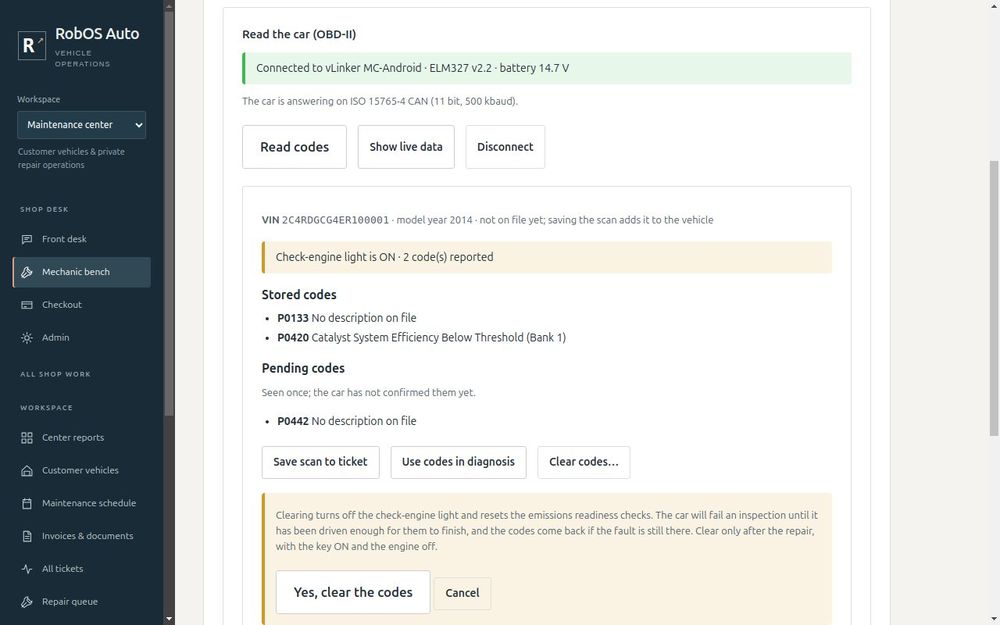
Press Read codes. You see the VIN and model year, whether the check-engine light is on, and every stored code with its description. Pending codes have been seen once but the car has not confirmed them yet. Permanent codes only go away once the car confirms the repair worked.
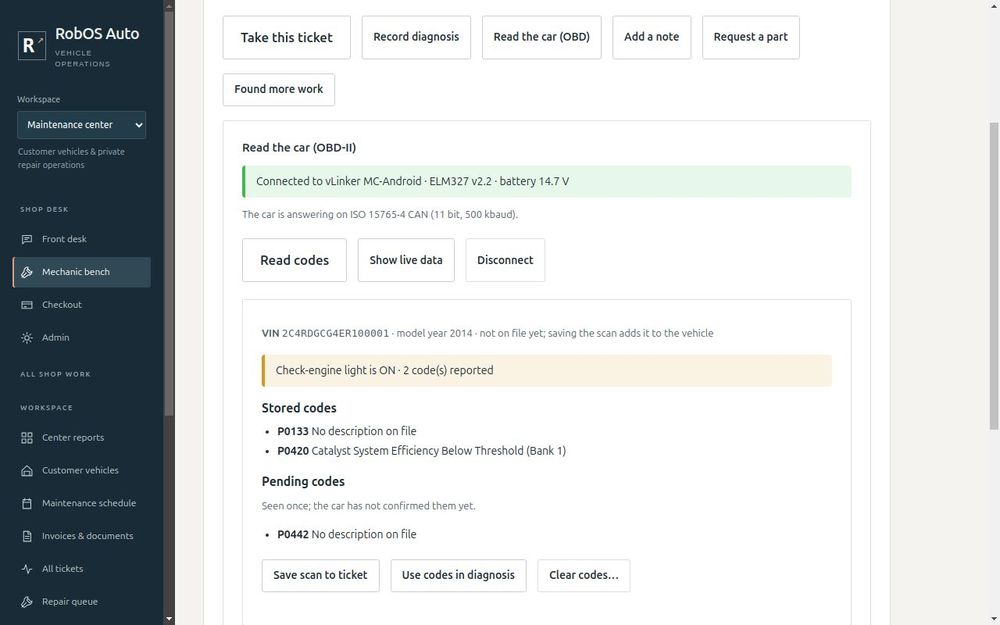
Press Save scan to ticket to record what the car reported in the ticket history. If the vehicle has no VIN on file, the VIN read from the car is added to it. If the car's VIN does not match the ticket, you are plugged into the wrong car: the bench warns you and will not save the scan.
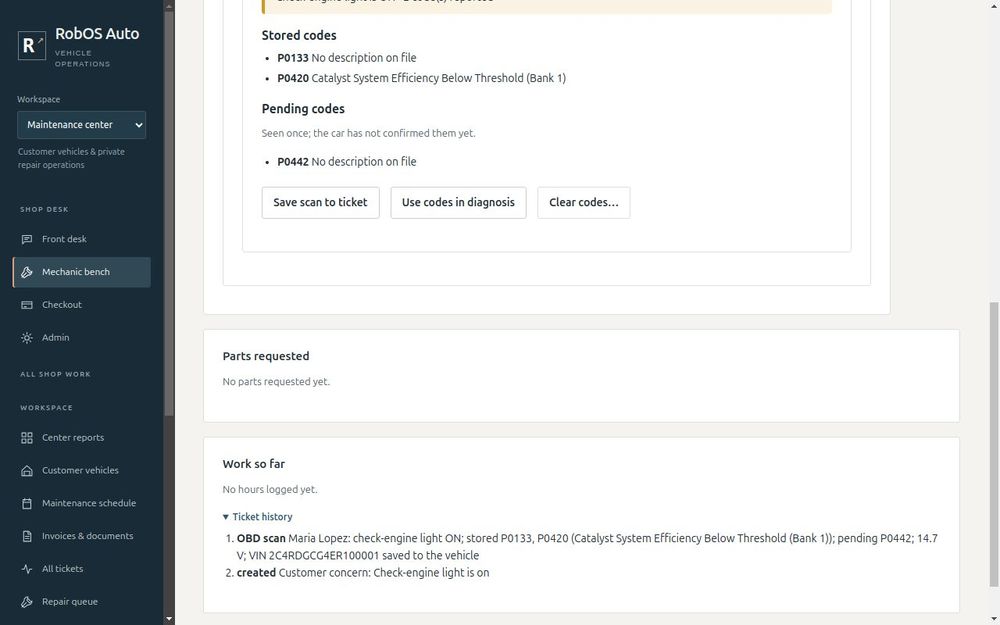
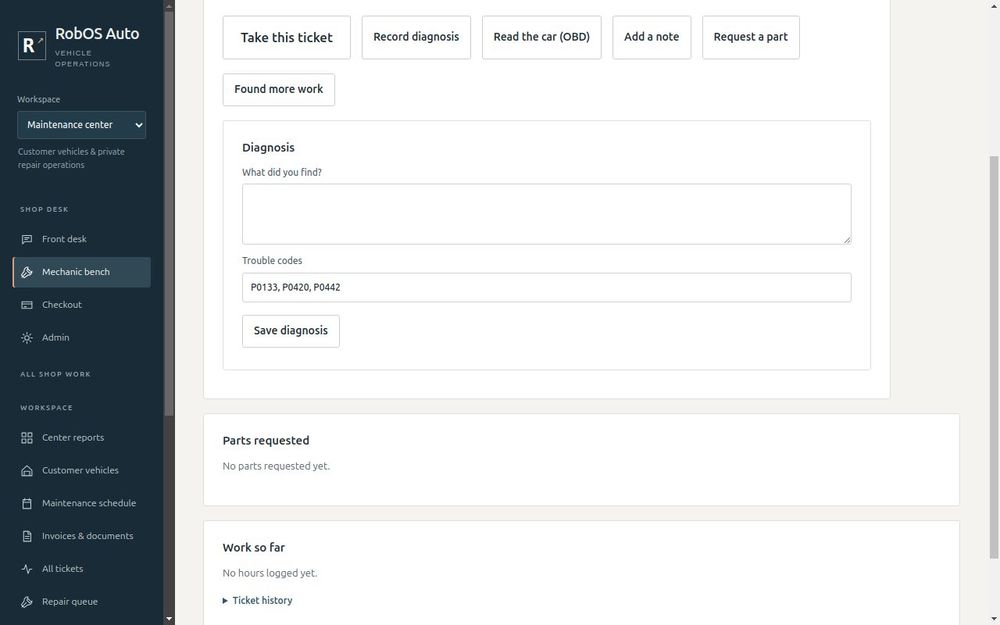
Use codes in diagnosis opens Record diagnosis with the codes already filled in.
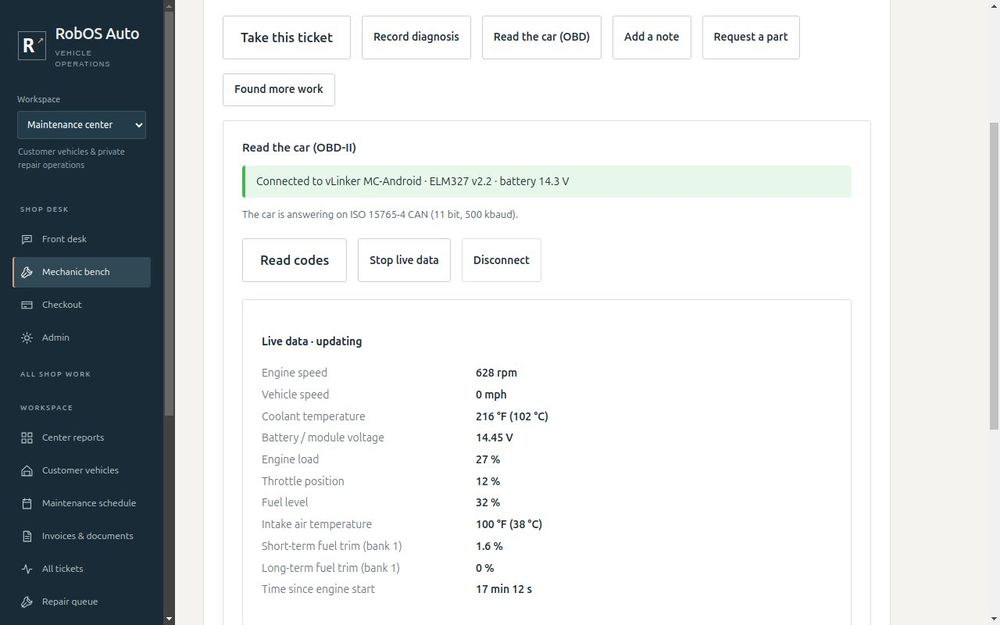
Show live data reads engine speed, temperatures, battery voltage, load, throttle, fuel trims, speed and fuel level about once a second. The picture below is from a real van idling warm.
After the repair, Clear codes turns the check-engine light off. The bench asks first, because clearing also resets the emissions readiness checks: the car fails an inspection until it has been driven enough for them to finish, and the codes come back if the fault is still there. Clear with the key ON and the engine off.
What it does not read. A generic OBD-II adapter reads the engine and emissions computer. Airbag (SRS), ABS, stability control and most transmission warnings, and the maintenance reminder, live in other computers that need the manufacturer's scan tool. If a warning light is on and Read codes finds nothing, it is probably one of those.
After the first time. The bench remembers your adapter and shows Connect to with its name. Some adapters stop showing up in a search a few minutes after they are plugged in, but they still connect this way.
Request parts
Press Request a part. Start typing the part, choose how soon you need it (normal, urgent, or the car is waiting) and send it.
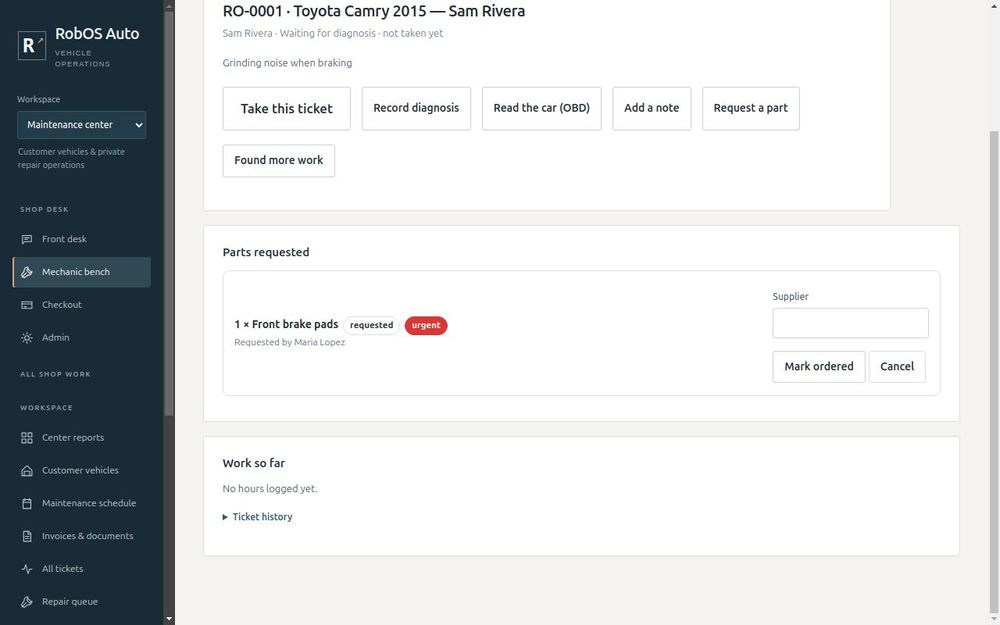
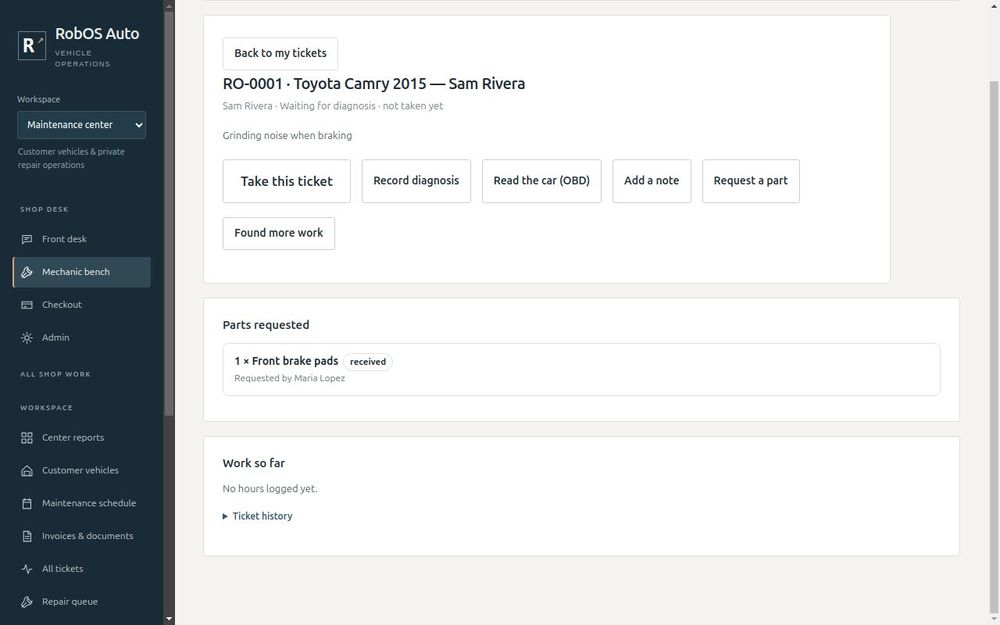
The request appears under Parts requested. When the part is ordered, enter the supplier and press Mark ordered. When it arrives, enter what it cost and press Mark received. A received part is added to the ticket's parts cost automatically.
Log your hours
Press Log hours and enter how long you worked. Or press Start timer when you begin and Stop timer when you finish. The time is rounded to the nearest minute and added to the ticket under your name.
Add notes and flag extra work
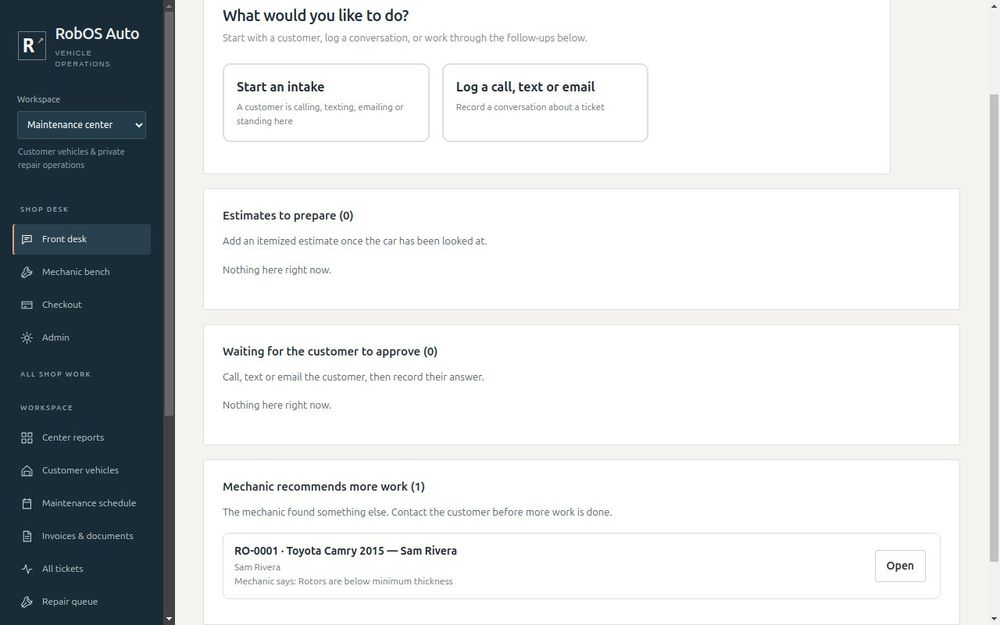
Use Add a note for what you found or did. If you find more work than the customer approved, press Found more work. The front desk sees it under Mechanic recommends more work, and contacts the customer before the extra work is done.
Finish the job
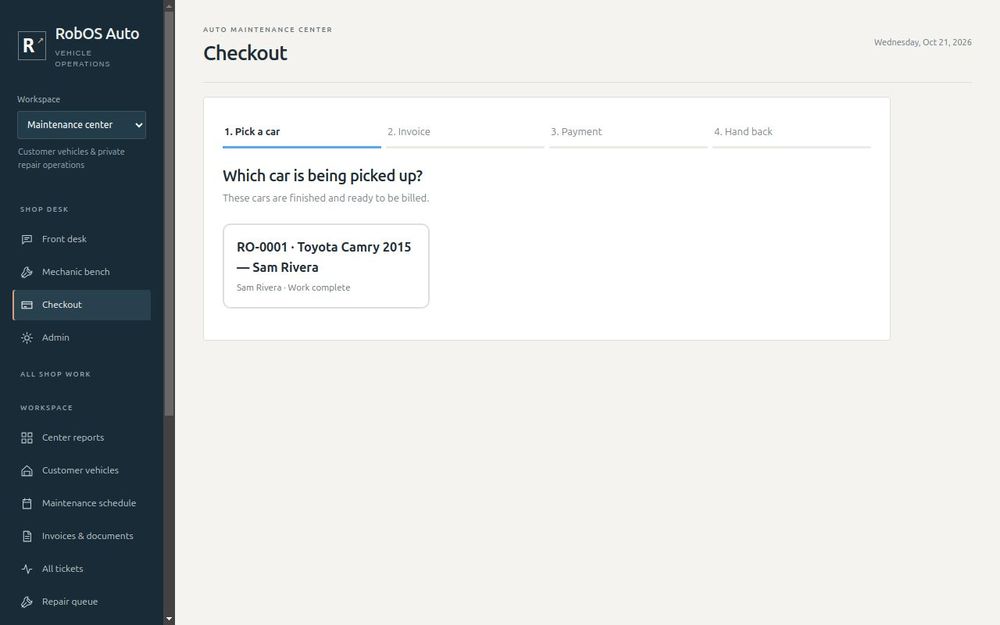
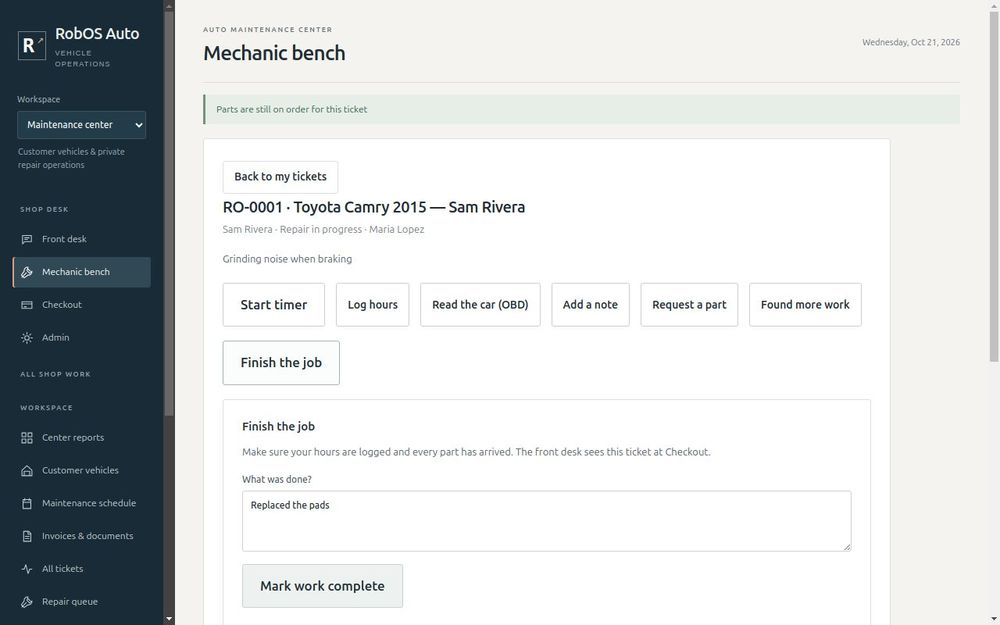
When the work is done, press Finish the job and write a short summary. The car now shows up at Checkout.
What the bench will not let you do
Safety nets. You cannot finish a job while a part is still on order. You cannot finish with the timer running, because the hours would be missed. You cannot log more than 24 hours in one entry or in one day. And someone who is no longer on the team cannot log hours.
You are ready when
- Each mechanic can pick their name and take a ticket
- If you use an OBD-II adapter, you have read a car and saved the scan on its ticket
- You have requested a part and marked it ordered and received
- You have logged hours and finished a test job
Next: Check the customer out.