

Step 2 of 9 · about 15 minutes
Set up your shop
Add your shop details and your team, and decide who uses which menu.
Everything in this page happens in Admin, which is meant for you as the owner.
1. Enter your shop details
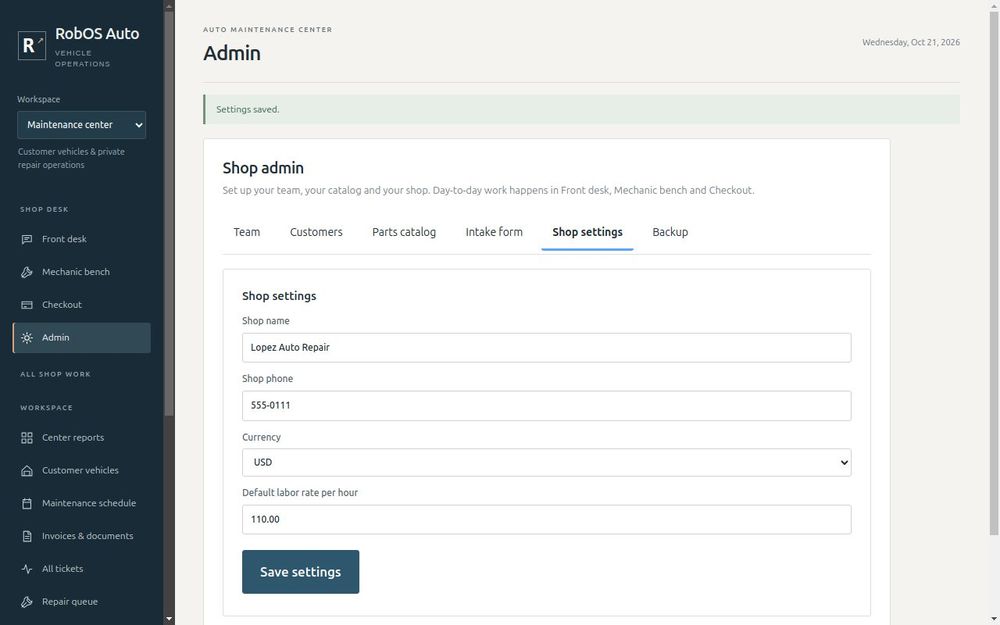
Open Admin, then Shop settings. Enter your shop name, phone number, currency and your usual hourly labor rate, then press Save settings. The labor rate is filled in for you whenever you add a labor line to an estimate, so you only change it for special jobs.
2. Add your team
Open the Team tab. For each person who will touch a repair:
- Enter their name and role, such as Master technician or Service advisor.
- If they have a RobOS account, pick them under RobOS user. This keeps your shop team in step with the rest of RobOS. Leave it on Not linked if they do not have one.
- Optionally enter their hourly labor cost. This is what the person costs you, not what you charge. It feeds your profit reports.
- Press Add team member.
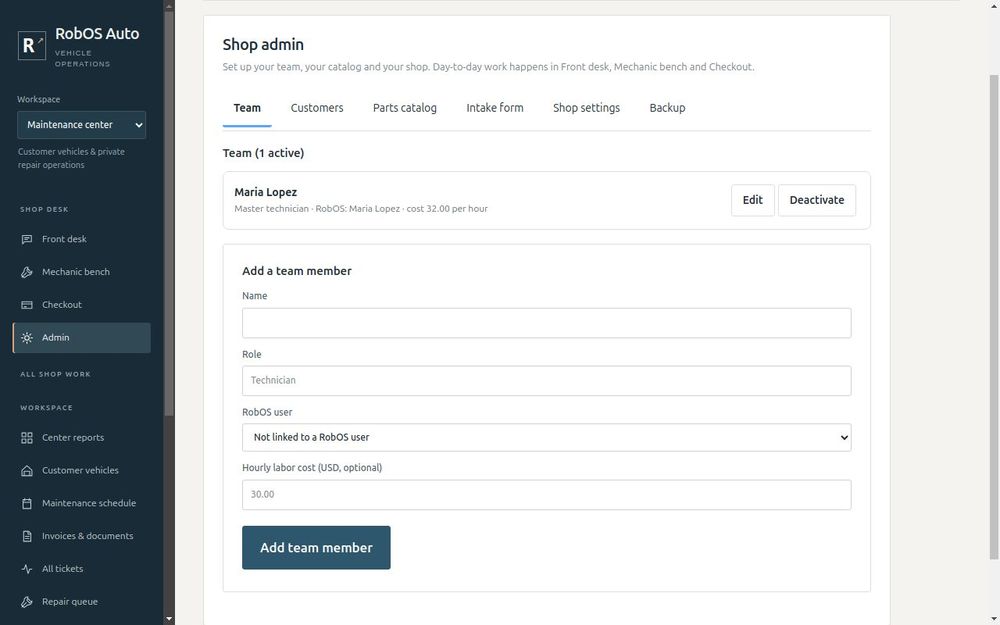
Add everyone who will log hours, including yourself if you work on cars. Use each person's real name, because the Mechanic bench asks people to pick their own name.
Changing someone later
Press Edit next to a person to change their role or hourly cost. Past hours keep the cost they were logged at. When someone leaves, press Deactivate. They disappear from the Mechanic bench, and their past hours stay on old tickets.
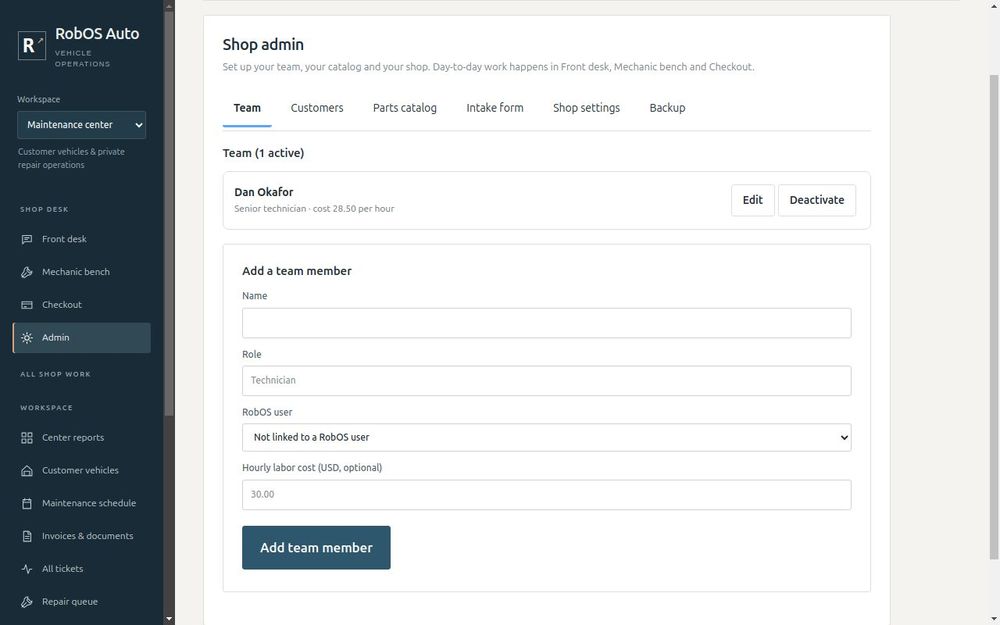
Safety net. You cannot deactivate someone who still has open tickets. Finish or hand over their work first, so no customer's car is left without an owner.
3. Decide who uses which menu
Each menu is built for one job, so you can match it to the people you have:
| Person | Menu they use |
|---|---|
| Whoever answers calls, texts and the door | Front desk |
| Mechanics and technicians | Mechanic bench |
| Whoever takes payment | Checkout |
| You | Admin, and Center reports |
In a small shop one person may use all of them. That works fine: the menus are just different views of the same tickets.
4. Read the intake questions
When someone calls about a problem, the Front desk asks a short set of questions that depend on the type of problem. Brakes get brake questions, noises get noise questions, and so on. Open Intake form to read them all.
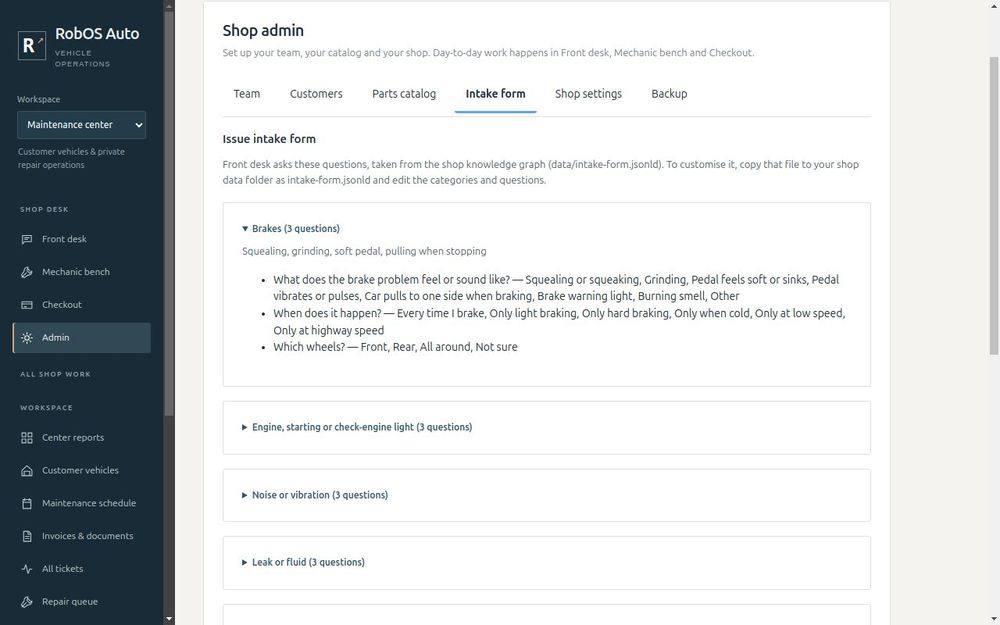
You can change them later. Copy data/intake-form.jsonld to your shop data folder as intake-form.jsonld and edit the categories and questions. Your copy is used instead of the built-in one.
You are ready when
- Your shop name and labor rate are saved
- Every person who works on cars is on the team list
- You have looked through the intake questions
Next: Bring in your data.