

Step 3 of 9 · about 30 minutes
Bring in your data
Import your customers, their cars and your parts, and decide what to do with open jobs and old history.
This page moves what you already have into Auto Center, so you do not retype it. You will use two imports in Admin: one for customers and their vehicles, one for parts.
1. Export your customers from the old system
Most systems can export to a spreadsheet or CSV file. Aim for one row per vehicle. A customer with two cars appears on two rows.
Use these column names. Only name is required, and the order does not matter:
| Column | Example |
|---|---|
name |
Sam Rivera |
phone |
(555) 010-0100 |
email |
sam@example.com |
preferred contact |
text message |
notes |
Prefers afternoons |
year |
2015 |
make |
Toyota |
model |
Camry |
vin |
4T1BF1FK5FU123456 |
plate |
ABC123 |
Here is a small example file:
Name,Phone,Email,Year,Make,Model,Plate
Sam Rivera,(555) 010-0100,sam@example.com,2015,Toyota,Camry,ABC123
Sam Rivera,555-010-0100,,2018,Ford,F-150,TRK999
Priya Shah,555-010-0199,priya@example.com,2012,Honda,Accord,
Tips for a clean file:
- A vehicle row needs at least a make and model. A customer row with no vehicle is fine.
- Customers are matched by phone number first and email second, so the same person on two rows stays one customer.
- Phone numbers need an area code. Spaces, dashes and brackets are fine.
2. Import customers and vehicles
Open Admin, then Customers. Choose your CSV file, or paste its text, and press Import customers.
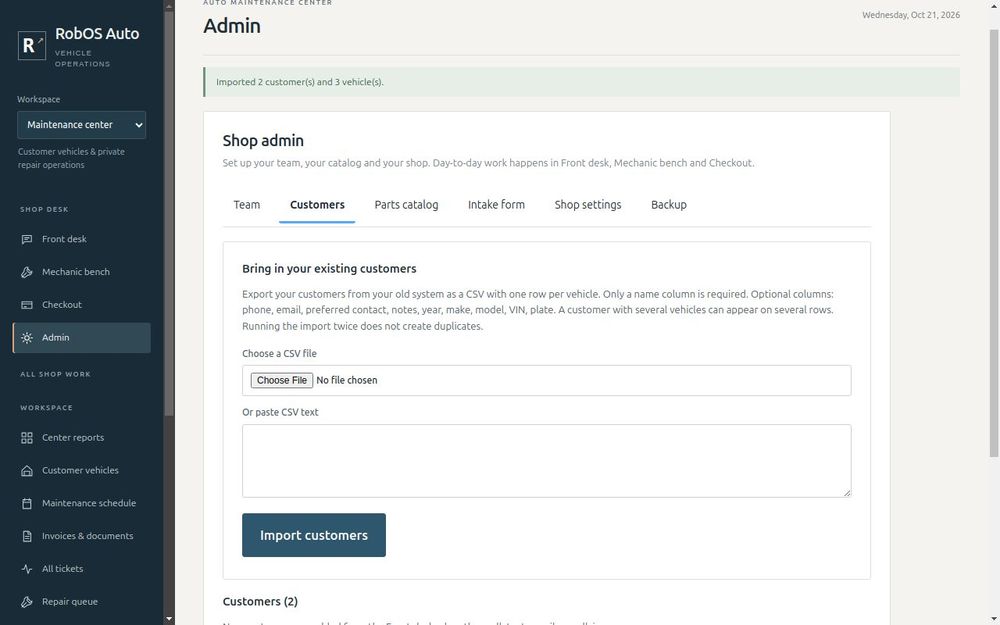
You will see a message such as Imported 2 customer(s) and 3 vehicle(s). Running the same file again never creates duplicates, so it is safe to import in several rounds.
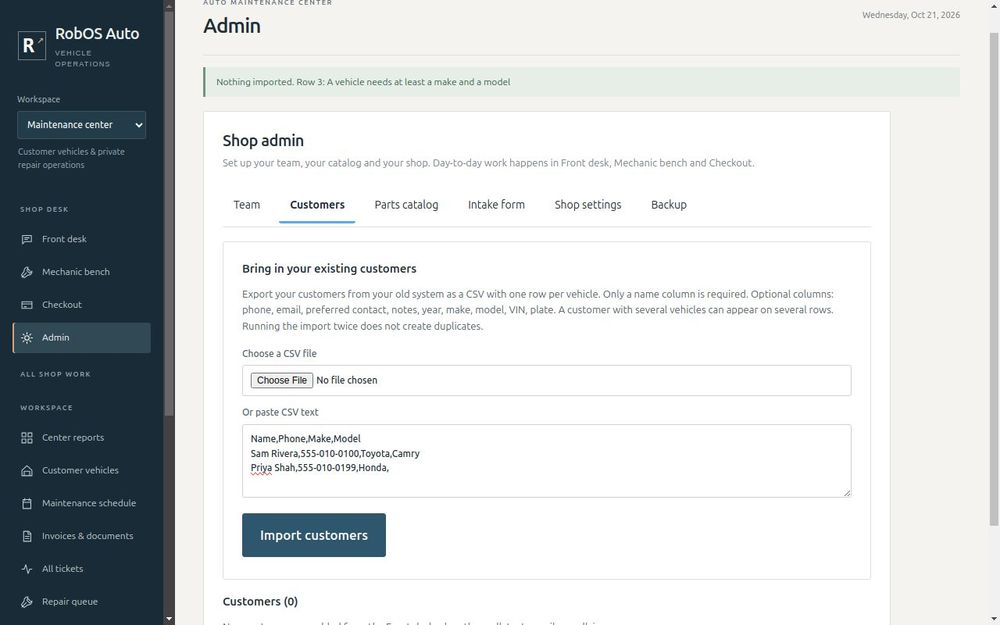
Safety net. If any row has a problem, nothing is imported, and the message tells you which row to fix. You never end up with half a customer list.
3. Import your parts catalog
Open Admin, then Parts catalog. Your supplier's price list works well here. The file needs a name column. These are optional: part number, supplier, cost, price, category, make, model, year from and year to.
Part Number,Name,Supplier,Cost,Price,Make,Model
BP-200,"Brake pads, ceramic, rear",NAPA,22.00,49.00,Toyota,Camry
OF-77,Oil filter,NAPA,3.10,8.99,,
Press Import parts. From then on, your parts are suggested first as you type on an estimate, with your supplier and price filled in. Parts you marked as fitting a make and model move to the top for matching cars.
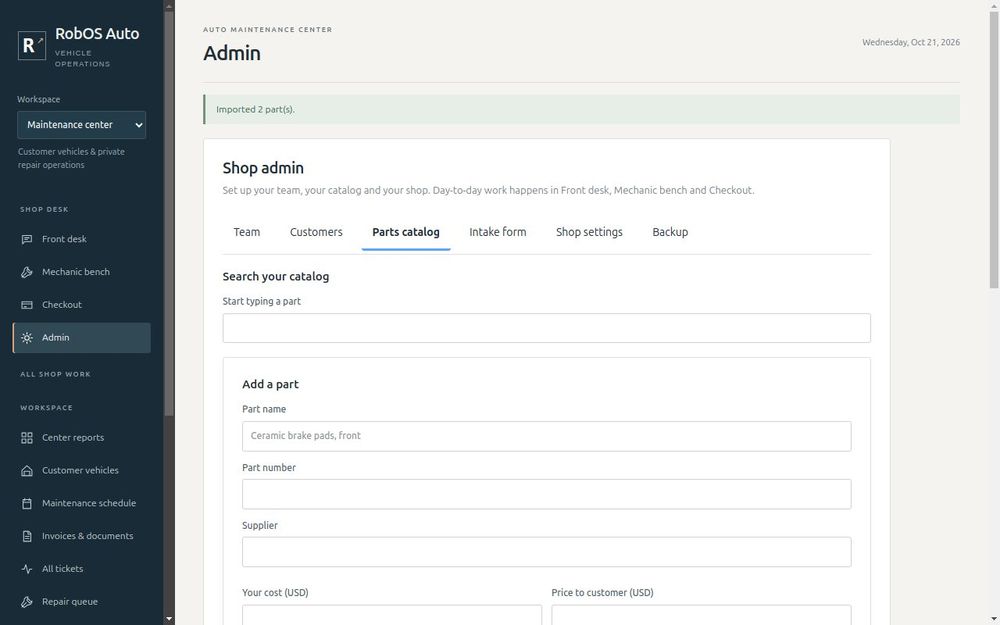
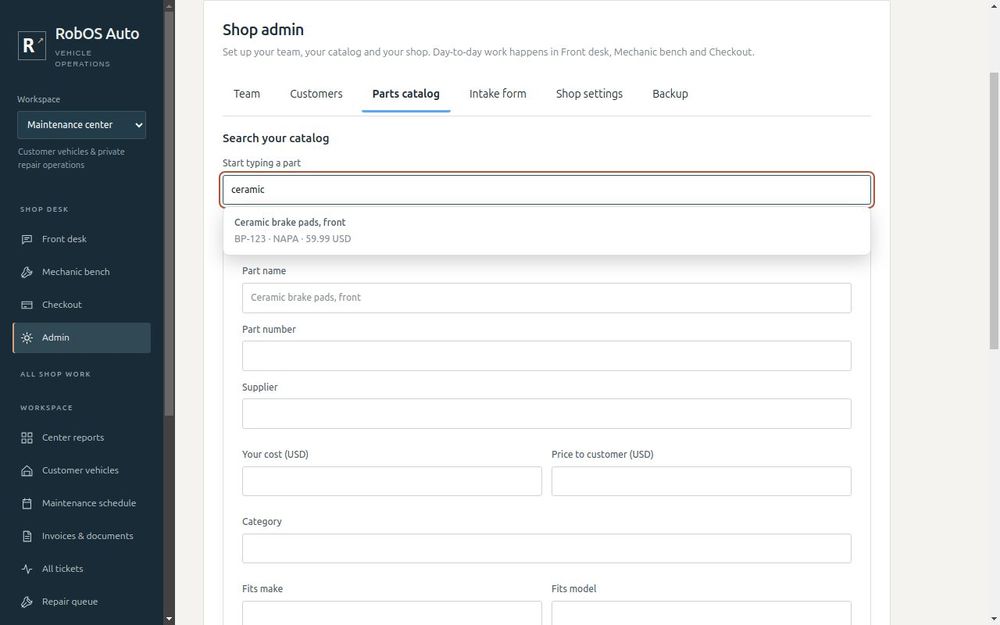
You can also add one part at a time with the Add a part form, then check it with Search your catalog.
Note. The make and model columns are your supplier's hints about what a part fits. They are used to sort suggestions, and they are not verified fitment, so always check a part fits before you order it.
4. Decide what to do with open jobs
Cars already in the shop when you switch need a decision:
- Finish them in the old system. This is the safest choice. Run both systems side by side until the last old job is closed.
- Re-enter them as new tickets. If a job is only just started, take the car in again on the Front desk and describe where it stands in the notes.
5. Decide what to do with old history
Auto Center starts fresh. It does not import past repair history, past invoices or old payments. Keep your old system, or an export of it, as a read-only archive. When a returning customer asks what you did last year, look it up there.
You are ready when
- Your customers and vehicles are imported and you can see them under Admin, Customers
- Your parts are imported, or you have decided to add them as you go
- You know what you will do with open jobs and old history
Next: Take the customer's call.