

RobOS eLearning
Course library and player: readable lessons, hands-on lab steps, quizzes that explain each answer, progress saved on your computer and a certificate you can save as a PDF.
packages/robos-elearning
RobOS eLearning plays courses defined as robos:ELearning nodes in the knowledge graph, read from .robos/kgraphs/learning/package.jsonld. It uses the graph store from Knowledge Graph Explorer, so it needs that package next to it. The PR Review Theater uses the same courses for its knowledge-check stage. The product page is at rowbose.com/elearning.
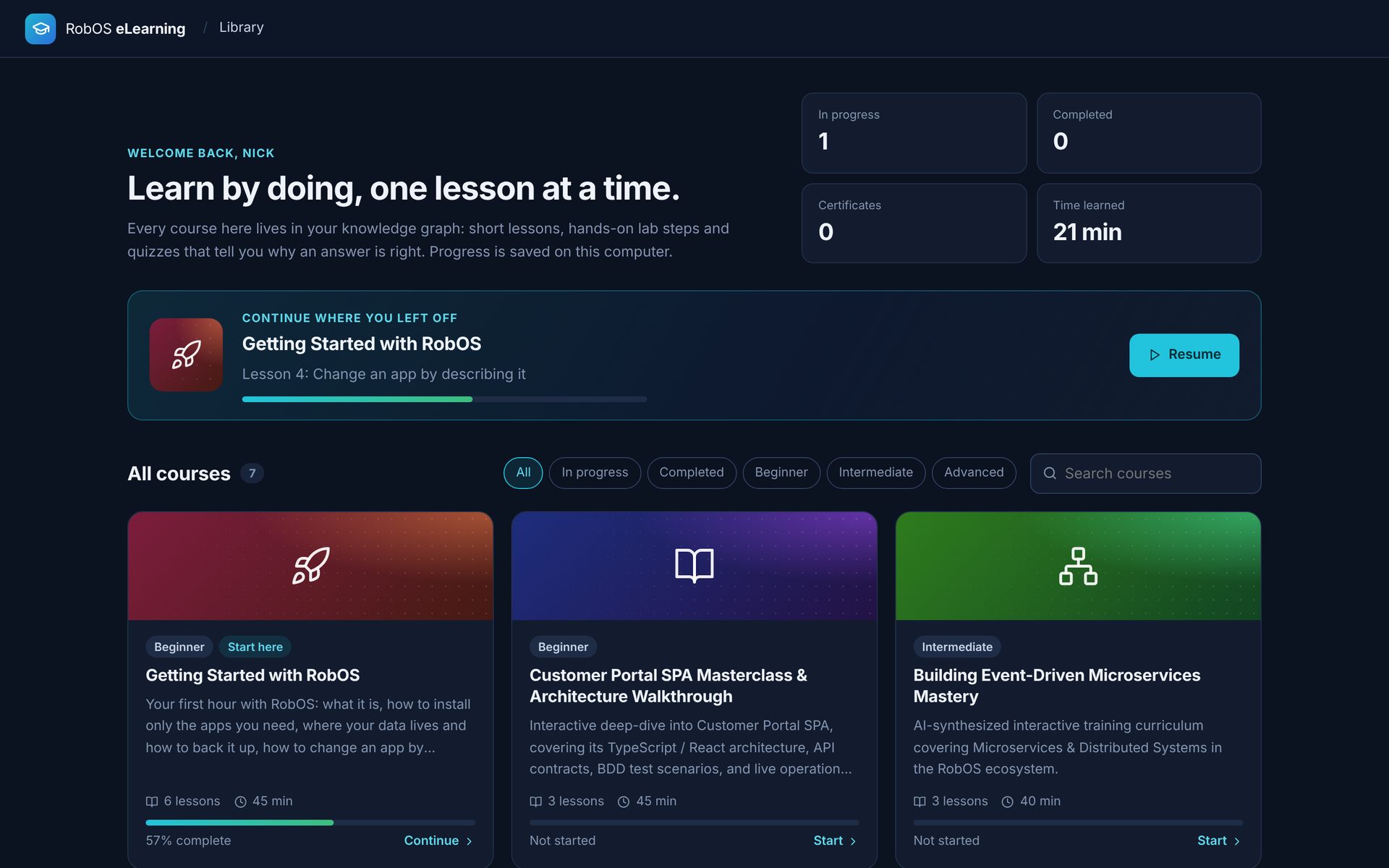
The library: continue where you left off, filter by level or progress, search, and see each course’s progress.
Take a course
- Open RobOS eLearning. It opens on the library. New learners see Getting Started with RobOS first; after that, a Continue where you left off card returns you to your last lesson.
- Open a course. The lesson list on the left shows each lesson’s status, length, lab steps and questions, and a ring shows overall progress. Use the ← and → keys, or the buttons at the bottom of a lesson, to move between lessons.
- Each lesson has a summary, the lesson text (Markdown with headings, tables and code), an optional Key ideas box, Hands-on lab steps to tick off, and Check your understanding questions.
- Pick an answer and choose Check answer. A right answer shows why it is right. After a wrong answer you can try again; after a second miss the answer and its explanation are shown. Answer order is shuffled per question.
- A lesson is done when all its lab steps are ticked and all its questions are answered correctly. A lesson with no labs or questions has a Mark complete button.
- When every lesson is done, Finish course shows a summary (lessons, lab steps, first-try quiz score, time) and the certificate.
Progress is saved after every change in ~/.config/robos/elearning/progress.json, so you can close the app at any time. A course whose description says it issues no completion credential does not show a certificate.
Certificate
The certificate shows the name you type, the course, the completion date, the first-try quiz score, the number of lessons and a certificate ID. Save as PDF writes it to ~/Documents/RobOS Certificates/. When the graph store is available the app also records it with issueCertificate.
Edit and export
- Edit course turns on editing. The ⋯ menu on a lesson can edit it, add a lesson after it, delete it, copy it as Markdown, export it as an HTML zip, and copy its file path, Git URL or KGraph URI for an agent.
- The lesson editor has fields for the title, ID, minutes, summary, lesson text (Markdown), key ideas (one per line), lab steps, and quiz questions (the right answer, wrong answers one per line, and the explanation).
- Save course writes the course back to the graph and syncs
.robos/elearning.yaml. - Copy course path copies a reference to the course for an AI agent.
- Export website generates a static HTML page for the course. The same generator runs from the command line:
node packages/robos-elearning/cli-export-web.js --course=getting-started-with-robos --output=course.html
Options are --course, --app, --output and --permalink. Launch the app straight into a course with --course=<id>, or into an application’s course with --app=<id>.
Ctrl with +, - or 0 zooms the window in, out and back to 100%.
Course data
A lesson (robos:modules entry) can have id, title, durationMinutes, overview, body (Markdown), keyPoints, labSteps, quiz (each with question, options, answer and explanation) and labFile. Set robos:featured on a course to show it first in the library.
For a course with its own launcher see cRPG Masterclass.

