

App guide
Task Planner at a glance
The package is packages/task-planner. Its window and launcher entry are titled RobOS Task Explorer; it is the same app.
| You want to | Use |
|---|---|
| Plan a feature from a description | The prompt box and Generate with AI |
| Plan a common kind of project with a form | Browse All Templates, then Generate Task Plan |
| Change the tasks before they become issues | Project Tasks & Epics: edit a card, + Add Epic, + Add Task |
| Keep a draft for later | Save to Project |
| Create the issues on GitHub or Jira | Sync All to Server |
| Change how a role plans and builds | Agent Personas & Prompts |
| Record a reviewed plan over issues that already exist | KGraph Project Plans |
Before you start
- RobOS installed, or a clone you run the apps from. See Get started.
- A task server: a GitHub repository or a Jira project, added in RobOS Task Servers. Without one, the window shows Open Task Servers. See Connect your repository.
- For GitHub, the GitHub CLI
gh, signed in (gh auth login). For Jira, its URL, your username and an API token stored inpassat the server'stoken_pass_path. - The GitHub Copilot CLI extension, signed in. Generate with AI runs
gh copilot -- -p <prompt> --allow-all-tools --silent. Templates do not need it.
Open it from the app launcher, or run npm install && npm start in packages/task-planner. The active task server shows in the top right corner.
Plan a feature
- Pick a project. Choose one in the Projects list, or click + Plan New Feature to start one and give it a name.
- Give the agent context. Fill in Tech Stack & Architecture Context and Bound Microservices & Repositories. Write what you would tell a new developer: languages, frameworks, where the tests are, conventions to keep. This text goes with every request for the project.
- Optionally choose a parent epic. On Jira, Parent Epic lists the project's existing epics, and new tasks without an epic of their own are created under it.
- Describe the work in the prompt box and click Generate with AI. One sentence is enough to start; the template chips above the box are a shortcut to the most used templates.
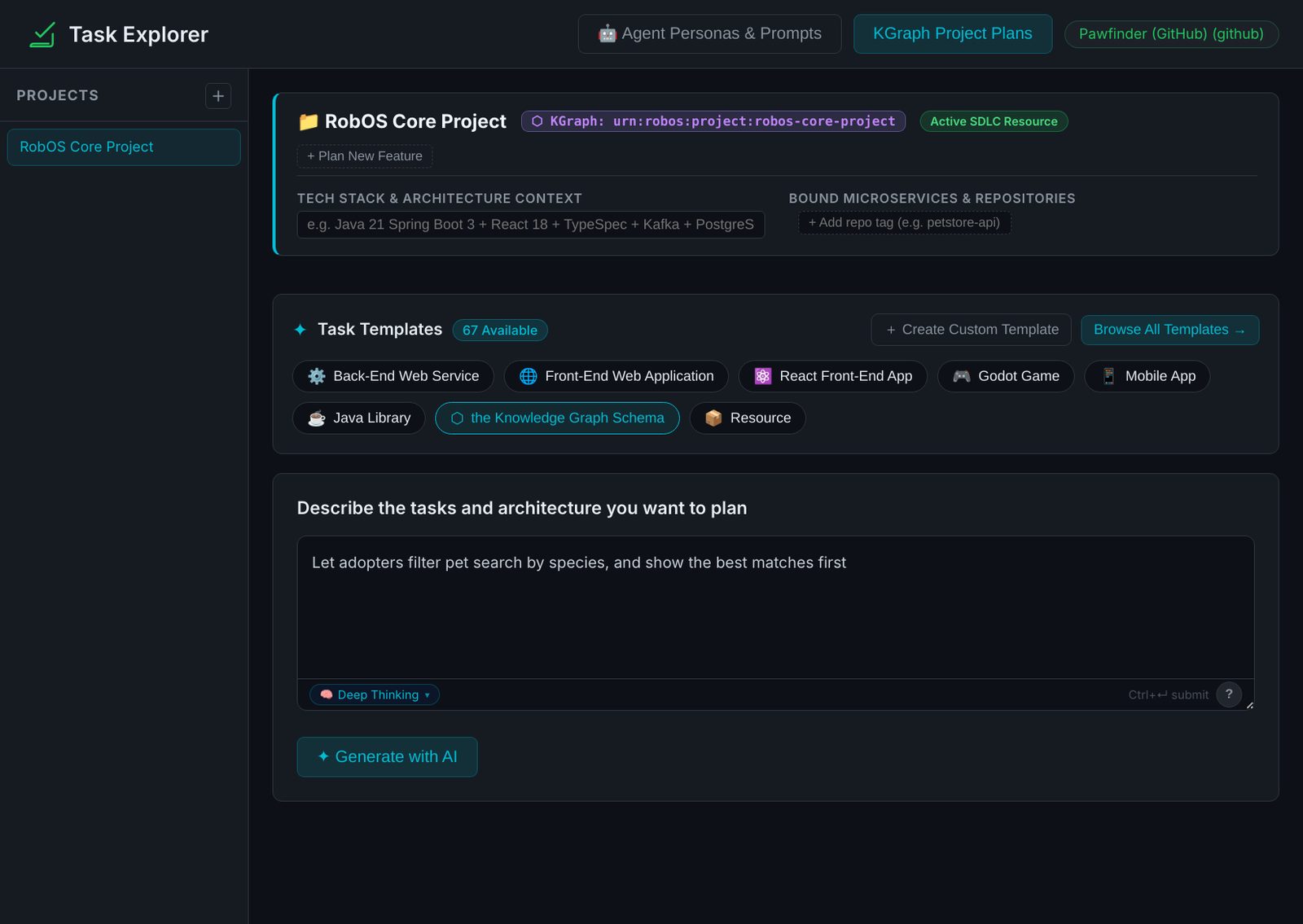
The agent is asked for a list of epics and tasks, each with a Markdown body covering scope, dependencies, acceptance criteria, and happy-path, negative and edge-case checks. Task Planner turns the answer into cards, keeping each one's title, body, labels, issue type and epic. A card's persona starts as Software Architect for an epic and Backend Systems Developer for a task; change it in the card's drop-down.
A prompt that asks for questions ("ask me questions first", "clarify") opens the Interactive Architecture Form instead: multiple-choice questions you step through with Previous and Next Question before Generate Epics & Tasks. Its questions are a fixed set chosen from words in your prompt (a game, an event-driven service, or a product for non-developers), not questions written by the agent. Plans made this way also keep the dependencies between tasks, shown as Depends on on a card.
Review and edit the plan
The result appears under Project Tasks & Epics. Epics come first, with their tasks under them.
- Read every task. Each should be small enough for one branch, with acceptance criteria you could check yourself. If it is not, split it.
- Edit the title, body and labels on the card, change the persona, or remove the task. Directives on a card shows the guidance for its persona. + Add Epic and + Add Task add your own.
- Click Save to Project to keep the draft on this machine, with every card's persona and directives. You can reopen it from the Projects list.
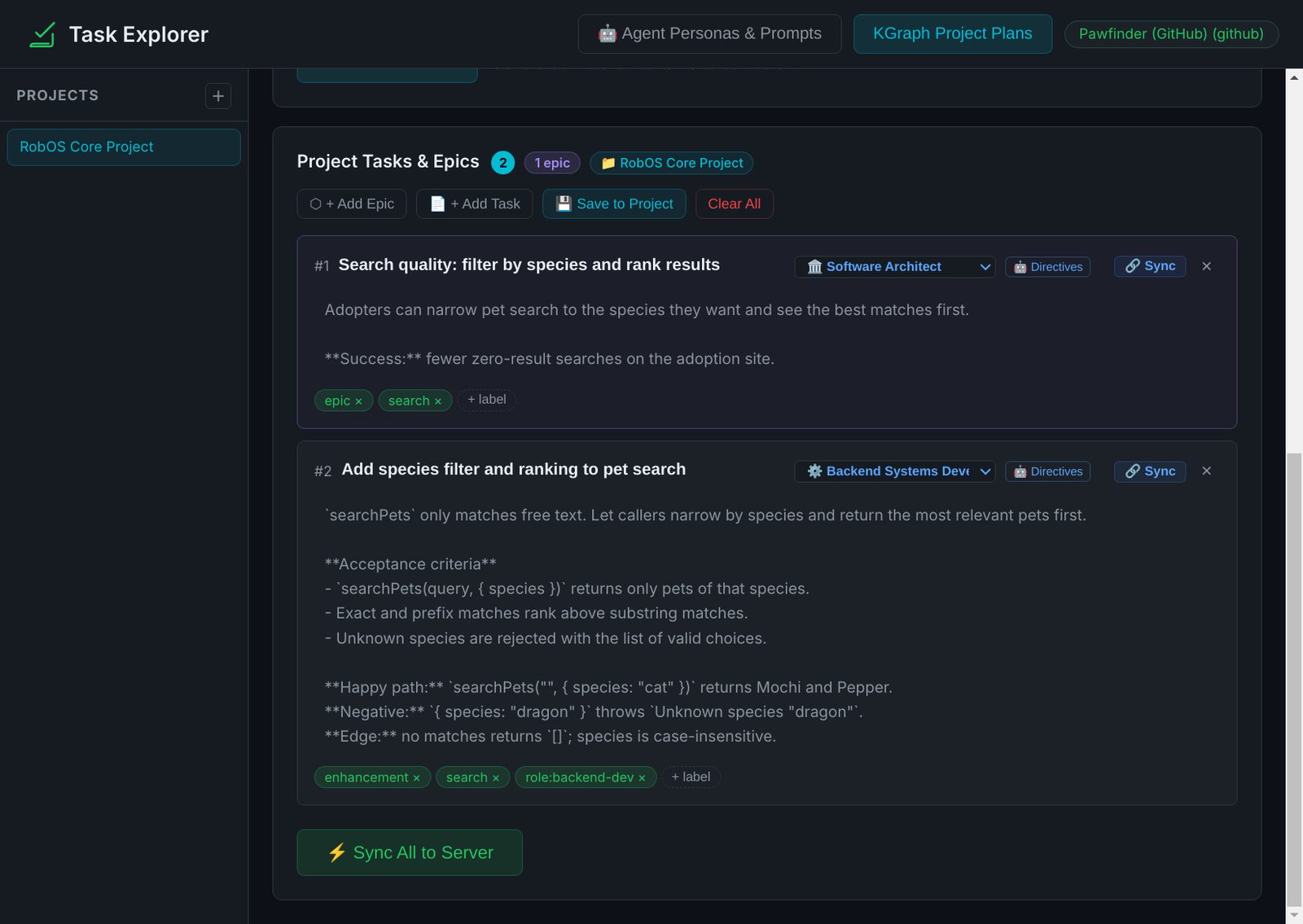
Create the issues
Click Sync All to Server, or Sync on one card. Epics are created first so their tasks can go under them. Each card shows its new issue key, and a card that is already synced is updated instead of created again. When it finishes, Results lists every issue with a link; Plan More Tasks takes you back to the cards.
| GitHub | Jira | |
|---|---|---|
| How | gh issue create with your gh sign-in | The Jira REST API with your API token |
| What is sent | Title, body and labels. Missing labels are created in the repository. | Summary, description and issue type |
| Epics | An ordinary issue, not linked to its tasks | An Epic with its epic name, and each task created under it (or under Parent Epic) |
| Dependencies | Not linked. Note which tasks must go first. | A Blocks link for each Depends on shown on a card |
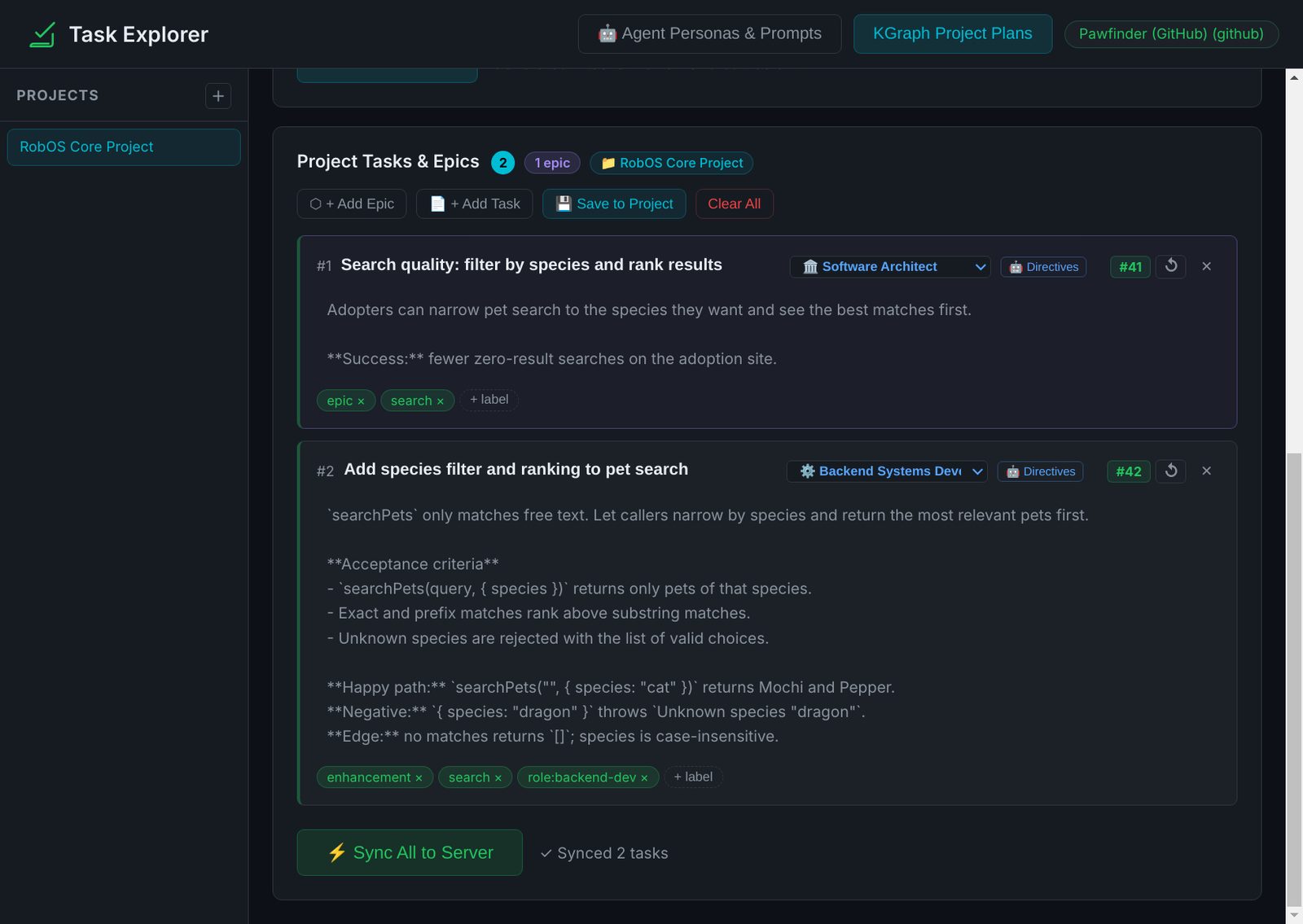
The persona drop-down is not sent with the issue. Task Implementer chooses a persona from an issue's role: label, and otherwise from words in its title, body and labels. To fix the persona for a task, add a label such as role:backend-dev or role:frontend-web-dev to its card before you sync.
Task templates
Browse All Templates opens the Task Templates Library: 67 built-in templates in ten categories, with a search box and category filters. A template opens a short form; Generate Task Plan fills a ready-made plan from your answers on this machine, without calling an agent.
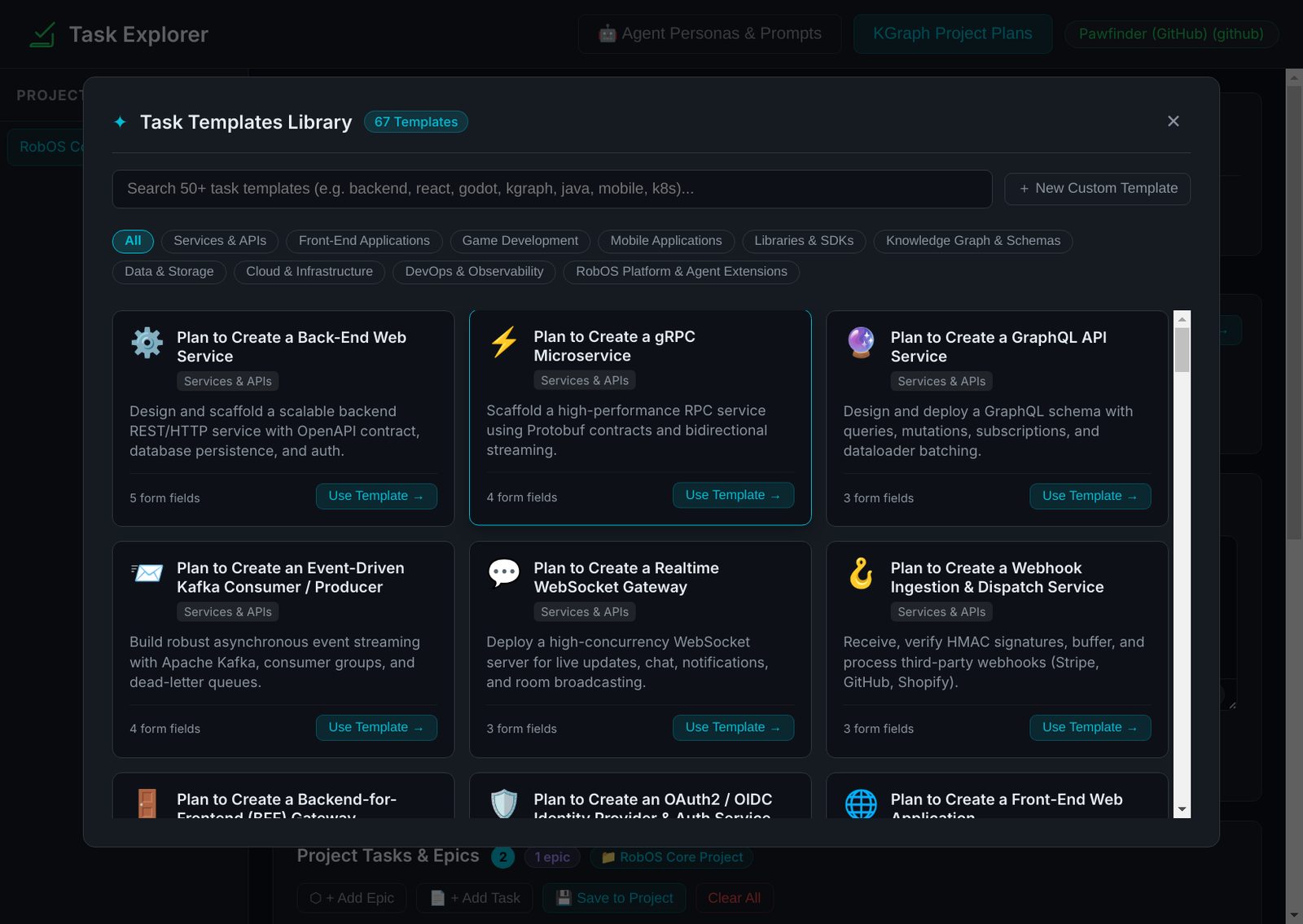
| Category | Templates | For example |
|---|---|---|
| Services & APIs | 12 | Back-end web service, gRPC microservice, GraphQL API, Kafka consumer or producer |
| Front-End Applications | 9 | React app, Next.js on Vercel, Vue 3 single-page app |
| Libraries & SDKs | 7 | Java library, TypeScript npm package, Python package, Go module |
| Knowledge Graph & Schemas | 7 | Knowledge graph schema, SHACL validation shape, OpenAPI 3.1 contract |
| Game Development | 6 | Godot game, tactical cRPG, Unity 6 PC or mobile game |
| Data & Storage | 6 | Relational schema and migrations, document database, Redis cache |
| Cloud & Infrastructure | 6 | Helm chart, ArgoCD pipeline, Terraform or OpenTofu stack, Docker Compose |
| Mobile Applications | 5 | React Native, Flutter, native iOS |
| DevOps & Observability | 5 | GitHub Actions pipeline, OpenTelemetry and Prometheus, Playwright test suite |
| RobOS Platform & Agent Extensions | 4 | MCP server, RobOS Electron app, RobOS agent skill, task server connector |
Create Custom Template saves your own: a title, a category, a description and, optionally, the form fields as JSON. Leave the fields empty for the standard inputs.
Developer personas
A persona is the role an agent takes for a task. Task Planner lists them in its prompt and on every card, and Task Implementer uses the same list when it runs the task. The label for each is role: plus the name in brackets.
| Persona | Typical tasks |
|---|---|
Software Architect (software-architect) | Epics, service boundaries, architecture decisions, schemas |
Frontend Web Developer (frontend-web-dev) | Web and Electron interfaces, components, accessibility |
Backend Systems Developer (backend-dev) | APIs, services, contracts and their tests |
Data & Storage Engineer (data-engineer-dev) | Database schemas, migrations, event streams, caching |
DevOps & Cloud Engineer (devops-engineer) | Containers, Kubernetes, CI/CD, monitoring |
Game Developer (game-dev) | Godot 4 and game systems |
Non-Headless Developer (non-headless-dev) | Work that needs a display, an IDE or a debugger |
Human + Agent Desktop Co-Pilot (human-agent-copilot) | Pairing with you in your own desktop session |
Agent Personas & Prompts edits each persona's four parts: the core system prompt, the planning directive (how it breaks down epics), the implementation directive (how it builds a task) and its development guidance. + Add Custom Persona adds a role, and Restore Defaults puts the originals back. Changes are shared with Task Implementer.
KGraph project plans
KGraph Project Plans is a separate workflow for a plan over issues that already exist, for example ones your team filed through its own process. It records the plan in the RobOS knowledge graph so other tools, and the Project Plan tab in KGraph Explorer, can read it.
- Start the app with
ROBOS_GRAPH_ROOTset to the folder that contains.robos. - Paste a version 1 plan: a summary, design, verification and risks, plus the GitHub issue URLs it covers with their parents and dependencies.
- Click Preview plan. It reads each issue with your
ghsign-in and checks the plan. A GitHub error stops the preview. - Click Save reviewed plan to write it to the project's node in the graph.
It never creates, closes or approves GitHub issues; GitHub stays the source of their state. The same steps are available from the command line:
node packages/task-planner/bin/project-plan.js list
node packages/task-planner/bin/project-plan.js view <plan-id|issue-url|number>
node packages/task-planner/bin/project-plan.js propose --file plan.json
node packages/task-planner/bin/project-plan.js apply --file plan.json
The plan format, its statuses (draft, review-required, approved) and how to remove a plan are in PROJECT-PLANS.md.
Where things are saved
| What | Where |
|---|---|
| Task servers and the active one | ~/.config/robos/settings.json |
| Projects and their draft tasks | ~/.config/robos/task-planner/projects/ |
| Custom templates | ~/.config/robos/task-planner/custom-templates/ |
| Edited and custom personas | ~/.config/robos/agent-personas.json |
| KGraph project plans | The project node under ROBOS_GRAPH_ROOT/.robos |
For a team, copy the custom templates and persona file to each teammate who should plan the same way. See building as a team.
Limits and fixes
- Generation gives up after 3 minutes. Shorten the prompt, or plan one feature at a time.
- "No task server configured." Click Open Task Servers, add one and save, then reopen Task Planner.
- The agent fails or returns nothing. Check
gh copilotworks in a terminal and that you are signed in. Templates still work without it. - GitHub issues have no dependency links. That is expected; only Jira gets Blocks links. Implement tasks in order, or use Jira if you need the links.
- The agent's persona choices are not kept. Cards start on the default persona even though the agent is asked to choose one, and Sync does not send the persona. Set it with a
role:label, as in Create the issues. - Sync fails on GitHub. Run
gh auth statusand check you can create issues in the repository.
Next
Reference: Task Planner in the classic docs · Source code