

Guide · for a solo developer
Build apps on your own
You plan, review and merge. Your agent writes the code. This guide takes one feature from a sentence to a merged pull request, then shows you how to keep going.
About the screenshots. Every screen below is the real RobOS app, run on a sample project:
acme-corp/pawfinder-api, a small pet-adoption search API. The repository, its tests, the diff and the evidence are real. GitHub, CI results and the agents' replies are scripted stand-ins so the run is repeatable. The script that takes them is in the repository.
Before you start
- RobOS installed, or a clone of the RobOS repository you run the apps from. See Get started.
- The GitHub CLI,
gh, signed in (gh auth login). - Your coding agent's CLI, installed and signed in. Step 1 checks it.
- A GitHub repository for your app, cloned on this machine.
Starting a brand-new app? Create the repository on GitHub with a first commit so it has a main branch, and clone it. Then either make "scaffold the project" the first task you plan, or generate a starter project with the App Wizard and commit it before you plan features.
Step 1: Set up your agent in RobOS Agents
RobOS does not ship a model. It runs the coding agent you already use. Open RobOS Agents from the app launcher.
- The AI Providers list shows every agent RobOS can drive, with a dot for its state: green is installed and signed in, yellow is installed but signed out, red is not installed.
- Select your agent and click the gear button. The settings page shows the installed version and who is signed in, with Login or Logout.
- Click Set as Active. The badge changes to Active provider, and the bottom of the list shows your choice.
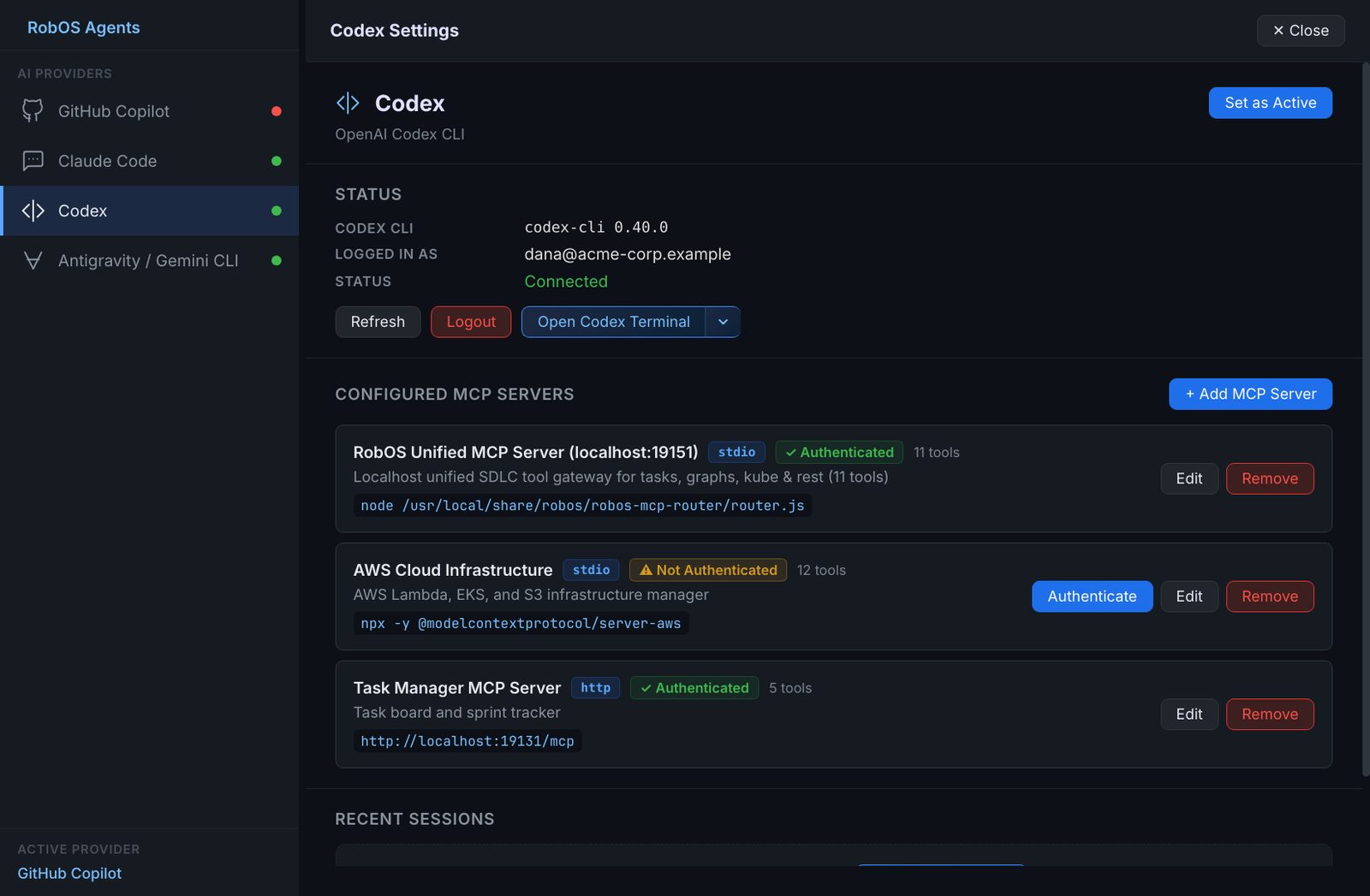
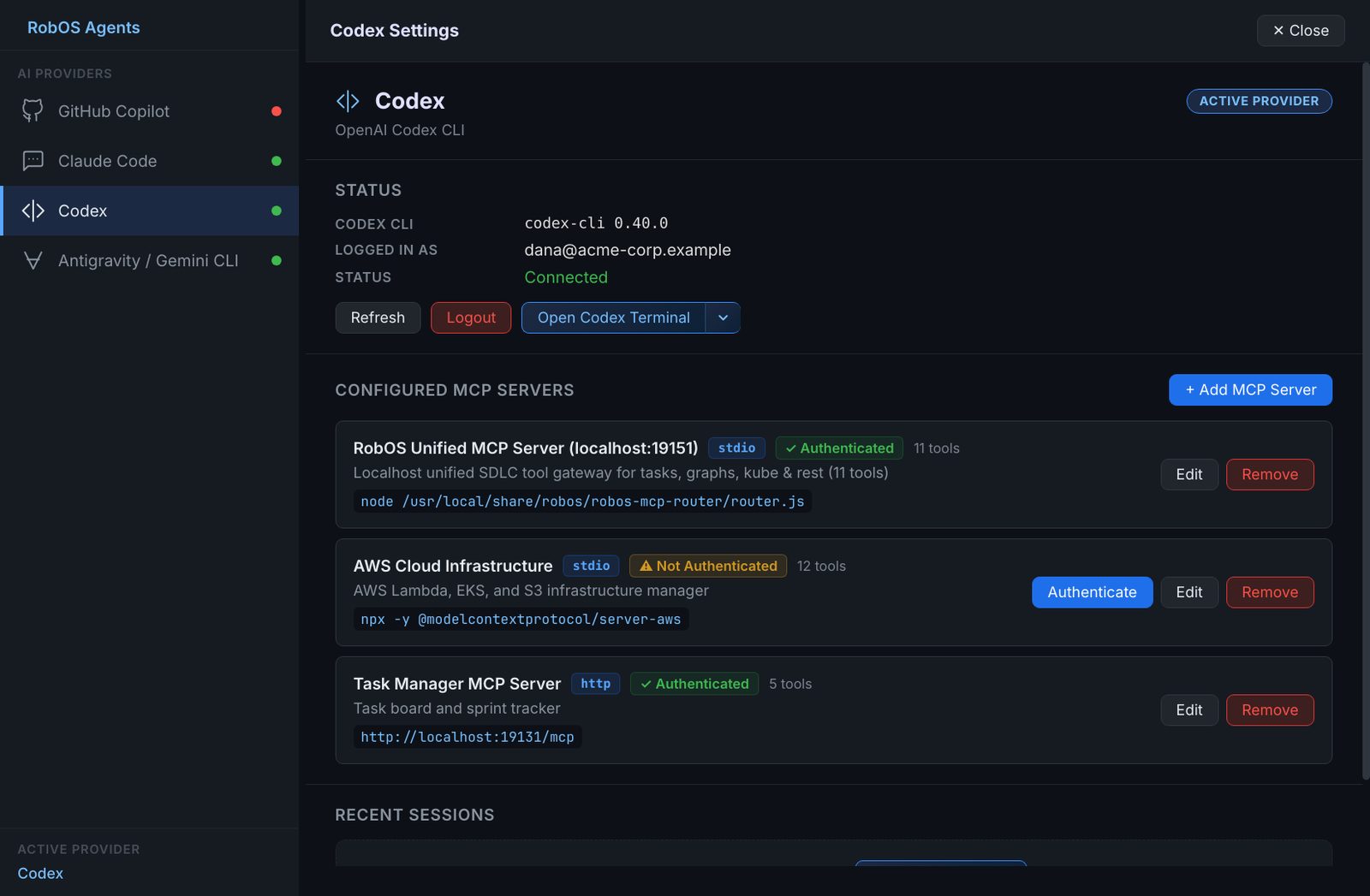
Some apps call a specific agent CLI rather than the active one. Which agent each app runs lists them, so you know which CLIs to install and sign in to.
Step 2: Connect your repository in Task Servers
Task Planner and Task Implementer read and write issues on a task server. For a solo project, that is your GitHub repository.
- Open RobOS Task Servers, click the plus button and choose GitHub Issues.
- Leave the API URL as it is for github.com, tick Use Git client account to use your
ghsign-in, and add your repository as an owner and repository pair. - Click Test Connection, then Save.
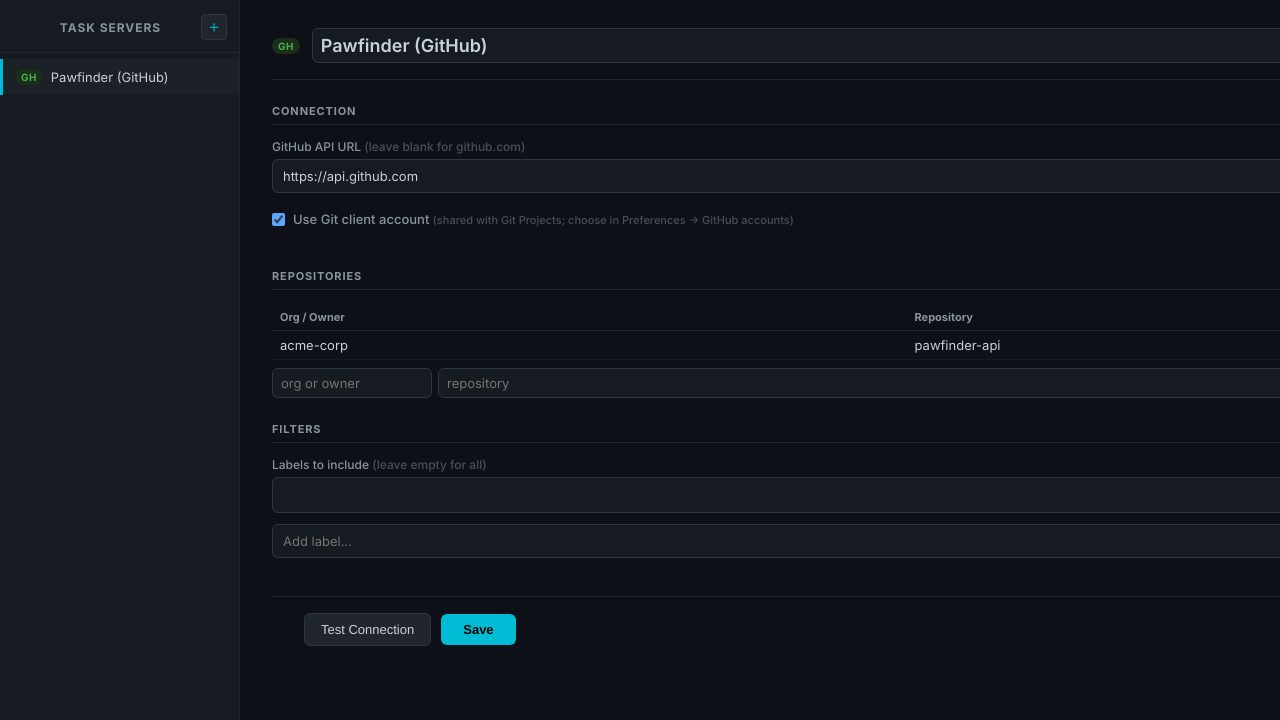
gh sign-in.The entry is saved to ~/.config/robos/settings.json. The apps use the first server in the list unless active_task_server in that file names another, and they show the active server in their top right corner. Details: Task Servers.
Step 3: Plan the work in Task Planner
Open Task Planner; its window is titled Task Explorer.
- Pick a project in the Projects list, or create one with the plus button. Fill in Tech stack & architecture context. The agent plans against it, so write what you would tell a new developer: languages, frameworks, where the tests are, conventions.
- Describe the feature in the prompt box and click Generate with AI. You can also start from a template: the chips above the prompt, or Browse All Templates.
- If the agent asks follow-up questions, answer them and click Generate Epics & Tasks.
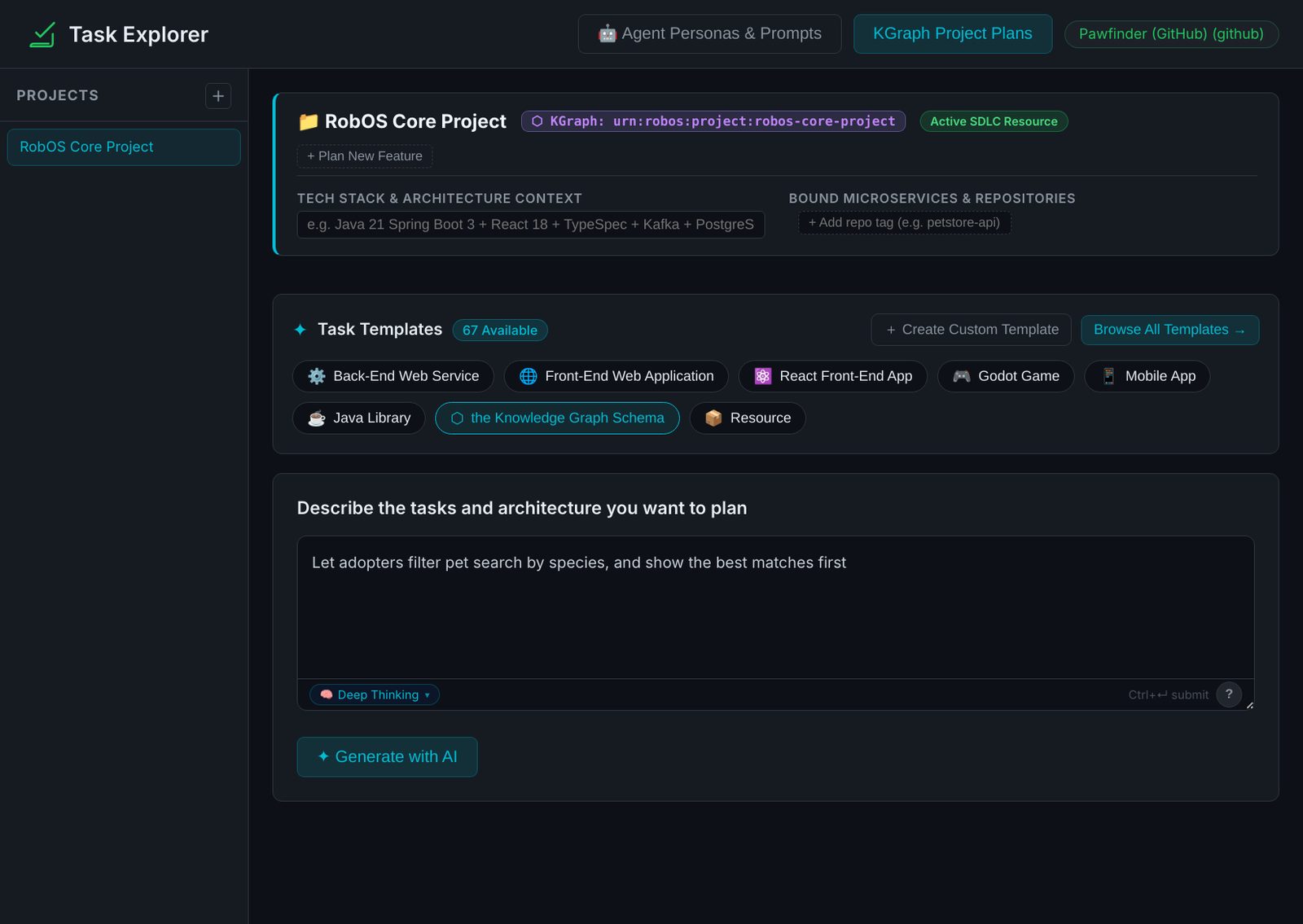
- Read every task. Each should be small enough for one branch and have acceptance criteria you could check yourself. Edit the text, add or remove tasks with + Add Task, and change the persona on any task.
- Click Save to Project, then Sync All to Server. Each task becomes a GitHub issue with a
role:<persona>label and the persona's directives in its body.
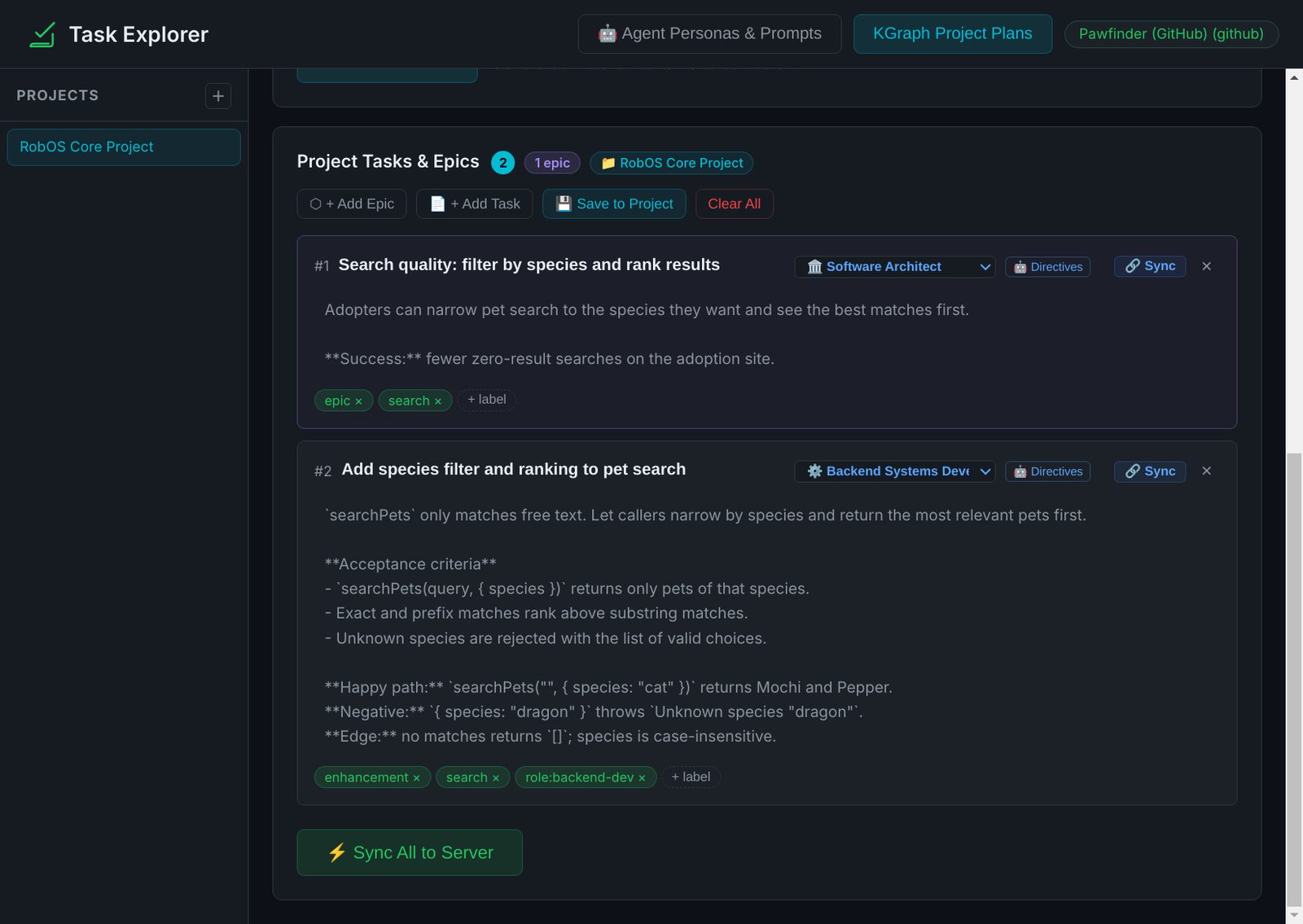
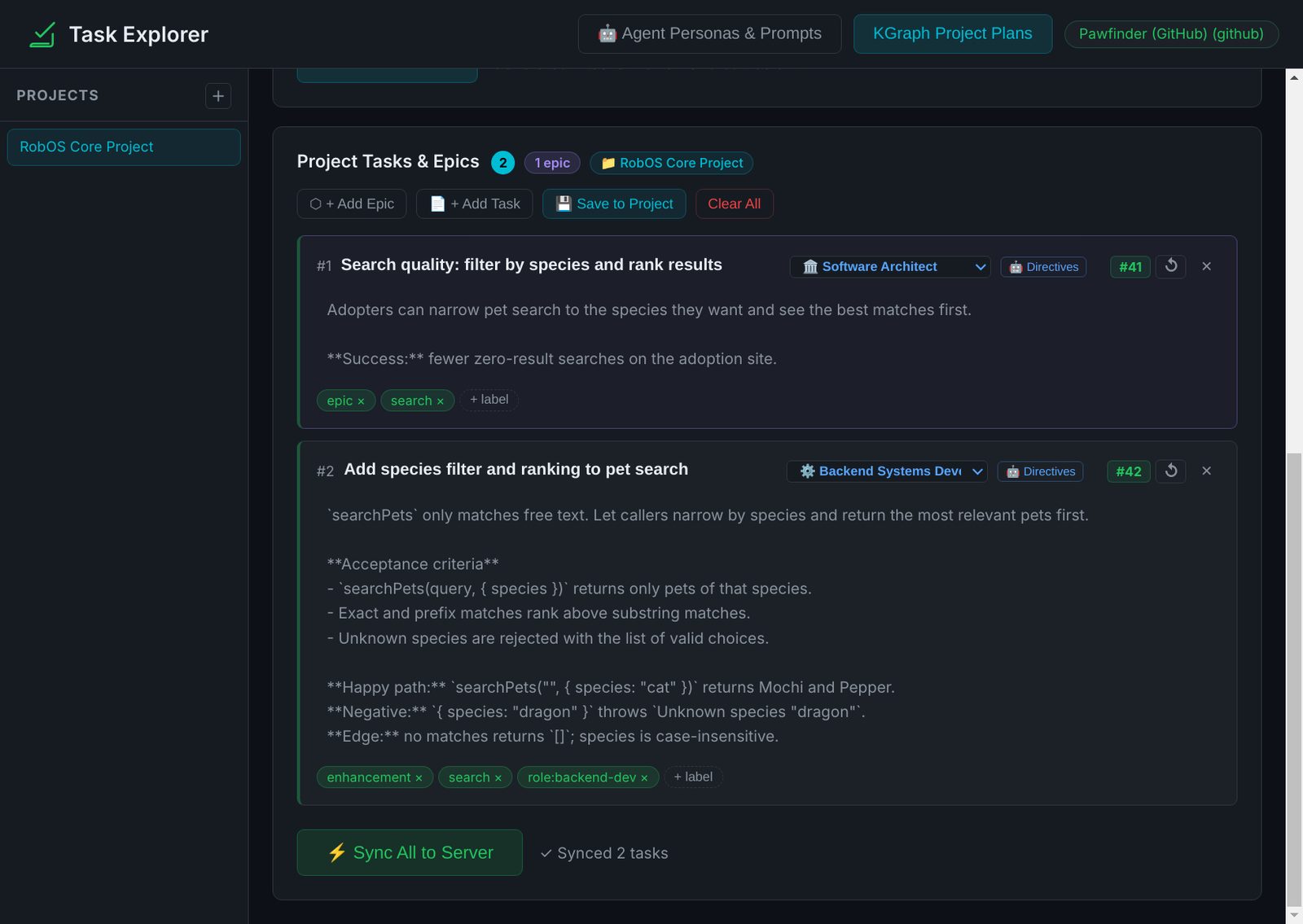
GitHub issues are created without links between them, so note which tasks have to be done first. Generation gives up after 3 minutes. More on templates, personas and project plans: Task Planner.
Step 4: Implement a task in Task Implementer
The agent works in the folder Task Implementer was started from; the window has no folder picker. Start it from your clone:
cd ~/src/my-app
~/robos/scripts/dev-launch.sh task-implementer
Use your own clone and RobOS paths. If you open the app from the launcher instead, put the clone's full path in the extra-context box so the agent knows where to work.
- In the Tasks tab, select the task. Start with one that does not depend on another.
- Check the persona in the header. It comes from the issue's
role:label. Directives shows the guidance the agent gets for that persona; you can edit it for this run. - Add hints in the extra-context box: files to look at, the command that runs the tests, things not to touch.
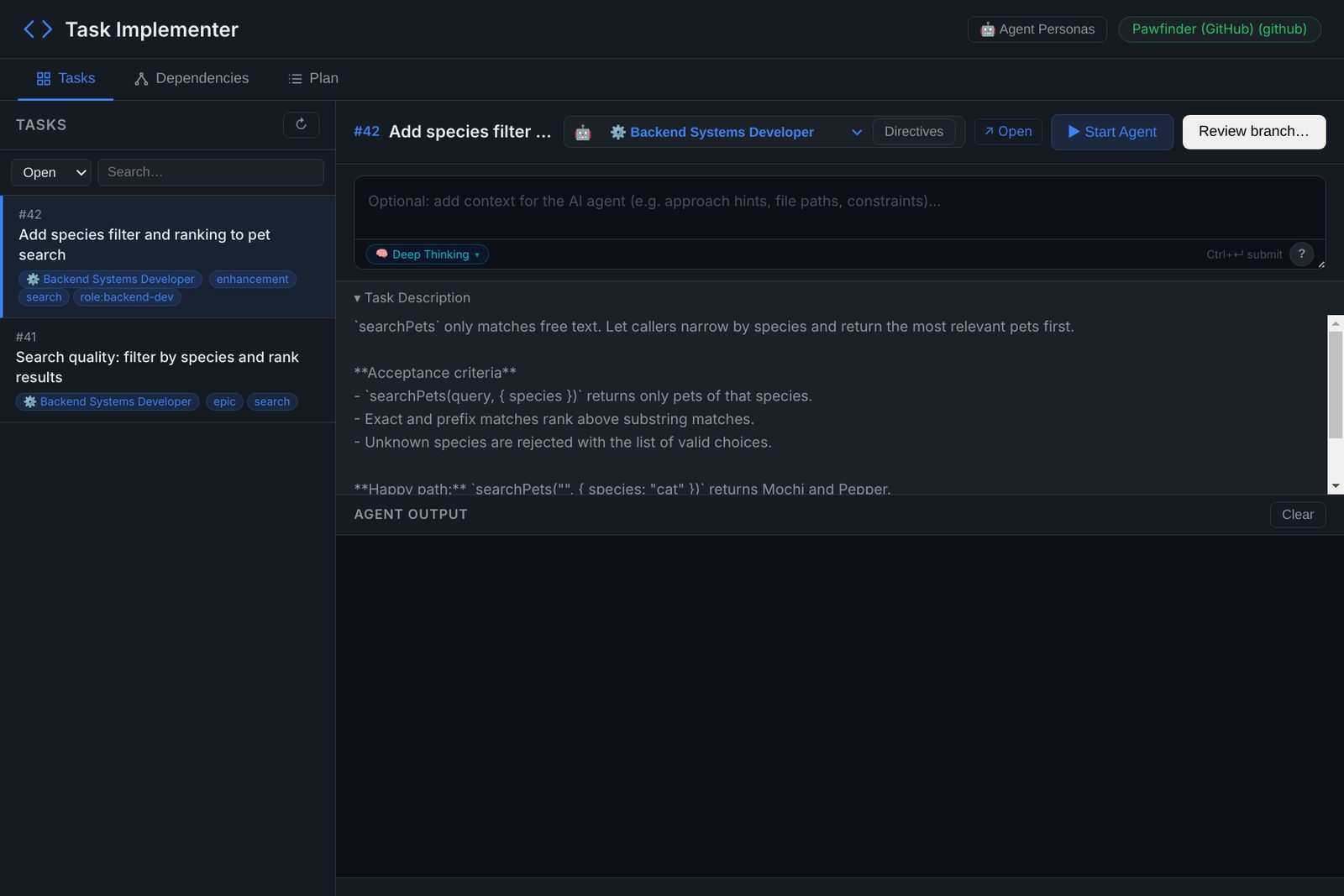
role: label and an empty box for extra context.- Click Start Agent and watch Agent Output. The agent creates a branch (
codex/<task-key>by default), makes the change, runs the tests, commits and pushes. It does not open a pull request. Stop ends it.
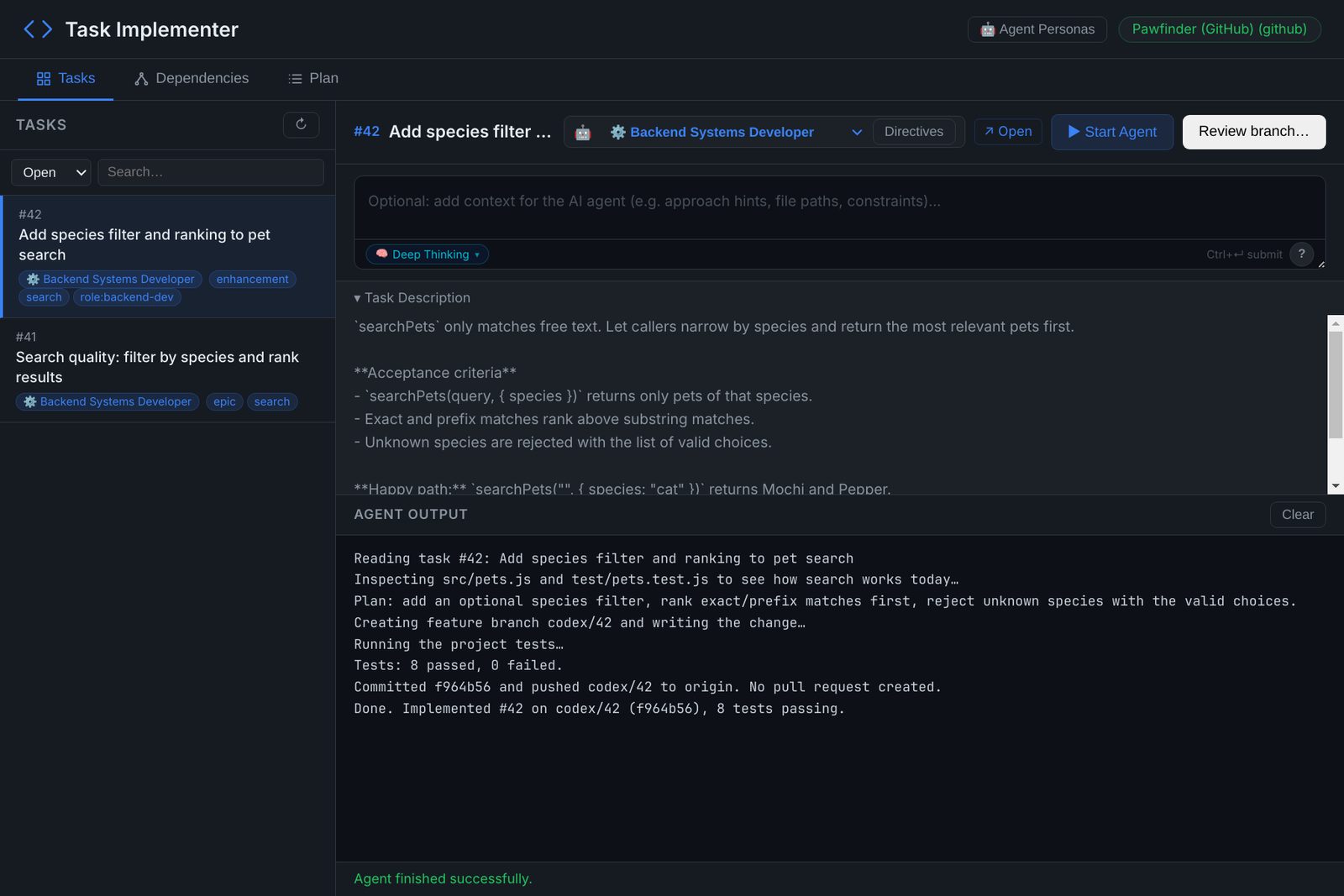
codex/42 is pushed, 8 tests pass, and no pull request exists yet.Task Implementer runs the agent as your user with permission prompts turned off, and does not create a sandbox. Run one agent per clone at a time, because two agents in one folder share a working tree.
Step 5: Review the branch before it becomes a pull request
Click Review branch… and choose your clone. The review window opens on the branch, diffed against your default branch. Uncommitted changes are not part of the diff.
Changes
Read the diff file by file and tick Viewed as you go. Unified and Split switch the layout.
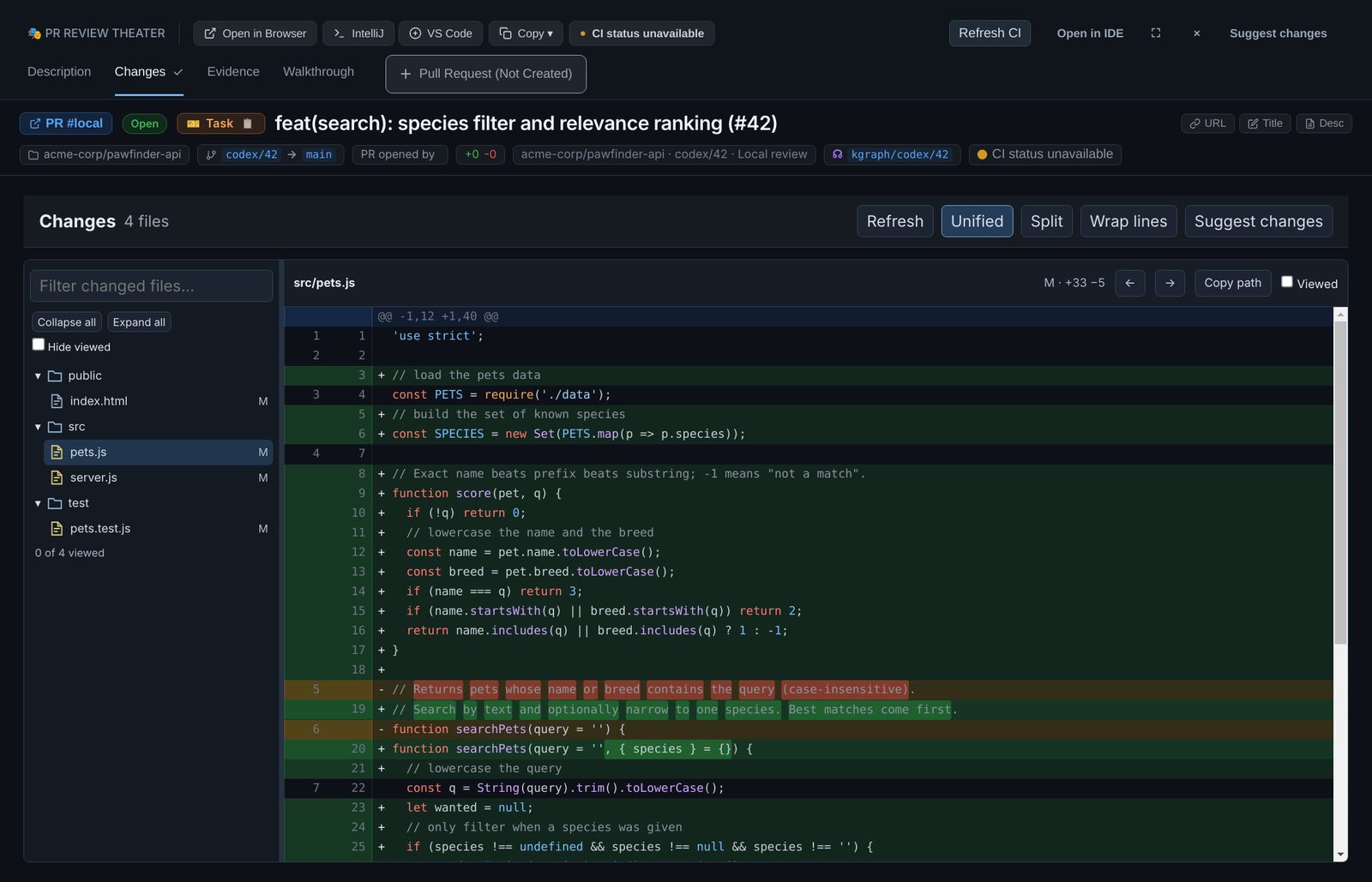
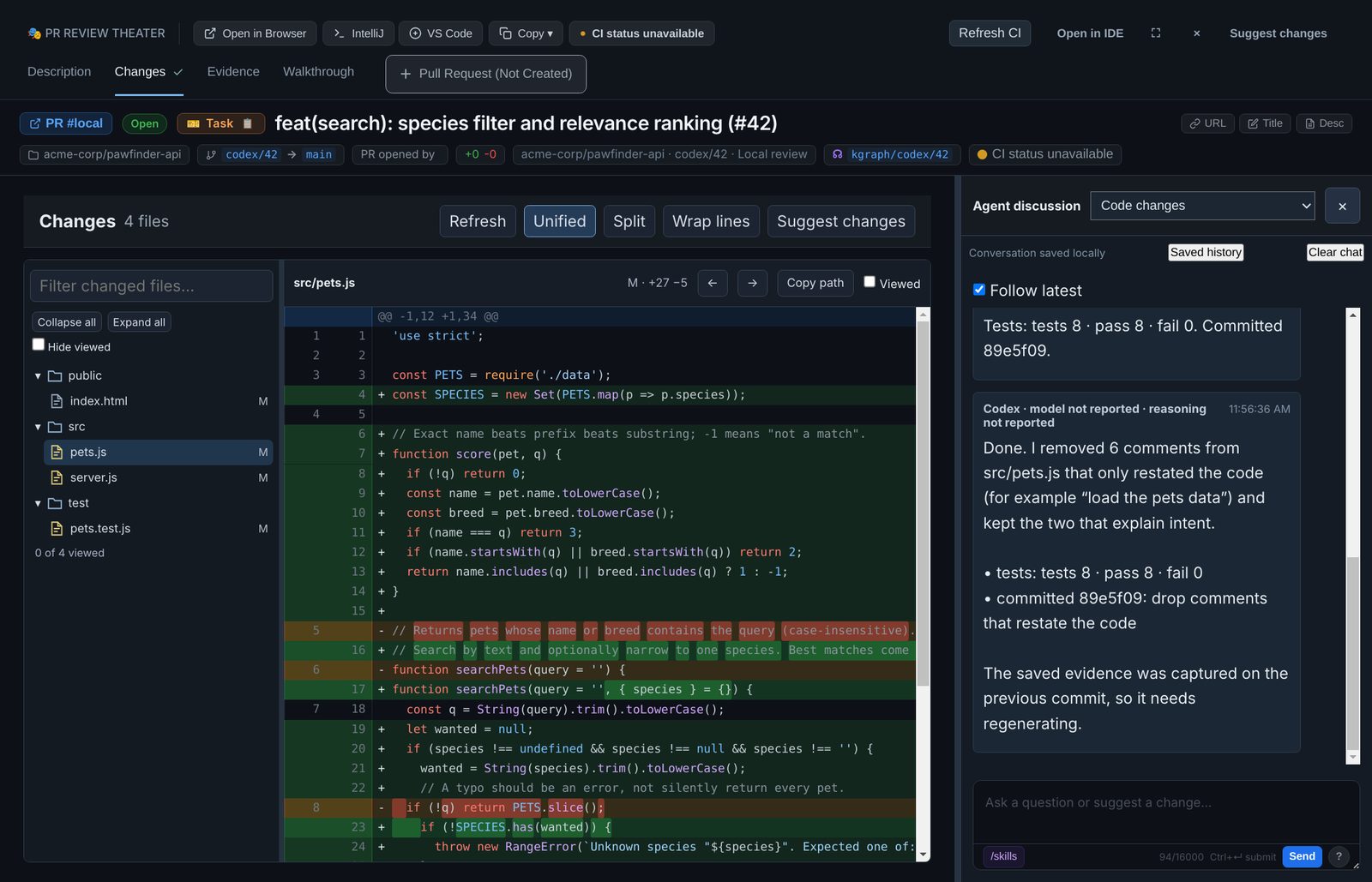
When something should change, click Suggest changes and say so in plain language. The agent edits the clone, runs the tests and commits, and the diff reloads.
Evidence
The Evidence tab shows before-and-after results for each scenario, captured at one commit. A newer commit marks them stale, so ask for fresh evidence after each change you request. You can ask for new cases too.
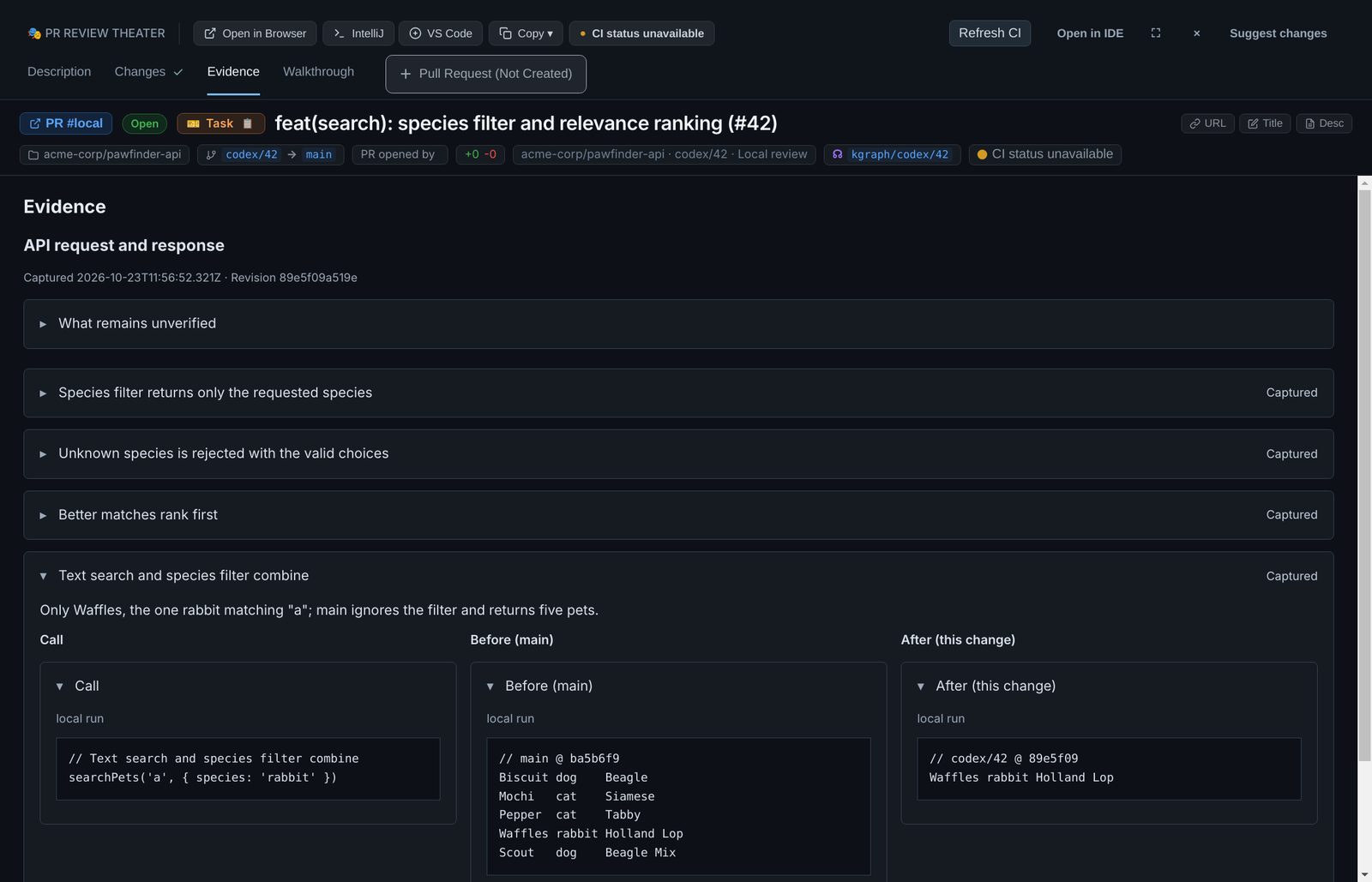
main and on the branch.Walkthrough
Click Start. The agent demonstrates the change one checkpoint at a time and waits for you, so you can try it yourself. Ask for a change at any checkpoint. How it used to work, in the More menu, runs the same checkpoints on main. Finishing the walkthrough does not approve or merge anything.
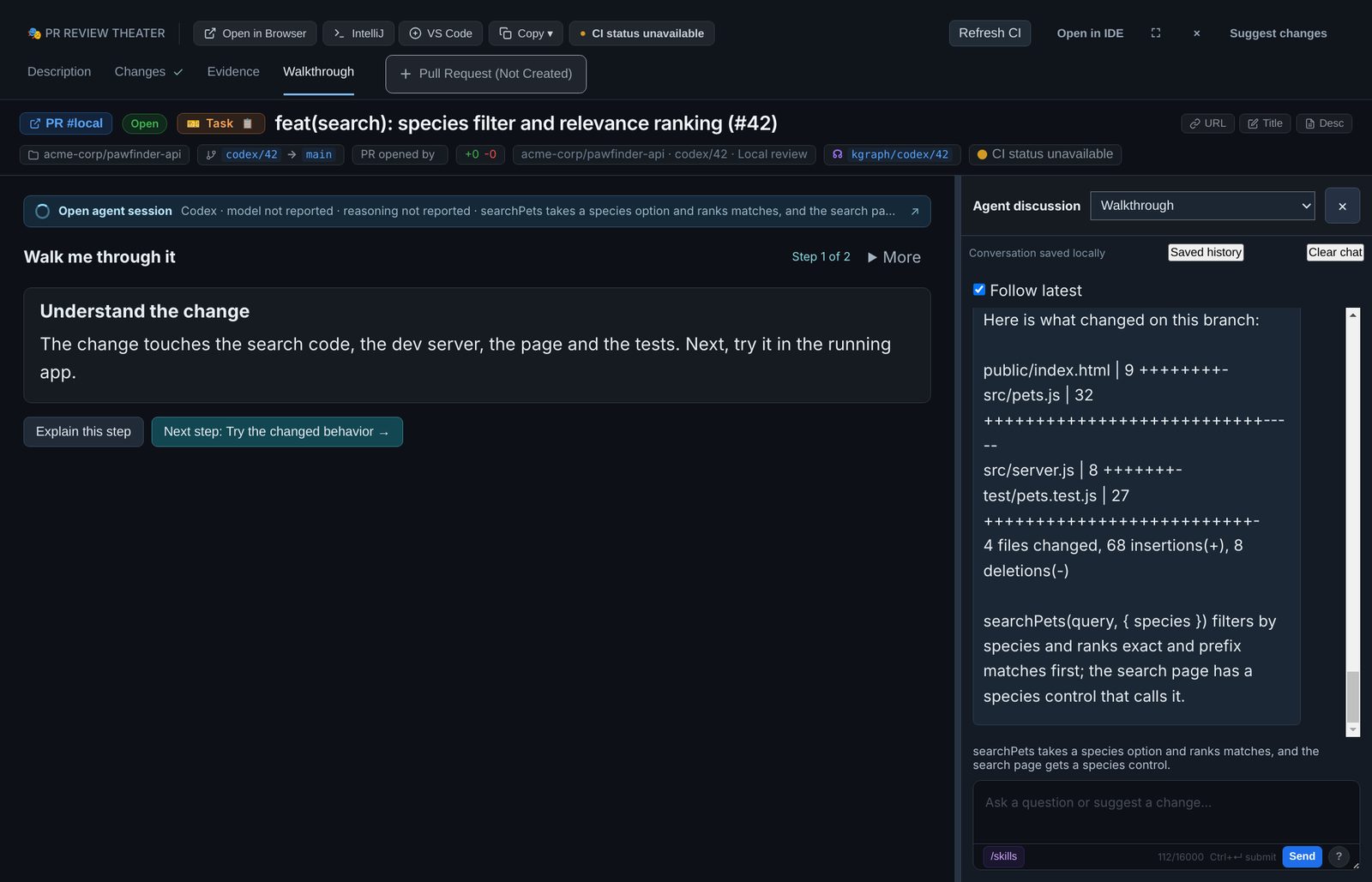
Every tab is described in PR Review Theater.
Step 6: Open the pull request and get CI green
- Open Description. Edit with agent drafts it from the diff and the evidence. Edit it until it says what changed and how you checked it.
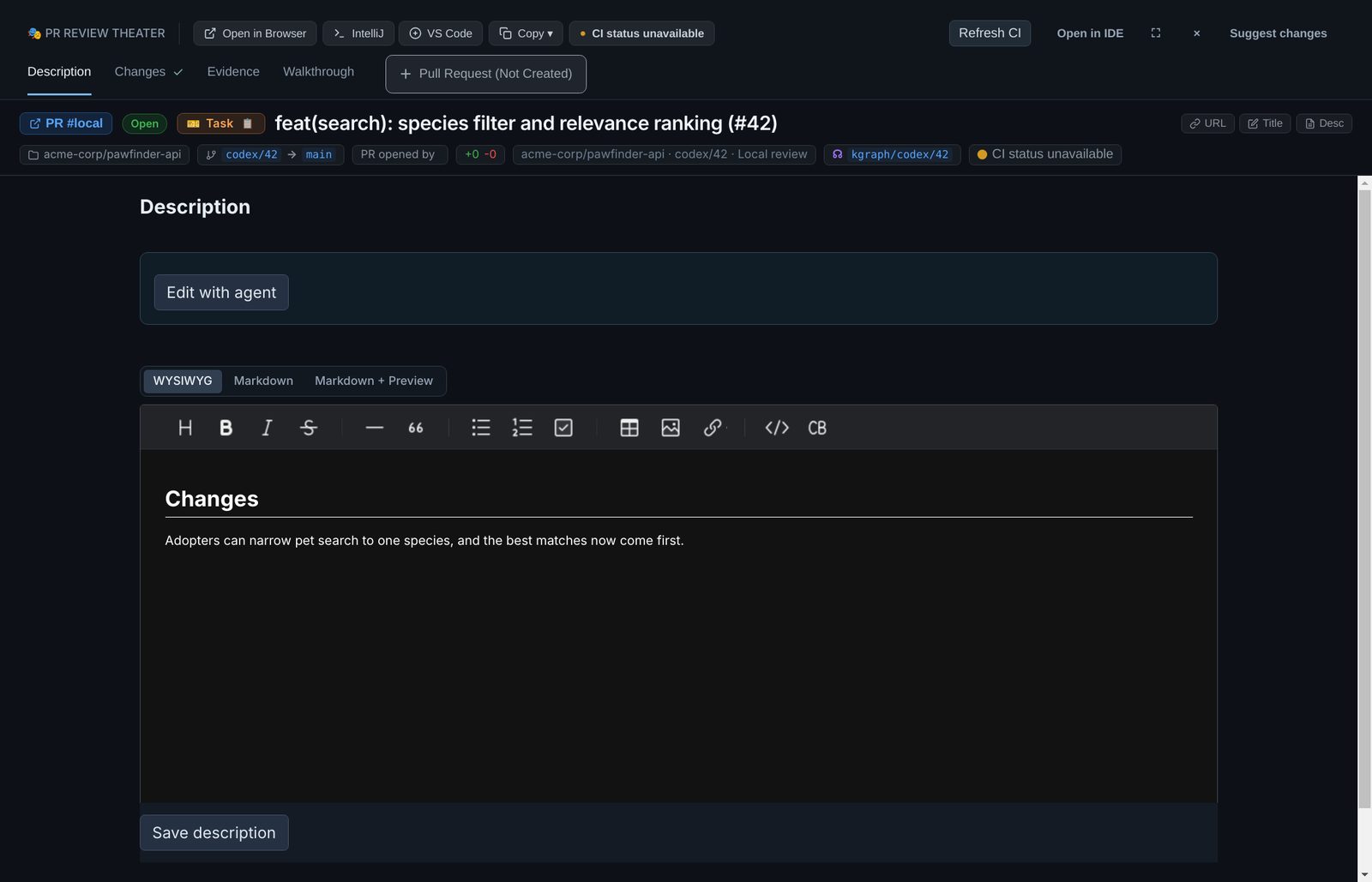
- Open the Pull Request tab, check the title and click Create PR. Tick Create as draft if you want CI to run before anyone is asked to look.
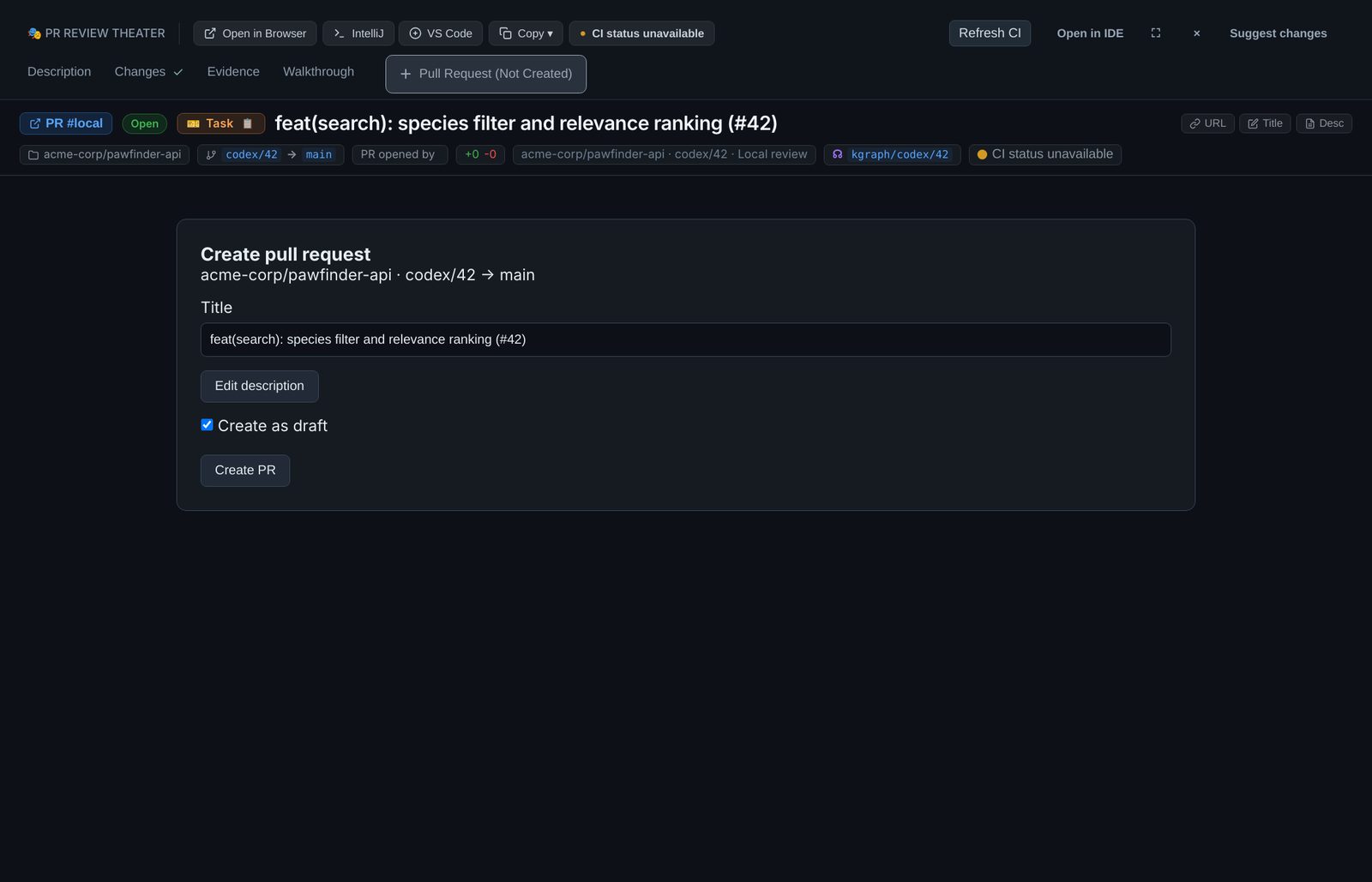
- Watch the CI banner; Refresh CI reads the checks again. If CI fails, Get CI back to green starts an agent repair in a separate checkout, and you review and push its fix yourself.
- For a draft, click Move PR to Ready once every check passes. RobOS refuses while CI is red.
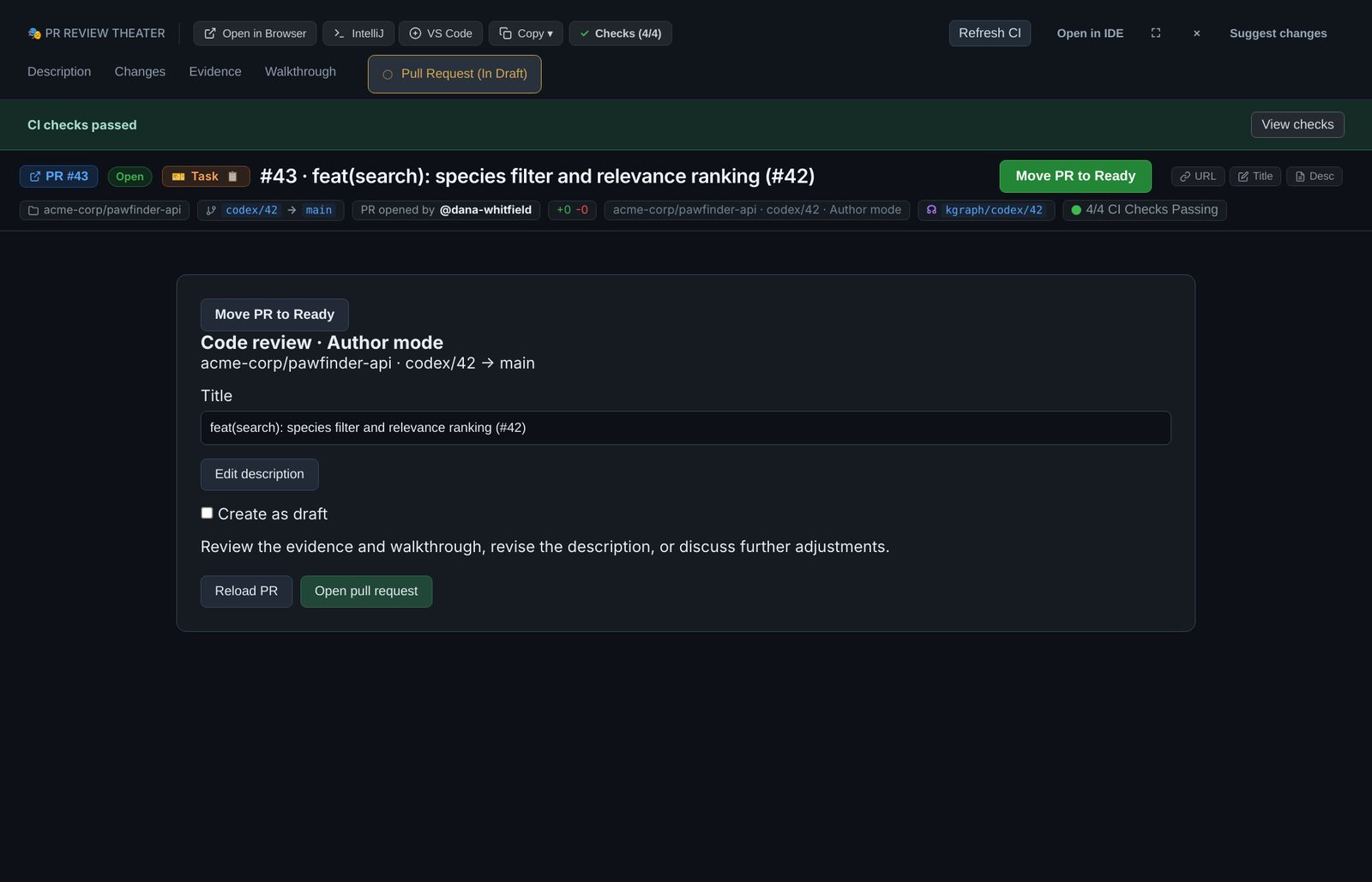
Create PR refuses when the clone has uncommitted changes (Resolve uncommitted changes asks the agent to deal with them), when the branch is main, or when origin is not the repository in the review.
Step 7: Merge and keep going
Merge on GitHub; the review window has no merge button. If your branch protection requires an approving review, GitHub will not let you approve your own pull request, so for a solo repository leave that rule off, or follow the team guide.
Pull main into your clone so the next branch starts from the merged code, then pick the next task in Task Implementer. If something broke after the merge, or the review turned up work for later, plan it in Task Planner and the loop starts again.
Tips and fixes
Keep the agent on track
- Small tasks review faster and fail less. If a task touches many unrelated files, split it in Task Planner before you start the agent.
- Acceptance criteria are what you check in review, so make them concrete: inputs, expected results, error cases.
- Advice you give on every run belongs in the persona's directives (Agent Personas), not the extra-context box. Personas are saved in
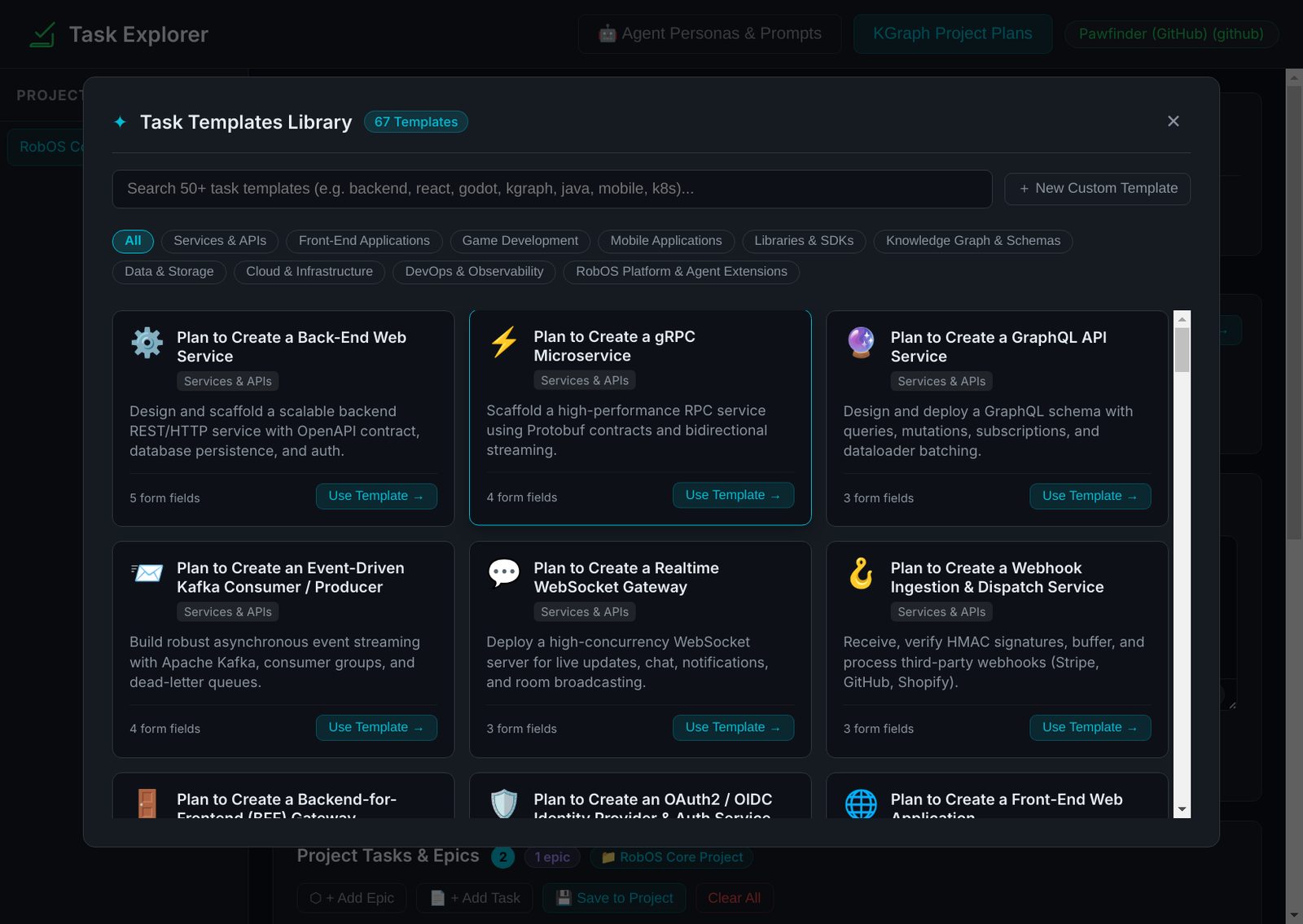
~/.config/robos/agent-personas.json. - Templates save typing for work you repeat. Browse All Templates opens the library, and Create Custom Template saves your own.
When something does not work
| You see | What to do |
|---|---|
| A red or yellow dot next to your agent in RobOS Agents | Install it or sign in from its settings page, as in Step 1. |
| Open Task Servers instead of a task list | No task server is configured. Do Step 2. |
| Generate with AI fails or times out | Check that the planning agent runs in a terminal (see which agent each app runs). Generation gives up after 3 minutes; try a shorter prompt. |
| The agent changed the wrong folder | Task Implementer was started somewhere else. Start it from your clone, as in Step 4. |
| Review branch… says to wait | The agent for that task is still running. Wait for it, or click Stop. |
| The Walkthrough tab has no agent | The review agent was not found when you clicked Review branch…. Install it, then open the review again. |
| Create PR is refused | Commit or discard local changes, check you are on the task branch, and check that origin is the GitHub repository. |