

App guide
Task Implementer at a glance
The package is packages/task-implementer. The window has three tabs: Tasks, Dependencies and Plan.
| You want to | Use |
|---|---|
| Let an agent implement one issue | Tasks, select it, Start Agent |
| Change the role or guidance for this run | The persona drop-down and Directives |
| Tell the agent something the issue does not say | The extra-context box |
| Read the result before it becomes a pull request | Review branch… |
| See which tasks block which | Dependencies |
| Get a suggested order for the loaded tasks | Plan, Generate Plan |
| Edit the personas | Agent Personas |
Read this first
The agent runs as you, with permission prompts turned off. Task Implementer starts
claude -p <prompt> --output-format stream-json --verbose --dangerously-skip-permissionsin the folder the app was started from. The agent can read and write files, run commands and push without asking. The app does not create a sandbox, a separate account or a virtual display. Use it only on repositories and machines where that is acceptable.
Before you start
- The Claude Code CLI,
claude, on yourPATHand signed in. It is the only agent this app runs; the active provider in RobOS Agents does not change it. - A task server in RobOS Task Servers. For GitHub, the GitHub CLI
gh, signed in. For Jira, therobos-task-clientpackage and your API token inpassat the server'stoken_pass_path. Without one, the window shows Open Task Servers. - A local clone of the repository, with
originpointing at it, and push access. - Issues to work on. Task Planner creates them, or use ones you already have.
Start it in your clone
The agent works in the folder Task Implementer was started from. The window has no folder picker, so start it from your clone:
cd ~/src/my-app
~/robos/scripts/dev-launch.sh task-implementer
Use your own clone and RobOS paths. If you open the app from the launcher instead, put the clone's full path in the extra-context box so the agent knows where to work.
Run a task
- Load the tasks. In Tasks, choose Open, Closed or All. GitHub lists up to 50 issues with
gh issue list; Jira runs a search for up to 50. Each row shows the persona the app picked, and a lock if the task is blocked by unfinished work. - Select one. Start with a task nothing else depends on. The header shows its key, the persona and Open, which opens the issue in your browser. A blocked task shows Blocked by with links to the blockers.
- Check the persona. Change it in the drop-down if it is wrong. Directives shows the guidance the agent gets for that persona. Edit it for this run, or Reset to Role Default.
- Add hints in the extra-context box: files to look at, the command that runs the tests, things not to touch, the branch name you want.
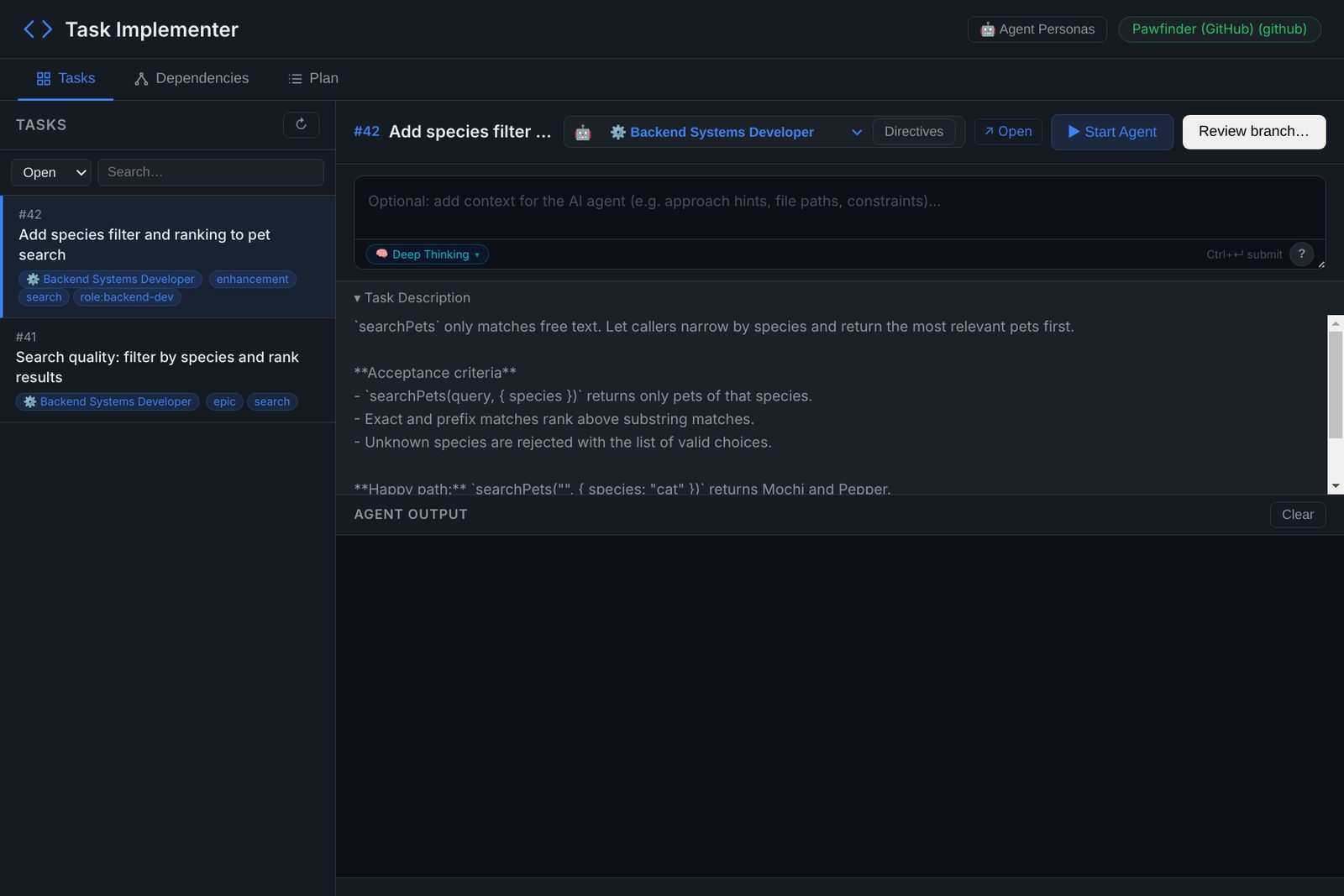
role: label and an empty box for extra context.- Click Start Agent and watch Agent Output. The agent's messages stream in as it works. Stop ends the process; Clear empties the pane.
- Read the summary at the end: the branch, the base branch, what it ran to check the change, and where any evidence is.
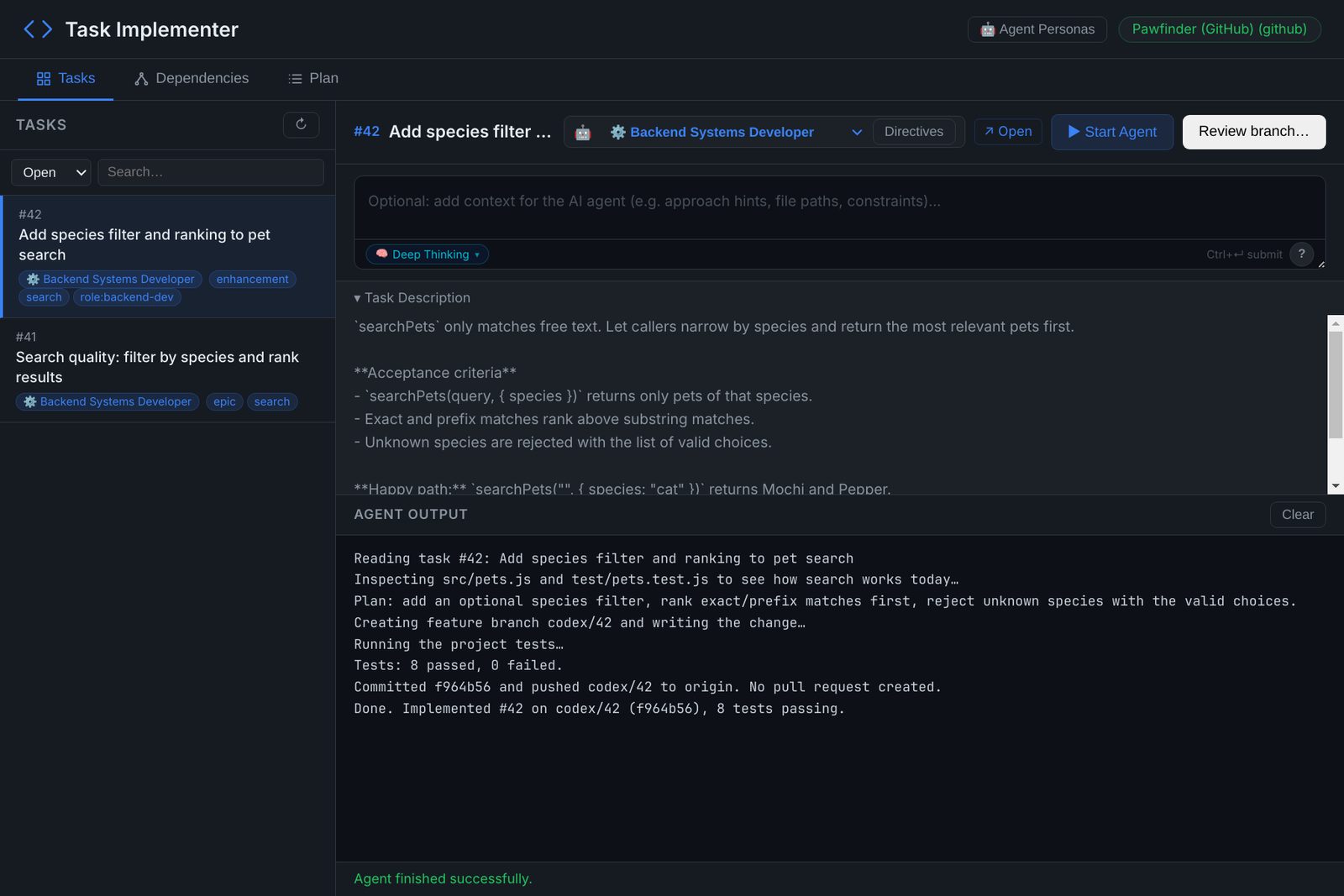
You can start agents on several tasks at once, one per task. They all work in the same folder, so run one at a time per clone, or start another copy of the app from a second clone.
What the agent is told
The prompt is built from the task, the persona and your context, followed by the RobOS writing and commit rules and this delivery workflow:
| Part | What it contains |
|---|---|
| Persona | The persona's role and system prompt, and its development guidance: the Directives text, including any edits you made for this run |
| Task | The key, title, description and labels |
| Your context | Whatever you typed in the extra-context box |
| Delivery workflow | Create a feature branch (the one you asked for, otherwise codex/<task-key>). Implement and test the task, commit, and push the branch to origin. Do not create a pull request, not even a draft. Report the workspace, repository, branch, base branch, validation and evidence. |
The agent also gets ROBOS_AGENT_ROLE and ROBOS_AGENT_MODE in its environment, so scripts it runs can tell which persona started them.
Review the branch
When the agent has finished, click Review branch… and choose the clone the agent worked in. The Agent Code Review window opens on that branch, diffed against your default branch. Uncommitted changes are not part of the diff. It refuses while an agent is still running on the task, so wait for Agent Output to finish.
From there you read the diff, ask for changes in plain language, check the evidence, take a walkthrough, and click Create PR only when you are ready. The steps, with screenshots, are in Review the branch before it becomes a pull request.
Personas and directives
A persona is the role the agent takes. The app picks one for each task, first match wins:
- a persona or role recorded on the task itself;
- a
role:label, such asrole:backend-devorrole:frontend-web-dev; - words in the title, body and labels: Godot or sprite for Game Developer, migration or Kafka for Data & Storage Engineer, React or component for Frontend Web Developer, Helm or Dockerfile for DevOps & Cloud Engineer, ADR or architecture for Software Architect, API or endpoint for Backend Systems Developer.
The personas are the same eight that Task Planner uses. Agent Personas edits their system prompt, planning directive, implementation directive and development guidance; + Add Custom Persona adds one, and Restore Defaults puts the originals back. Changes are shared by both apps.
Two personas work with a display. Non-Headless Developer runs the agent with DISPLAY set to :99 (or ROBOS_XVFB_DISPLAY), and Human + Agent Desktop Co-Pilot uses your current display. Their prompts tell the agent to use an isolated virtual display, temporary storage and IDE bridge tools. Task Implementer does not start a virtual display or mount storage itself, so these only work where your environment already provides them.
Dependencies tab
A tree of the loaded tasks: each parent with its children, a lock and Blocked by on tasks waiting for unfinished work, and Blocks on tasks others wait for. Search by key or title, use Expand All and Collapse All, and double-click a task to open it in Tasks.
Parents and blockers come from Jira's parent field and issue links. GitHub issues are listed without them, so on GitHub the tree is a flat list.
Plan tab
The AI Plan Generator suggests an order for the tasks you loaded in Tasks.
- Write anything the order should respect in Context & Suggestions: a deadline, a task to do first, work to leave for later.
- Click Generate Plan. The app runs
claude -pwith each task's key, title, status, priority, type, labels, parent, blockers and the start of its description. The agent's progress shows under Generation Log. - Implementation Plan lists every task once, first to last, with one sentence on why it sits there.
The prompt is written for Jira, where priority, issue types, parents and blockers are available. On GitHub it has only titles, labels and descriptions to go on. The plan is saved per task server and shown again the next time you open the tab. This run does not use --dangerously-skip-permissions.
Where things are saved
| What | Where |
|---|---|
| Task servers and the active one | ~/.config/robos/settings.json |
| Edited and custom personas | ~/.config/robos/agent-personas.json |
| Generated plans | ~/.config/robos/plans/<server-id>.json |
| The code | Your clone, and the branch the agent pushed to origin |
Limits and fixes
- The agent works in the wrong folder. Start the app from your clone, as in Start it in your clone, or give the full path in the extra-context box.
- Nothing happens on Start Agent. Run
claude --versionin a terminal and sign in. Another agent may already be running on the same task. - "No task server configured." Click Open Task Servers, add one and save, then reopen Task Implementer.
- The wrong persona is chosen. Pick the right one in the drop-down, and add a
role:label to the issue so it is chosen next time. - The push fails. The agent pushes with your Git credentials. Check
git pushworks from the clone. - Only 50 tasks show. The list stops at 50. Close finished issues, or filter by state.
Next
Reference: Task Implementer in the classic docs · Source code