

Guide · for a team
Build apps as a team
A lead turns the goal into tasks. Each developer has their agent implement a task and reviews the branch before anyone else sees it. A teammate approves the pull request, and the author merges.
A developer working on one task follows the same steps as the solo guide. This guide covers what changes when several people share one repository and one task tracker.
About the screenshots. They are the real RobOS apps, run on a sample project,
acme-corp/pawfinder-api, with Dana as the author and Priya as the reviewer. The repository, tests, diff and evidence are real; GitHub, CI results and the agents' replies are scripted stand-ins.
Who does what
| Role | Apps | Responsible for |
|---|---|---|
| Lead or architect | Task Planner | Breaking the goal into small tasks with acceptance criteria, choosing a persona for each, and creating the issues. |
| Developer (the author) | Dev Central, Task Implementer, Agent Code Review | Picking up a task, running the agent, reviewing its branch, opening the pull request, getting CI green, and merging. |
| Reviewer | Agent Code Review in reviewer mode, or GitHub | Reading a teammate's pull request and approving it or requesting changes. |
One person can hold more than one role. What matters is that the author is never the only person who reads the change.
Step 1: Set up every machine
RobOS has no shared server for team settings. Each person's settings are files on their own machine, so everyone does this once.
- Install RobOS and run RobOS Setup Wizard. It sets up
passfor tokens, your git identity, SSH keys andghsign-in. See Company setup. - In RobOS Agents, sign in to your agent and click Set as Active, as in the solo guide. Everyone uses their own sign-in. Agree as a team which agents you use, and check which agent each app runs so everyone installs the same CLIs.
- In RobOS Task Servers, add the same task server as everyone else.
- GitHub Issues: the team's repository, with each person's own
ghsign-in (Use Git client account). - Jira: the Jira URL, your username, the project keys, and a
passentry holding your own API token. Click Test Connection.
- GitHub Issues: the team's repository, with each person's own
- Clone the repository. Anyone running more than one agent at a time needs one clone (or
git worktree) per running task.
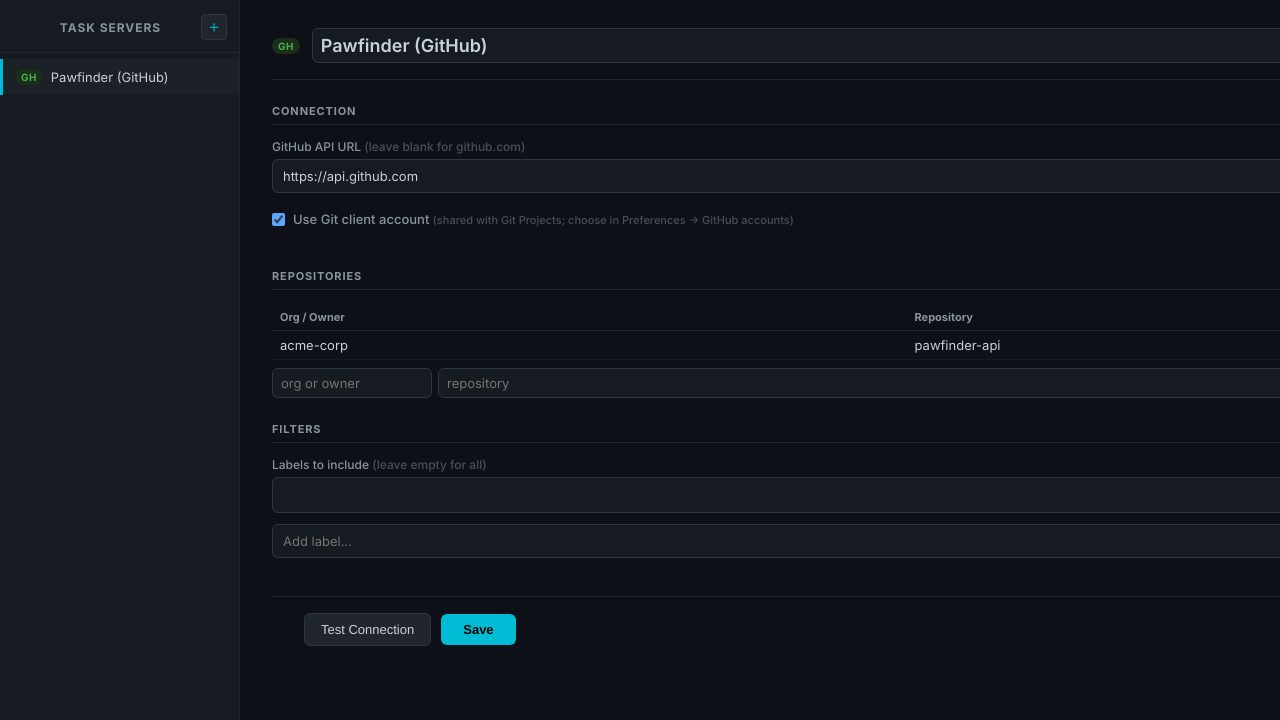
Task Planner and Task Implementer work with GitHub and Jira. The review window, pull requests and CI need the code on GitHub, even when the tasks are in Jira.
Step 2: Agree on review defaults
Two settings shape review. Agree on them once, then set them on each machine.
Per repository, in Git Projects
Open RobOS Git Projects, select the repository and open PR template:
- Default GitHub PR reviewers: usernames or
organization/team, separated by commas. They are filled in when an author moves a draft to ready, and can be changed for each pull request. - PR description template: the outline every pull request description starts from, with fields such as
{{url}}and{{description}}.
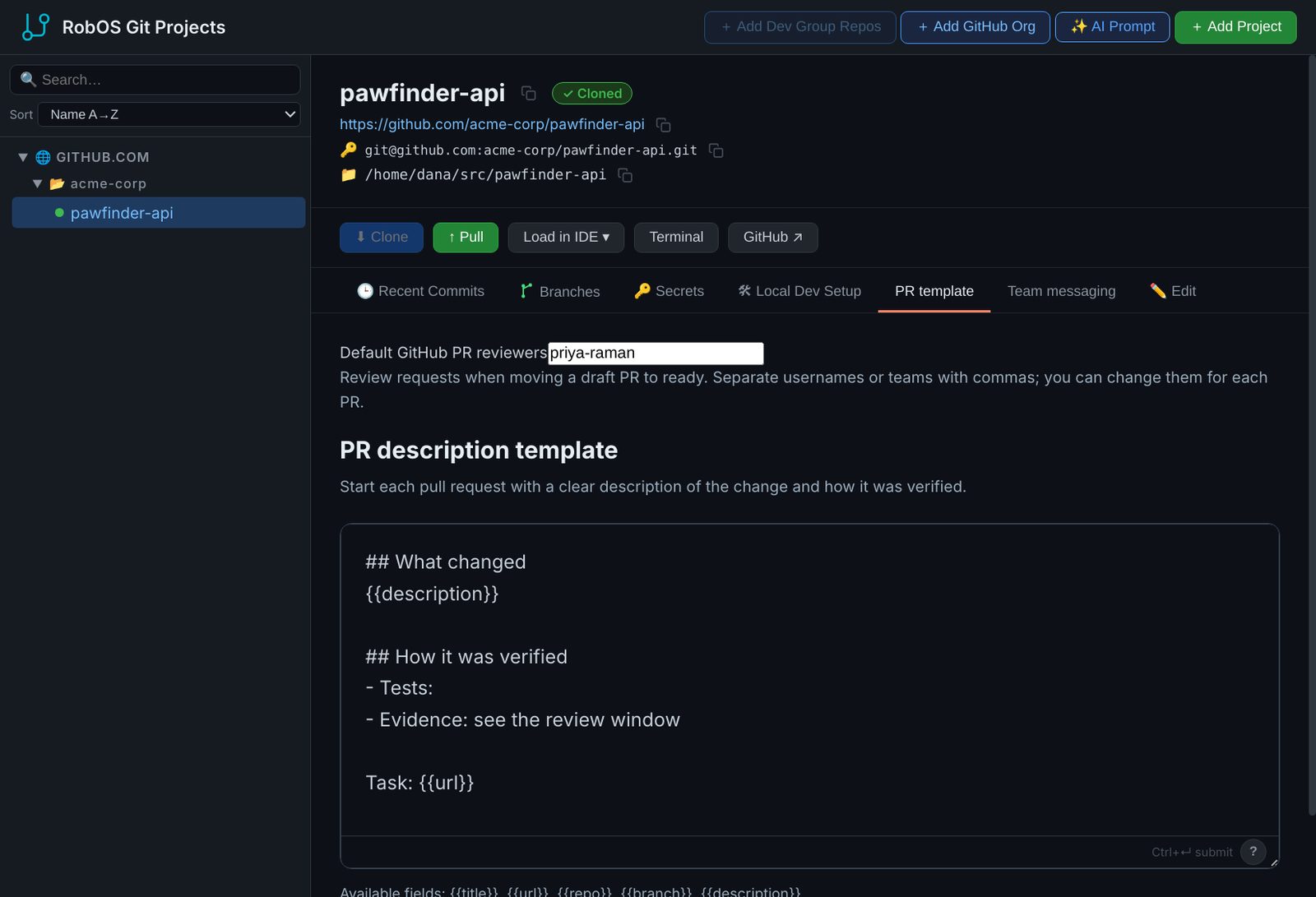
Team messaging, next to it, sets the workspace, channel and message for "please review" notifications. It needs a workspace in Team Chat Servers first, and reviewer mentions need Slack. These settings are saved under ~/.robos/project-review-settings/ and are not synced, so every author sets the same values.
Per team, in the review window
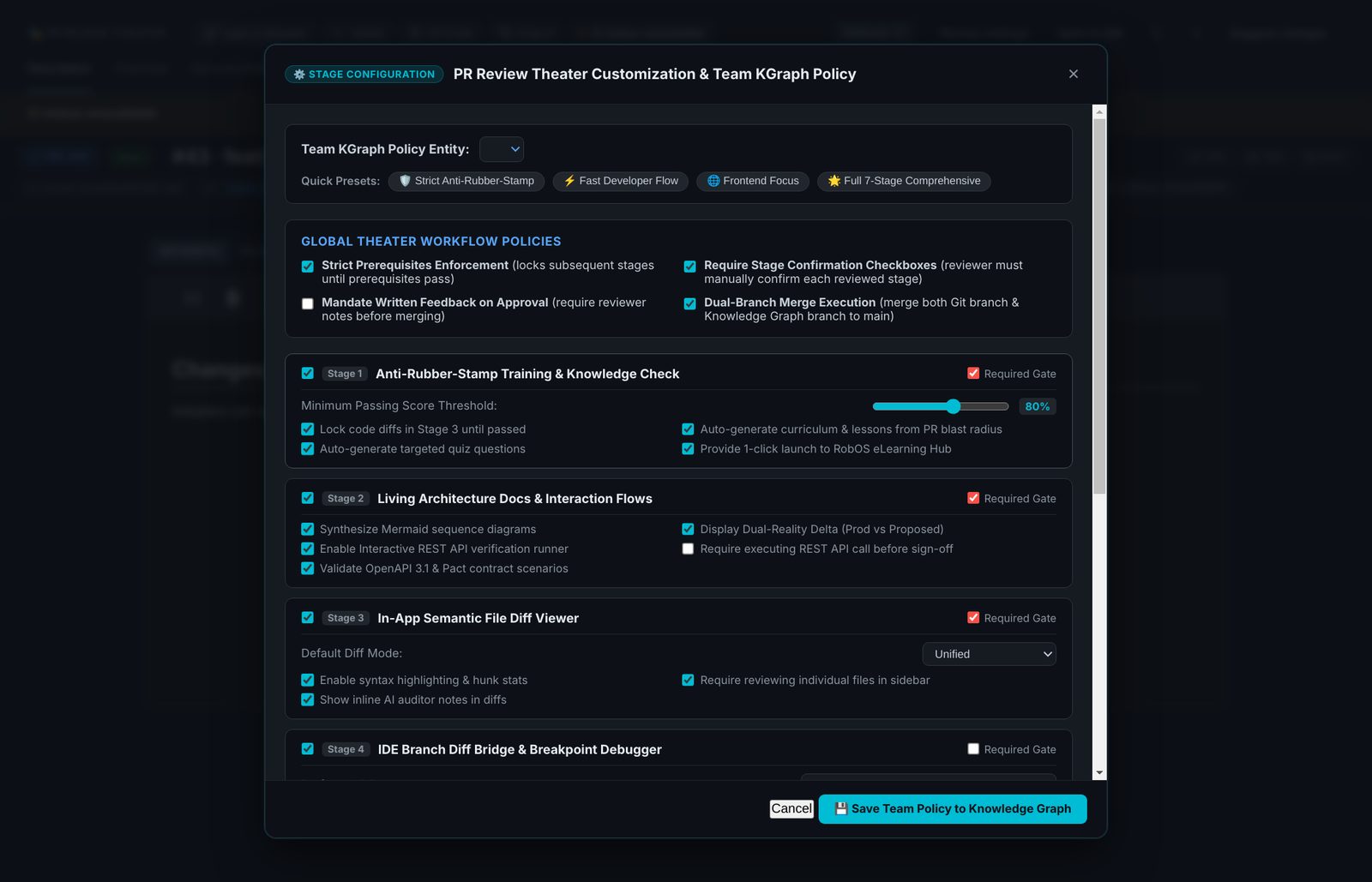
In reviewer mode, Review settings opens the team policy: which review stages are on, which are required gates, the quiz pass mark, the default diff mode and the preferred IDE. It is stored on the team's node in the knowledge graph.
Step 3: Plan the work
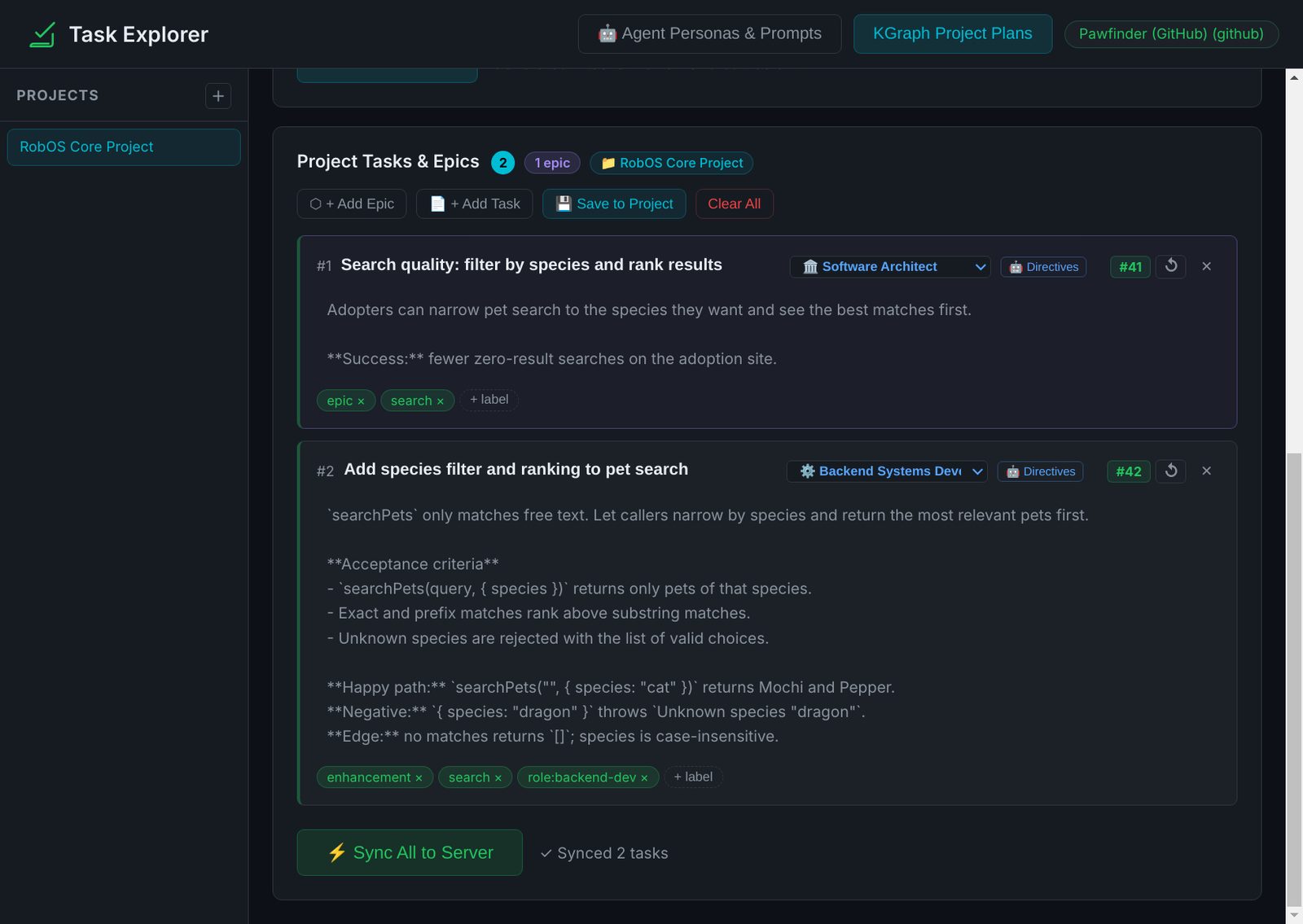
The lead plans in Task Planner, as in the solo guide, with a few additions for a team:
- Put the team's architecture, services and conventions in the project's context. Every task is drafted against it.
- Give each task the persona that fits the work: Software Architect, Frontend Web Developer, Backend Systems Developer and so on. On GitHub it becomes a
role:<persona>label, so developers can filter by it, and Task Implementer picks the persona from it. - For Jira, set Parent Epic to file the tasks under an existing epic. Sync also creates Blocks links between dependent tasks, and Task Implementer marks a task whose blockers are still open. GitHub issues are created without links, so name the issues that must merge first in the task's body.
- Keep each task small enough for one person to review in one sitting.
Custom templates and edited personas are saved on the lead's machine (~/.config/robos/task-planner/custom-templates/ and ~/.config/robos/agent-personas.json). Copy those files to teammates who should use the same ones.
Step 4: Pick up a task and implement it
Dev Central is where developers find work. The Unassigned view lists tasks nobody has taken; Assigned to me lists yours. Press / to search every task on your task servers, and a to assign the highlighted task to yourself, so the team knows it is taken.
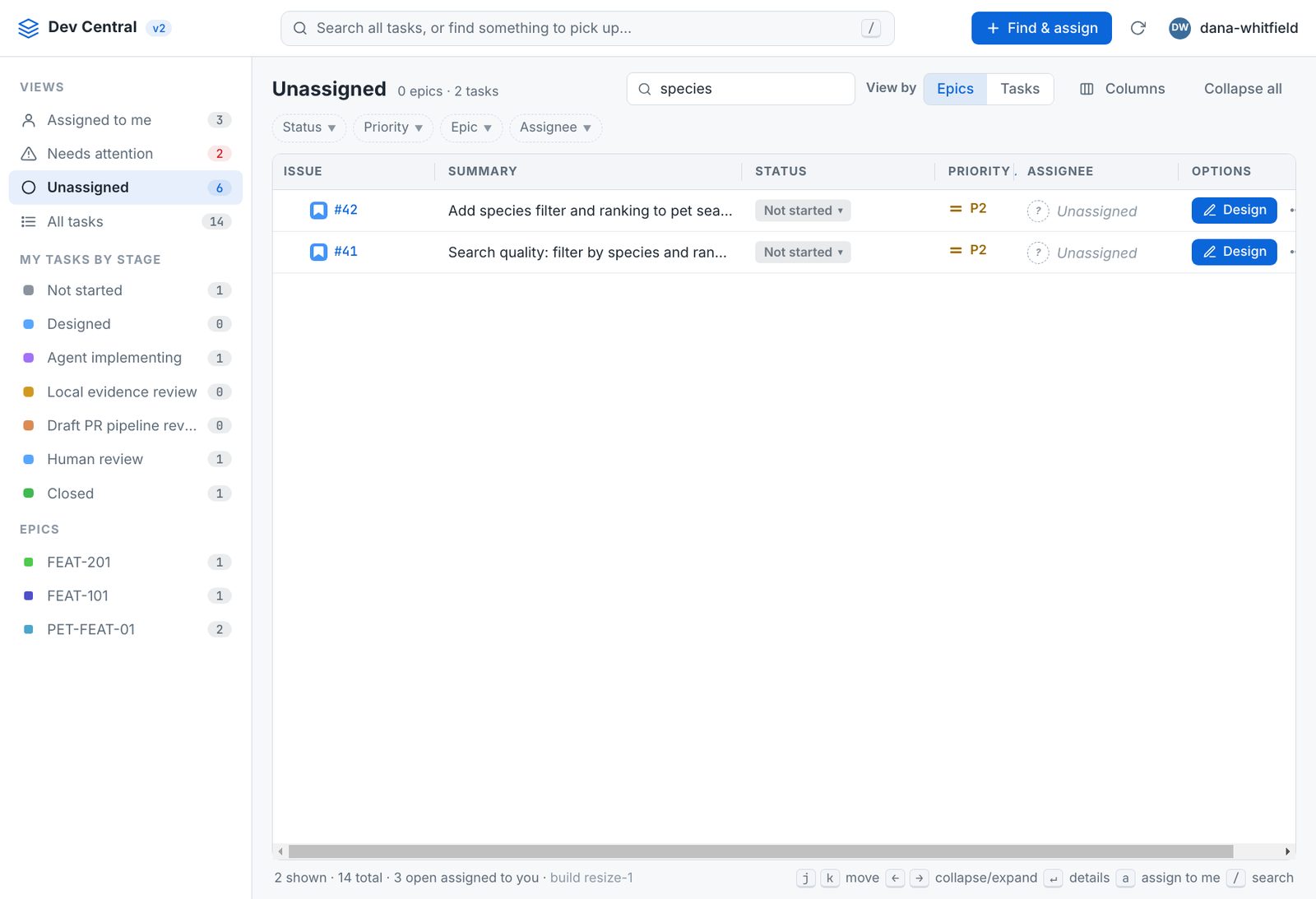
Then implement it in Task Implementer, as in the solo guide: start the app from the clone you will work in, select the task, check the persona and its directives, add context only you know, and click Start Agent. Each task gets its own branch, codex/<task-key> by default, so two developers never share one.
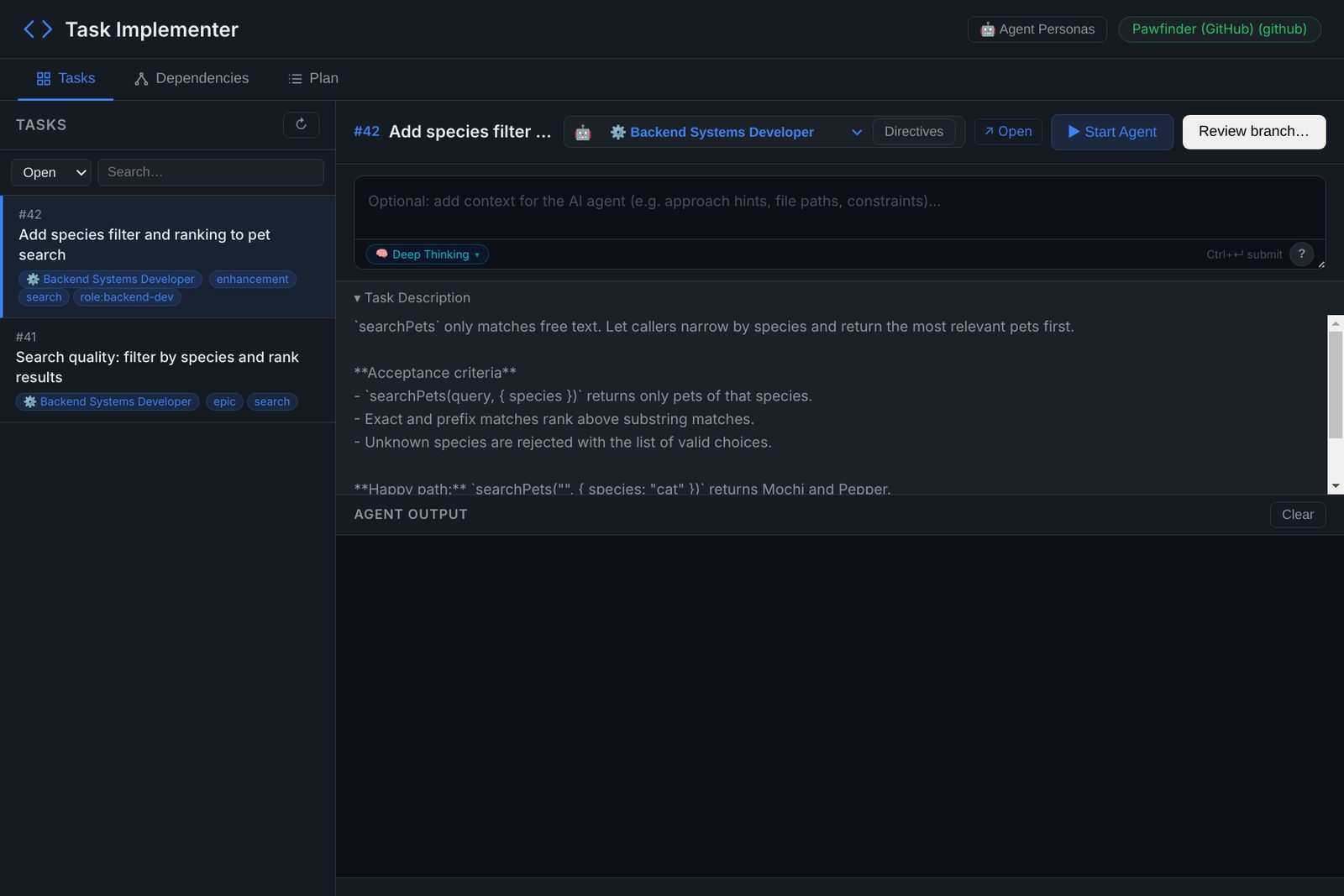
Task Implementer runs the agent as the developer's own user with permission prompts turned off, and no sandbox. Agree as a team which repositories and machines that is acceptable on.
Step 5: Review your own branch, then open the pull request
The author reviews first, before asking for anyone else's time. Click Review branch… and work through Step 5 of the solo guide: read the diff, ask the agent for changes, check the evidence and take the walkthrough.
Then open the pull request as a draft, so nobody is asked to review until CI is green:
- In the Pull Request tab, tick Create as draft and click Create PR. If team messaging is set up, a Send PR review notification option appears.
- Wait for every check to pass. Get CI back to green can start an agent repair in a separate checkout; you review and push its fix.
- Click Move PR to Ready. Request GitHub reviews is filled in from Step 2. RobOS checks the head commit, that you are the author, the draft state and CI before it changes anything, and refuses while CI is red.
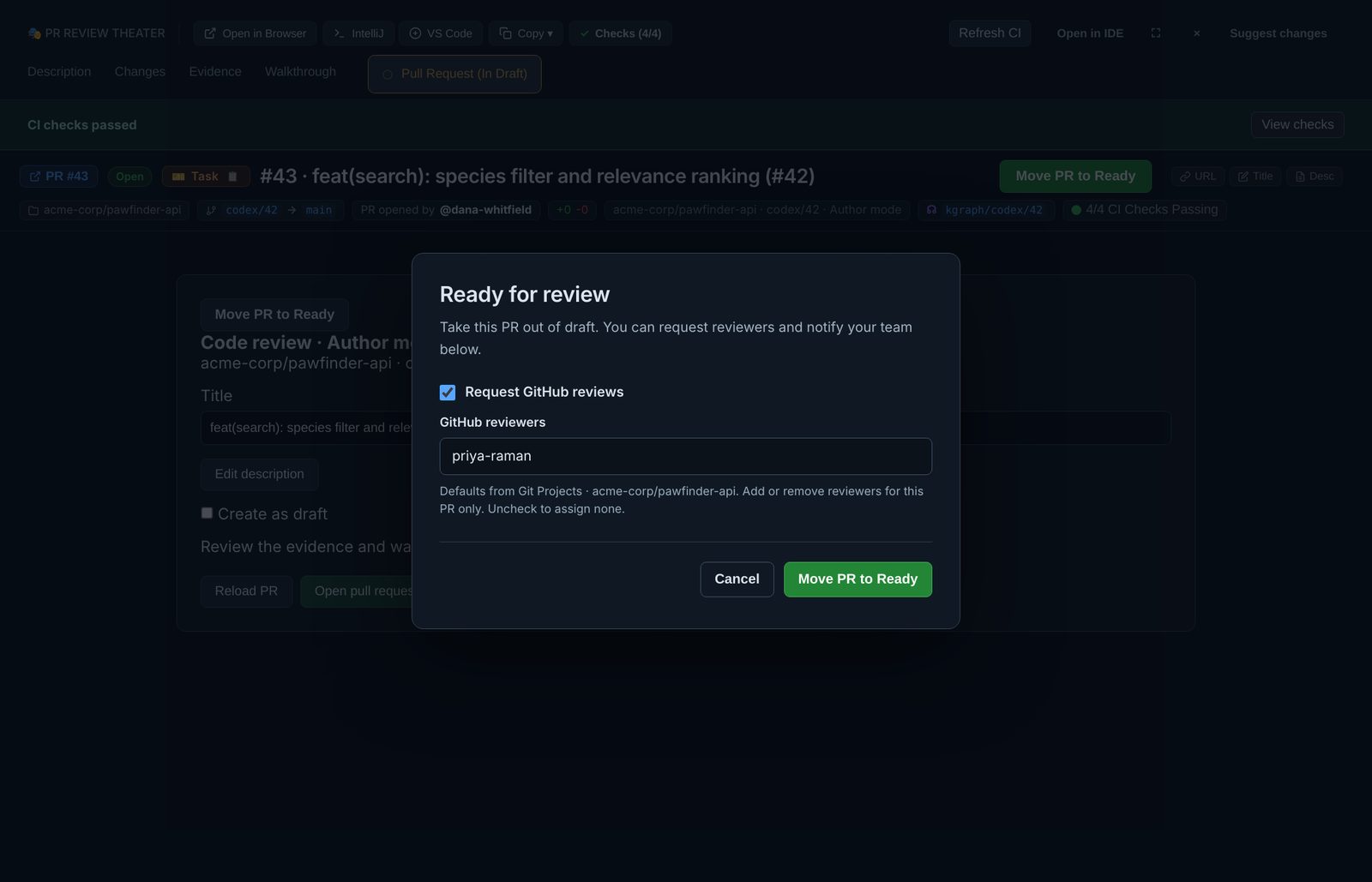
Step 6: Review a teammate's pull request
Reviewers can use GitHub as usual, or open the pull request in the review window's reviewer mode:
ROBOS_REVIEW_URL=https://github.com/OWNER/REPO/pull/NUMBER \
  ~/robos/scripts/dev-launch.sh pr-review
The older Dev Central dashboard (--v1) also has Open code review on each pull request.
- Read the Description and the diff on the Changes tab.
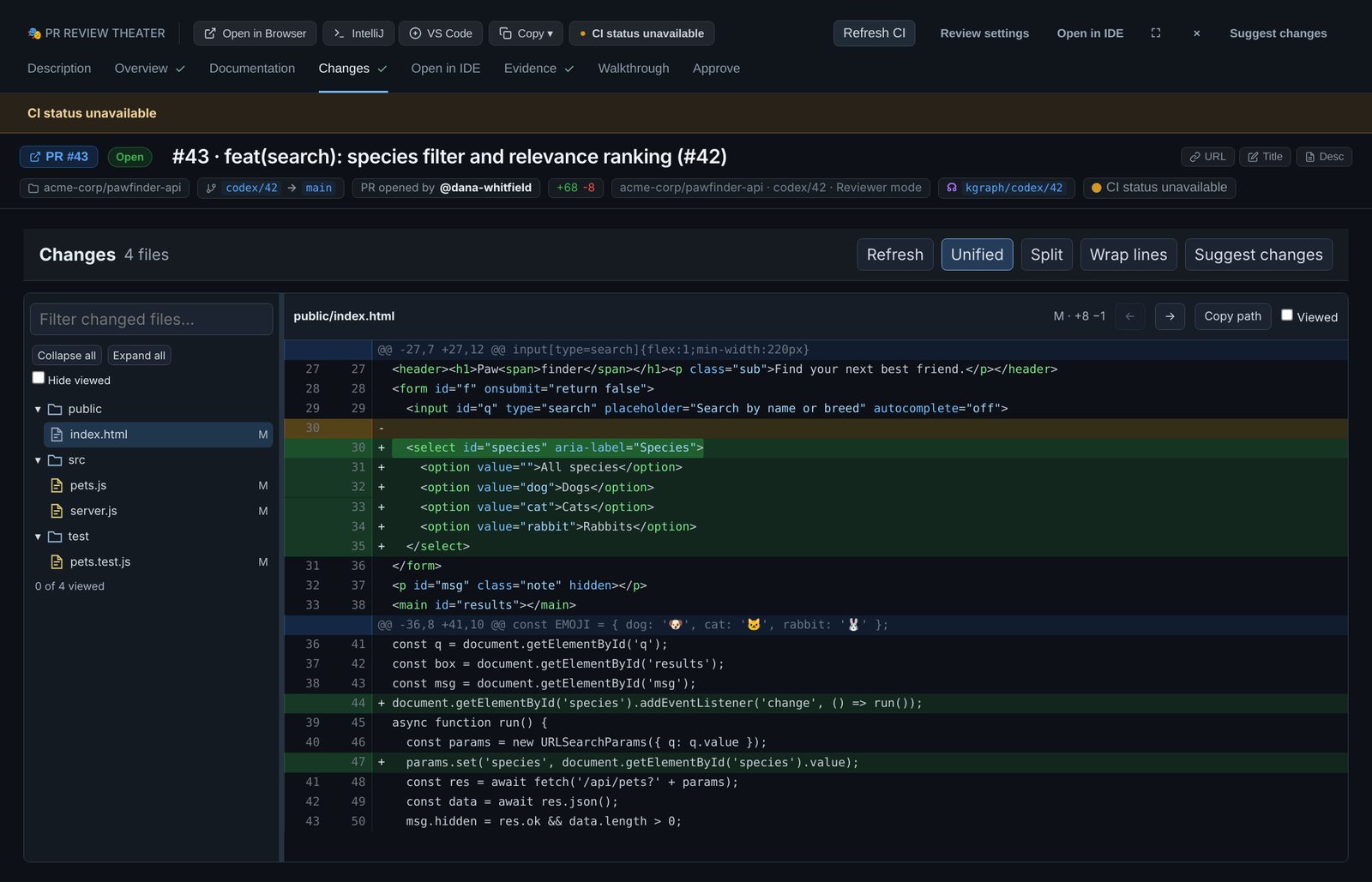
- In Approve, choose Approve, Request Changes or Submit Comment Only, write your notes and click Submit review. RobOS runs
gh pr review. Approving does not merge.
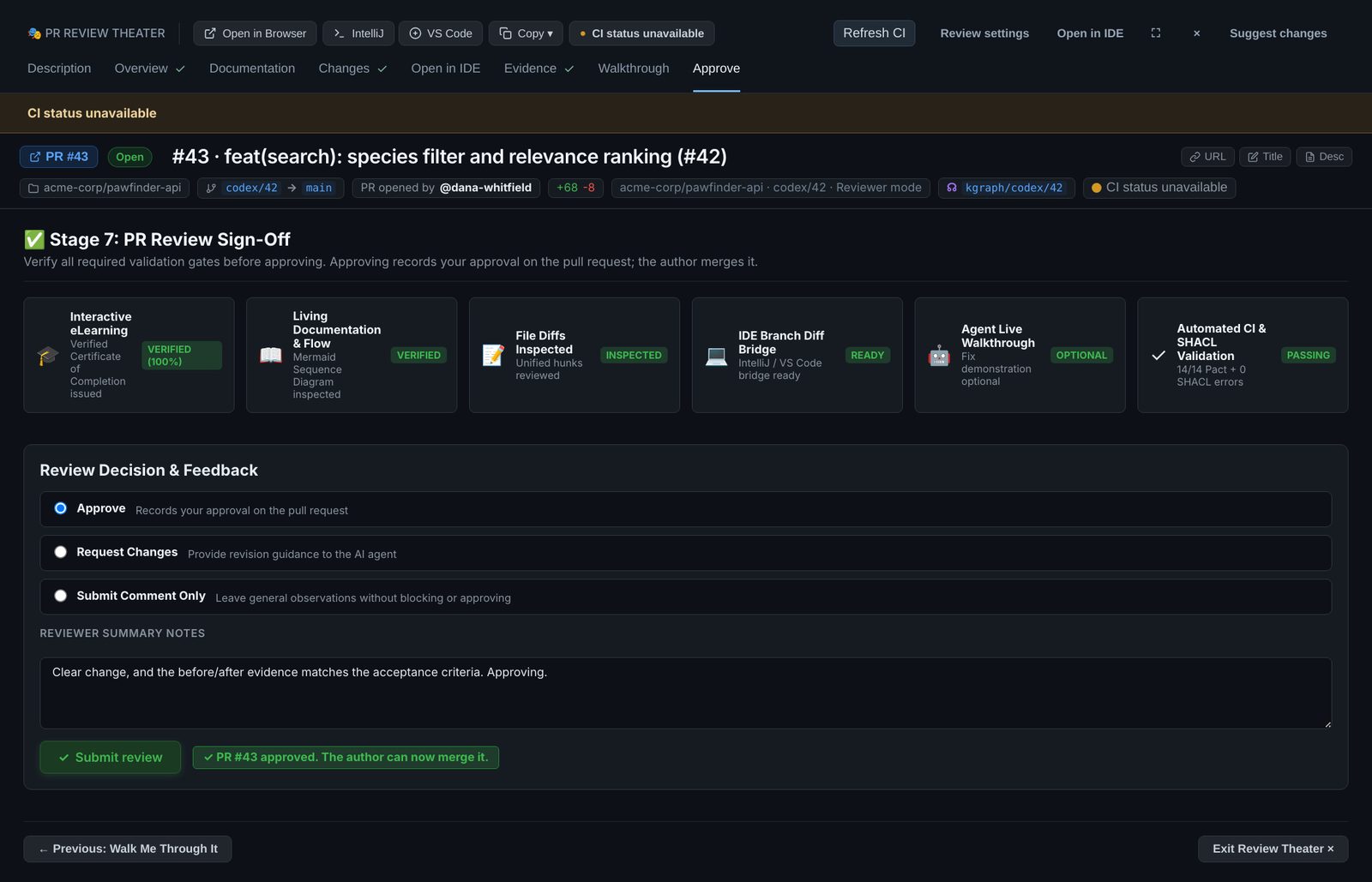
Know what reviewer mode shows today. Description, Changes and Approve use the real pull request. The Overview, Documentation, Open in IDE, Evidence and Walkthrough tabs show built-in sample content, not content from the pull request. With the default policy, Changes and Approve stay locked until the sample Overview quiz is passed; turn those locks off in Review settings if your team does not want them. Details: PR Review Theater.
When the reviewer requests changes, the author goes back to their local review, asks the agent for the change with Suggest changes, checks it, and pushes the new commits to the same branch. The pull request picks them up and the reviewer looks again.
Step 7: Merge and follow up
The author merges on GitHub once the pull request is approved and CI is green. RobOS has no merge button. If CI on main fails after the merge, or the review left work for later, the lead plans a follow-up in Task Planner and it goes through the same loop.
Before you roll it out
| Question | Answer today |
|---|---|
| Is there a shared server for team settings? | No. Task servers, personas, templates and review defaults are files on each machine. Agree on the values, or copy the files. |
| Which agents can we use? | The ones in RobOS Agents, each with the developer's own sign-in. Some apps call a specific agent CLI; see which agent each app runs. |
| Are agents sandboxed? | Not by Task Implementer. The agent runs as the developer's user without permission prompts. |
| Does RobOS pick a cheaper model for easy tasks? | Not yet. See Agent tiers. |
| Can reviewers rely on every reviewer-mode tab? | Not yet. Use Description, Changes and Approve; the other tabs hold sample content. |
For evaluating RobOS as a team, see RobOS for Teams and Review & governance.