Scan stocked goods, choose sizes, apply promotions, and handle returns with manager approval.
Follow the example below, then adapt the catalog, team and payment settings for your business.
Recorded in the real app using sample data and demo payments. Watch on YouTube
Step 1 of 6
Start with the retail sample
On first launch choose Retail store. The example shop is Main Street General Store.
Sign in with the sample cashier PIN 3333. These PINs and products are demonstration data; replace them before real use.
Step 2 of 6
Scan an item and choose a size
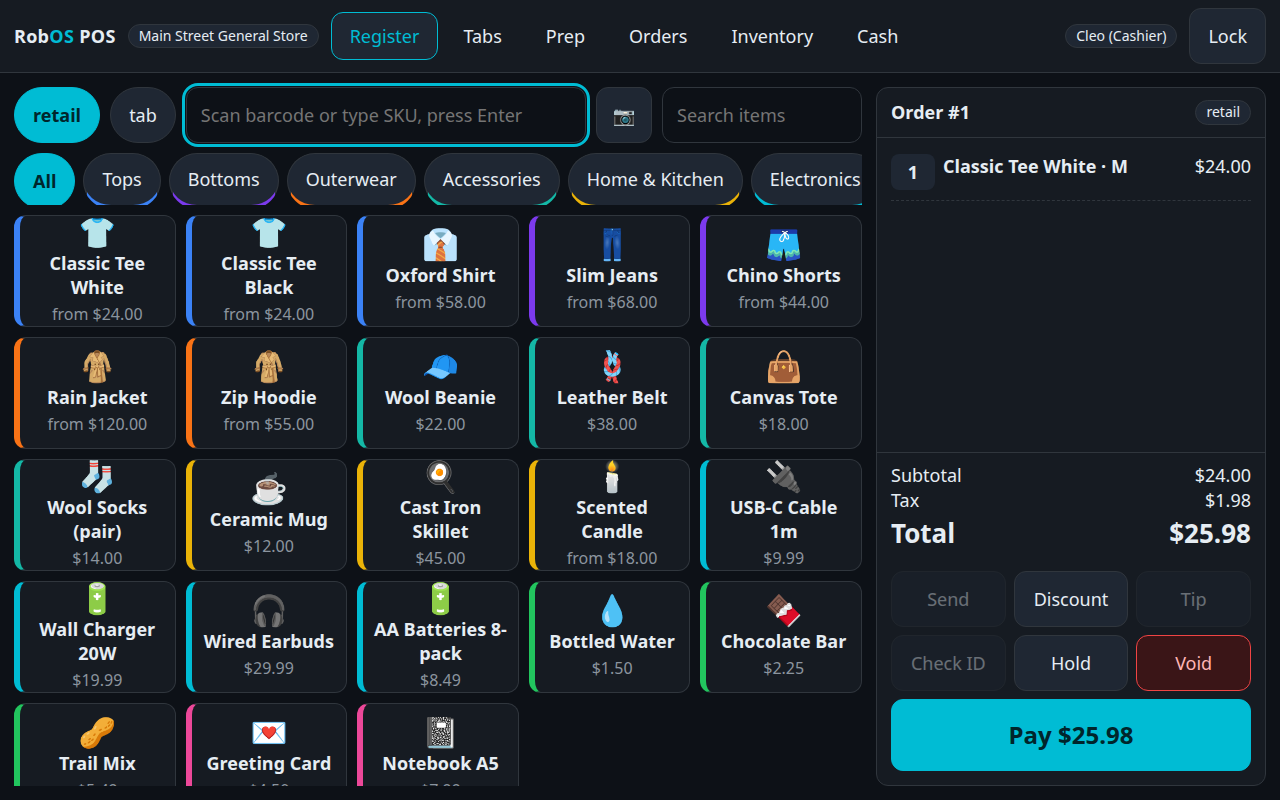
On Register, scan the barcode on a Classic Tee White in size M. A keyboard-style scanner types the code and presses Enter.
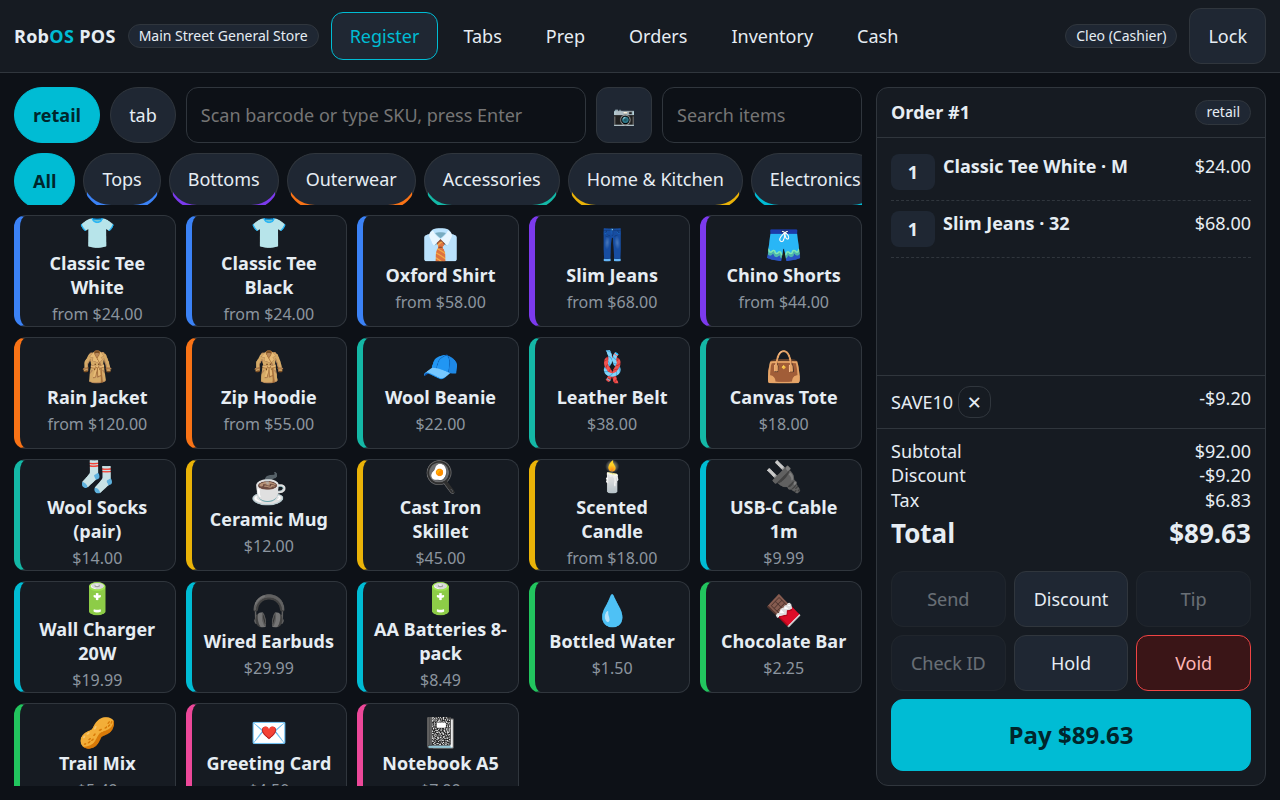
Tap Slim Jeans, choose size 32, then Add to order. Check the item names and sizes in the ticket.
Scan an item and choose a size — sample shop
Step 3 of 6
Apply a promotion and review the total
Open the discount controls, enter SAVE10 and apply it. The sample gives 10% off the order.
Check the discount, item tax and amount due before pressing Pay. Your own catalog and tax settings determine live totals.
Apply a promotion and review the total — sample shop
Step 4 of 6
Record payment and review the receipt
The video uses the sample test card provider, which does not move money. Select Card and complete the demo payment.
For live trading, configure your supported card workflow first. A standalone terminal payment is processed on that terminal, then its approval reference is recorded in the register.
Check the receipt and return to a new order. Paid stocked items reduce inventory.
Step 5 of 6
Handle a return with a manager
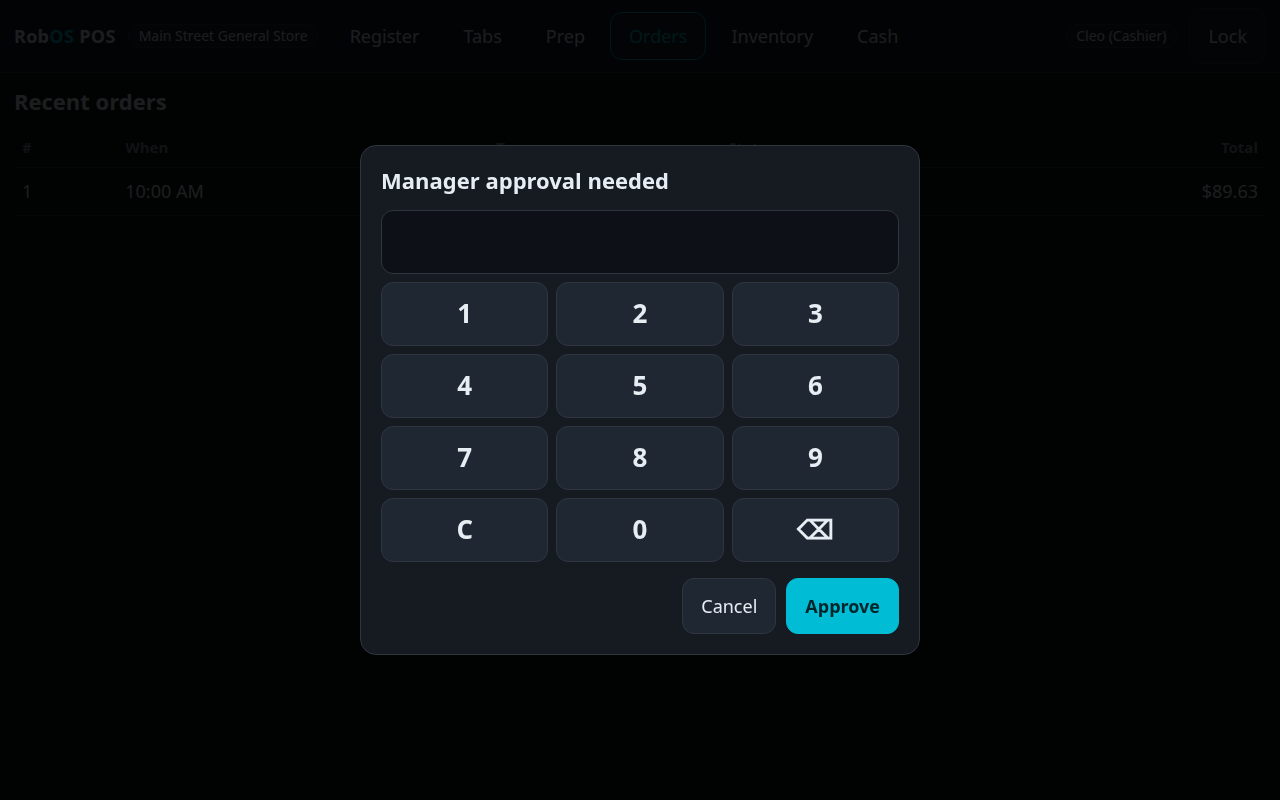
Open Orders and select the sale. Open the refund controls, choose the returned quantity and enter a reason.
A cashier needs manager approval. Enter the sample manager PIN 2222 in the approval dialog.
Confirm the refund result and check the stock quantity. In the video the test provider handles the refund; verify your live provider's behavior before accepting returns.
Handle a return with a manager — sample shop
Step 6 of 6
Continue with stock and self-checkout
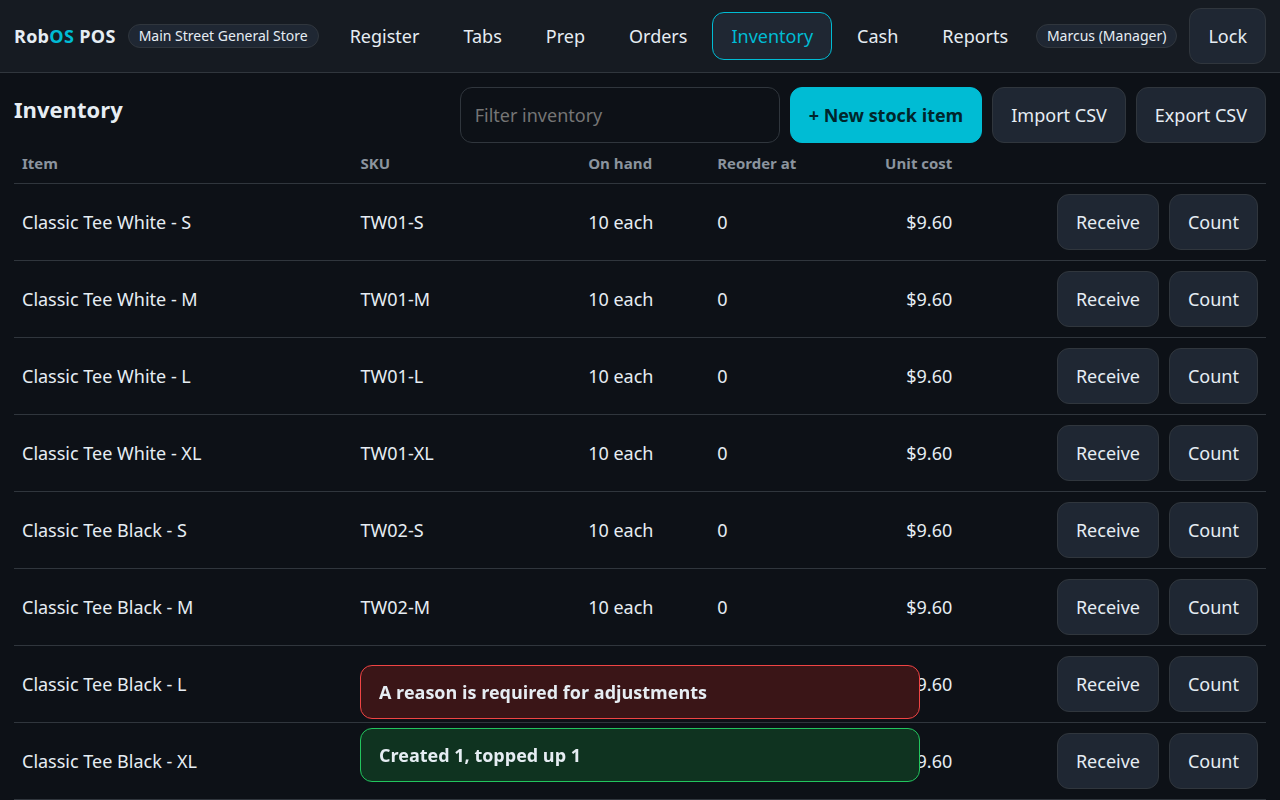
Use Inventory to receive a delivery or count the shelf. Counts require a reason.
Use Menu & Catalog to edit products and variants, then review Reports for recorded sales.
The shared guide below covers shopper self-checkout, camera scanning and counting the cash drawer.
Related workflow: receiving and counting retail inventory. — sample shop
Keep going
Read the shared guide for installation, team permissions, cash settings, scanning, self-checkout and payment-provider limitations.