

← RobOS Point of SaleRecorded in the real app using sample data and demo payments. Watch on YouTube
Bean There Coffee · Guided walkthrough
Coffee shop tutorial
Customize drinks, take cash with change due, and move paid orders through the barista queue to collection.
Follow the example below, then adapt the catalog, team and payment settings for your business.
Step 1 of 6
Start the coffee shop and open the drawer
- Choose Coffee shop on first launch. The example menu belongs to Bean There Coffee.
- Sign in with sample cashier PIN 3333. Open Cash, enter a starting float of 100 using the keypad, then press Open drawer.
- The recording uses sample data and simulated cash entries; it does not process real transactions.
Step 2 of 6
Build a custom latte
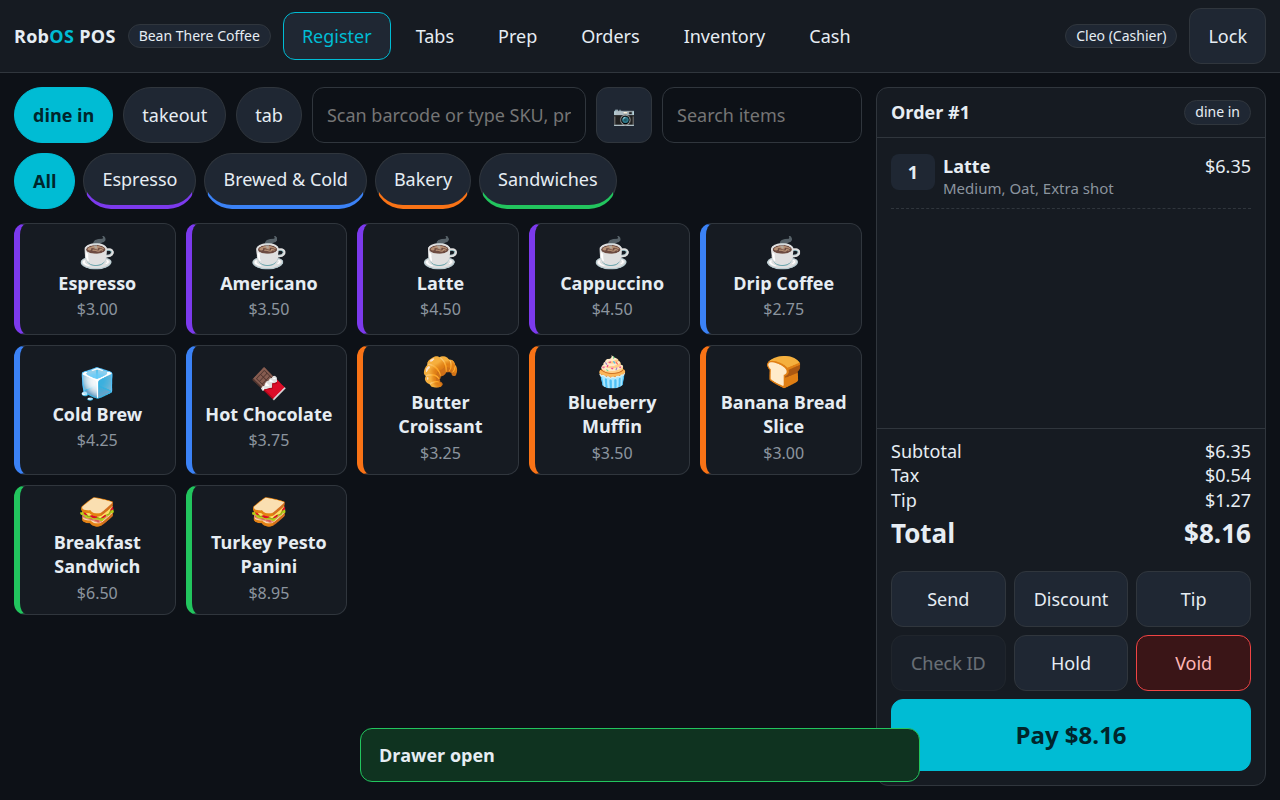
- Return to Register and tap Latte. Required option groups must be completed before the item can be added.
- Choose Medium, Oat milk and Extra shot, then Add to order. Check that the modifiers and their prices appear on the ticket.
Step 3 of 6
Add a tip and take cash
- Open the tip controls and choose 20% for this example. Review the total, then press Pay.
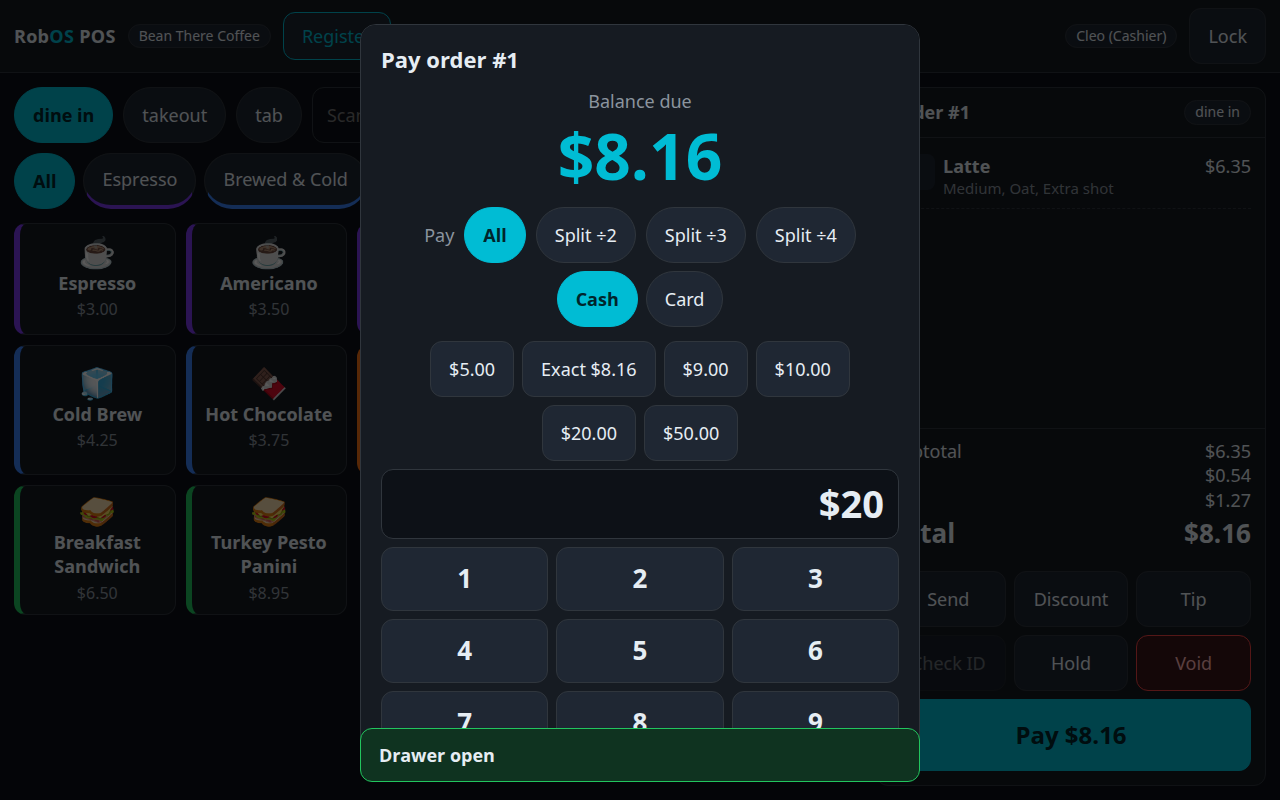
- Tap the $20 quick-tender button. Check the displayed change and record the cash payment.
- Read the receipt before starting the next order. Cash rounding and quick-tender amounts can be configured by a manager.
Step 4 of 6
Prepare the paid order
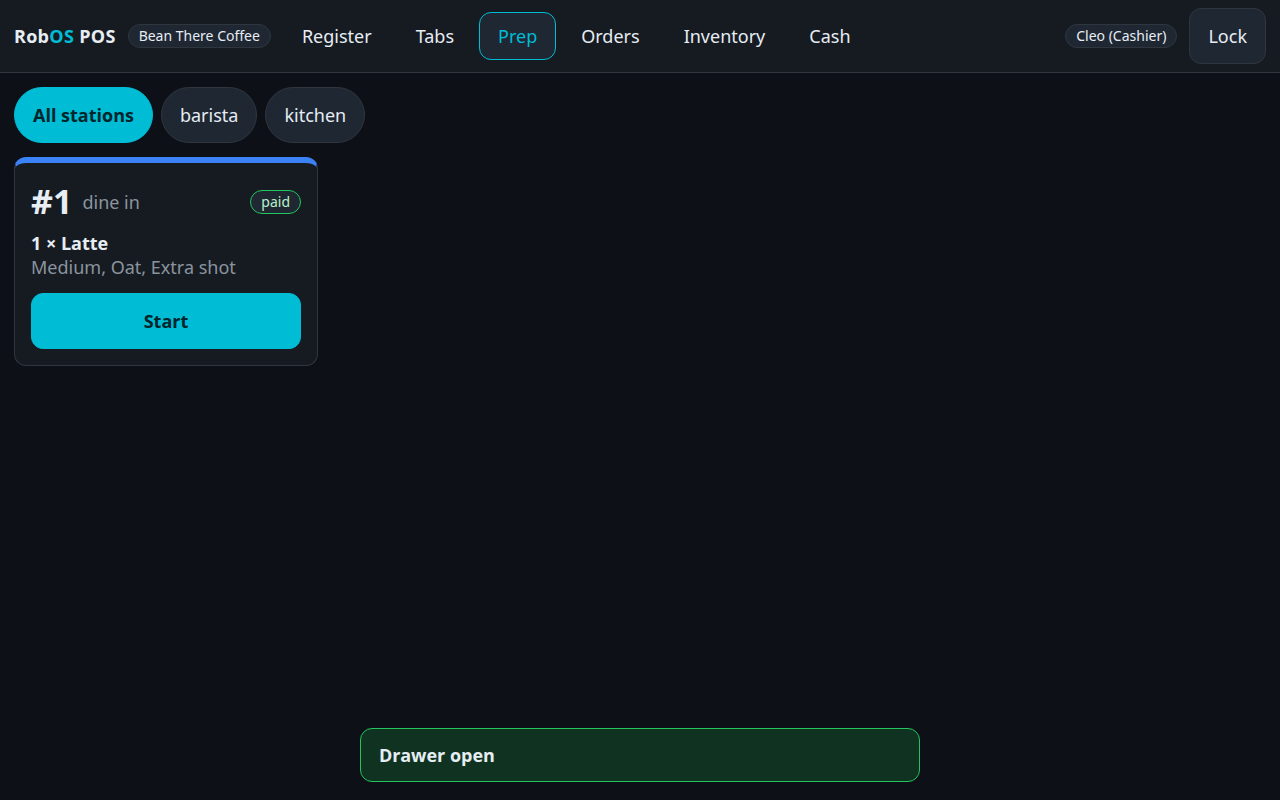
- Open Prep. The paid latte appears at the barista station.
- Start preparation, then mark the ticket Ready when the drink is finished.
- The customer-ready display at /ready shows order numbers. It is a separate customer-facing page.
Step 5 of 6
Record collection
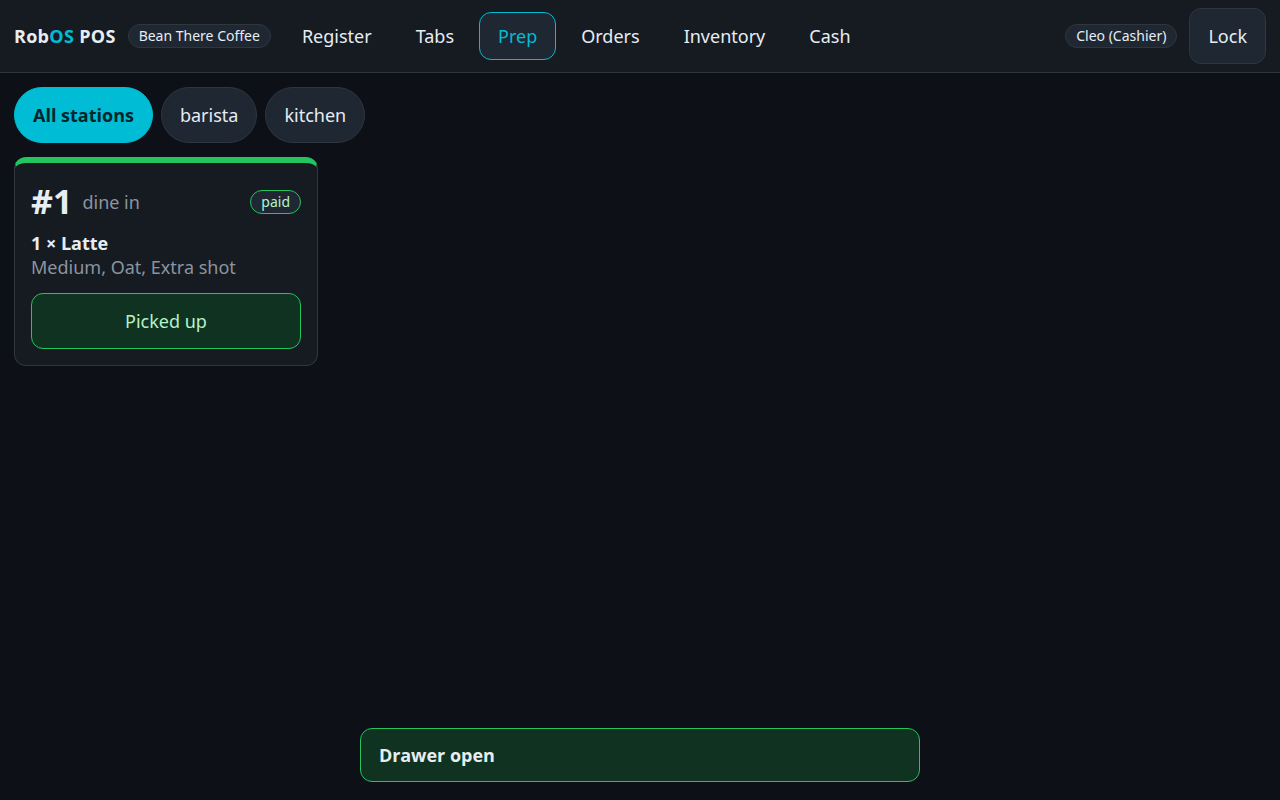
- Hand the order to the customer and mark it Picked up on the prep ticket.
- Check that the ticket leaves the active queue. This closes the preparation work; payment was recorded earlier.
Step 6 of 6
Offer customer self-ordering
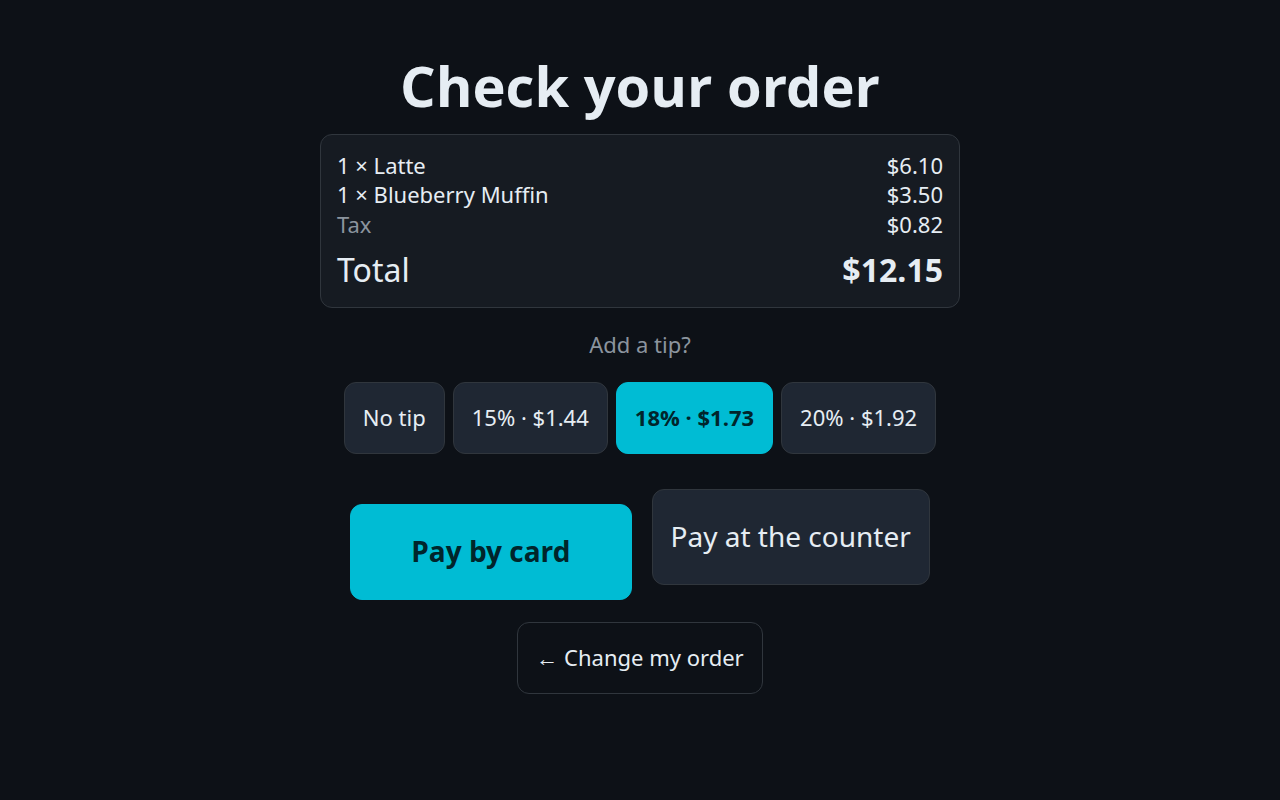
- Open /kiosk on a customer-facing device to show the sample menu.
- Customers choose their drink options and can take an order number to pay at the counter when that option is enabled.
- Unattended card payments require a real integrated provider. The sample card gateway is for demonstration only.
Keep going
Read the shared guide for installation, team permissions, cash settings, scanning, self-checkout and payment-provider limitations.