

← RobOS Point of SaleRecorded in the real app using sample data and demo payments. Watch on YouTube
The Rusty Anchor · Guided walkthrough
Bar tutorial
Keep named tabs open, send rounds to prep stations, record an ID check, and close the tab with a tip.
Follow the example below, then adapt the catalog, team and payment settings for your business.
Step 1 of 6
Start the bar sample
- Choose Bar on first launch. The example venue is The Rusty Anchor.
- Sign in with sample cashier PIN 3333. The recording uses demo products and a test card provider; no real payment is taken.
Step 2 of 6
Open a named tab
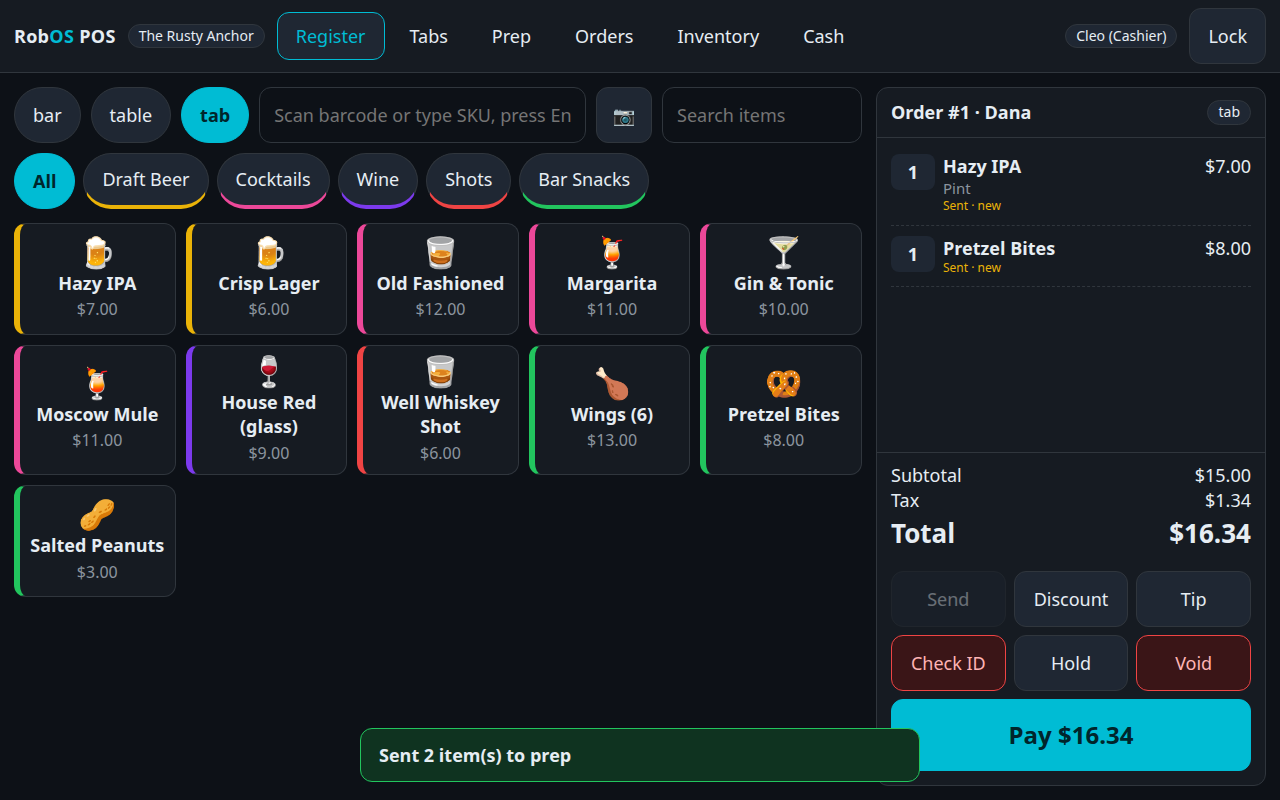
- Select the tab order type on Register. Add a Hazy IPA and choose Pint.
- Enter the tab name Dana and open the tab. Add Pretzel Bites to the same ticket.
Step 3 of 6
Send the round and hold the tab
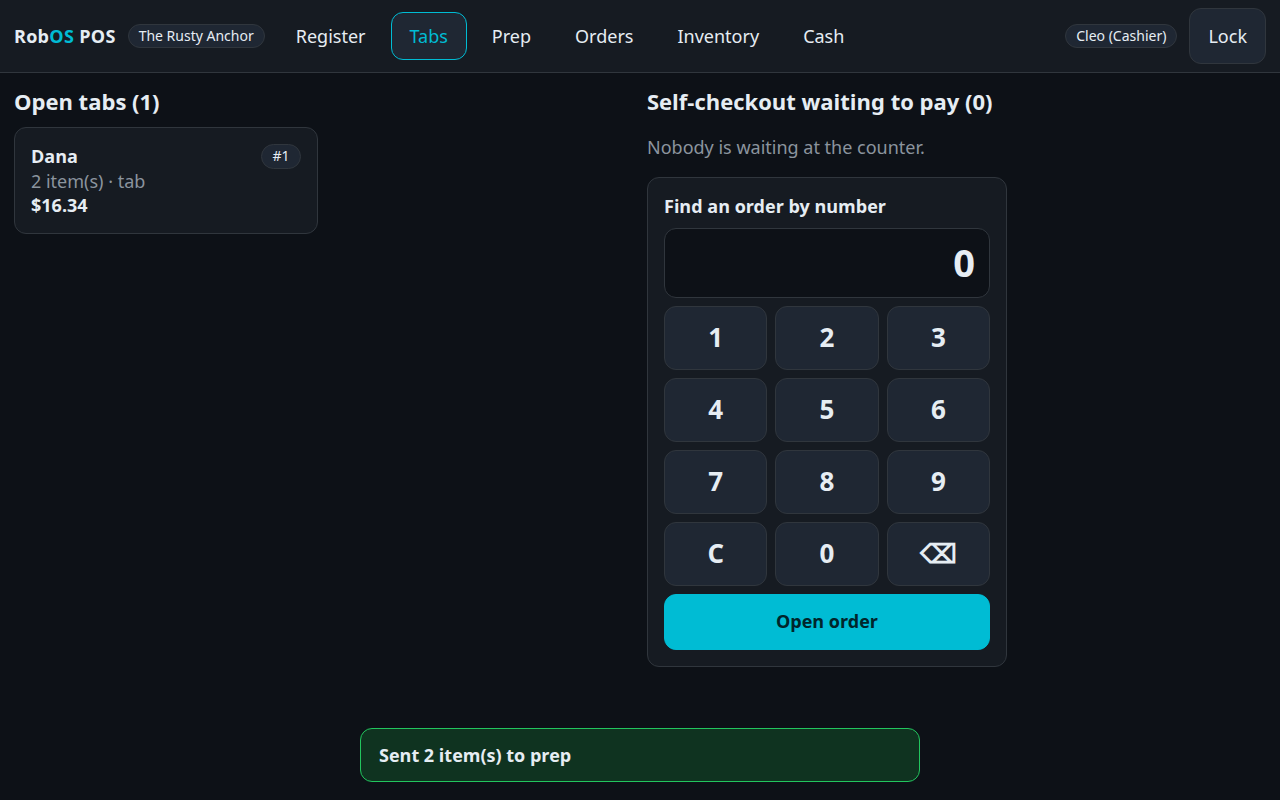
- Press Send to send the current items to their preparation stations, then Hold the tab.
- Open Prep and select the bar station. Drinks appear there; food is routed to the kitchen.
- Tabs keeps the unpaid ticket available while staff work on other orders.
Step 4 of 6
Recall the tab for another round
- Open Tabs, select Dana's tab and check the existing items.
- Add another pint and press Send. Only the newly added items are sent for preparation.
Step 5 of 6
Record the ID check and add a tip
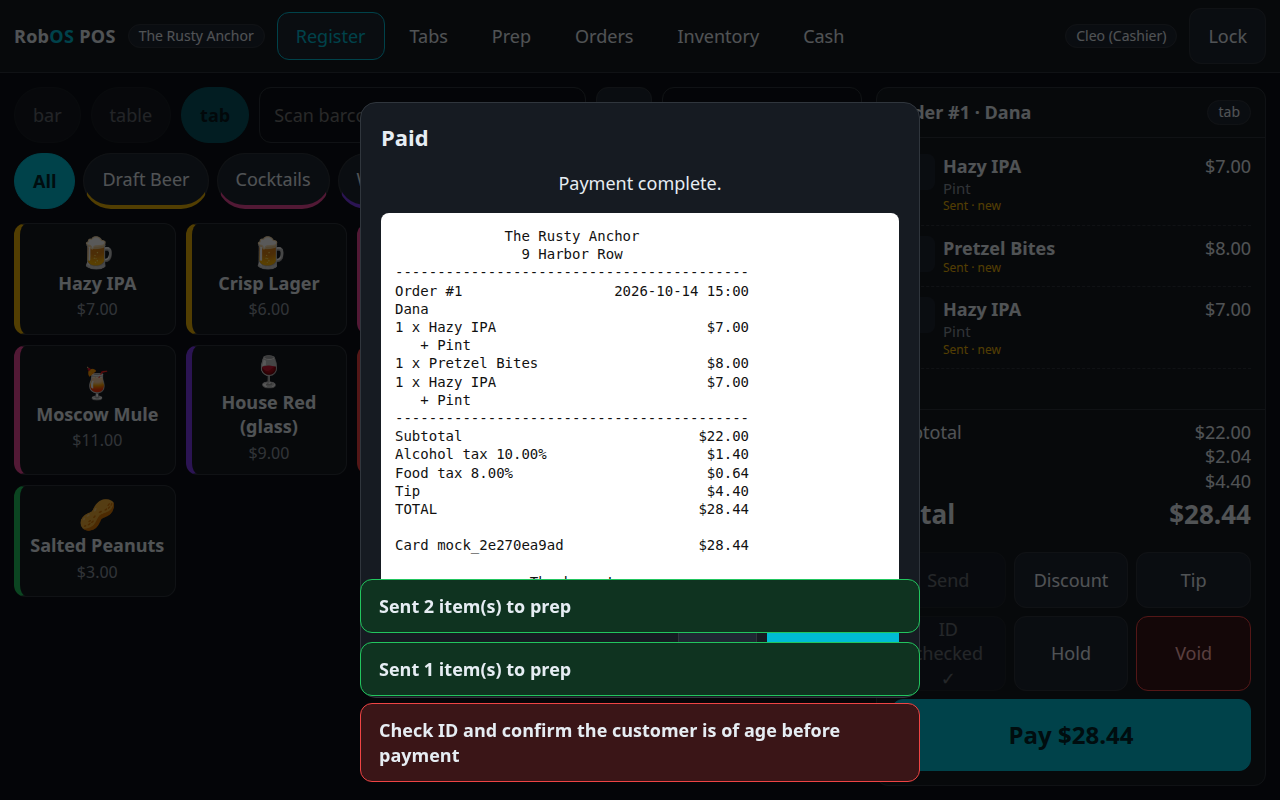
- The sample blocks payment for age-restricted items until staff record an ID check. The video demonstrates that guard.
- After checking the customer's ID yourself, record ID checked in the register. This records a staff action; the app does not verify identity.
- Open the tip controls and choose 20% for the example, then review the final amount.
Step 6 of 6
Close the tab and review the receipt
- Press Pay and select Card for the recorded demonstration. The test provider approves the sample transaction without charging anyone.
- Read the closed-tab receipt, including the tip and item tax lines. For a live venue, configure your real payment workflow before use.
- The shared guide explains splitting payments, manager-approved comps, and closing the cash drawer.
Keep going
Read the shared guide for installation, team permissions, cash settings, scanning, self-checkout and payment-provider limitations.