

Guide · Security › RobOS Hardware Keys (packages/hardware-keys)
Physical push keys
RobOS Hardware Keys connects physical FIDO2 and U2F authenticators—such as the YubiKey 5 Series, Security Key C NFC, SoloKey, and Nitrokey—directly to your Linux desktop, SSH keys, Git commits, sudo prompts, and the RobOS Pass Store. Private keys stay locked inside the hardware token's secure element and require a physical finger press on the capacitive gold contact before any signature is produced.
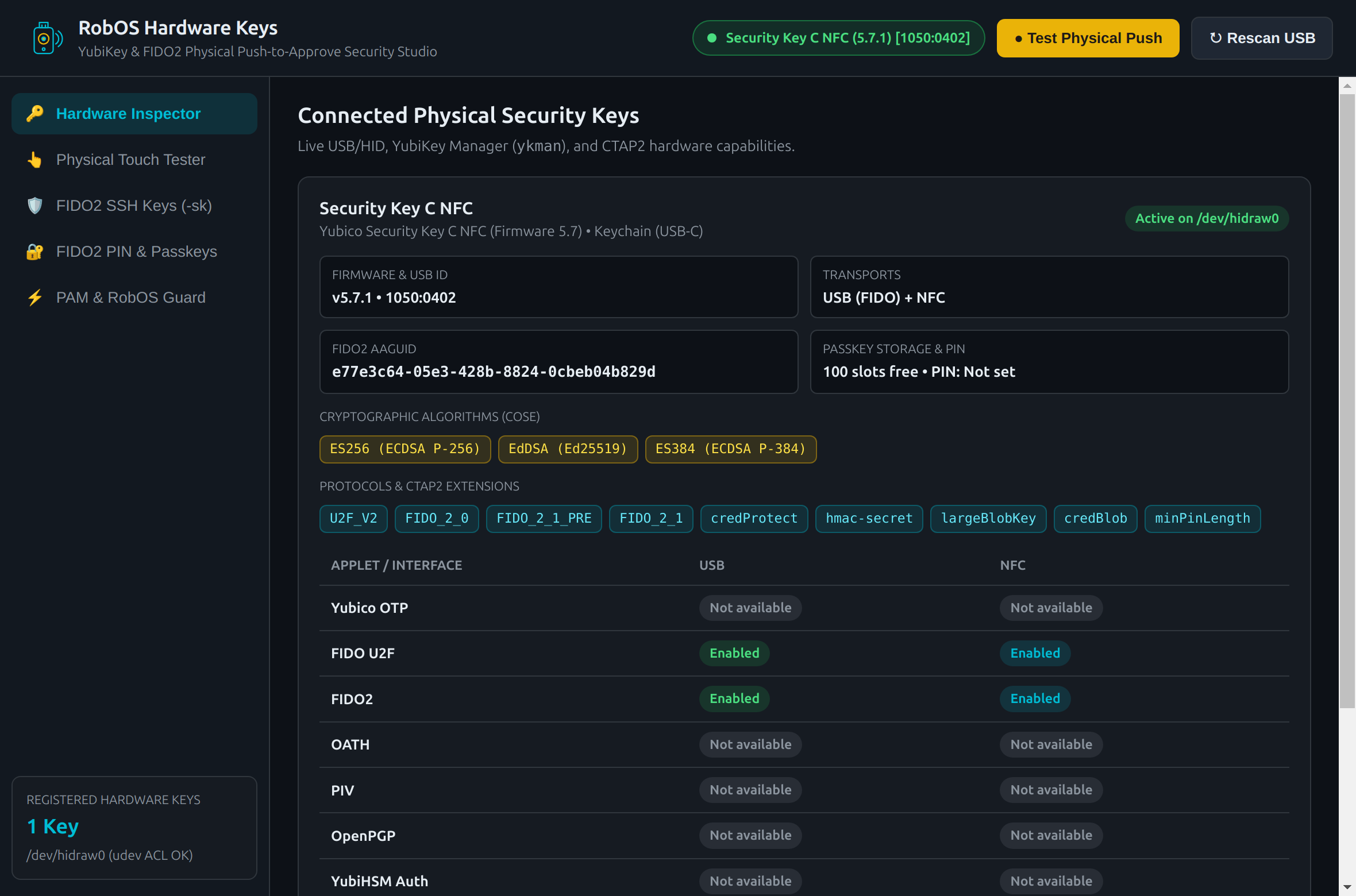
1050:0402) on /dev/hidraw0.- ArchitectureUSB HID, CTAP2.1 & 4 protection targets
- Hardware InspectorAAGUID, firmware, COSE algorithms & udev ACLs
- Physical Touch TesterLive CTAP2/U2F challenge-response & latency
- FIDO2 SSH Keys (
-sk)ed25519-sk,ecdsa-sk&SSHSIG - FIDO2 PIN & PasskeysPIN management & discoverable credentials
- PAM & RobOS Guards
pamu2fcfg, Git signing & unplug auto-lock - CLI & Config ReferenceFiles, IPC channels & debug port
:19218
Architecture
RobOS Hardware Keys combines three local Linux inspection layers—/sys/class/hidraw udev attributes, YubiKey Manager (ykman), and direct python3-fido2 CTAP2/CTAP1 HID frames—so every hardware capability can be inspected and exercised without cloud services or browser extensions.
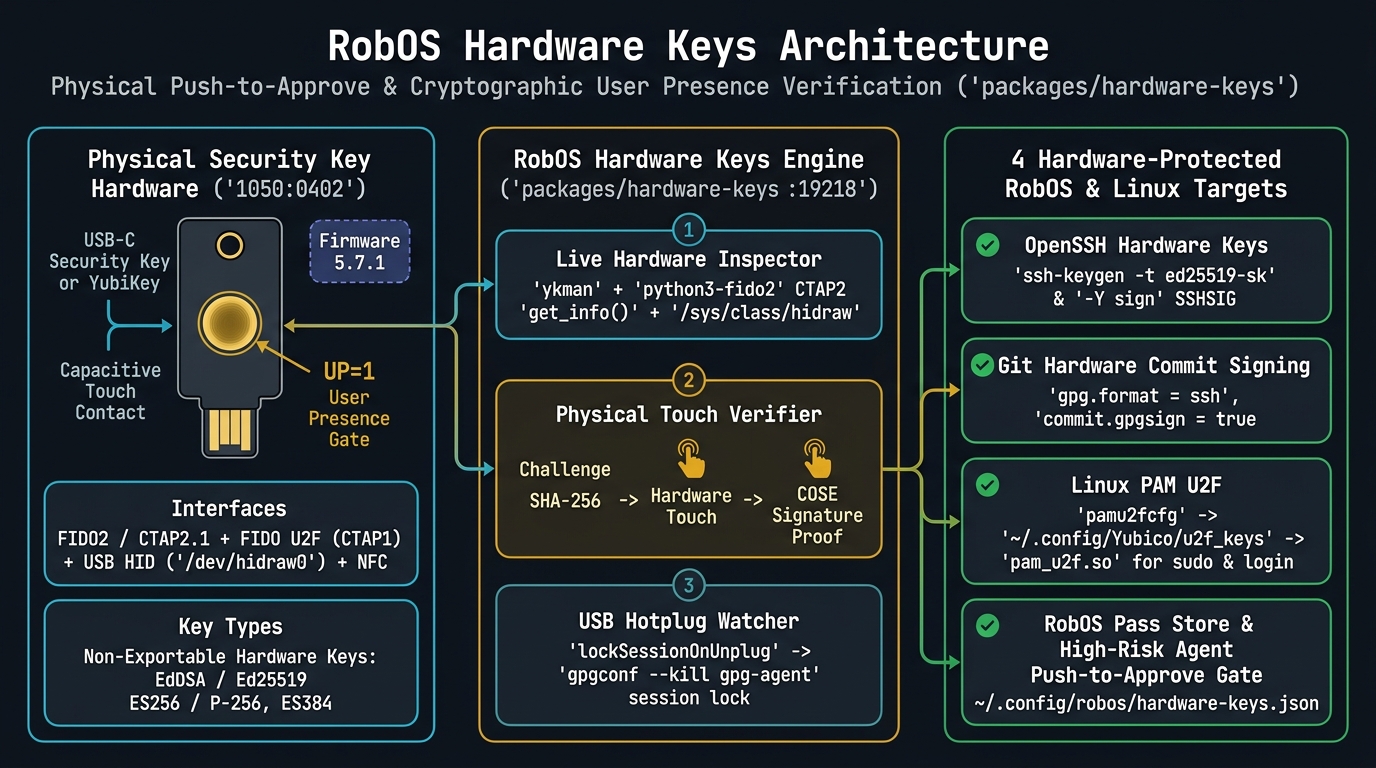
UP=1) on /dev/hidraw0 to OpenSSH, Git, Linux PAM U2F, and RobOS security gates.
flowchart LR
  subgraph HW["Physical Security Key (USB 1050:0402 / NFC)"]
    TOUCH["Gold Capacitive Touch Disc
Hardware User Presence (UP=1)"]
    SE["Secure Element (Firmware 5.7.1)
FIDO2 CTAP2.1 + FIDO U2F CTAP1
COSE: EdDSA (-8), ES256 (-7), ES384 (-35)"]
    HID["Linux Kernel HID Node
/dev/hidraw0 (udev ACL crw-rw----+)"]
    TOUCH --> SE --> HID
  end

  subgraph ENGINE["RobOS Hardware Keys Studio (packages/hardware-keys :19218)"]
    INSP["Hardware Inspector
sysfs + ykman + python3-fido2 Ctap2.get_info()"]
    CHAL["Physical Touch Verifier
SHA-256 Challenge -> Touch -> Signature Proof"]
    HOTPLUG["USB Hotplug Monitor (3.5s poll)
Auto-Lock on Unplug (gpgconf --kill gpg-agent)"]
    HID --> INSP
    HID --> CHAL
    HID --> HOTPLUG
  end

  subgraph TARGETS["Protected Workstation & RobOS Targets"]
    SSH["OpenSSH 10.2 FIDO2 Keys
~/.ssh/id_ed25519_sk & ssh-keygen -Y sign"]
    GIT["Git Commit Signing
gpg.format = ssh & commit.gpgsign = true"]
    PAM["Linux PAM U2F
pamu2fcfg -> ~/.config/Yubico/u2f_keys"]
    GUARD["RobOS Pass Store & Agent Gate
~/.config/robos/hardware-keys.json"]
  end

  ENGINE --> SSH
  SSH --> GIT
  ENGINE --> PAM
  ENGINE --> GUARD
| Subsystem | Underlying Interface | What It Controls |
|---|---|---|
| Hardware Inspector | /sys/class/hidraw/hidraw*/device/uevent, ykman info, Ctap2.get_info() | Detects model, firmware, USB/NFC applet state, AAGUID, COSE algorithms, CTAP2 extensions, and /dev/hidraw write permissions |
| Physical Touch Tester | fido2.ctap2.Ctap2.make_credential & fido2.ctap1.Ctap1.register | Verifies physical finger presence (UP=1), measures touch response latency in milliseconds, and records cryptographic signatures |
| FIDO2 SSH Keys | ssh-keygen -t ed25519-sk / ecdsa-sk, ssh-keygen -Y sign, gh ssh-key add | Generates hardware-bound SSH keys, tests SSHSIG payload signatures, and uploads public keys to GitHub |
| FIDO2 PIN & Passkeys | ykman fido access change-pin, ykman fido credentials list/delete | Sets or rotates the FIDO2 PIN and lists or prunes discoverable resident credentials (passkeys) stored in key flash |
| PAM & RobOS Guard | pamu2fcfg, git config --global, ~/.config/robos/hardware-keys.json | Enrolls U2F handles for pam_u2f.so, enables SSH-signed Git commits, and enforces touch gates for Pass Store & agents |
1. Hardware Inspector
When you open RobOS Hardware Keys or plug a key into USB, the Hardware Inspector tab queries the device and displays:
- Model & Firmware: Decodes both the
ykmandescriptor and the integer CTAP2 firmware version (for example,329473→0x050701→5.7.1). - FIDO2 AAGUID Lookup: Formats the 16-byte Authenticator Attestation GUID (such as
e77e3c64-05e3-428b-8824-0cbeb04b829d) and matches it against known Yubico, SoloKeys, Nitrokey, and Titan hardware profiles. - COSE Algorithms & Extensions: Lists hardware-supported public-key algorithms (
ES256 / ECDSA P-256,EdDSA / Ed25519,ES384 / ECDSA P-384) alongside CTAP2 extensions (credProtect,hmac-secret,largeBlobKey,credBlob,minPinLength). - Linux
/dev/hidrawPermissions: Confirms that systemd-logind / udev ACLs grant read+write access (crw-rw----+) to your desktop user so FIDO2 operations never require running Electron as root.
2. Physical Touch Tester
Switch to Physical Touch Tester (or click ● Test Physical Push in the top bar) to run a live challenge-response against your key:
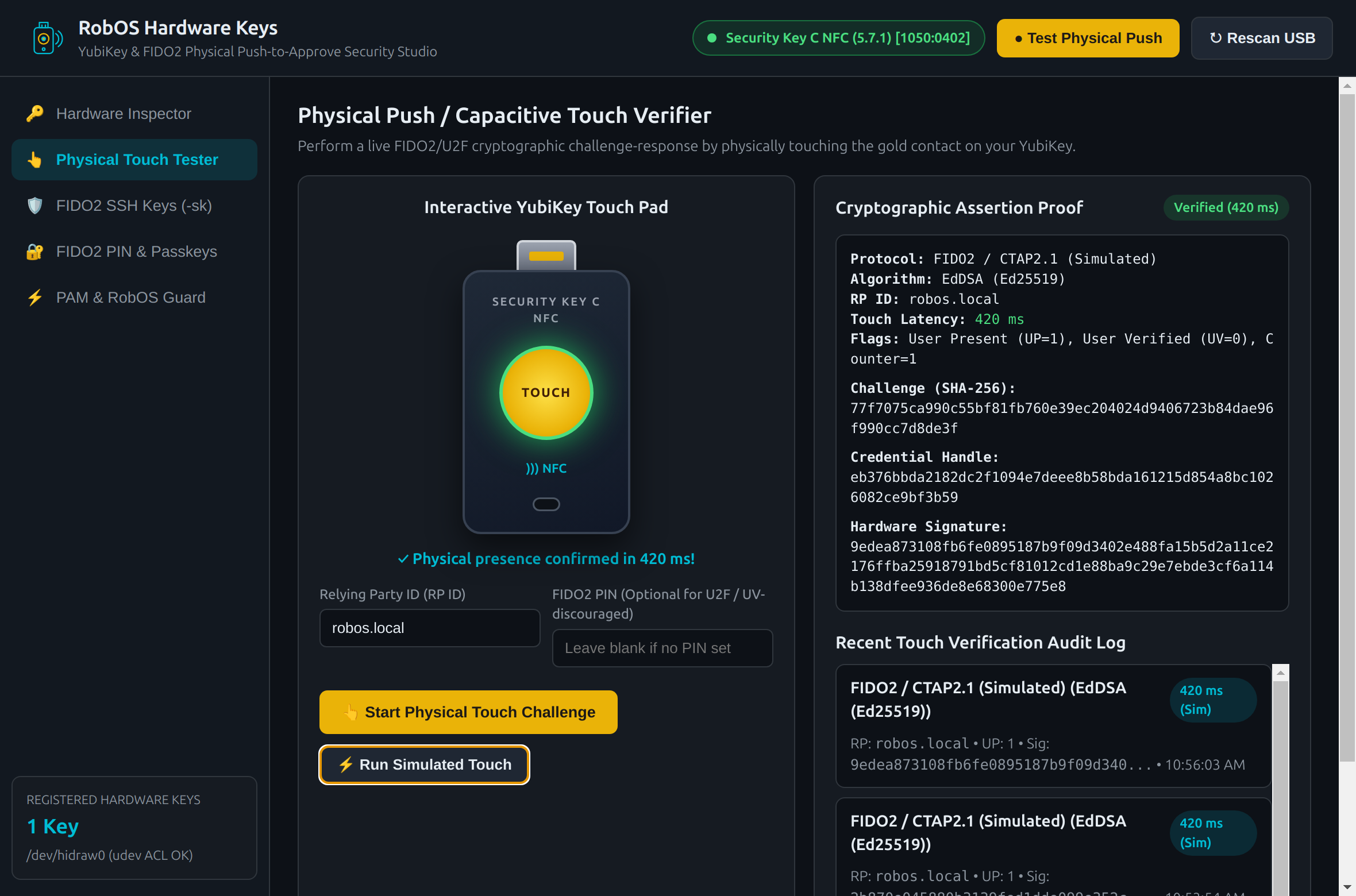
UP=1), challenge SHA-256, credential handle, and signature hex.- Set an optional Relying Party ID (defaults to
robos.local) and optional FIDO2 PIN. - Click 👆 Start Physical Touch Challenge. The app generates a 32-byte random nonce, hashes it with SHA-256, and sends a CTAP2 request to
/dev/hidraw0. - Touch the flashing gold contact on your physical YubiKey.
- The right-hand Cryptographic Assertion Proof panel displays the measured touch latency (ms), protocol used (
FIDO2 / CTAP2orFIDO U2F / CTAP1), COSE algorithm,UP/UVflags, and raw signature bytes.
3. Hardware-Backed FIDO2 SSH Keys (-sk)
Standard SSH private keys (~/.ssh/id_ed25519) sit as files on disk that could be copied if a workstation is compromised. With OpenSSH FIDO2 keys (ed25519-sk and ecdsa-sk), the private key file in ~/.ssh/id_ed25519_sk contains only an encrypted key handle that is useless without your physical YubiKey attached.
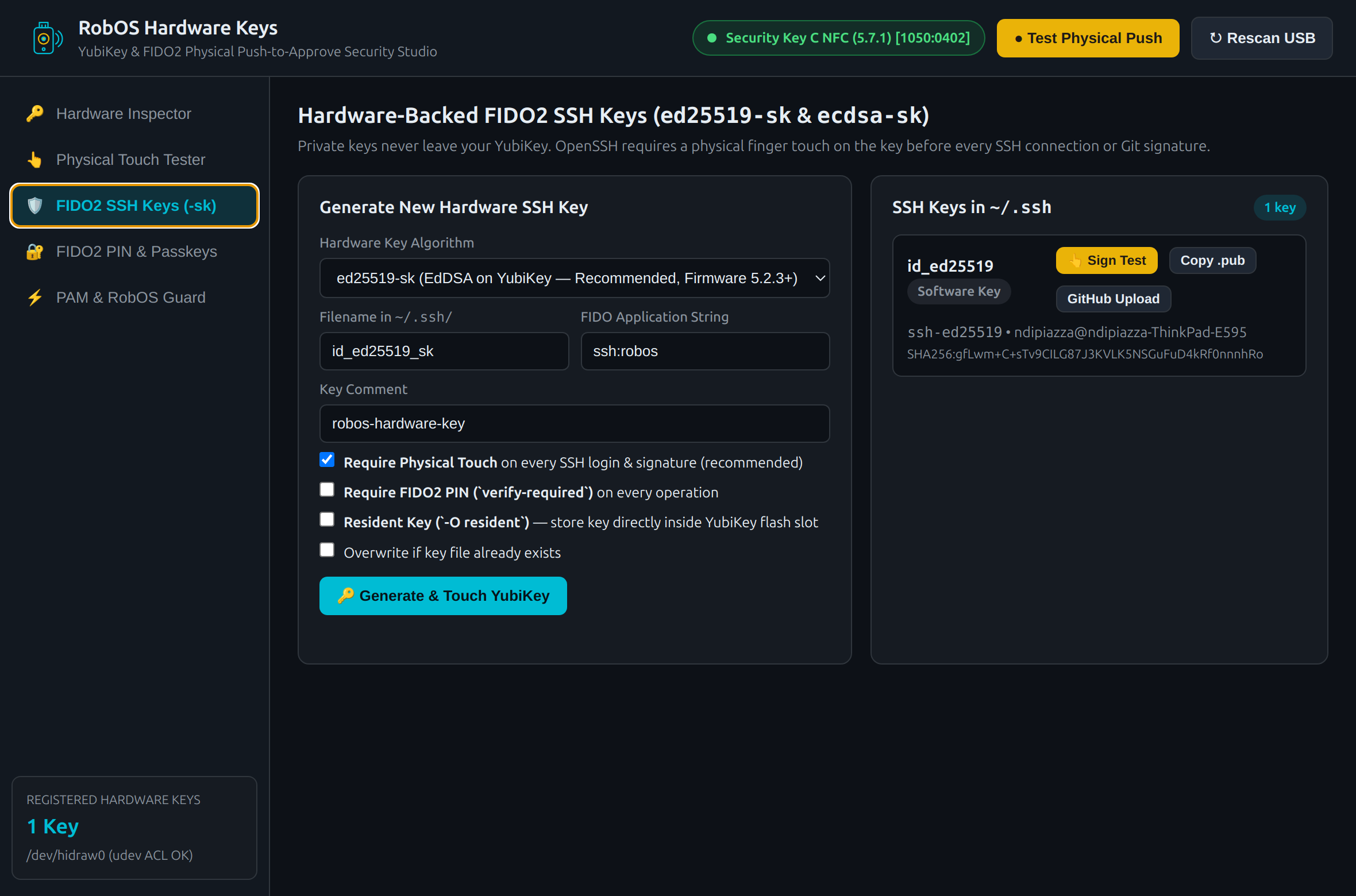
-sk) tab: generate ed25519-sk or ecdsa-sk keys, test hardware signatures with ssh-keygen -Y sign, and upload public keys to GitHub.- Require Physical Touch (Default): Every
sshlogin,scptransfer, orgit commit -Sblinks the YubiKey LED and waits for your finger touch. - Require FIDO2 PIN (
verify-required): Adds user verification (UV=1) so OpenSSH prompts for your FIDO2 PIN in addition to your physical touch. - Resident Key (
-O resident): Stores the credential inside one of the YubiKey's 100 discoverable slots so you can runssh-add -Korssh-keygen -Kon any new RobOS machine to pull the key stub straight from the key. - Live
SSHSIGVerification: Click 👆 Sign Test next to any key in the list to sign a test payload viassh-keygen -Y sign -n robos.authand inspect the resulting-----BEGIN SSH SIGNATURE-----block.
4. FIDO2 PIN & Resident Passkeys
The FIDO2 PIN & Passkeys tab wraps ykman fido for managing on-device credentials:
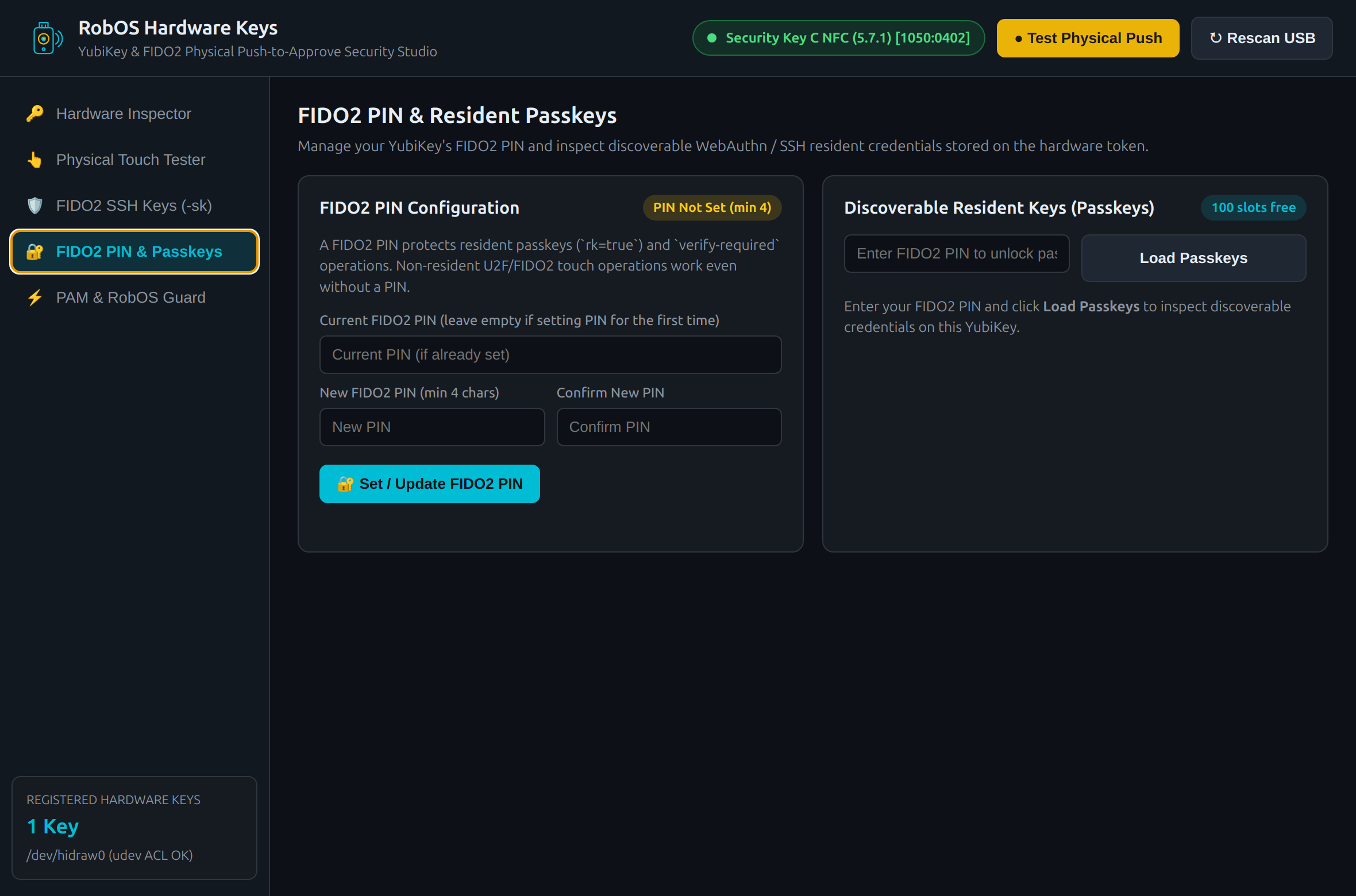
- Set or Change PIN: Configures an initial FIDO2 PIN (minimum 4 characters, up to 63 characters) or rotates an existing PIN via
ykman fido access change-pin. - Remaining Slot Counter: Displays exact remaining discoverable credential slots reported by CTAP2
remaining_disc_creds(100 slots on YubiKey Firmware 5.7+). - Inspect & Prune Passkeys: Enter your FIDO2 PIN and click Load Passkeys to list every discoverable credential by Relying Party ID, username, and credential ID, with a one-click Delete action to reclaim slots.
5. Linux PAM U2F & RobOS Push-to-Approve Guards
The PAM & RobOS Guard tab integrates your YubiKey with OS-level authentication and RobOS security policies:
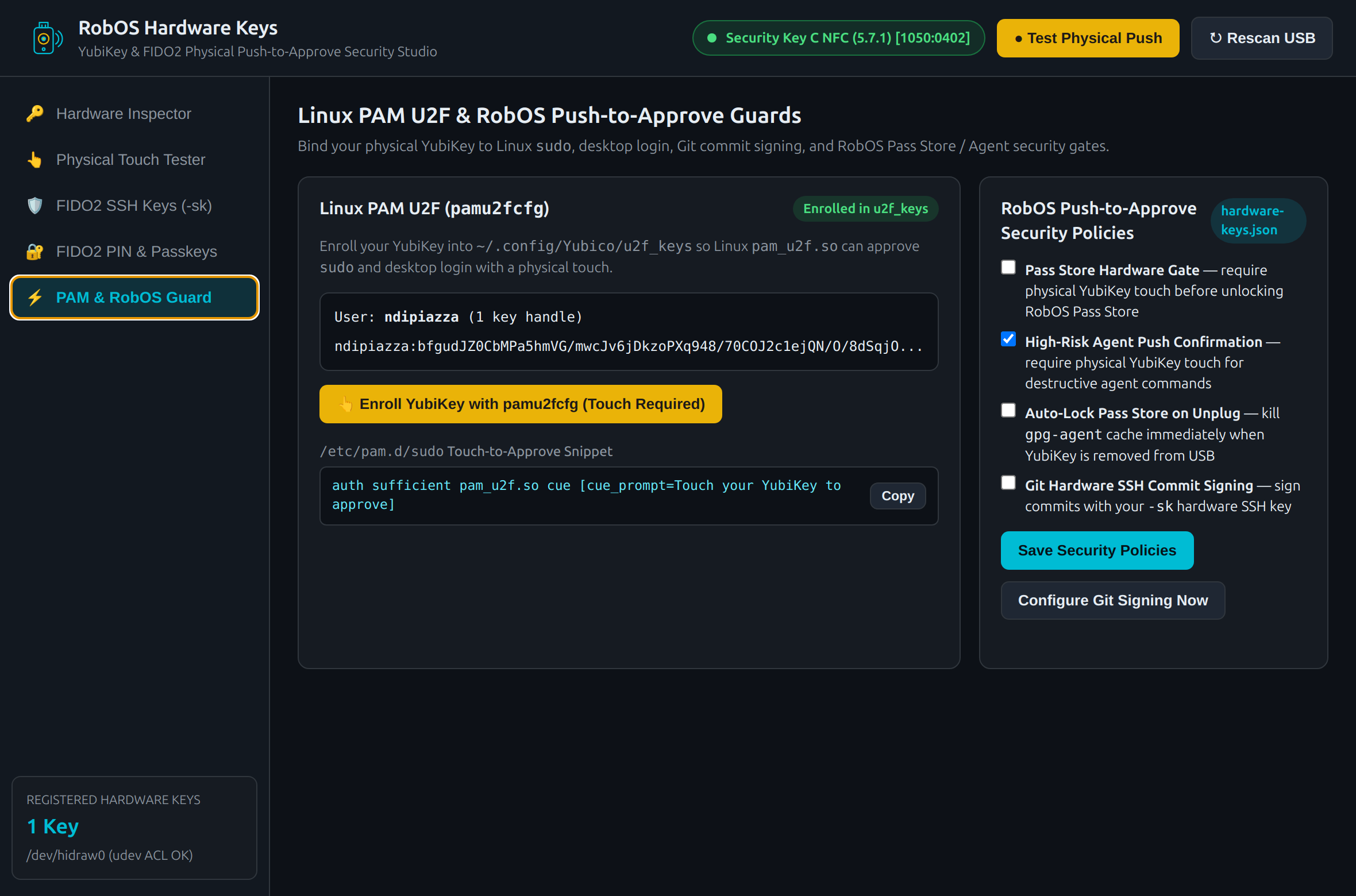
~/.config/Yubico/u2f_keys via pamu2fcfg, copy the pam_u2f.so rule, configure Git hardware commit signing, and toggle RobOS Pass Store & Agent guards.- Enroll Linux PAM U2F (
pamu2fcfg): Clicking 👆 Enroll YubiKey with pamu2fcfg prompts you to touch your YubiKey and writes the resulting U2F key handle to~/.config/Yubico/u2f_keys(mode0600). Add the provided snippet to/etc/pam.d/sudoor/etc/pam.d/gdm-password:auth sufficient pam_u2f.so cue [cue_prompt=Touch your YubiKey to approve] - Git Hardware SSH Commit Signing: Clicking Configure Git Signing Now sets:
Everygit config --global gpg.format ssh git config --global user.signingkey ~/.ssh/id_ed25519_sk.pub git config --global commit.gpgsign truegit committhen requires a physical touch on your YubiKey and produces a GitHub-verifiedSSHSIGcommit signature. - Auto-Lock Pass Store on Unplug: When Auto-Lock Pass Store on Unplug is enabled, the background USB hotplug watcher immediately runs
gpgconf --kill gpg-agentthe moment your YubiKey is unplugged from USB—clearing cached passphrases from memory.
CLI & Configuration Reference
| Path / Command | Purpose |
|---|---|
packages/hardware-keys/main.js | Electron main process, USB/HID hotplug watcher, and IPC handlers (debug port 19218) |
packages/hardware-keys/lib/hardware-keys-core.js | Core library for detectHardwareKeys(), runPhysicalTouchChallenge(), generateHardwareSshKey(), and PAM/Git setup |
~/.config/robos/hardware-keys.json | Persisted security policies, registered hardware key fingerprints, and recent touch verification audit log |
~/.config/Yubico/u2f_keys | Standard Yubico PAM U2F key handle mapping generated by pamu2fcfg |
node packages/robos-lib/snapshot-cli.js hardware-keys --text | Inspect the live DOM snapshot of RobOS Hardware Keys over port 19218 |
node --test packages/hardware-keys/test/hardware-keys.test.js | Run the automated unit and hardware detection test suite |